
StarTech SV231DVGAU2A Manual
PDF manual · 2 Pages
English



Quick check
Incorrect answer, please try again.
Chat with your StarTech SV231DVGAU2A manual using AI
Get instant AI answers from your StarTech SV231DVGAU2A manual
Ask anything about the StarTech SV231DVGAU2A. Answers come from this manual, with the pages they are based on.
Ask a Question
Do you recommend SV231DVGAU2A?
Yes NoFrequently Asked Questions
It lets you control two computers from one keyboard, mouse, and monitor setup. This is useful for simplifying a desk, saving space, and switching between systems without reconnecting cables each time.
Is this answer helpful?
Yes, it supports one or two VGA monitors depending on your setup. That makes it a good fit for users who want a single-screen workspace or a dual-display desktop layout.
Is this answer helpful?
Yes, optional audio connections are supported. You can connect speakers and a microphone if you want to share sound across the connected computers.
Is this answer helpful?
You can use the front button or hotkey commands on the keyboard. The hotkeys provide faster switching and can also be used for scan-related functions.
Is this answer helpful?
Auto Scan cycles through connected computers automatically, while Manual Scan lets you move between active systems with keyboard commands. They are useful for monitoring multiple PCs more efficiently.
Is this answer helpful?
It is primarily designed for VGA-based systems, so compatibility is strongest with VGA monitors, projectors, or TVs. You may need adapters if your equipment uses newer video connections.
Is this answer helpful?
StarTech provides lifetime technical support and a two-year warranty. That gives users help resources and limited coverage for defects in materials or workmanship.
Is this answer helpful?
Advantages and Disadvantages
Advantages

- Controls two computers with one keyboard, mouse, and display setup, reducing desk clutter and cable swaps.
- Supports dual VGA monitors plus optional audio and USB peripherals for a more complete workstation.
- Front-panel switching and hotkeys make changing systems quick and convenient.
- LED indicators and scan modes improve visibility and make multi-PC management easier.
Disadvantages

- Designed for VGA systems, so it is not ideal for newer display-only environments without adapters.
- Setup may feel technical for beginners who are unfamiliar with KVM cabling and hotkeys.
- Some functions depend on keyboard shortcuts, which may take time to learn.
- Best results require compatible hardware and enough ports on the connected PCs.
Product Specification
Type
KVM-Switch
Ports
2
Monitor
2x VGA
Keyboard/Mouse
2x USB
Audio
2x Jack
LAN
N/A
Resolution
1920x1200@60Hz
Features
2-Port USB 2.0 Hub
Product Description
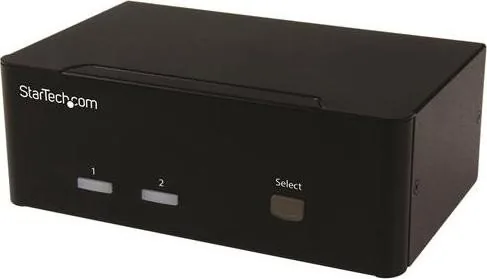
StarTech 2-Port Dual-VGA KVM Switch: Simple Control for Two PCs
If you manage more than one computer but want to keep your desk clean and efficient, the StarTech 2-Port Dual-VGA KVM Switch is a practical solution. It lets you control two VGA-enabled systems from a single keyboard, mouse, and monitor setup, helping reduce clutter while making everyday switching fast and intuitive. The design is especially useful for home offices, support desks, and small workstations that need reliable access to multiple machines without constantly unplugging cables.
A closer look at the experience
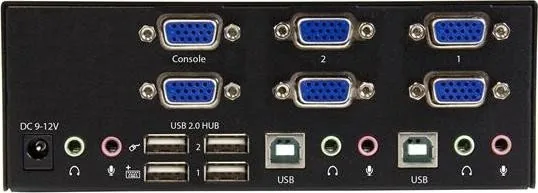
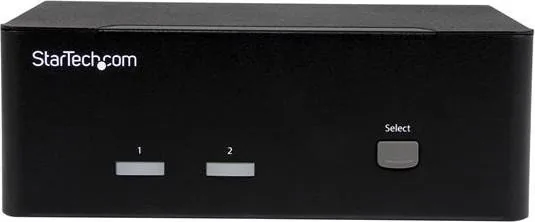
The StarTech 2-Port Dual-VGA KVM Switch Manual highlights a straightforward setup: connect your VGA displays, plug in your USB keyboard and mouse, and attach optional audio or USB peripherals if needed. Once installed, the front-panel button and hotkey commands make moving between systems easy. That means you can jump from one PC to another in seconds, whether you are comparing files, troubleshooting, or keeping separate workspaces active.
A major benefit is flexibility. The switch supports one or two VGA monitors and includes optional microphone and speaker connections, plus USB hub support for extra devices. This makes it more than a simple input selector; it becomes a compact command center for users who need visual, audio, and peripheral sharing across multiple computers.
Why it works well
The dual-monitor support is a standout feature for users who prefer larger desktop layouts or need side-by-side monitoring. LED indicators also help show which computer is connected, active, or powered off, giving you quick status feedback at a glance. For users who like automation, hotkeys and scan modes add another layer of convenience, especially when checking both systems regularly.
Scan functions are another thoughtful touch. Auto Scan can cycle through connected computers, while Manual Scan lets you step between them with keyboard commands. These options are useful for monitoring activity without needing to touch the switch constantly. It is a small detail, but it makes the workflow feel smoother and more organized.
Notes
- Best suited for VGA-based setups that need shared control across two computers.
- Optional audio and USB hub features make it more versatile than basic KVM switches.
- Helpful for office, lab, or support environments where fast switching matters.
- Backed by StarTech support and warranty coverage for added peace of mind.
Search for 67,706 Manuals online


Type-in Brand or Model