
StarTech SV231DPDDUA Manual
PDF manual · 15 Pages
English



Quick check
Incorrect answer, please try again.
Chat with your StarTech SV231DPDDUA manual using AI
Get instant AI answers from your StarTech SV231DPDDUA manual
Ask anything about the StarTech SV231DPDDUA. Answers come from this manual, with the pages they are based on.
Ask a Question
Do you recommend SV231DPDDUA?
Yes NoVideo Manual
How to Install - KVM Switches | StarTech.com
Frequently Asked Questions
The switch supports 2560x1600@60Hz with DisplayPort HD audio for standard dual-display operation. Higher resolutions up to 3840x2400 may be supported at reduced refresh rates, suitable for static, high-detail imaging.
Is this answer helpful?
No drivers are required. The keyboard and mouse use generic USB HID drivers built into modern operating systems, so the KVM works plug-and-play on systems that fully support USB.
Is this answer helpful?
Yes. The Audio Lock feature lets audio either follow the currently selected computer (ON) or remain locked to a chosen port (OFF), allowing you to listen to one computer while operating another.
Is this answer helpful?
You can switch using the front-panel selection button or hotkey sequences. The default hotkey begins with two quick left Ctrl presses, followed by a number or function key. Alternative leading keys (ScrollLock or Right Ctrl) can be configured.
Is this answer helpful?
No. The SV231DPDDUA is not cascable. It is designed as a two-port solution for dual-display setups and does not support chaining additional KVM units.
Is this answer helpful?
The console provides USB Type-A hub ports for sharing standard USB devices such as flash drives, printers, webcams, or input devices. Note that the hub is USB 2.0, so bandwidth is limited compared to USB 3.x devices.
Is this answer helpful?
StarTech offers a three-year limited warranty on the product, covering parts and labor for manufacturing defects during the warranty period, plus free lifetime technical support via their support channels.
Is this answer helpful?
Advantages and Disadvantages
Advantages

- Supports dual DisplayPort systems with up to 2560x1600@60Hz and DisplayPort HD audio.
- Integrated USB 2.0 hub and 3.5mm mic/speaker jacks for shared peripherals and audio.
- Flexible hotkey control with alternative leading-key options and configurable AutoScan intervals.
- Metal enclosure and universal power adapter with broad OS compatibility (no drivers needed).
- Backed by a three-year warranty and lifetime technical support from StarTech.
Disadvantages

- No on-screen display (OSD) or cascading capability for larger KVM chains.
- Maximum high resolutions (e.g., 3840x2400) supported only at reduced refresh rates.
- USB is 2.0 rather than faster 3.x, limiting bandwidth for high-speed peripherals.
- Requires separate DisplayPort cables or adapters for mixed-source video setups.
- Front-panel switching and hotkeys may require user training to avoid accidental commands.
Product Specification
Ports
2
Monitor
DisplayPort 1.1
Keyboard/Mouse
USB
Audio
Speaker, Microphone
LAN
N/A
Resolution
2560x1600
Features
2-port USB 2.0 Hub, Dual-Monitor
Product Description
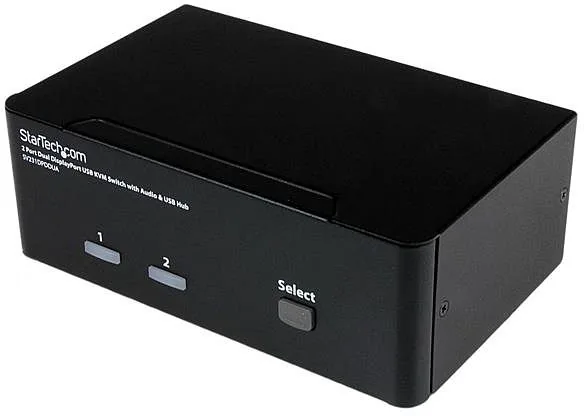
StarTech SV231DPDDUA Manual — 2-Port Dual DisplayPort USB KVM Switch
The StarTech SV231DPDDUA is a professional-grade 2-port dual DisplayPort KVM switch designed for users who need to control two multi-display systems with a single keyboard, mouse, and audio setup. Built for high-resolution multimedia environments, it supports dual-head DisplayPort systems or mixed video sources via inexpensive adapters, making it versatile for offices, control rooms, and specialized imaging workflows.
This compact metal-enclosed switch supports DisplayPort resolutions up to 2560x1600@60Hz with DisplayPort HD audio and 2-channel analog stereo. For static, high-detail imaging (such as medical scans), the switch can reach up to 3840x2400 at reduced refresh rates. The unit integrates a USB 2.0 hub for sharing peripherals and provides mic/speaker jacks for audio switching. No drivers are required: keyboard and mouse use standard USB HID drivers, simplifying cross-platform deployment.
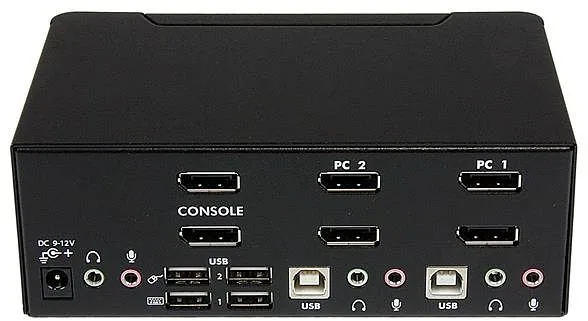
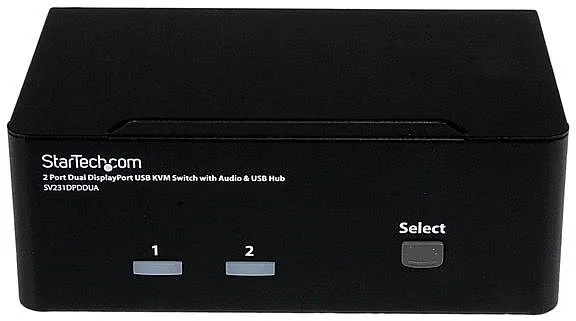
Installation is straightforward: connect monitors to the console output, link each computer to its corresponding DisplayPort and USB ports, optionally attach audio cables, and power the unit with the included universal adapter. The front panel offers immediate port switching with status LEDs, while configurable hotkeys and alternative leading-key options (ScrollLock or Right Ctrl) provide flexible, keyboard-driven control. AutoScan and Manual Scan modes let administrators cycle through active systems on configurable intervals (3, 8, 15, 30 seconds).
The SV231DPDDUA also features audio lock control to keep audio tied to a specific port or to follow the currently selected computer. The unit is not cascaded and does not provide an on-screen display, focusing instead on reliable hardware switching, DDC2B support, and straightforward operation. StarTech backs the product with a three-year warranty and lifetime technical support, and it ships with the switch, universal power adapter, and user documentation.
Notes:
- Ideal for dual-head setups and mixed-source environments using adapters.
- No software drivers required for keyboard/mouse functionality.
- Hotkey customization reduces accidental switching and adapts to varied keyboard layouts.
- Designed for stable, high-resolution imaging but higher resolutions may require reduced refresh.
Overall, the StarTech SV231DPDDUA is a sturdy, feature-focused KVM solution for professionals who require dual-display control, audio management, and shared USB peripherals without complex software overhead.
Search for 67,706 Manuals online


Type-in Brand or Model
eos37
8 months ago
Does this KVM switch reliably switch channels, and does it produce constant audio buzzing, especially with DisplayPort higher frame rates?
Manual.ly
8 months ago
Many switching issues come from unstable links or power initialization. Please fully power off the KVM and connected devices, reseat all USB and DisplayPort cables, and try a different (ideally shorter, high-quality) DP cable. After reconnecting, test switching again from a clean boot. If audio has a constant hum that gets worse with higher refresh rates, it can indicate a signal or grounding issue. Try a different audio connection path (or switch audio to a digital route if supported), use shielded cables, and avoid powering devices from different outlets that create ground loops. Also check for any available firmware updates. If the hum and failed switching persist after these steps, please contact support for a warranty replacement or further diagnostics.