
StarTech SV231 Manual
PDF manual · 12 Pages
English



Quick check
Incorrect answer, please try again.
Chat with your StarTech SV231 manual using AI
Get instant AI answers from your StarTech SV231 manual
Ask anything about the StarTech SV231. Answers come from this manual, with the pages they are based on.
Ask a Question
Do you recommend SV231?
Yes NoFrequently Asked Questions
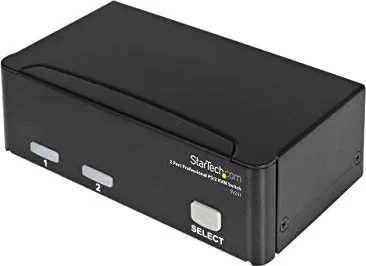
The SV231 is a 2-port KVM switch that lets you control two IBM-compatible computers using one PS/2 keyboard, one PS/2 mouse and one VGA monitor, with switching via front button or hot-key commands.
Is this answer helpful?
Yes. The unit supports serial mice using the supplied serial-to-PS/2 adapter. The adapter must be used on the PC side only and the supplied adapter is required for compatibility.
Is this answer helpful?
No. The SV231 is a true plug-and-play device that is operating-system independent and requires no drivers or interface cards to operate.
Is this answer helpful?
You can switch using the front-panel push button, or by hot-key sequences starting with two left Ctrl presses followed by a command (e.g., Ctrl + Ctrl + 1 or Ctrl + Ctrl + 2). Auto-scan and manual-scan modes are also available.
Is this answer helpful?
The SV231 supports VGA resolutions up to 1600x1200 and is DDC2B compatible, making it suitable for higher-resolution monitors.
Is this answer helpful?
Ensure cables are correctly seated and that the initial power-up sequence was followed. Press and hold the front push button for 3 seconds to reinitialize keyboard/mouse, wait, then reconnect if needed.
Is this answer helpful?
Usually no. The SV231 draws negligible power from connected computers, but if machines don’t supply enough power you can connect an optional 9V DC, 500mA power adapter to the spare power jack.
Is this answer helpful?
Advantages and Disadvantages
Advantages

- Supports two computers with a single keyboard, mouse and VGA monitor for space-saving control.
- Automatic mouse conversion handles PS/2 and serial mice using the included adapter.
- High VGA resolution support up to 1600x1200 and DDC2B compatibility for modern displays.
- Hot-key control, front-panel button and auto-scan/manual-scan modes for flexible switching.
- Plug-and-play, OS independent with hot-pluggable keyboard and mouse and no drivers required.
Disadvantages

- Requires PS/2 connectors; newer USB-only systems need adapters not included.
- Serial mouse adapter only works on PC side and must be the supplied adapter to function.
- May need optional 9V DC power adapter if connected computers do not supply sufficient power.
- Cascade limitations: master/slave port counts must be compatible when expanding systems.
- Limited to 2 direct ports (expandable via cascading) which may be insufficient for larger setups.
Product Specification
Ports
2
Monitor
VGA
Keyboard/Mouse
PS/2
Audio
N/A
LAN
N/A
Resolution
1920x1440
Product Description
StarTech SV231 Manual — Compact 2-Port PS/2 KVM Switch
The StarTech SV231 is a compact, plug-and-play KVM switch that lets you control two IBM-compatible computers with a single keyboard, mouse and VGA monitor. Designed for simplicity and reliability, the SV231 supports PS/2 keyboards and mice and can also accommodate serial mice via the included adapters. It automatically detects mouse types and converts protocols, so switching between systems remains seamless and hassle-free.
Built for desktop environments where space and efficiency matter, the SV231 places all connections at the rear and requires no dedicated power adapter under normal operation — it draws negligible power from connected machines. You can switch systems using the front-panel push button or via keyboard hot-keys (double left Ctrl followed by selection commands). The unit also supports auto-scan and manual-scan modes, letting you cycle through active computers on a configurable interval.
Performance-minded users will appreciate the SV231’s support for high VGA resolutions (up to 1600x1200) and DDC2B compatibility, making it suitable for higher-resolution displays. It preserves keyboard states when switching, supports Microsoft IntelliMouse and IntelliTrackball devices, and allows hot-plugging of keyboard and mouse peripherals. For expanded setups, the SV231 supports cascading with compatible StarTech models to grow beyond two systems.
Installation is straightforward: connect PS/2 keyboard and mouse to the console ports, attach the monitor to the VGA port, and link each computer’s keyboard, mouse and VGA ports to the corresponding PC ports on the SV231. For serial-mouse systems, use only the supplied serial mouse adapter on the PC side. The unit includes audible feedback for hot-key confirmation and simple front-panel status LEDs for selected ports and scan activity.
Troubleshooting is primarily cable- and power-sequence oriented: ensure proper cable seating, correct boot order during initial power-up, and use the re-initialization procedure if peripherals fail to respond. If connected machines supply insufficient power, an optional 9V DC adapter (500mA) can be used. StarTech provides lifetime technical support resources and a 3-year warranty covering defects in materials and workmanship.
Notes:
- Supports PS/2 and serial mice (with supplied adapter); adapter works on PC side only.
- Hot-key sequences start with two left Ctrl presses; built-in buzzer signals success or error.
- Auto-scan intervals: 3, 8, 15, 30 seconds. Typematic rate and scan rate are adjustable.
Search for 67,706 Manuals online


Type-in Brand or Model