
StarTech SV211USB Manual
PDF manual · 10 Pages
English



Quick check
Incorrect answer, please try again.
Chat with your StarTech SV211USB manual using AI
Get instant AI answers from your StarTech SV211USB manual
Ask anything about the StarTech SV211USB. Answers come from this manual, with the pages they are based on.
Ask a Question
Do you recommend SV211USB?
Yes NoVideo Manual
How to Install - KVM Switches | StarTech.com
Frequently Asked Questions
You need a VGA video output and a USB port on each computer, plus a VGA monitor and USB keyboard/mouse at the console. Connect each computer using the attached KVM cables and plug the console peripherals into the switch.
Is this answer helpful?
Switching can be done three ways: press the wired QuickSwitch remote button, use keyboard hotkeys (e.g., Scroll Lock, Scroll Lock on Windows or configurable prefix on Mac), or use the StarTech KVM Switching software available for Windows and macOS.
Is this answer helpful?
Yes, the switch supports VGA resolutions up to 2048x1536. Ensure your monitor, VGA cable, and source video output support that resolution for optimal results.
Is this answer helpful?
No. This model handles video and USB peripheral switching only and does not provide audio pass-through or on-screen display features.
Is this answer helpful?
Yes. The switching software offers an Autoscan mode with a programmable delay range of 10 to 60 seconds. You can start or stop autoscan from the software menu and choose the scan period that suits your workflow.
Is this answer helpful?
No. The hardware supports pushbutton and hotkey switching without software. Installing the KVM Switching software adds convenience features like menu-based port selection, autoscan controls, beeper toggle, and hotkey configuration for Windows and macOS.
Is this answer helpful?
StarTech provides a two-year limited warranty on this product and lifetime technical support via their support website, including downloads and documentation for drivers and switching software.
Is this answer helpful?
Advantages and Disadvantages
Advantages

- Simple three-mode switching: pushbutton, keyboard hotkeys, or software.
- Supports high VGA resolution up to 2048x1536 for crisp analog video.
- USB-powered with attached cables for immediate plug-and-play setup.
- Lightweight, compact plastic enclosure suitable for limited spaces.
- Includes configurable autoscan and software controls for macOS/Windows.
Disadvantages

- No audio or on-screen display (OSD) support for multimedia setups.
- VGA-only video limits use with modern digital-only displays without adapters.
- Attached cable lengths (0.85 m) may be short for some rack or desk layouts.
- Not rack-mountable or cascadable for larger multi-system deployments.
- Hotkey sequences require precise timing (within two seconds) to work.
Product Specification
Ports
2
Monitor
VGA
Keyboard/Mouse
USB
Audio
N/A
LAN
N/A
Resolution
2048x1536
Product Description
StarTech KVM Switch — Quick, Reliable Dual-System Control
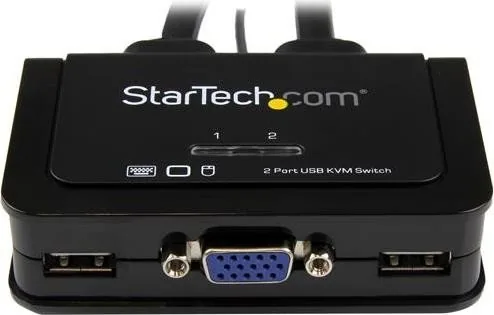
The StarTech KVM Switch offers a compact, user-friendly solution for managing two computers from a single VGA monitor, keyboard and mouse. Designed for small offices, home labs, and mixed-platform setups, this unit supports USB peripherals and VGA video up to 2048x1536 resolution, making it suitable for most legacy and current displays that still rely on analog connections. Its plastic enclosure and lightweight design make it easy to position on a desk or tuck behind equipment without adding bulk.
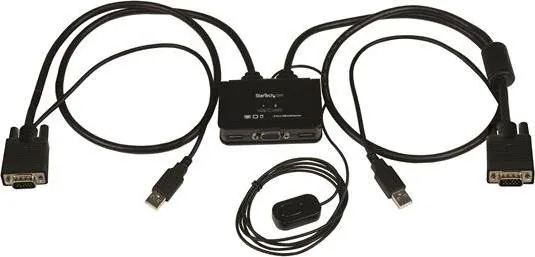
Installation is straightforward: connect the VGA and USB cables to each computer, attach your console devices to the switch, and optionally install the included KVM switching software for Windows or macOS to enable tray/app-based controls. For environments where software installation is not desired or possible, switching is still seamless via the wired QuickSwitch remote button or keyboard hotkeys. Hotkeys use a quick two-keystroke sequence (for example, Scroll Lock, Scroll Lock on Windows) or a configurable prefix for Mac, and must be entered within two seconds for reliable operation.
The companion switching software provides a convenient menu for selecting ports, starting and stopping autoscan, enabling a beeper, and configuring hotkey behavior. Autoscan cycles through connected systems with a programmable delay (10–60 seconds), enabling brief, automated monitoring of each machine. LED indicators clearly show the active PC port for simple visual confirmation.
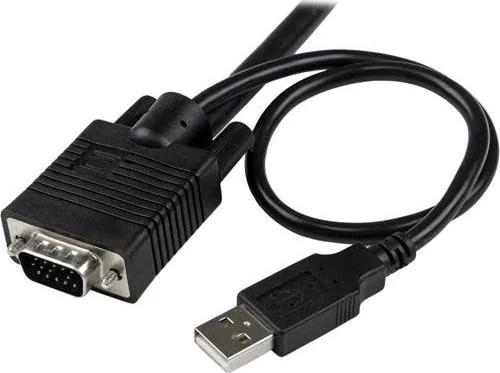
This model is USB-powered and does not provide audio or on-screen display features. It’s a basic, purpose-driven KVM that focuses on core switching functionality: pushbutton, hotkey, or software control. With attached cables (0.85 m for KVM cabling and 1.4 m for the remote switch), the product is ready to use out of the box, and StarTech’s lifetime technical support plus a two-year warranty provide peace of mind.
Notes:
- Maximum supported resolution is 2048x1536; ensure connected displays and cables support that resolution.
- No audio or OSD support—this is a video/USB-only switch.
- Hotkey sequences must be entered quickly (within two seconds) to register correctly.
Search for 67,706 Manuals online


Type-in Brand or Model