
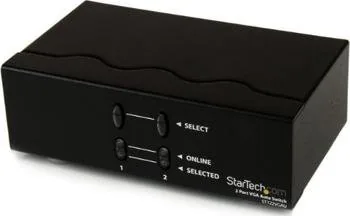
StarTech ST122VGAU Manual
PDF manual · 9 Pages
English



Quick check
Incorrect answer, please try again.
Chat with your StarTech ST122VGAU manual using AI
Get instant AI answers from your StarTech ST122VGAU manual
Ask anything about the StarTech ST122VGAU. Answers come from this manual, with the pages they are based on.
Ask a Question
Do you recommend ST122VGAU?
Yes NoFrequently Asked Questions
The switch automatically prioritizes the signal coming from the primary input port. If the main computer turns off or disconnects, the technology seamlessly defaults to the secondary video input. Once a signal is restored to the primary input, the Video Switch will automatically switch back to the primary input.
Is this answer helpful?
The device supports maximum video resolutions of 1920x1440 pixels. It is designed for VGA RGB video signals with a bandwidth of 250MHz to ensure high clarity for everyday tasks on standard monitors.
Is this answer helpful?
No driver or software installation is required on any computer system connecting to this video switch. You can simply connect the VGA cables and power adapter to begin using the device immediately.
Is this answer helpful?
Yes, the selected input on the Video Switch can be manually chosen via the front panel buttons. Pressing the Select button for the desired input will immediately select it, though priority resets when primary signal status changes.
Is this answer helpful?
This product is backed by a two-year warranty. StarTech.com warrants its products against defects in materials and workmanship for this period following the initial date of purchase.
Is this answer helpful?
The video switch operates as long as the monitor supports VGA enabled signals. You will need a VGA enabled monitor or display and VGA enabled video sources for the connection to function correctly.
Is this answer helpful?
Yes, this equipment has been tested and found to comply with the limits for a Class B digital device. It is designed to provide reasonable protection against harmful interference in a residential installation.
Is this answer helpful?
Advantages and Disadvantages
Advantages

- Automatic switching prioritizes primary input and fails over to secondary if signal is lost.
- No driver or software installation required on host computers simplifies the setup process greatly.
- Metal enclosure provides durability and protects internal components from physical damage during transport.
- Supports video resolutions up to 1920x1440 ensuring clear display output for standard monitors.
- Includes lifetime technical support from the manufacturer to assist with connectivity troubleshooting.
Disadvantages

- Requires external power adapter connection instead of relying on passive signal sharing methods.
- Manual input selection overrides auto-switch settings until a signal change occurs on primary port.
- Limited to VGA connectors only without support for modern HDMI or DisplayPort interfaces natively.
- Warranty covers parts and labor but excludes damages from misuse or normal wear over time.
Product Specification
Video Inputs
1x VGA Input
Video Outputs
2x VGA Output
Power Consumption
2.7 W typical
Dimensions
5.12x2.20x7.68 inches (WxHxD)
Weight
2.05 lbs
Product Description
Optimizing Your Workspace with the StarTech ST122VGAU
Managing multiple computer systems in a shared environment requires smart connectivity solutions. The StarTech ST122VGAU is designed to streamline your setup by allowing two computers to share a single display effortlessly. This device acts as a bridge between your digital workstations and your monitor, ensuring that video signals are routed intelligently without constant manual intervention. It is an essential tool for anyone looking to maximize hardware utility while maintaining a clean desk organization. It serves as a reliable gateway for your digital signal routing.
When connected to a VGA enabled monitor and two source computers, the switch automatically prioritizes the signal coming from the primary input port. If the main computer turns off or disconnects, the technology seamlessly defaults to the secondary video input. This automatic switching capability saves time and eliminates the frustration of hunting for a physical switch mechanism every time source availability changes. You simply connect the sources, plug in the power, and let the device handle the logic.
Supporting video resolutions up to 1920 by 1440 pixels, this unit maintains high clarity for everyday tasks. The metal enclosure ensures durability in various environments, protecting internal components from physical stress. It requires an external power source for operation but does not need specific software drivers installed on the host computers, simplifying the deployment process significantly. The compact dimensions allow it to fit behind most setups without cluttering the desk space significantly. It is built for stability and long term reliability in busy work areas.
Users can manually override automatic selection by pressing the front panel buttons if they wish to force a specific input. However, the system resets its preference if the primary signal comes back online to restore priority. Installation is straightforward, involving standard VGA cables and a power adapter connection.
StarTech.com provides lifetime technical support, ensuring help is available whenever connectivity challenges arise. A two-year warranty protects against defects in materials and workmanship, reflecting confidence in the build quality. The FCC compliance statement confirms the equipment meets federal interference limits, making it safe for residential and small business installations. This commitment to support ensures longevity for your equipment investment.
Whether organizing a shared office or building a personal dual-system station, this switcher offers a reliable connection strategy. Its compact dimensions allow it to fit behind most setups without cluttering the desk space. The combination of automatic logic, robust support, and solid specifications makes it a valuable addition to any VGA dependent workspace looking to reduce cable clutter and improve workflow efficiency.
Notes: Keep cables organized to prevent accidental disconnection. Ensure power adapter is placed near an outlet for easy access during testing phases.
Search for 67,706 Manuals online


Type-in Brand or Model