
StarTech SDOCK2U33RE Manual
PDF manual · 14 Pages
English



Quick check
Incorrect answer, please try again.
Chat with your StarTech SDOCK2U33RE manual using AI
Get instant AI answers from your StarTech SDOCK2U33RE manual
Ask anything about the StarTech SDOCK2U33RE. Answers come from this manual, with the pages they are based on.
Ask a Question
Do you recommend SDOCK2U33RE?
Yes No
Luca Gruber
7 months ago
Can I use this docking station to clone 2 drives easily, and what transfer speeds should I realistically expect via eSATA (vs USB)?

Manual.ly
7 months ago
Yes. The dock is designed so you can connect SATA drives externally and use standard cloning software to clone one drive to another. For performance, the actual transfer speed depends on your drives and interfaces. eSATA usually matches SATA speed limits (commonly around 100-150 MB/s for many SATA III HDD/SSD setups, but it can be lower if the drive runs at a reduced link speed or if the connected system eSATA controller/port is not SATA III). USB speeds also vary based on USB version (USB 3.x vs older), power mode, and the drives you use. If you see lower-than-expected results, check that the eSATA port is truly SATA III, verify link speed in your system, and test with another drive to rule out drive-specific bottlenecks.
Frequently Asked Questions
It supports up to two SATA drives, including 2.5-inch and 3.5-inch hard drives and solid-state drives. This makes it suitable for storage expansion, backups, and drive cloning workflows.
Is this answer helpful?
Yes. In duplication mode, the dock can copy data directly from one drive to another without involving the host system. This is useful for fast migrations and standalone backup tasks.
Is this answer helpful?
For duplication, the drive with the data to be copied should be placed in bay 2. The target drive should be placed in bay 1 so the dock can copy from source to destination correctly.
Is this answer helpful?
The dock is designed around USB 3.0, but it can also operate with USB 2.0 ports. Performance will be faster over USB 3.0, while USB 2.0 will work at a lower transfer speed.
Is this answer helpful?
Yes. A new drive often needs to be initialized and formatted in the operating system before it appears as usable storage. Windows Disk Management is typically used for this setup step.
Is this answer helpful?
Always eject the drive from the operating system first and wait for the safe-to-remove message. After that, power off the dock if needed, then press the eject button and remove the drive carefully.
Is this answer helpful?
It supports a broad range of systems, including multiple Windows versions, Mac OS 9/10, Linux, and Chrome OS. That makes it a practical option for mixed-environment storage work.
Is this answer helpful?
Advantages and Disadvantages
Advantages

- Supports two SATA drives for both docking and direct duplication.
- Works with 2.5-inch and 3.5-inch HDDs and SSDs.
- USB 3.0 and eSATA connections provide flexible compatibility.
- LED indicators and mode buttons make operation easy to follow.
Disadvantages

- Drives must be initialized and formatted before they can be used.
- Careful handling is required to avoid data loss or drive damage.
- Copy mode requires correct source and destination bay placement.
- Older operating system support may limit partition format choices.
Product Specification
Form factor
2.5"/3.5"
Bays
2
External interface
USB-B 3.0
Internal interface
SATA 6Gb/s
Product Description
StarTech HDD Docking Station SATA, USB-B 3.0 Manual
A versatile dock for storage access and quick cloning
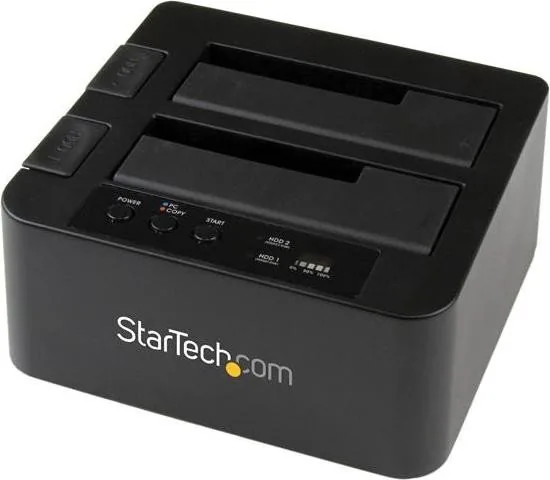
The StarTech HDD Docking Station SATA, USB-B 3.0 Manual points to a practical dual-bay solution built for people who want fast access to SATA drives without opening a computer case. It supports both 2.5-inch and 3.5-inch HDDs or SSDs, making it useful for everyday file transfers, drive testing, backups, and migration tasks. With USB 3.0 and eSATA connectivity, it offers flexible options for modern and legacy systems alike.
Easy switching between PC mode and duplication mode
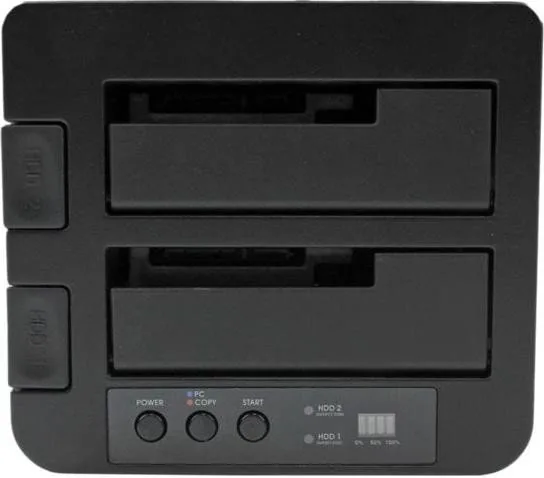
One of the strongest features of this dock is its dual-purpose design. In PC mode, the installed drives appear like external storage and can be used immediately by the operating system. In Copy mode, the dock becomes a standalone duplicator, letting users clone data from a source drive to a destination drive without needing a computer. Clear buttons, power controls, and LED indicators help keep the process straightforward.
The layout is simple but effective. The source drive goes into the second bay, while the destination drive belongs in the first bay. A progress bar shows how duplication is advancing, and activity lights make it easy to see when drives are working. This makes the unit appealing for IT users, technicians, and home users who regularly manage multiple drives.
Built for convenience, safety, and broad compatibility
The dock also focuses on safe operation. Drives should be inserted and removed carefully, and the operating system should always be used to eject a drive before physical removal. New drives may need to be initialized and formatted before they are recognized, especially in Windows environments. The manual also notes support for multiple operating systems, including Windows, Mac OS, Linux, and Chrome OS.
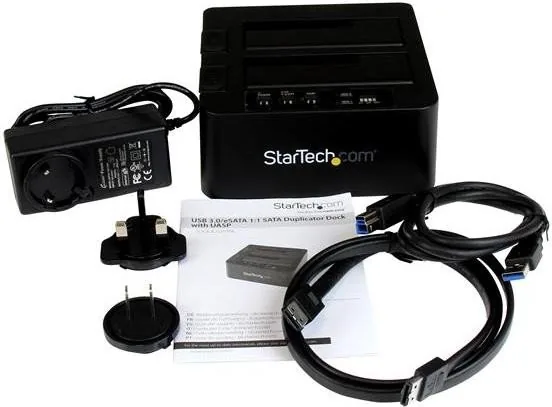
For performance, the dock supports transfer rates up to 5 Gbit/s over USB 3.0 and 6 Gbit/s over eSATA, helping users move large files efficiently. Combined with the included cables, power adapter, and broad drive support, it is a solid tool for storage workflows that need both speed and simplicity.
Notes
- Place the data source in bay 2 and the target drive in bay 1 for duplication.
- Wait for the drive LEDs to show ready status before starting a clone.
- Initialize and format new drives before use.
- Always eject drives safely before disconnecting or removing them.
Search for 67,706 Manuals online


Type-in Brand or Model
Lars Schmidt
10 months ago
Does the docking station perform well for cloning, and what transfer speed should I expect via eSATA? One review mentions only about 115 MB/s - is that typical?
Manual.ly
10 months ago
Yes, it is well suited for cloning, including cases where you want to connect one drive conveniently via USB to your PC without opening the computer. For eSATA transfer speed, results vary a lot by drive model, SATA generation, the PC eSATA controller, cable quality, and whether the workload is sequential or small-file operations. Reported numbers like ~115 MB/s are usually achievable in specific configurations and may be lower than peak theoretical speeds. For a realistic comparison, test with the same drive in a direct SATA connection and run a sequential read/write benchmark. If speeds are consistently far below expectations, check the eSATA port settings and ensure the connection is negotiated at the highest supported link speed.