
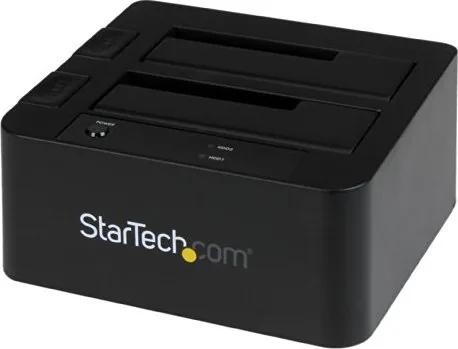
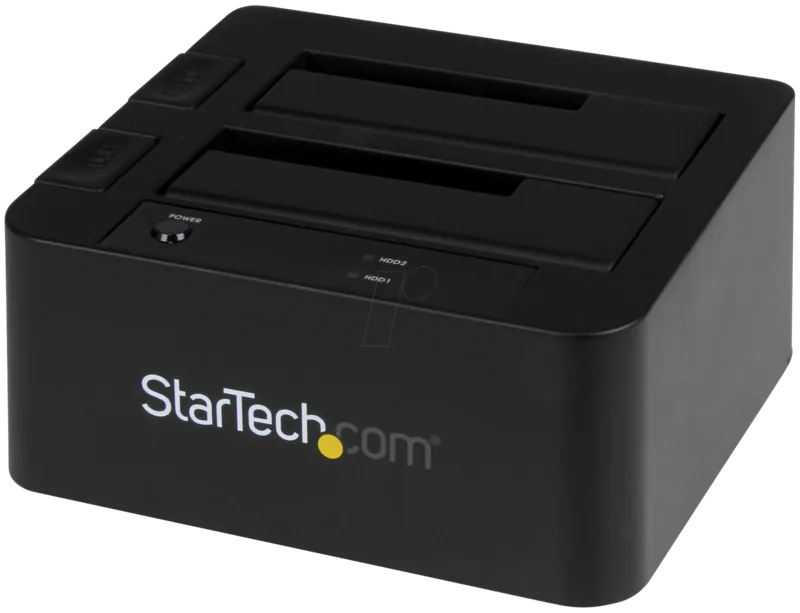
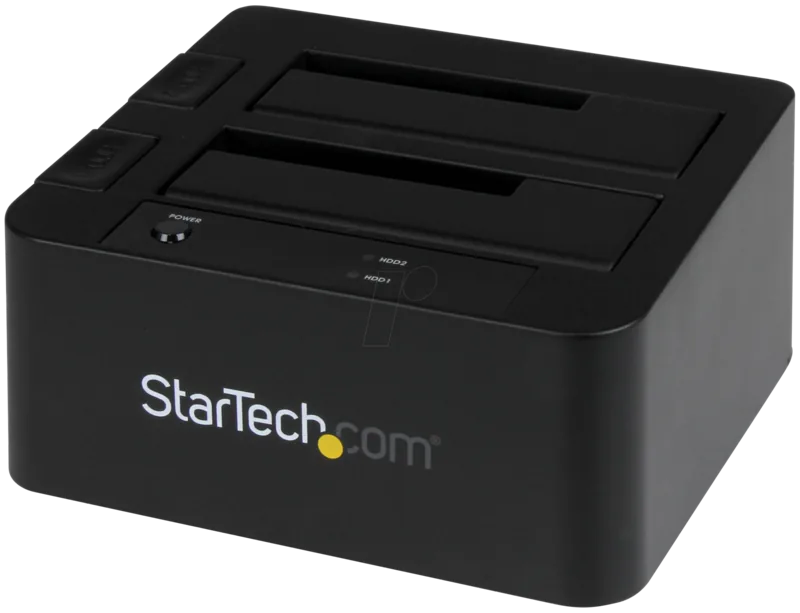
StarTech SDOCK2U33EB Manual
PDF manual · 12 Pages
English



Quick check
Incorrect answer, please try again.
Chat with your StarTech SDOCK2U33EB manual using AI
Get instant AI answers from your StarTech SDOCK2U33EB manual
Ask anything about the StarTech SDOCK2U33EB. Answers come from this manual, with the pages they are based on.
Ask a Question
Do you recommend SDOCK2U33EB?
Yes NoFrequently Asked Questions
The dock supports USB 3.0 (USB-B) and eSATA host interfaces, offering up to 5 Gbit/s via USB 3.0 and up to 6 Gbit/s via eSATA for fast data transfers.
Is this answer helpful?
It supports both 2.5" and 3.5" SATA HDDs and SSDs. 3.5" drives require the included external power adapter, while 2.5" drives are powered directly by the dock.
Is this answer helpful?
Most modern operating systems recognize the dock automatically without drivers. If a drive is not visible, you may need to initialize and format it via Disk Management (Windows) or Disk Utility (macOS).
Is this answer helpful?
You should use the OS safe-eject/unmount process before removing drives. Removing a drive while active or while the LED is blinking can cause data loss and may momentarily disconnect the other drive.
Is this answer helpful?
No. The SDOCK2U33EB is a straightforward dual-dock for accessing drives. Hardware RAID or cloning is not included; use host-based software or a dedicated cloning device for those functions.
Is this answer helpful?
Verify power and cable connections, ensure the drive is properly seated, and open your OS disk management tool to initialize (MBR or GPT) and format the drive. Try the alternate host interface (USB/eSATA) or a different cable if issues persist.
Is this answer helpful?
Advantages and Disadvantages
Advantages

- Dual-bay design enables simultaneous access to two 2.5" or 3.5" SATA drives.
- USB 3.0 and eSATA connectivity delivers high-speed transfer options.
- Wide OS compatibility: Windows, macOS, Linux, and Chrome OS supported.
- Includes power adapter, USB 3.0 and eSATA cables for immediate use.
- Per-drive LEDs and eject buttons simplify monitoring and removal.
Disadvantages

- Single power button controls both bays—no independent slot power control.
- No built-in hardware RAID or cloning capabilities; software required for those tasks.
- Hot removal risks data loss and can momentarily disconnect the other drive.
- New drives require manual initialization/formatting by the operating system.
- External power and additional cables needed for 3.5" drives.
Product Specification
Form factor
2.5"/3.5"
Bays
2
External interface
USB-B 3.0, eSATA 6Gb/s
Internal interface
SATA 6Gb/s
Special features
UASP
Product Description
StarTech SDOCK2U33EB: USB-B 3.0/eSATA Dual SATA Dock
The StarTech SDOCK2U33EB is a versatile dual-bay docking station designed for 2.5" and 3.5" SATA HDDs and SSDs. Equipped with both USB 3.0 (USB-B) and eSATA host interfaces, it supports high-speed transfers up to 5 Gbit/s over USB 3.0 and up to 6 Gbit/s via eSATA. The plug-and-play design makes it easy to connect drives for quick access, cloning, data migration, backups, and diagnostics without opening a desktop chassis.
This compact dock includes two independent drive slots with individual activity LEDs and eject buttons. A single power button controls both bays and the unit comes with a universal power adapter, USB 3.0 cable, and eSATA cable. It supports broad OS compatibility, including Windows (multiple legacy and modern versions), macOS, Chrome OS and Linux, making it suitable for home users, IT technicians, and data recovery professionals.
Installation is straightforward: connect power, attach the host cable (USB or eSATA), insert SATA drives ensuring proper alignment with the internal connectors, then power on. Drives will typically be recognized automatically by the OS; if not, the dock supports standard drive initialization and formatting workflows (MBR or GPT) through the host operating system. LEDs indicate power and activity—avoid removing drives while LEDs are blinking to prevent data loss.
Drive removal is handled via dedicated eject buttons; always use the operating system's safe-eject process (or unmount/drag-to-trash on macOS) before physically removing media. The dock includes safety guidance about grounding and static precautions when handling drives. The product ships with a two-year warranty and lifetime technical support resources available from StarTech.
Notes:
- Supports both 2.5" and 3.5" SATA drives and SSDs.
- Use GPT for drives larger than 2 TB; MBR remains for broader legacy compatibility.
- Avoid hot-removal while drives are active; follow OS-safe removal procedures.
Pros and Cons Summary
Pros:
- Dual-bay design for simultaneous access to two SATA drives.
- USB 3.0 and eSATA interfaces for flexible, high-speed connectivity.
- Broad OS compatibility (Windows, macOS, Linux, Chrome OS).
- Simple plug-and-play setup with included cables and power adapter.
- Individual LEDs and eject buttons for each drive slot.
Cons:
- Single power button controls both bays (no independent power per slot).
- No built-in hardware RAID or cloning feature; basic docking only.
- Hot-swapping while powered can momentarily disconnect the other drive.
- Requires manual initialization/formatting for new drives.
- Larger 3.5" drives require external power—means more cables and adapter.
Key Results
Most important results (Pros):
- Dual-bay docking enables simultaneous access to two SATA HDDs/SSDs for cloning, backup, or transfer.
- USB 3.0 and eSATA deliver up to 5 Gbit/s and 6 Gbit/s respectively for fast data transfers.
- Broad OS support ensures compatibility across Windows, macOS, Linux, and Chrome OS.
Most important results (Cons):
- Both drive bays are controlled by a single power switch; no per-slot power isolation.
- Lacks integrated hardware RAID or dedicated cloning functions—software-based operations required.
- Removing one drive while powered may momentarily disconnect the other, risking data integrity.
FAQ
{ "question": "What interfaces does the SDOCK2U33EB support?", "answer": "The dock supports USB 3.0 (USB-B) and eSATA host interfaces, providing up to 5 Gbit/s over USB 3.0 and up to 6 Gbit/s over eSATA for high-speed data transfers." }, { "question": "Which drive sizes and types are supported?", "answer": "It accepts both 2.5-inch and 3.5-inch SATA HDDs and SSDs. 3.5-inch drives require the dock's external power adapter; 2.5-inch SSDs/HDDs draw power from the dock without extra adapters." }, { "question": "Do I need drivers to use the dock?", "answer": "Most modern operating systems recognize the dock automatically (plug-and-play). If a drive isn't visible, it likely needs initialization or formatting via Disk Management on Windows or Disk Utility on macOS. Drivers are generally not required." }, { "question": "Can I hot-swap drives safely while the dock is powered?", "answer": "While the hardware supports physical insertion/removal, always use the OS 'safely remove' or unmount procedures before ejecting. Removing a drive while the LED is active or without safe eject may cause data loss and can momentarily disconnect the other docked drive." }, { "question": "Is hardware RAID or cloning supported?", "answer": "No. The SDOCK2U33EB is a basic dual-dock for direct drive access. RAID or dedicated hardware cloning features are not built in; cloning or RAID must be performed via host software or separate hardware solutions." }, { "question": "What should I do if a drive is not recognized?", "answer": "Check connections and power, ensure the drive is properly seated, and open your OS disk management utility to initialize and format the drive (choose MBR or GPT appropriate to drive size and OS). Update host cables or try eSATA/USB alternative if needed." }
Search for 67,706 Manuals online


Type-in Brand or Model
Lukas Weber
7 months ago
Does this device work on Linux? I am seeing frequent connection drops on eSATA and USB 3, sometimes with data loss, while other devices work fine.
Manual.ly
7 months ago
Thanks for the details. Support recommends first confirming Linux compatibility and checking the correct kernel/module support for the interface you use (USB 3 vs eSATA). For connection drops, please try a different USB 3 port and cable, avoid hubs, and ensure the power supply is stable. For eSATA, confirm the cable is firmly seated and use a known-good SATA/eSATA connection. Update the device firmware and, on Linux, use the latest available system updates. If the issue continues, the safest next step is to share your Linux distribution and version, kernel version, interface type, and whether you see any link or transport errors in dmesg during a drop. We can then advise the correct settings or replacement if the hardware is faulty.