
StarTech SDMSDRWU3AC Manual
PDF manual · 2 Pages
English



Quick check
Incorrect answer, please try again.
Chat with your StarTech SDMSDRWU3AC manual using AI
Get instant AI answers from your StarTech SDMSDRWU3AC manual
Ask anything about the StarTech SDMSDRWU3AC. Answers come from this manual, with the pages they are based on.
Ask a Question
Do you recommend SDMSDRWU3AC?
Yes NoVideo Manual
StarTech USB-C to USB-A Switched Hub Review
Frequently Asked Questions
The reader supports standard SD and microSD memory cards. Ensure the card is fully inserted into the correct slot; the device only accesses one card at a time and prioritizes the last card inserted.
Is this answer helpful?
No. The StarTech Dual Card Reader is OS-independent and typically requires no additional drivers or software. Most systems detect it automatically when plugged into a USB-C or USB-A port.
Is this answer helpful?
On Windows, use the Safely Remove Hardware icon and select the card reader before unplugging. On macOS, close any windows showing the card contents and drag the USB storage icon to the trash, wait briefly, then remove the reader. Never disconnect while the activity LED is blinking.
Is this answer helpful?
The reader supports USB 3.0/USB 3.1 Gen 1 speeds up to 5Gbps. Actual transfer rates depend on the memory card’s write/read speed and the host device’s USB port capability—using a USB 3.0 host port and a high-speed card yields the best performance.
Is this answer helpful?
No. The reader is bus-powered and draws sufficient power from the host device’s USB port. No external power supply is needed for normal operation.
Is this answer helpful?
StarTech offers lifetime technical support and a two-year limited warranty that covers defects in materials and workmanship. The warranty does not cover damage from misuse, alteration, or normal wear.
Is this answer helpful?
No. Use either the USB-C or USB-A plug to connect to your host device; both are provided to ensure compatibility, but only one should be used at a time.
Is this answer helpful?
Advantages and Disadvantages
Advantages

- High-speed USB 3.0 (5Gbps) transfers via USB-C or USB-A plug
- Plug-and-play operation across most OS; no drivers required
- Bus-powered design—no external power needed
- Compact and portable with protective end caps
- Lifetime technical support and a two-year warranty
Disadvantages

- Only one memory card can be accessed at a time
- Transfer speed limited by card and host port capabilities
- Disconnecting during activity can corrupt data
- No simultaneous dual-card access or cloning feature
- Physical plug may stress ports if bent or misused
Product Specification
Type
Card reader
Form factor
1x USB stick
Connectivity
1x USB-C 3.0 (connector, 5Gb/s), 1x USB-A 3.0 (connector, 5Gb/s)
Connection
1x microSD, 1x SD Card
Transfer
1x microSD (microSD, UHS-I), 1x SD Card (SD Card, RSMMC, UHS-I)
Power supply
Power supply only via connection
Chipset
Genesys Logic GL3224 (Card reader, USB 3.0)
Dimensions
0.79x0.43x2.87in (WxHxD)
Weight
0.49 oz
Housing color
black
Compatibility
universal
Manufacturer's warranty
two years
USB notation
Link
Product Description
StarTech Dual Card Reader USB-C 3.0 / USB-A 3.0 (Plug) Manual
Overview
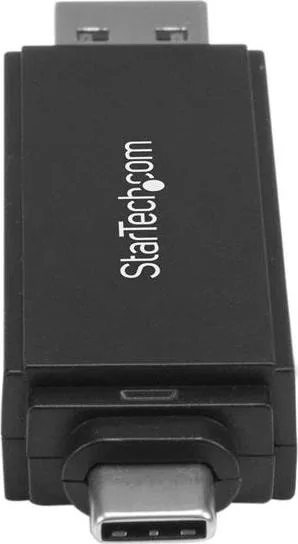
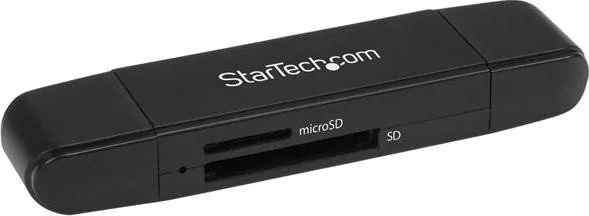
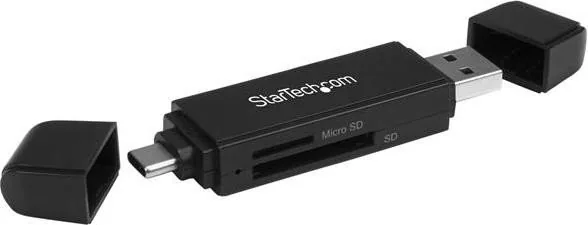
The StarTech Dual Card Reader USB-C 3.0 / USB-A 3.0 (Plug) is a compact, bus-powered card reader designed for fast access to SD and microSD cards. Supporting USB 3.0 (USB 3.1 Gen 1) speeds up to 5Gbps, it connects via either a USB-C or USB-A plug, making it compatible with modern laptops, tablets, smartphones and legacy systems. The device requires no drivers on most operating systems and is plug-and-play for straightforward file transfers.
Key Features and Use
Built for portability, the reader includes a durable housing, two end caps for protection, and an activity LED that blinks during data transfers. Only one card can be accessed at a time; the reader prioritizes the last card inserted. To achieve maximum throughput, use a USB 3.0 host port and a high-speed memory card. The unit draws power from the host USB port and does not require an external power supply.
Practical Workflow
Insert an SD or microSD card into the correct slot until it clicks. Plug the USB-C or USB-A connector into your device and access files through your OS file manager. Follow standard safe-removal procedures: use Safely Remove Hardware on Windows or eject the USB storage icon on macOS before disconnecting. Avoid disconnecting while the activity LED is blinking to prevent data loss.
Reliability, Support and Compliance
StarTech provides lifetime technical support and a two-year limited warranty covering defects in materials and workmanship. The product complies with FCC Class B and Canadian ICES-003 standards. Warranty excludes damage from misuse, alteration, or normal wear.
Notes
- Do not insert two cards simultaneously; only one card is accessible at a time.
- Transfer speeds depend on both card and host port capabilities.
- The activity LED indicates ongoing data transfer—wait for it to stop before removing the reader.
Search for 67,706 Manuals online


Type-in Brand or Model