
StarTech SATDUP11IMG Manual
PDF manual · 27 Pages
English



Quick check
Incorrect answer, please try again.
Chat with your StarTech SATDUP11IMG manual using AI
Get instant AI answers from your StarTech SATDUP11IMG manual
Ask anything about the StarTech SATDUP11IMG. Answers come from this manual, with the pages they are based on.
Ask a Question
Do you recommend SATDUP11IMG?
Yes NoFrequently Asked Questions
The duplicator supports System and Files (copies OS and files), All Partitions (bit-for-bit partition copy), Whole HDD (entire disk including free space), and Percentage-based copying to clone a portion of a drive.
Is this answer helpful?
Connect the target drive, choose Copy > HDD to Image to create an image on the target. If the target isn’t formatted as an image drive, the unit will prompt to format it (this deletes all data). After creation, use Image Manager to show, rename, delete, or restore stored images.
Is this answer helpful?
Yes. Use the Compare function after copying to confirm the target matches the source. Copy & Compare will duplicate the drive and automatically run a comparison to verify integrity once copying completes.
Is this answer helpful?
The unit supports SATA HDDs/SSDs directly and eSATA enclosures via included eSATA + 5V or 12V power cables. It includes short and long SATA cables and power supplies. NVMe drives require an adapter or enclosure and may have limitations.
Is this answer helpful?
Use an anti-static strap or touch a grounded metal surface before handling. Place drives on provided HDD pads for heat insulation and stability. Avoid terminating wiring while products are powered and route cables to prevent tripping hazards.
Is this answer helpful?
Use the Skip Error function to set acceptable sector error counts so the duplicator can continue past bad sectors. If errors persist, view the utility’s SMART-like metrics (reallocation count, uncorrectable sectors, seek error rate) to assess drive health and consider data recovery or replacing the drive.
Is this answer helpful?
Download the firmware from StarTech’s SATDUP11IMG page, create an Update HDD using the duplicator (10GB FAT32 partition), place the firmware file in the partition root, connect it to the source port, and select Update BIOS. Firmware updates are recommended only when instructed by StarTech and should be done by experienced users.
Is this answer helpful?
Advantages and Disadvantages
Advantages

- Standalone operation—no PC required for copying, imaging, and verification.
- Multiple copy modes: whole-drive, partitions, system-and-files, and percentage-based.
- Image library management: create, rename, delete, and restore images on a dedicated drive.
- Built-in verification with Compare and Copy & Compare to ensure data integrity.
- Utility readouts provide model, firmware, serial, power-on hours, temperature and error metrics.
Disadvantages

- Formatting target for image library permanently erases existing data.
- Firmware updates are advanced operations and may risk device stability if done improperly.
- Limited to SATA/eSATA interfaces—no native support for NVMe without adapters.
- Physical handling requires anti-static precautions and careful mounting to avoid drive damage.
- User interface may be basic for beginners compared to PC-based duplicator software.
Product Specification
Type
Copy Station (SATA 2.5/3.5")
Usage
portable
Connectivity
N/A
Media
2x SATA 6Gb/s
Copy Function
SATA (1x simultaneous, 360GB/h)
Print Function
N/A
Dimensions
5.08x1.10x3.03in (WxHxD)
Weight
0.77lb
Special Features
autonomous operation, Display, metal housing, erase function
Manufacturer's Warranty
two years
Product Description
StarTech SATA Drive Duplicator with Multi HDD/SSD Image Backup Library, Standalone
The StarTech SATA Drive Duplicator with Multi HDD/SSD Image Backup Library, Standalone is a compact, purpose-built duplicator designed for technicians, IT departments, and data recovery professionals who need fast, reliable drive cloning and image library management without a PC. Built around straightforward hardware controls and an intuitive on-screen menu, it supports SATA HDDs and SSDs, eSATA enclosures, and offers multiple copy modes including whole-drive, partition-level, system-and-files, and percentage-based copying.
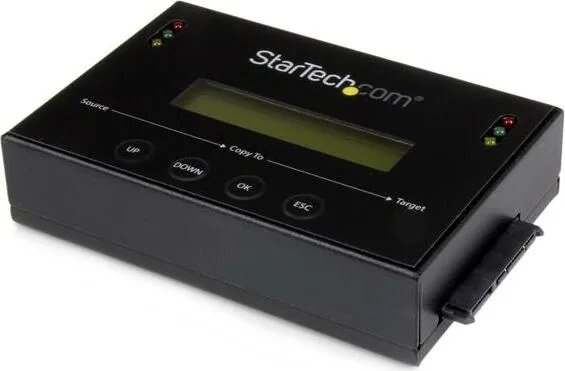
Equipped with source and target SATA ports, status LEDs, dedicated navigation buttons and an LCD, this standalone unit analyzes drives, formats target disks as image libraries, and performs image-to-disk or disk-to-image transfers. It simplifies creating and managing image libraries: add images from physical drives, rename or delete stored images, and restore images back to a target drive. It also supports copy-and-compare operations so you can automatically verify copied data for integrity. Administrative utilities display drive metadata such as model number, firmware, serial number, power-on hours, temperature and SMART-like counts, helping diagnose failing media.
Installation is straightforward: connect the source and target drives (or enclosures) using included SATA or eSATA cables, power the unit with the supplied adapter, and secure drives on the supplied pads to reduce heat transfer and movement. The device offers advanced setup options like skip-error thresholds for handling bad sectors, motor stop timing, language selection, and the ability to create a BIOS update HDD for firmware upgrades.
Practical features include support for creating an Image Library Drive (a formatted target drive that stores multiple images), image rename/delete functions, and multiple copy area modes to optimize speed or completeness depending on your needs. Safety and handling recommendations are emphasized: use anti-static precautions and avoid handling drives while powered.
Whether you need quick system-and-files transfers for rapid deployments, bit-for-bit cloning for forensic work, or a compact solution for maintaining a library of drive images, this StarTech duplicator provides a reliable standalone workflow with verification tools and administrative insight into connected drives.
Notes
- Formatting a target drive as an image library will erase all data on it; back up any needed data first.
- Use skip-error settings when cloning drives with bad sectors to improve success rates.
- Firmware updates should be performed only when recommended and by experienced users.
- Always follow anti-static and handling precautions to avoid data loss from physical damage.
Search for 67,706 Manuals online


Type-in Brand or Model