
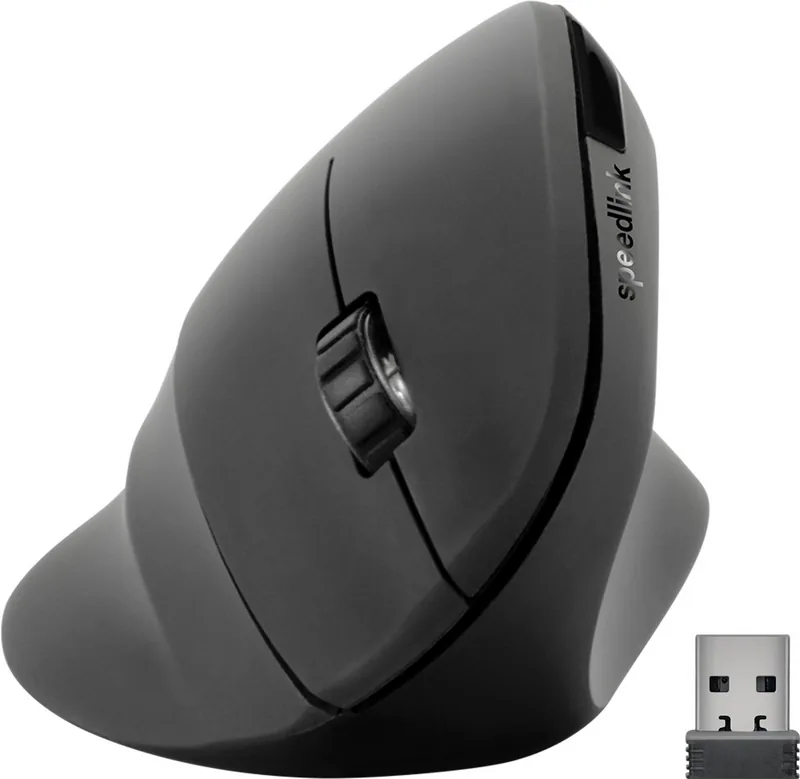
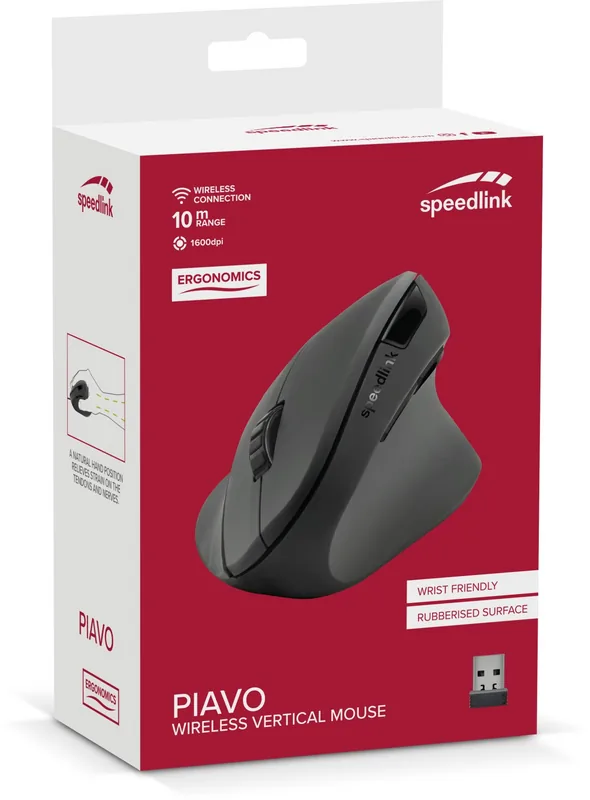
Speedlink Piavo Wireless Rubberized Manual
PDF manual · 2 Pages
English



Quick check
Incorrect answer, please try again.
Chat with your Speedlink Piavo Wireless Rubberized manual using AI
Get instant AI answers from your Speedlink Piavo Wireless Rubberized manual
Ask anything about the Speedlink Piavo Wireless Rubberized. Answers come from this manual, with the pages they are based on.
Ask a Question
Do you recommend Piavo Wireless Rubberized?
Yes NoFrequently Asked Questions
It connects wirelessly through the supplied USB receiver. Plug the receiver into a free USB port on a compatible computer, insert an AA battery, and move the power switch to the on position.
Is this answer helpful?
The mouse uses one AA 1.5 V battery. Use an appropriate battery type and replace it when wireless operation becomes unreliable or the mouse no longer responds.
Is this answer helpful?
Yes. The Piavo includes a DPI switch for changing pointer sensitivity. This lets you choose a movement speed that feels suitable for precise work, standard browsing, or navigating a larger display.
Is this answer helpful?
The forward and backward buttons provide quick navigation in compatible applications. They are especially useful for moving through browser history or folders without repeatedly using on-screen controls.
Is this answer helpful?
The Piavo is intended for indoor home or office use in dry, enclosed spaces. Keep it away from moisture, liquids, excessive heat, cold conditions, and environments where it could be damaged.
Is this answer helpful?
Strong static, electrical, or high-frequency fields can affect operation. Increase the distance between the mouse or receiver and potential sources of interference, such as mobile phones, radio equipment, or microwave ovens.
Is this answer helpful?
Advantages and Disadvantages
Advantages

- Wireless USB receiver connection supports a cleaner computer workspace.
- Vertical ergonomic design provides an alternative to conventional flat mouse shapes.
- DPI switch allows pointer sensitivity to be adjusted for different tasks.
- Forward and backward buttons support faster navigation in compatible software.
- Designed for maintenance-free home and office use in dry indoor spaces.
Disadvantages

- Requires an AA battery, which may need replacement over time.
- Not intended for outdoor, damp, wet, or extreme-temperature environments.
- Strong electrical or radio-frequency interference may affect wireless performance.
- Users must not open, repair, or use the mouse if it is damaged.
- Only one product color and configuration is identified: rubber-black wireless.
Product Specification
Suitability
right hand (vertical)
Buttons
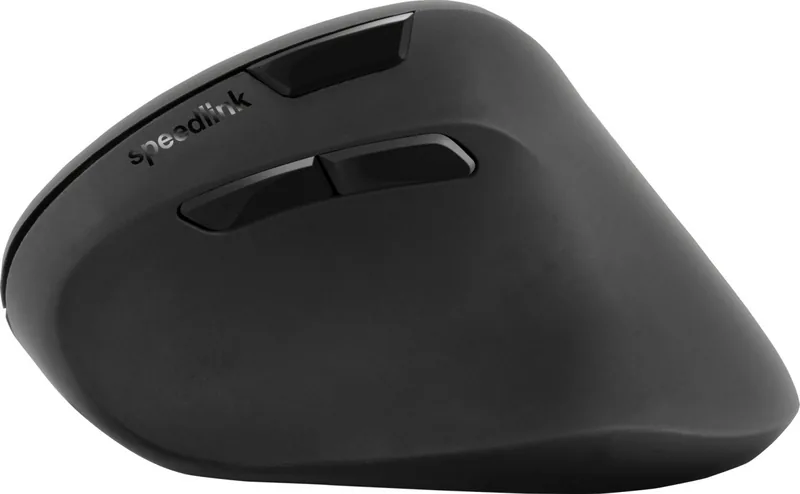
6 total, 2 primary, 1 top, 2 left, 1 scroll wheel click
Scroll wheel
1x 2-way
Sensor
red LED/IR
Resolution
1,600 dpi, reducible to 1,200/800 dpi
Lighting
N/A
Connection
wireless (2.4 GHz), USB-A (USB-A receiver)
Power supply
1x AA
Dimensions (W x H x D)
2.99 x 2.83 x 4.72 in
Approximate volume
10.5 in3 (approximate shape)
Weight
3.74 oz (including battery)
Color
solid color, black, logo
Special features
thumb rest, non-slip surface (rubberized sides/top), storable receiver
Product Description
Speedlink Piavo Wireless Vertical Mouse - Read, Download & Print Free
The Speedlink Piavo Wireless Vertical Mouse is a practical computer input device designed for comfortable everyday use at home or in the office. Its vertical, ergonomic form offers an alternative to a conventional flat mouse, while the wireless connection helps keep a desk free from unnecessary cable clutter. Finished in rubber-black, it combines a professional appearance with a surface intended for secure handling during routine tasks.
Wireless desktop control
The Piavo connects to a computer through its included USB receiver. Simply insert the receiver into an available USB port, fit the required AA battery, and switch the mouse on to begin using it. The 2.4 GHz wireless connection is designed for convenient desktop operation, making this model suitable for working with documents, browsing websites, managing email, and handling everyday office applications.
A DPI switch lets users adjust pointer sensitivity to suit different tasks and display preferences. Lower sensitivity can be useful for careful selection work, while a faster setting can make navigating larger screens feel more efficient. In addition to standard mouse controls, the Piavo includes forward and backward buttons, helping users move through compatible browser pages or folders with less reliance on on-screen navigation.
Built for indoor computer use
This Speedlink mouse is intended as an input device for computers used in dry, enclosed home or office spaces. It is maintenance-free and should not be opened or repaired by the user. For best results, keep it away from liquids, extreme temperatures, and damp environments. Clean the exterior only with a dry cloth, and stop using the mouse if it becomes damaged or unusually hot.
The device uses radio signals, so strong electrical, static, or high-frequency interference from equipment such as phones, microwave ovens, or radio installations may affect performance. Moving the mouse or nearby equipment farther apart can help reduce interference. Users of pacemakers or other sensitive electronic life-support devices should take appropriate care around radio-emitting equipment.
Responsible use and disposal
Use only suitable accessories and batteries, and keep loose components away from children, pets, and unauthorized users. Regular breaks are recommended during extended computer sessions, especially if discomfort or pain occurs. At the end of its working life, the mouse and batteries should be taken to an appropriate recycling point rather than disposed of with household waste.
Notes
- Product number: SL-630019-RRBK.
- Wireless frequency range: 2.402 GHz to 2.480 GHz.
- The Piavo is designed for dry indoor use only.
- Visit Speedlink support resources for current technical guidance and conformity information.
Search for 67,732 Manuals online


Type-in Brand or Model
Lena Schubert
5 months ago
What can I do if the wireless mouse keeps losing its connection even though the laser is on?
Manual.ly
5 months ago
Try replacing the batteries, switching the mouse off and on, and reconnecting the USB receiver to a different USB port. Keep the receiver close to the mouse and away from potential wireless interference. If the issue continues after these steps, the mouse or receiver may be defective and should be checked for warranty replacement.