
SpeaKa Professional 6-Port HDMI Matrix Switch Manual
PDF manual · 12 Pages
English



Quick check
Incorrect answer, please try again.
Chat with your SpeaKa Professional 6-Port HDMI Matrix Switch manual using AI
Get instant AI answers from your SpeaKa Professional 6-Port HDMI Matrix Switch manual
Ask anything about the SpeaKa Professional 6-Port HDMI Matrix Switch. Answers come from this manual, with the pages they are based on.
6-Port HDMI Matrix Switch Maintenance Schedule
Replace the exhausted CR2025 button cell with a new one when the signal becomes weak or irregular.
Always disconnect the product from the mains supply before cleaning to ensure safety.
Use only a dry, fiber-free cloth for cleaning; do not use aggressive agents or alcohol.
Free maintenance reminders
Timed to your purchase date. Always free, unsubscribe anytime.
Ask a Question
Do you recommend 6-Port HDMI Matrix Switch?
Yes NoFrequently Asked Questions
The unit supports up to 4K (3840 x 2160) at compatible frame rates, 3D, and legacy HD formats (1080p/1080i/720p etc.). It handles HDMI transfer rates up to 9.0 Gbit/s and a maximum bandwidth of 300 MHz.
Is this answer helpful?
Connect an optical Toslink cable from the matrix’s SPDIF port to your amplifier and enable ARC on the matrix (and the TV/source if required). For stereo playback, use the 3.5 mm audio output which provides LPCM 2.0 audio.
Is this answer helpful?
Yes. Select the same HDMI input for both Output A and Output B either via the remote or front keypad to mirror the picture on two displays.
Is this answer helpful?
PIP (Picture-in-Picture) shows up to five secondary images alongside the main picture for quick preview; you can select and promote thumbnails to main view. PIP works only with HDMI inputs up to 1080p (not supported for 4K inputs).
Is this answer helpful?
Ensure EDID auto-detection is enabled on your source and display. Restart affected devices to re-establish EDID handshake, check HDMI cable lengths and quality, and confirm the matrix and adapters are properly powered.
Is this answer helpful?
Press the Audio button to cycle through Audio 2.0, Audio 5.1 and Audio ADV. Audio ADV delegates format selection to the receiver and can enable multichannel formats including 7.1 when supported by the downstream device.
Is this answer helpful?
Always disconnect power before cleaning. Use a dry, lint-free cloth and never use aggressive chemicals or alcohol-based cleaners. Protect rubber feet from marking sensitive surfaces and avoid exposing the unit to moisture or extreme conditions.
Is this answer helpful?
Advantages and Disadvantages
Advantages

- Supports up to 6 HDMI inputs and 2 independent HDMI outputs with ARC and Toslink optical audio.
- 4K (3840x2160), 3D and multiple audio formats (DTS-HD, Dolby TrueHD, LPCM) supported.
- Picture-in-picture (PIP) displays up to 5 thumbnails and allows quick source preview and selection.
- Compact footprint with front-panel buttons, IR remote control (max 5 m range) and clear LED indicators.
- Flexible audio outputs: optical Toslink SPDIF and 3.5 mm analog jack for headphones/active speakers.
Disadvantages

- PIP feature limited to HDMI input resolutions up to 1080p, not available for 4K sources.
- EDID-dependent behavior may require device restarts or manual adjustments for some source/display combinations.
- Audio output jack only supports LPCM 2.0; advanced multichannel requires optical/Toslink and compatible receiver.
- Remote uses CR2025 button cell with limited lifespan; IR range can be obstructed by furniture.
- Indoor use only and vulnerable to condensation when moved from cold to warm environments without acclimation.
Product Specification
Video Inputs
6x HDMI In
Video Outputs
2x HDMI Out
Other Connections
1x Digital Audio Out (optical), 1x Jack Audio Out
Resolutions up to
3840x2160
Power Consumption
3.5W typical
Dimensions
8.07x1.02x2.91in (WxHxD)
Weight
0.97 lb
Product Description
SpeaKa Professional 6 Port HDMI-Matrix-Switch Manual
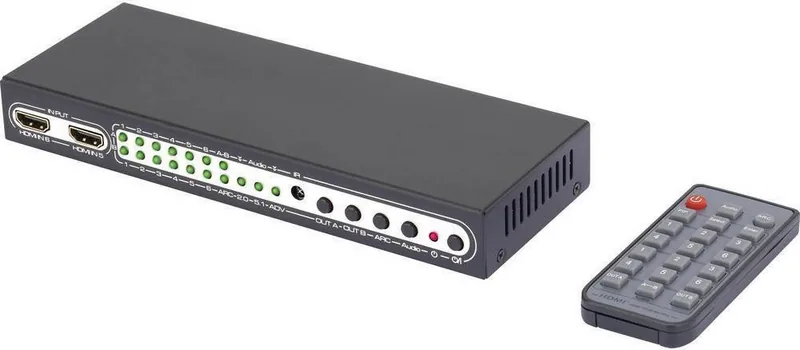
The SpeaKa Professional 6 Port HDMI-Matrix-Switch is a compact, feature-rich solution for managing multiple HDMI sources and two display outputs in home theaters, small studios, classrooms, or meeting rooms. Designed for indoor use, this 6x2 matrix router accepts up to six HDMI inputs and routes them to two independent HDMI outputs, supporting advanced capabilities like 4K (UHD), 3D, ARC (Audio Return Channel), and picture-in-picture (PIP). The unit is powered by the included 5V DC adapter and comes with an IR remote control with a CR2025 battery for convenient operation.
This matrix emphasizes practical connectivity: two full HDMI outputs plus one optical Toslink SPDIF and a 3.5 mm audio jack allow flexible audio routing to TVs, projectors, AV receivers, headphones, or active speakers. The device supports multiple HDMI audio formats including DTS-HD, Dolby TrueHD, LPCM and more, and handles resolutions up to 3840 x 2160 (4K). Transfer rates reach up to 9.0 Gbit/s with a maximum bandwidth of 300 MHz, while cable length recommendations ensure reliable signals (up to 10 m for 1080p inputs, 5 m for 4K inputs).
Operation is primarily via the IR remote: select inputs for output A and B independently, toggle ARC for optical audio return to a linked amplifier, switch audio modes (2.0 / 5.1 / ADV which allows the receiver to determine formats including 7.1), and invoke PIP to display up to five thumbnails alongside the main image (PIP supports HDMI inputs up to 1080p). Front-panel buttons allow direct switching, and LED indicators provide status for inputs, audio mode, ARC and output selection.
Installation guidance highlights safe setup: power the unit only with the supplied adapter, ensure the mains outlet is accessible, avoid moisture and condensation, and route cables to prevent damage or tripping hazards. EDID compatibility is recommended—set sources and displays to automatic EDID detection and reboot devices if necessary. Routine maintenance is minimal: disconnect power before cleaning and use a dry, lint-free cloth—avoid chemical cleaners.
Compact and robust, the SpeaKa matrix is built to integrate into AV setups requiring multiple source management with flexible audio routing. Its combination of modern video/audio support, PIP utility, and ARC/Toslink options makes it suitable for users who need straightforward switching without complex configuration.
Notes
- Intended for indoor use only; avoid contact with moisture.
- Follow EDID auto-detection and restart devices if handshake issues appear.
- Remove remote battery if stored long-term; replace with CR2025 when weak.
- Dispose of electronic equipment and batteries according to local regulations.
Search for 67,706 Manuals online


Type-in Brand or Model
Sam Jorissen
9 months ago
The product seems good for the price, but the description feels a bit unclear. How is the PIP (Picture-in-Picture) function explained and used?
Manual.ly
9 months ago
Thanks for the feedback. While the quick product description can be improved, the PIP function is supported by the device. For reliable use, please refer to the included user manual (PIP chapter) or the on-screen menu help where PIP is configured. In short, you enable PIP from the settings/menu, select the main and secondary source, then adjust position and size if your model supports it. If you tell us your exact model number (from the label on the device or packaging), support can point you to the correct manual section and the exact menu path.