
Sonoff S26R2ZB Manual
PDF manual · 35 Pages
English



Quick check
Incorrect answer, please try again.
Chat with your Sonoff S26R2ZB manual using AI
Get instant AI answers from your Sonoff S26R2ZB manual
Ask anything about the Sonoff S26R2ZB. Answers come from this manual, with the pages they are based on.
Ask a Question
Do you recommend S26R2ZB?
Yes NoFrequently Asked Questions
It is the Type E version of the Sonoff S26R2ZB ZigBee smart plug. It lets compatible appliances be switched manually or through a ZigBee hub and its associated app.
Is this answer helpful?
Yes. Intelligent control requires a ZigBee gateway. The plug is designed for SONOFF ZigBee Bridge and can also work with listed ZigBee 3.0-compatible gateways.
Is this answer helpful?
Listed options include SONOFF ZigBee Bridge, Philips Hue Smart Hub, Samsung SmartThings Hub, Echo Studio, Echo Plus, second-generation Echo Show, second-generation Echo Plus, and fourth-generation Echo devices.
Is this answer helpful?
The S26R2ZBTPE is rated at 16 A and up to 3680 W at 230 V. Verify the appliance rating and local electrical requirements before use.
Is this answer helpful?
Power on the plug and wait for the ZigBee LED to flash. In the app for the connected gateway, select the option to add a sub-device and keep the plug close to the hub until pairing finishes.
Is this answer helpful?
Press and hold the pairing button for about five seconds until the ZigBee signal indicator flashes. Release the button, then add the plug again through the compatible gateway app.
Is this answer helpful?
Removing the device from the eWeLink app restores it to factory settings. You can then place it in pairing mode and add it to a compatible ZigBee gateway again.
Is this answer helpful?
Advantages and Disadvantages
Advantages

- Uses ZigBee 3.0 and works with SONOFF ZigBee Bridge plus several listed third-party hubs.
- Supports remote switching, timers, countdowns, smart scenes, sharing, and possible voice control.
- Type E model supports up to 3680 W at 230 V and 16 A for suitable household appliances.
- Includes a manual on/off switch and separate ZigBee and power-status LED indicators.
- Compact PC V0 enclosure is rated for operation from -10 C to 40 C.
Disadvantages

- A compatible ZigBee hub is required; the plug does not provide standalone Wi-Fi control.
- Available smart features depend on the capabilities of the connected hub and app.
- Pairing can fail when the plug is too far from the gateway.
- It is intended only for loads within its stated voltage, current, and power ratings.
Product Specification
Type
Actuator
Standard
ZigBee
Function
Switched outlet (on/off)
Dimensions
4.09 x 3.15 x 2.36 in
Special features
App control, voice assistant (Amazon Alexa, Google Assistant)
Product Description
Sonoff S26R2ZB ZigBee Smart Plug, Smart Socket, Type E - Read, Download & Print Free
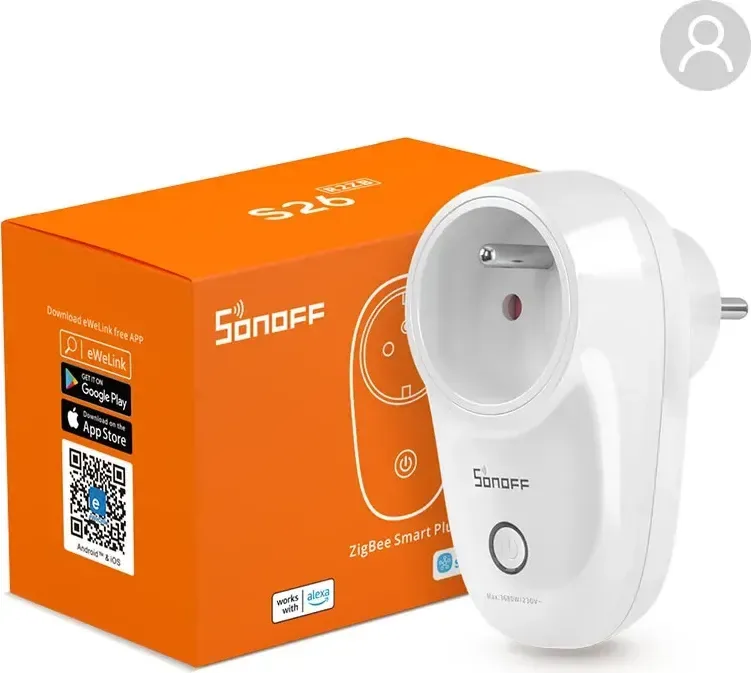
The Sonoff S26R2ZB ZigBee Smart Plug, Smart Socket, Type E is a compact home-automation accessory designed to bring convenient wireless control to compatible appliances. Built around the ZigBee 3.0 protocol, it connects through a supported ZigBee hub rather than directly through Wi-Fi. This makes it a practical choice for users building a responsive, hub-based smart home with SONOFF, Philips Hue, Samsung SmartThings, or selected Amazon Alexa devices.
Everyday Control for Connected Homes
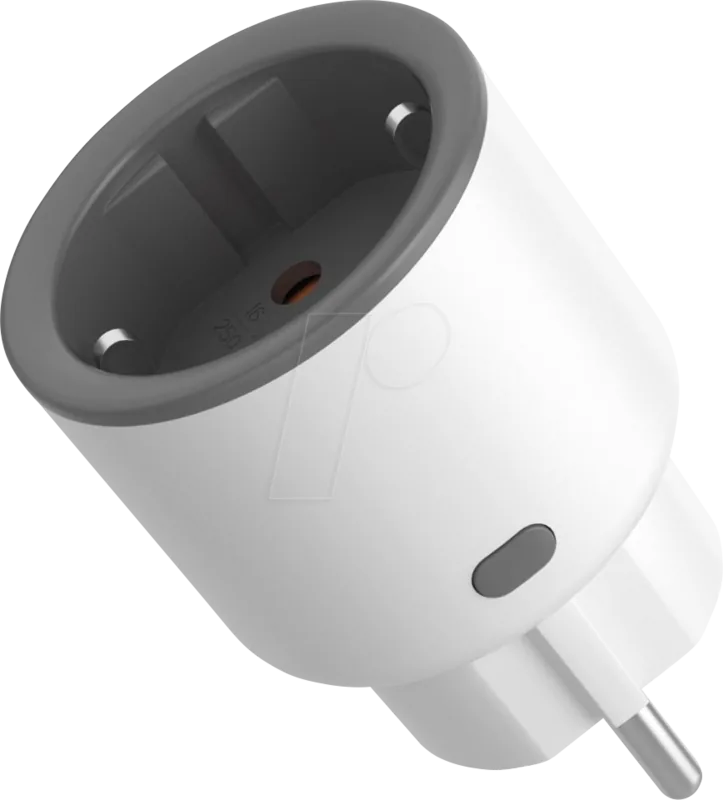
Once paired with a compatible gateway, the socket can switch connected equipment on or off remotely through the relevant mobile app. It also includes a physical pairing button that doubles as a manual switch, so the appliance remains easy to control at the socket itself. A green LED indicates ZigBee signal activity, while a red LED shows the on/off status.
Scheduling features can automate daily routines. Set a simple timer or countdown to turn lamps, fans, coffee makers, and other suitable devices on or off when needed. Smart scenes can also link the plug with other ZigBee accessories, enabling actions based on the rules available through the connected hub. Voice control may be available when the selected hub and voice assistant support it.
ZigBee Hub Compatibility
A ZigBee gateway is required for intelligent functions. The S26R2ZB can be added through the eWeLink app when used with a SONOFF ZigBee Bridge. It is also listed as compatible with gateways supporting ZigBee 3.0, including Philips Hue Smart Hub, Samsung SmartThings Hub, Echo Studio, Echo Plus, second-generation Echo Show, second-generation Echo Plus, and fourth-generation Echo devices.
For initial setup, power the plug and wait for the ZigBee signal light to flash. Open the hub's app, choose the option to add a sub-device, and keep the plug near the gateway until pairing completes. If discovery fails, moving the socket closer to the hub can improve the result.
Design and Electrical Details
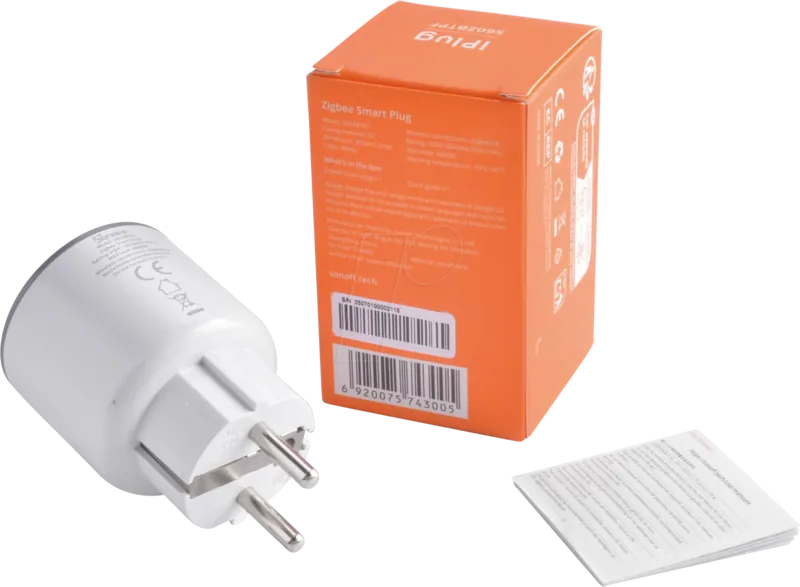
The Type E version, identified as S26R2ZBTPE, is rated for 250 V~, 50/60 Hz and supports loads up to 3680 W at 230 V, with a 16 A maximum. Its PC V0 housing measures 97.5 x 56 x 35 mm and is specified for operating temperatures from -10 C to 40 C. Always confirm that the connected appliance and local electrical installation remain within the stated limits.
Notes
- Hub capabilities determine which remote, voice, scene, sharing, and timing functions are available.
- Hold the pairing button for about five seconds to return the socket to pairing mode when changing networks.
- Removing the device from eWeLink restores its factory settings.
Search for 67,706 Manuals online


Type-in Brand or Model