Manual.ly Logo

Smartwares SmarthomeBasic SH5-SET-GW Manual

0.0 · 0 Ratings

PDF manual · 5 Pages

English

M: OA-GPT-54-NAN
page

/ 5

Loading...
0f32291a75744cb56513f6990c3db91f792b page 1
EN
DE
1. Smart switch installation
a. Download the ‘‘HomeWizard Lite’ app from the Google Play Store or Apple Appstore on your phone
b. Follow the instructions in the Lite app
Adding devices
The Smart switch functions as a ‘hub’: you can control it with your smartphone, but it can also control
other devices such as switches, lights, roller blinds, curtains and radiator valves. To add devices:
• Press the + sign on the home screen of the app. Select the type and brand of the device you want to add and
follow the instructions to ‘pair’ the device. Pairing procedures can dier between products, detailed
instructions are given in the app after a selection is made.
2. Home screen
Control your devices from the home screen
a. Edit device details (icon, name, etc.)
b. Control device with the buttons
c. ‘Menu > +’ to add new devices
3. Schedules and tasks
Create schedules and tasks inside the app based on time or sunset/sunrise.
a. Today’s sunrise and sunset times
b. Press to edit task
c. ‘Menu > +’ to add new task
4. Device details
Edit device details (by pressing a device its icon on the home screen)
a. Change device type
b. Change device name
c. Change device icon or add a custom photo icon!
Troubleshooting (!)
• The device I want to add does not respond?
Move the Smart switch closer to the device you want to add and check compatibility.
• How do I control the Smart switch from multiple phones?
Log in with your existing account or go through the setup again with a new phone.
• Devices are not responding to Smart switch commands
Make sure the Smart switch is not near other wireless devices and/or large metal objects.
1. Smart switch installation
a. Laden Sie sich die “HomeWizard Lite” App aus dem Google Play Store oder dem Apple Appstore auf Ihr
Smartphone herunter.
b. Folgen Sie den Anweisungen in der Lite App
Geräte hinzufügen
Der Smart switch funktioniert als ein `Hub`: Sie können diesen mit Ihrem Smartphone bedienen, aber
es ist ebenfalls möglich andere Geräte wie z.B. Schalter, Lichter, Rollos, Vorhänge und Heizkörperthermostate zu
schalten.
• Betätigen Sie das + Zeichen auf der Startseite der App. Wählen Sie den Typ und die Marke des Gerätes welches Sie
hinzufügen wollen und folgen Sie den Anweisungen zum “koppeln” des Gerätes. Der Koppelvorgang kann sich bei
den verschiedenen Produkten unterscheiden. Detaillierte Informationen werden in der App angezeigt, sobald
eine Auswahl getätigt wurde.
2. Startseite
Bedienen Sie Ihre Geräte über die Startseite
a. Ändern von Gerätedetails (Icon, Name, etc.)
b. Geräte über die Buttons steuern
c. ‘Menu > +’ um neue Geräte hinzuzufügen
3. Zeitpläne und Aufgaben
Erstelle Zeitpläne und Aufgaben in der App basierend auf der Zeit des Sonnenuntergangs / Sonnenaufgangs
a. Heutige Sonnenaufgangs / Sonnenuntergangs Zeit
b. Drücke um die Aufgabe zu bearbeiten
c. ‘Menu > +’ um eine neue Aufgabe hinzuzufügen
4. Geräte Details
Gerätedetails bearbeiten (durch drücken des Geräteicons auf der Startseite)
a. Ändern des Gerätetyps
b. Ändern des Gerätenamens
c. Ändern des Geräteicons oder ein benutzerdeniertes Foto als Icon hinzufügen
Fehlerbehebung (!)
• Das Gerät welches hinzugefügt werden soll antwortet nicht?
Verlegen Sie den Home Controller näher an das Gerät welches hinzugefügt werden soll und prüfen Sie
die Kompatibilität.
• Wie kann ich den Home Controller von mehreren Smartphones steuern?
Loggen Sie sich mit dem bestehenden Account ein, oder durchlaufen Sie das Setup erneut mit Ihrem
neuen Smartphone
• Geräte reagieren nicht auf die Smart switch Signale
Stellen Sie sicher, dass der Home Controller nicht direkt neben anderen kabellosen Geräten und/oder
großen Metallobjekten betrieben wird.
QUICK START GUIDE
Smart switch
10.043.82 | 10.043.83 | 10.043.84 | 10.046.67
Contents
HomeWizard Lite
a. Press to edit
device details
b. Control the device
on/o
c. Add device
b. Press to edit task
a. Today’s sunrise
and sunset times
c. Menu button
(add task)
c. Change device
icon or add
photo icon
b. Edit device name
a. Edit device type
LED Cloud & WiFi
LED Socket powered
Button socket on/o󰀨
10.043.82
SH5-SET-GW
SPECIFICATIONS
Smart switch
WIFI b/g/n : 2.4GHz
Frequency : 433.92MHz
Input AC voltage : 230V, 50Hz
Max switch output : 3680W
2x RF switches
Frequency : 433.92MHz
Input AC voltage : 230V, 50Hz
Max switch output : 1000W
Remote control
Battery : 1x 3V, CR2032
Frequency : 433.92 MHz
10.043.84
SH5-SET-GW-UK
LED Cloud & WiFi
LED Socket powered
Button socket on/o󰀨
10.043.83 | SH5-SET-GW-F
10.046.67 | SH5-SET-GW-F -LM
LED Cloud & WiFi
LED Socket powered
Button socket on/o󰀨
1
2
3
4
a. Press to edit
device details
b. Control
the device
on/o
c. Menu button
(add device)
a. Today’s
sunrise and
sunset times
b. Press to edit
task
c. Menu button
(add task)
a. Edit device type
b. Edit device
name
c. Change device
icon or add
photo icon
HomeWizard Lite app

Chat with your Smartwares SmarthomeBasic SH5-SET-GW manual using AI

Get instant AI answers from your Smartwares SmarthomeBasic SH5-SET-GW manual

Ask anything about the Smartwares SmarthomeBasic SH5-SET-GW. Answers come from this manual, with the pages they are based on.

Ask a Question

0/1000

Do you recommend SmarthomeBasic SH5-SET-GW?

Yes No

Frequently Asked Questions

A

It uses the HomeWizard Lite app. You download it on Android or iPhone, then follow the guided setup to add the smart switch and connected devices.

Is this answer helpful?

A

Yes. The included remote control lets you switch devices on or off quickly without opening the app, which is handy for everyday use.

Is this answer helpful?

A

The hub can work with compatible switches, lights, roller blinds, curtains, and radiator valves, depending on device support and pairing compatibility.

Is this answer helpful?

A

Yes. You can create tasks based on a specific time or on sunrise and sunset, which makes it useful for lighting and routine-based automation.

Is this answer helpful?

A

Move the hub closer to the device you want to add and check whether the device is compatible. Some products need different pairing steps, which the app explains during setup.

Is this answer helpful?

A

Yes. You can log in with the same account on another phone, or run the setup again on a new device if needed.

Is this answer helpful?

A

Keep the smart switch away from other wireless devices and large metal objects. Interference and placement can affect signal quality.

Is this answer helpful?

M: OA-GPT-54-NAN

Advantages and Disadvantages

Advantages

  • App control and remote control make daily use flexible.
  • Acts as a hub for multiple compatible home devices.
  • Scheduling based on time, sunrise, and sunset adds automation.
  • Device names, icons, and tasks can be customized in the app.
VS

Disadvantages

  • Pairing can differ by product and may take extra setup time.
  • Wireless performance may drop near metal objects or signal interference.
  • Works best within compatible device ecosystems.
  • Power and socket limits may not suit heavy-duty appliances.
M: OA-GPT-54-NAN

Product Specification

Type

Set

Standard

Wireless bus (433.92MHz), WLAN (802.11b/g/n)

Function

Smart plug (on/off), Gateway

Topology

Star

Special features

Controllable via app (iOS, Android), Voice assistant (Amazon Alexa, Google Assistant)

Set consists of

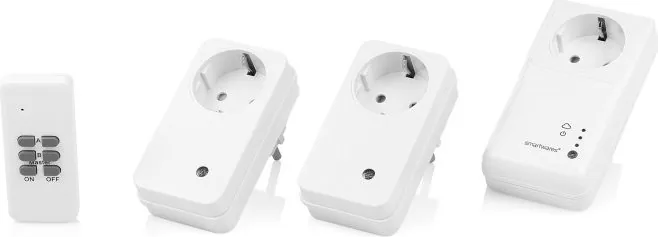
1x Gateway, 2x Smart plug, 1x 4-channel remote control

M: OA-GPT-54-NAN

Product Description

Smartwares SmarthomeBasic SH5-SET-GW: A Practical Start to Smarter Living

The Smartwares SmarthomeBasic SH5-SET-GW white wireless socket set with remote control is built for people who want convenient home automation without making their setup complicated. It combines app-based control, RF switching, and a handy remote, giving you flexible control over everyday devices from one compact system.

At the center of the set is a smart switch that works like a small hub. Through the HomeWizard Lite app, you can manage connected devices from your phone and expand the system to include more than just sockets. The setup is designed to work with compatible switches, lights, roller blinds, curtains, and radiator valves, making it a useful option for households that want gradual smart-home upgrades rather than a full replacement of their existing equipment.

A standout feature is the scheduling function. You can create tasks based on time, sunrise, or sunset, which is especially useful for lamps, window coverings, or heating-related routines. The app also lets you rename devices, change icons, and keep the dashboard organized. That makes the experience feel more personal and less technical, even for first-time users.

The included remote control adds another layer of convenience. It is useful when you want quick access without opening the app, and the wireless RF connection helps keep daily operation simple. According to the specifications, the system uses 2.4 GHz Wi‑Fi for app connectivity and 433.92 MHz RF for device control. The smart switch supports a maximum output of 3680W, while the RF sockets are rated up to 1000W each.

Why it stands out

This set is appealing because it balances smart functionality with everyday practicality. It does not try to overwhelm you with advanced automation tools; instead, it focuses on reliable control, easy pairing, and straightforward scheduling. If you want a neat entry point into smart sockets and wireless home control, this model offers a solid foundation.

Notes

  • Best suited for users who want app control plus a physical remote.
  • Pairing may vary depending on the device type and brand.
  • Keep the hub away from large metal objects and crowded wireless zones for better performance.
  • The HomeWizard Lite app is the main place for adding devices and building schedules.
M: OA-GPT-54-NAN

© Copyright 2026 Manual.ly