
Samsung UM46N-E Manual
PDF manual · 90 Pages
English


Quick check
Incorrect answer, please try again.
Chat with your Samsung UM46N-E manual using AI
Get instant AI answers from your Samsung UM46N-E manual
Ask anything about the Samsung UM46N-E. Answers come from this manual, with the pages they are based on.
UM46N-E Maintenance Schedule
Wipe surface with a slightly wet soft cloth, then dry. Disconnect power before cleaning.
Remove batteries when not used for extended periods. Replace both at the same time.
Ask a Question
Do you recommend UM46N-E?
Yes NoFrequently Asked Questions
Yes, you can control multiple screens using the MDC software or RS232C interface to synchronize settings and playback across the network.
Is this answer helpful?
No, this model is designed for indoor environments only. Exposure to rain or direct sunlight can damage the internal components and void the warranty.
Is this answer helpful?
You can connect a PC using HDMI, DisplayPort, or DVI cables depending on your computer's output capabilities available on the rear panel ports.
Is this answer helpful?
It is Samsung software for managing digital signage content, allowing scheduling and remote control of displays via a network connection.
Is this answer helpful?
Yes, you can schedule automatic power on and off times in the settings menu to save energy and adhere to operational hours.
Is this answer helpful?
Use screen savers, move static images occasionally, and enable the auto power off timer to minimize burn-in risks during long hours.
Is this answer helpful?
Contact the Samsung service center or your local dealer. Do not attempt repairs yourself as it may void the warranty coverage.
Is this answer helpful?
Advantages and Disadvantages
Advantages

- RS232C and LAN control support
- Multiple HDMI and DisplayPort inputs
- Energy efficient Eco modes
- VESA wall mount support
- MagicInfo Player integration
Disadvantages

- Wall mount kit sold separately
- Network box optional for some features
- No built-in speakers
- Indoor use only
- Screen requires specific cleaning cloth
Product Specification
Diagonal
46 in (117 cm)
Resolution
1920x1080, 16:9
Brightness
500 cd/m2
Contrast
4,000:1 (static), not specified (dynamic)
Response Time
8 ms
Viewing Angle
178 deg / 178 deg
Shape
Flat
Backlight
White LED
HDR
N/A
Color Depth
8-bit (16.7 million colors)
Refresh Rate
60 Hz
Signal Frequency
30-81 kHz (Horizontal), 48-75 Hz (Vertical)
Connectors
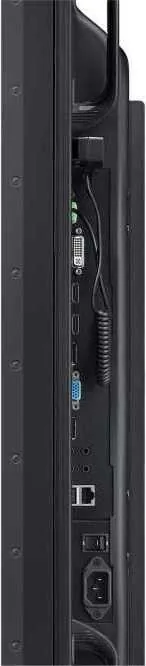
1x VGA (60Hz@1920x1080), 1x DVI, 2x HDMI 2.0, 1x DisplayPort 1.2, 1x DisplayPort-Out 1.2, 1x 3.5mm Jack (Line-In), 1x 3.5mm Jack (Line-Out)
Additional Connectors
2x serial, 1x USB-A 2.0 (480Mb/s), 1x RJ-45 LAN
VESA Mount
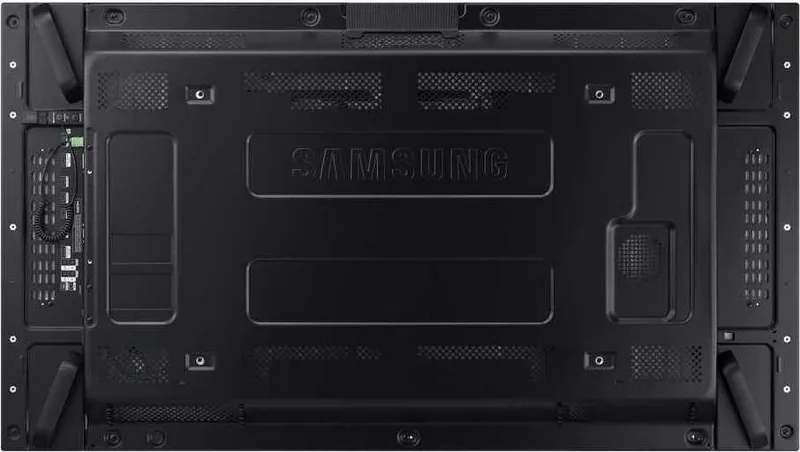
23.62x15.75 in (Mounting Pattern)
Operating Time
24h/7 (Continuous)
Power Consumption
143W (Max), 79W (Typ), Not specified (Old Energy Label A+++ to G), 0.5W (Standby)
Dimensions (WxHxD)
40.16x22.64x3.78 in
Weight
34.61 lbs
Features
Slim Bezel, HDCP 2.2
Manufacturer Warranty
Three Years
Product Description
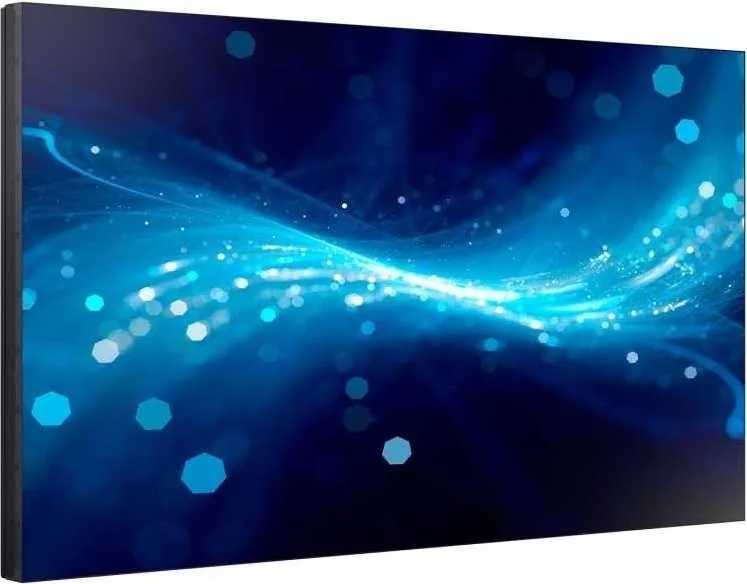
Samsung UM46N-E 46 Inch Commercial Display Overview
The Samsung UM46N-E 46 inch display represents a robust solution for commercial signage and business presentations. This unit is engineered to handle heavy use while maintaining vibrant image quality that captures viewer attention effectively. Installation flexibility is a key strength, allowing for wall mounting or tabletop use depending on your space constraints. Connectivity options are extensive, featuring multiple HDMI inputs, DisplayPort, and RS232C interfaces for centralized system control. This makes it ideal for video wall configurations where synchronization is critical. The device supports MagicInfo Player I, enabling advanced content scheduling and remote management through network boxes.
Safety is prioritized with detailed warnings regarding power safety and installation to prevent accidents or equipment damage. Users should avoid exposing the unit to high humidity or direct sunlight to ensure longevity. Energy efficiency is managed through customizable timers and eco modes that reduce power consumption during idle or overnight periods. The included remote control allows for easy navigation of on screen menus to adjust brightness and contrast settings. Always ensure the ventilation slots remain clear to prevent overheating issues. The guide provides comprehensive guidance on troubleshooting and maintenance procedures. Proper installation ensures the best performance and safety outcomes for all users in professional environments. Regular software updates keep the system secure and functional. This screen is built for reliability and ease of use in demanding commercial settings where uptime is essential for business operations. When connecting external audio systems, utilize the dedicated audio output jacks for clear sound reproduction. The bezel design minimizes distractions in multi screens setups for a cohesive visual experience. Battery compartments for the remote require standard sizes so replacements are easy to find locally. Never attempt internal repairs yourself and always contact certified service centers to avoid warranty voids. The product meets environmental standards for energy usage and disposal procedures. Users must follow strict protocols regarding cable management to ensure a tidy and safe office environment. Adjusting the screen position is facilitated by simple menu controls for optimal viewing angles. Overall this model stands out for its balance of feature richness and straightforward operational requirements. Additional support options ensure users can extend the lifespan of the device through regular care. Network settings allow for IP configuration manually or automatically. This helps in integrating the device into larger IT infrastructures seamlessly without complex setup steps. The LAN port supports standard Ethernet protocols for stable connectivity. Power management includes sleep timers and auto off functions to save energy costs over time. Cleaning the screen requires a soft dry cloth to avoid scratching the delicate surface. Do not spray liquids directly onto the monitor panel as this can cause electrical hazards.
Notes
Ensure proper ventilation. Use approved mounting kits. Update firmware regularly.
Search for 67,732 Manuals online


Type-in Brand or Model