
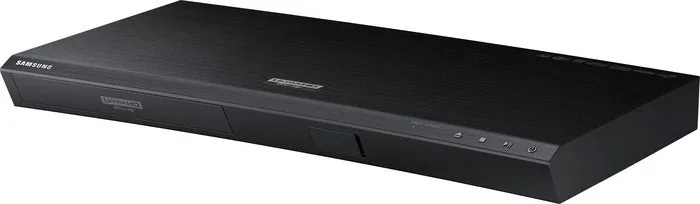


Samsung UBD-K8500 Manual
PDF manual · 2 Pages
English


Quick check
Incorrect answer, please try again.
Chat with your Samsung UBD-K8500 manual using AI
Get instant AI answers from your Samsung UBD-K8500 manual
Ask anything about the Samsung UBD-K8500. Answers come from this manual, with the pages they are based on.
UBD-K8500 Maintenance Schedule
Wipe gently from the center to the edge with soap water and a soft cloth if fingerprints or dirt are present.
Unplug the power cord and wipe the device with a soft dry cloth. Do not use chemicals.
Ask a Question
Do you recommend UBD-K8500?
Yes No
Sofia Müller
10 months ago
I keep reading the Samsung UBD-K8500 has no display. Will that make it hard to use or hide playback info like time, and how can I see current settings?

Manual.ly
10 months ago
The UBD-K8500 does not show an on-device front display, so you will not see playback time or track info on the player itself. In practice, this is usually not a problem because the TV provides the on-screen menu and playback overlays. When you pause or use fast forward/rewind, the TV shows the current status (including time information). During playback you control everything through the on-screen interface and remote, and on many setups HDMI-CEC/Smart Remote also makes switching and basic control easier. So usability depends mostly on your TV showing the usual playback details, not on a player display.
Frequently Asked Questions
Check the manufacturer of your UHD TV. For Samsung TVs, go to MENU and select Support, then Contact Samsung and Product Information to find the updates required for your specific model.
Is this answer helpful?
You must use a High Speed HDMI cable. This type is required to support the bandwidth needed for 4K resolution, HDR, and HDCP 2.2 standards for secure playback.
Is this answer helpful?
No, you must manually enable HDR settings. On the UHD TV screen, enable 4K UHD 4:4:4 60Hz and 10-bit signal input to properly utilize the High Dynamic Range technology.
Is this answer helpful?
Connect to the HDMI IN MHL port on the UHD TV. On the HU series, only this port supports HDCP 2.2, which is necessary for 4K UHD content playback.
Is this answer helpful?
Navigate to MENU on your TV. Go to Support, then Contact Samsung, and select Product Information. The Model Code will indicate your series, such as JS or KS.
Is this answer helpful?
Yes, High-bandwidth Digital Content Protection 2.2 is mandatory for playing protected 4K UHD content transmitted via HDMI ports that support this standard.
Is this answer helpful?
Yes, provided it supports the digital audio outputs available on the player. Ensure your receiver matches the player output formats to maintain audio quality.
Is this answer helpful?
Advantages and Disadvantages
Advantages

- Supports 4K UHD and HDR for enhanced visual fidelity and contrast
- Compatible with various Samsung TV series including KU, KS, and JU
- Includes multiple audio output options for flexible sound system connection
- Handles HDCP 2.2 protection for secure content playback on modern displays
- Easy setup for newer Samsung TV models with plug and play capability
Disadvantages

- HU series requires specific HDMI MHL port connection only
- JS series needs manual menu activation for UHD Color settings
- Requires firmware updates for best compatibility and performance
- Limited to one HDMI OUT port shown for audio pass-through options
- Older non-Samsung TVs may need detailed guide for configuration
Product Specification
Disc Playback
4K Ultra HD, BD-ROM, BD-R/RE, DVD-Video, DVD+R/RW, DVD-R/RW, CD-Audio, CD-R/RW
File Formats
AVCHD, DivX HD, DivX Plus HD, MKV, MPEG-4, JPEG
Blu-ray Profile
6.0
Upscaling
480p, 720p, 1080i, 1080p, 2160p
Audio Formats
CD-Audio, AAC, FLAC, MP3, WMA
Audio Decoders
Dolby Digital, Dolby Digital Plus, Dolby TrueHD, DTS Neo:6, DTS-HD Master Audio
Video Outputs
1x HDMI 2.0a Out
Audio Outputs
1x HDMI Audio only, 1x Digital Audio Out (Optical)
Other Ports
1x USB 3.0, RJ-45, Wi-Fi (WLAN)
Features
3D Ready, 4K Upscaling, DLNA Client, HDR, Ultra HD Premium
Power Consumption
34W
Color
Black
Dimensions
15.98x1.77x9.06 in (WxHxD)
Weight
4.19 lbs
Product Description
Achieving Optimal Home Theater Performance
To achieve optimum picture quality, attention to detail is required. The Samsung UBD-K8500 delivers a premium experience for home cinema enthusiasts. It handles Ultra HD Blu-ray discs with precision. First update your UHD TV to the latest firmware version available. This ensures compatibility with newest encryption standards for 4K playback. Many users search for Samsung UBD-K8500 black Manual to find setup tips quickly.
Connect using a High Speed HDMI cable to maintain signal integrity. This cable type is required for bandwidth needed for 4K resolution and HDR. Connect the cable to an HDMI port that supports HDCP 2.2. This protection technology is essential for playing copyrighted 4K UHD content without interference. If your TV supports HDR, configure HDMI settings to enable 4K UHD 4:4:4 60Hz and 10-bit signal inputs for maximum data throughput on compatible displays.
For Samsung TV owners, configuration varies slightly depending on the model series you own. If your UHD TV is KS, KU, or JU series, connect the cable to any HDMI IN port. Change external input source and play movies immediately without further delay. For older JS series models, enable HDMI UHD Color manually within the menu system. Navigate to Picture Options in settings. Select HDMI number and switch to On. This activates the necessary bandwidth path for 4K signals effectively.
The HU series requires particular attention during installation to ensure proper functionality. Only the HDMI IN (MHL) port supports HDCP 2.2 on these specific units. Connecting elsewhere results in a black screen or lack of 4K playback. Verify port availability before running cables to avoid frustration with connections. Non-Samsung TVs should consult the user guide for compatible HDMI inputs to ensure correct configuration for all content.
Audio quality is maintained and enhanced through digital optical outputs available on the unit. The player features LAN, HDMI OUT, and DIGITAL AUDIO OUT capabilities for flexible sound setup options. This allows connection to external soundbars or receivers for surround sound experiences at home. Ensure your receiver matches the player output formats and bit depth specifications carefully.
Important Notes for Users
Always check the manufacturer of your TV before configuring settings for the first time. If the Model Code is UN65JS9500, your TV is from the JS series specifically. Consult the manufacturer for HDCP 2.2 compliant ports if needed. Using a High Speed HDMI cable is required for all connections to ensure data speeds are sufficient.
In conclusion, the Samsung UBD-K8500 black delivers superior performance when paired correctly with your display. Follow these guidelines to enjoy movies on Ultra HD Blu-ray discs without technical issues. The attention to detail in the setup ensures the best possible viewing experience for enthusiasts.
Search for 67,706 Manuals online


Type-in Brand or Model
Markus Weber
7 months ago
Does the Samsung UBD-K8500 include a front display and is the remote control size adequate for comfortable use?
Manual.ly
7 months ago
This model does not feature a front display, relying instead on the connected television for playback information. While most users find this sufficient, some reviewers miss the dedicated screen. The remote control is compact and functional, although users with larger hands may find it slightly small. Please note that an HDMI cable is not included in the package and must be purchased separately. The player excels in picture quality and upscaling, though HDR settings may need adjustment on non-HDR televisions to prevent dark images.