
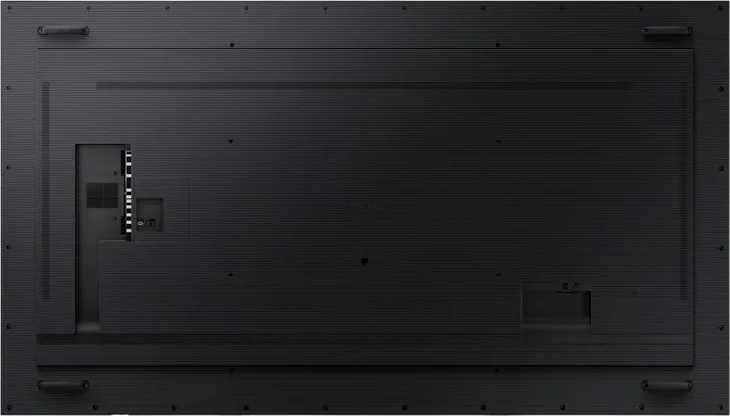
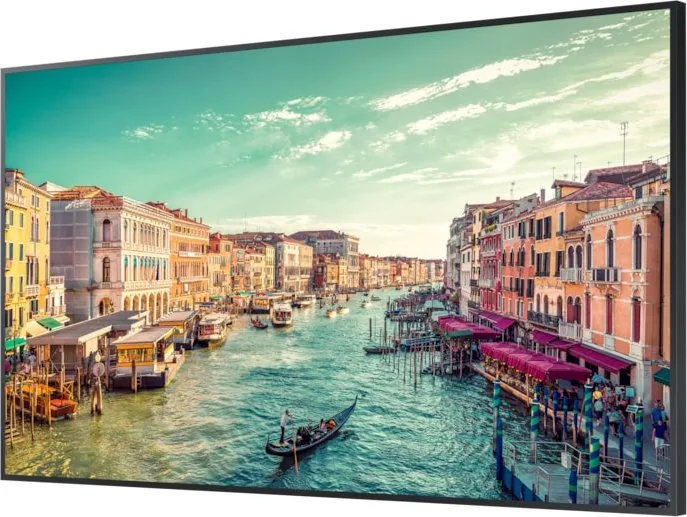
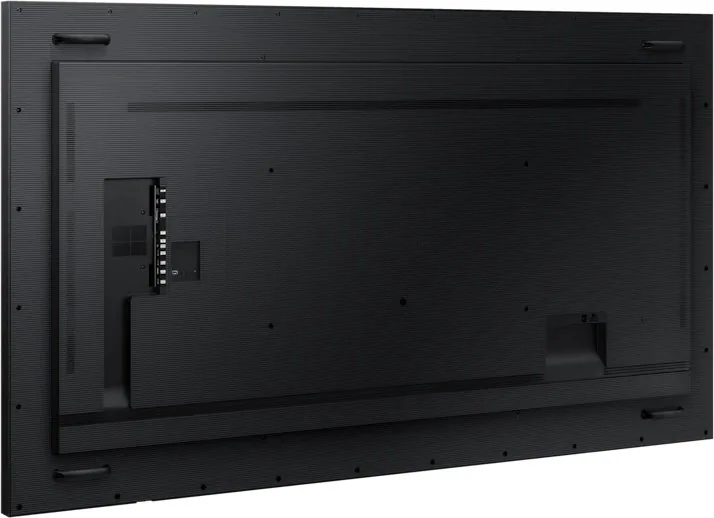
Samsung QM98T Manual
PDF manual · 104 Pages
English


Quick check
Incorrect answer, please try again.
Chat with your Samsung QM98T manual using AI
Get instant AI answers from your Samsung QM98T manual
Ask anything about the Samsung QM98T. Answers come from this manual, with the pages they are based on.
QM98T Maintenance Schedule
Wipe the surface with a slightly wet soft cloth, then wipe with a dry cloth. Do not spray water directly on the product.
Disconnect the power cord if not using the product for a long time to prevent dust accumulation and fire risk.
Ask a Question
Do you recommend QM98T?
Yes NoFrequently Asked Questions
No, Samsung strongly recommends hiring an authorized technician. Improper installation can lead to the unit falling, causing severe injury or damage. Professional mounting ensures safety and maintains warranty coverage.
Is this answer helpful?
The QM98T supports a video wall matrix of up to 15 by 15, totaling 225 screens. You can configure horizontal and vertical splits to create custom layouts for your specific needs.
Is this answer helpful?
Enable the Screen Burn Protection feature in the menu. Use Pixel Shift to move images slightly and activate screen savers when the display is idle. Avoid showing static images for extended periods.
Is this answer helpful?
Yes, but range varies. For QB98T/QM98T models, the remote works within 7 to 10 meters at a 30-degree angle. For QE models, the range is shorter at 2.5 to 4 meters. External IR cables can extend this range.
Is this answer helpful?
Absolutely. The Player feature supports various formats like MP4, AVI, and MKV stored on internal memory or USB drives. It also handles Office documents and PDFs for presentations.
Is this answer helpful?
No, this model is designed for indoor commercial environments. Exposure to moisture, direct sunlight, or extreme temperatures can damage the panel and void the warranty.
Is this answer helpful?
Advantages and Disadvantages
Advantages

- Massive 98-inch screen delivers stunning visual impact for commercial spaces
- Supports Video Wall configurations up to 15x15 matrices for seamless displays
- Multiple connectivity options including HDMI, DP, and RS232C for versatile integration
Disadvantages

- Requires professional installation due to heavy weight and large dimensions
- High power consumption necessitates careful electrical planning
- Complex menu system may have a steep learning curve for new users
Product Specification
Diagonal
98"/248.9cm
Resolution
3840x2160, 16:9
Brightness
500cd/m^2
Contrast
1,200:1 (static), not specified (dynamic)
Response time
8ms
Viewing angle
178°/178°
Panel
IPS
Shape
straight (flat)
Backlight
White-LED
HDR
N/A
Refresh rate
60Hz
Signal frequency
30-81kHz (horizontal), 48-75Hz (vertical)
Connections
1x DVI, 2x HDMI 2.0, 1x DisplayPort 1.2, 1x HDMI-Out, 1x 3.5mm jack (Line-In), 1x 3.5mm jack (Line-Out)
Other connections
2x serial, 1x RJ-45 LAN, 2x USB-A 2.0 (480Mb/s)
VESA
800x400 (free)
Operating time
24h/7
Power consumption
616W (max), 414W (typical), not specified (old energy label A+++ to G), 0.5W (standby)
SDR energy efficiency class (A to G)
B
Dimensions (WxDxH)
86.6x49.3x3.8in
Weight
183.0lb
Features
Speakers (2x 10W), HDCP 2.2, Tizen 4, WLAN, Bluetooth, temperature sensor, integrated media player (Cortex A72 4x 1.7Ghz, 2.5GB RAM, 8GB Flash)
Manufacturer warranty
three years
Product Description
Samsung QM98T 98 Manual Overview
The Samsung QM98T is a massive 98-inch professional display designed for commercial environments requiring high-impact visuals. This guide covers the essential setup, operation, and maintenance procedures to ensure optimal performance. Understanding the manual helps users maximize the screen's potential while avoiding common pitfalls that could void the warranty or damage the unit.
Installation and Safety First
Safety is paramount when handling such a large panel. The manual emphasizes keeping the product away from heat sources and ensuring proper ventilation to prevent overheating. When installing, always use an authorized technician to mount the wall bracket securely. The device requires at least 40 mm of space behind it for airflow if mounted on a perpendicular wall. Never attempt to move the panel alone; its size demands multiple people to prevent injury or screen damage.
Connectivity and Control
Connecting source devices is straightforward with various ports including HDMI, DisplayPort, and DVI. For video walls, the QM98T supports daisy chaining via HDMI and DP outputs, allowing up to 15 screens in a matrix configuration. The RS232C port enables centralized control using MDC software, letting administrators manage power, volume, and input sources remotely. The built-in web browser and MagicInfo player support digital signage content directly without external boxes.
Maintenance Tips
Cleaning should only be done with a soft, dry cloth after disconnecting power. Avoid spraying liquids directly on the screen. To prevent image retention, utilize the screen burn protection features like pixel shift and screen savers. Regularly check network settings if using wireless connectivity, though wired connections are recommended for stability in commercial setups.
Search for 67,706 Manuals online


Type-in Brand or Model