
Samsung QBR Series Manual
PDF manual · 24 Pages
English


Quick check
Incorrect answer, please try again.
Chat with your Samsung QBR Series manual using AI
Get instant AI answers from your Samsung QBR Series manual
Ask anything about the Samsung QBR Series. Answers come from this manual, with the pages they are based on.
Ask a Question
Do you recommend QBR Series?
Yes NoFrequently Asked Questions
The recommended usage is under 16 hours per day to maintain warranty validity.
Is this answer helpful?
No, operating beyond 16 hours per day may void the warranty coverage.
Is this answer helpful?
The QB13R-TM model supports the TOUCH OUT cable for interaction.
Is this answer helpful?
Touch and hold the screen while the product is turned on to access the menu.
Is this answer helpful?
Use a Cat 7 or STP type cable for stable LAN connection.
Is this answer helpful?
Operating temperature ranges from 0 to 40 degrees Celsius.
Is this answer helpful?
Check that the cable is connected correctly and the source device is powered on.
Is this answer helpful?
Advantages and Disadvantages
Advantages

- Easy initial setup with quick guide
- Comprehensive connectivity options
- Reliable environmental specifications
- Touch functionality for specific models
- Accessible administrator menu features
Disadvantages

- 16 hour daily usage limit
- Warranty void if limit exceeded
- Limited accessory availability by region
- Specific model required for touch
- String screw specifications for mounting
Product Specification
Viewing Angle
178°/178°
Shape
Straight (flat)
Backlight
White LED
HDR
N/A
Refresh Rate
60 Hz
Manufacturer Warranty
3 Years
Product Description
Unlocking the Full Potential of Enterprise Displays
In the fast-paced environment of digital signage, reliability is the cornerstone of success. The Samsung QBR Series offers a robust solution tailored for businesses requiring consistent performance in information kiosks and display walls. To fully leverage the capabilities of this technology, potential buyers should familiarize themselves with the Samsung QBR Series Manual. This guide serves as the primary resource for installation and daily operation, ensuring that every feature is utilized correctly for optimal business outcomes.
Comprehensive Component Overview
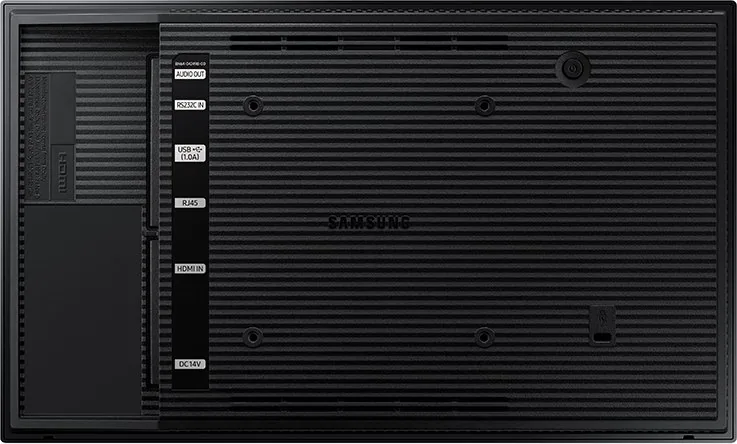
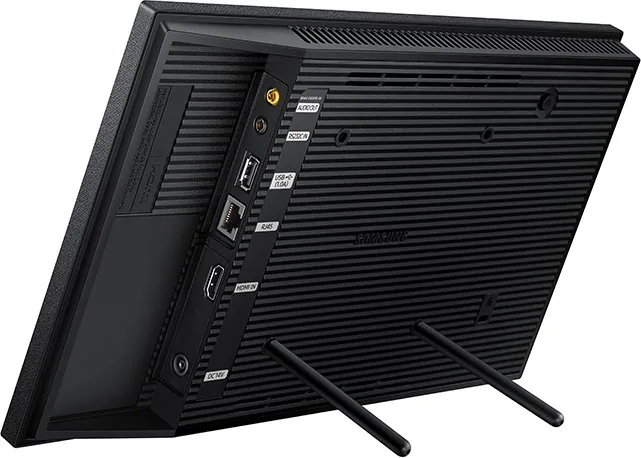
The product package is designed with utility in mind. Inside the box, you will find a Quick Setup Guide to assist with initial configuration. It also includes a Warranty Card, though availability varies by region. To power the unit, an AC power cord and an AC/DC adapter are provided. Visual input options are supported via a remote control, which allows for easy navigation without touching the screen directly. For connectivity, the inclusion of an RS232C adapter allows for serial communication with external systems. Additional accessories like the STAND-BAR are provided to assist with mounting stability. Users should inspect all items against the list to ensure nothing is missing from the delivery.
Operational Specifications and Limits
Understanding the operational limits is critical for warranty preservation. The manufacturer recommends usage of under 16 hours per day. If the product is operated beyond this limit, there is a risk that the warranty may become void. Therefore, planning your operational schedule is vital. The unit functions within a defined temperature range from 0 to 40 degrees Celsius. Humidity levels should remain between 10 to 80 percent without condensation. These environmental factors ensure the internal components remain protected from damage over time.
Connectivity and Integration
This device connects to MDC and the Internet using a LAN cable. The ports support 10/100 Mbps connections. For touch functionality, a specific model designated as the QB13R-TM supports the TOUCH OUT cable. This allows for interactive experiences which are increasingly popular in modern retail environments. The Administrator Menu can be accessed by touching and holding the screen while the product is active. If adjustments need to be made to touch control settings, users can navigate the OSD menu to select the appropriate control device options.
Troubleshooting Common Issues
If the screen keeps switching on and off, check that the cable between the product and the PC is connected correctly. When a No Signal message appears, verify power to the source device. Sometimes the issue lies with the external input rather than the display itself. For wall mounting, a VESA bracket kit is required. The screw hole specifications must be strictly followed to secure the panel safely.
Final Thoughts on Deployment
Choosing this series means investing in a robust display solution that integrates easily into existing workflows. By reviewing the instructions carefully, you can maximize the utility of the hardware for extended periods. This guide highlights why staying informed about technical specifications leads to better outcomes in deployment and daily operation for your team.
Search for 67,706 Manuals online


Type-in Brand or Model