
Samsung OH55D Manual
PDF manual · 145 Pages
English


Quick check
Incorrect answer, please try again.
Chat with your Samsung OH55D manual using AI
Get instant AI answers from your Samsung OH55D manual
Ask anything about the Samsung OH55D. Answers come from this manual, with the pages they are based on.
OH55D Maintenance Schedule
Switch between two colours or change text and background every 30 minutes to prevent afterimage burn-in.
Display a moving image along with a logo for 60 seconds after using the product for 4 hours.
Power off the product for 2 hours after using it for 12 hours to reduce accumulated voltage difference.
Ask a Question
Do you recommend OH55D?
Yes NoFrequently Asked Questions
The OH55D includes HDMI inputs, HDBaseT, USB, LAN (Ethernet), RS-232C, and audio out. A separate power box connects to MAIN POWER and BLU POWER cables for the mainboard and LED backlight. HDBaseT enables long-distance HDMI over LAN cabling.
Is this answer helpful?
Yes. The display supports portrait and landscape mounting and can be configured in video wall matrices up to large arrays (up to 15x15 supported logically). Follow ventilation, clearance and wall-mount specifications and use Screen Position settings to assign IDs in a video wall.
Is this answer helpful?
Use Samsung MagicInfo server (Lite or Premium) to approve devices, deploy network channels, schedules and templates. Devices can sync time with the server, download schedules, and be controlled remotely. MDC is available for multiple-display control via RS-232C or Ethernet.
Is this answer helpful?
Enable Auto Protection Time, Screen Burn Protection, Pixel Shift and periodic screen-saver modes. Use timers, rotate content, and avoid leaving static 4:3 borders or fixed imagery for extended periods. Follow recommended picture-size and screen-fit guidance.
Is this answer helpful?
The player supports many containers (MP4, AVI, MKV, etc.), H.264 up to Level 4.1, common audio codecs (AAC, AC3, LPCM) and JPEG images. There are limits: certain codecs (VC1 variants, some MVC/VP8 cases), Flash and Office feature restrictions, and performance caps on resolution, bitrate and frame rate—check the manual’s compatibility tables.
Is this answer helpful?
Use HDMI for both video and audio; if using HDMI-to-DVI, additional audio wiring is required to AUDIO OUT. Configure Picture Mode and HDMI Hot Plug settings per the manual when using HDMI-DVI connections for proper video/audio handling.
Is this answer helpful?
Install the unit with at least 50 mm clearance for ventilation, avoid heat sources and high-humidity locations, use the supplied power cord, and follow fan/temperature controls. For outdoor or low-temperature installations enable Outdoor Mode and observe power-on delay settings when deploying multiple units.
Is this answer helpful?
Advantages and Disadvantages
Advantages

- Robust 55" commercial display with 24/7 reliability and portrait/landscape mounting support.
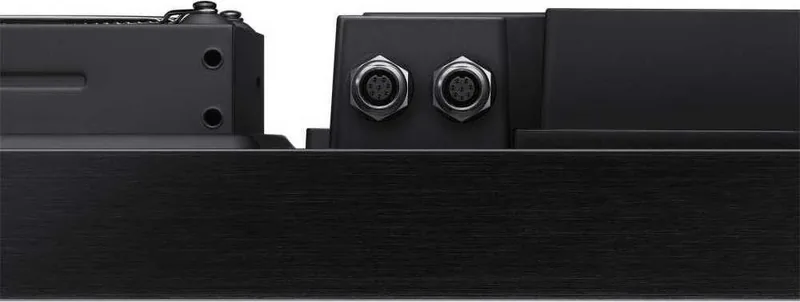
- Extensive connectivity: dual HDMI, HDBaseT, USB, LAN and RS-232C plus separate power box.
- MagicInfo and MDC support for networked content management, scheduling and remote control.
- Advanced picture calibration: white balance, gamma, colour temperature and calibrated modes.
- Comprehensive protection features: pixel shift, screen burn protection, fan/temperature control and eco modes.
Disadvantages

- Complex setup with many menus and options may require trained installers or IT staff.
- File and codec compatibility has limits (e.g., certain codecs, portrait restrictions and container/version constraints).
- Power box and ventilation require specific clearance and careful cable routing during installation.
- Some advanced features (Colour Expert calibration, MagicInfo server features) require additional software or server setup.
- USB/media playback restrictions: limited simultaneous videos, Flash and Office/PDF constraints and prioritized audio rules.
Product Specification
Diagonal
55"/55.00in
Resolution
1920x1080, 16:9
Brightness
2,500 cd/m2
Contrast
5,000:1 (static), 100,000:1 (dynamic)
Response time
6 ms
Viewing angle
178°/178°
Panel
VA (S-VA)
Shape
straight (flat)
Backlight
White-LED
HDR
N/A
Refresh rate
60 Hz
Signal frequency
not specified (horizontal), not specified (vertical)
Connections
2x HDMI 1.4
Other connections
1x USB-A 2.0 (480 Mb/s), 1x RJ-45 LAN
VESA
N/A
Power consumption
800 W (maximum), 267 W (typical), not specified (old energy label A+++ to G), 0.5 W (standby)
Dimensions (WxHxD)
49.65x28.78x3.54in
Weight
87.08lb
Special features
IP56 certified (front), IP56 certified (rear), integrated media player, light sensor, Linux
Manufacturer's warranty
three years
Product Description
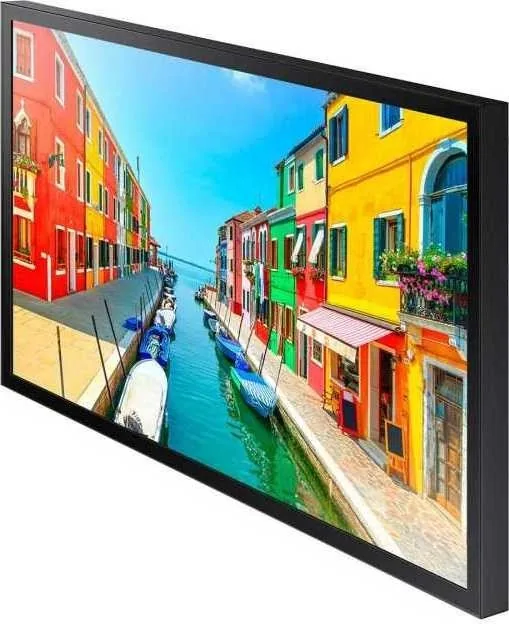
Samsung OH55D, 55" Manual
The Samsung OH55D is a 55-inch professional-grade commercial display engineered for demanding digital signage, retail, corporate and public-space installations. Combining a large, bright panel with advanced connectivity and management features, the OH55D is built to run 24/7 with features that protect image quality and simplify deployment and day-to-day operation.
Key product highlights
The OH55D offers robust input options including dual HDMI, HDBaseT, USB and LAN, plus RS-232C for legacy control. A separate power box simplifies cable routing and service. The integrated illuminance sensor adapts backlight to ambient light, while advanced picture controls (white balance, gamma, colour temperature, calibrated modes) help achieve consistent, calibrated visuals across single displays and video walls. The display supports MagicInfo content management, enabling local playback from USB/internal memory, network channels from a MagicInfo server, schedule-based playback, templates and remote monitoring.
Deployment and installation
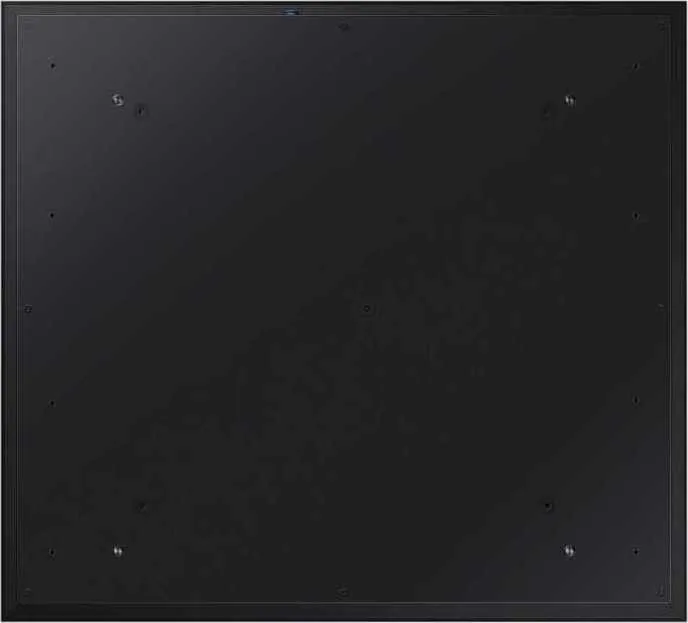
Designed for wall mounting and video wall matrices up to large configurations, the OH55D includes detailed clearance and ventilation requirements, power-box dimensions and screw-hole specs (VESA-compatible). Portrait or landscape mounting is supported; the unit includes safeguards for fan and temperature control, outdoor mode, and guidance on minimizing burn-in with pixel-shift, screen-protection timers, and screen-lamp scheduling.
Playback, formats and limits
The OH55D’s built-in player handles many video, audio, image, Flash and office file formats (with format/version limitations). H.264 video (up to Level 4.1) and common containers (MP4, AVI, MKV, etc.) are supported, and the player enforces practical limits: simultaneous playback restrictions, codec and portrait-mode caveats, and prioritized audio handling (Flash > network BGM > local BGM > video audio). Templates, schedules and USB cloning simplify mass deployments.
Management and network features
Network connectivity supports wired, mobile-dongle and HDBaseT LAN methods. MagicInfo integration enables device approval, server-synced scheduling, deployed folders and remote management. MDC (Multiple Display Control) is supported via RS-232C or Ethernet for multi-display control. Network and server setup menus, IP configuration (DHCP or static), and diagnostics are on-board.
Practical operation and safety
Comprehensive safety guidance covers power handling, cleaning, ventilation, installation warnings, and child-safety advice. The manual details on/off timers, holiday scheduling, eco features (eco sensor, brightness limit, power-saving modes), fan and temperature management, and step-by-step procedures for connecting PCs, video devices, audio systems and the power box.
Notes
- Supports MagicInfo (Lite/Premium) and MDC for centralized content and multi-display control.
- Pixel shift, screen burn protection and screen-saver timers reduce image retention risk.
- Consult format and codec tables for exact file compatibility and performance limits.
Search for 67,706 Manuals online


Type-in Brand or Model