

Samsung Galaxy Z Flip Manual
PDF manual · 239 Pages
English


Quick check
Incorrect answer, please try again.
Chat with your Samsung Galaxy Z Flip manual using AI
Get instant AI answers from your Samsung Galaxy Z Flip manual
Ask anything about the Samsung Galaxy Z Flip. Answers come from this manual, with the pages they are based on.
Galaxy Z Flip Maintenance Schedule
Use the Device Care function to optimize storage, close background apps, manage battery usage, and check for malware.
If photos appear blurry, clean the camera lens before taking pictures again.
Remove foreign particles between the cover and device by wiping them off before attaching or using the cover.
Wipe the multifunction port dry carefully before charging if it is wet to prevent damage.
Free maintenance reminders
Timed to your purchase date. Always free, unsubscribe anytime.
Ask a Question
Do you recommend Galaxy Z Flip?
Yes NoDo you recommend Galaxy Z Flip?
Yes NoFrequently Asked Questions
Avoid direct sunlight when using location services. Stop charging if hot. Close background apps. If the device reaches a certain temperature, it will limit performance to cool down.
Is this answer helpful?
Yes, you can activate a physical nano-SIM and an embedded eSIM simultaneously to have two phone numbers or service providers on a single device.
Is this answer helpful?
Use the cover screen viewfinder to aim the rear camera. You can launch the Camera app via the cover screen and show your palm to take photos.
Is this answer helpful?
No, this device is not water or dust resistant. Do not allow liquids or small particles to enter the device. Do not use the multipurpose jack if wet.
Is this answer helpful?
Place the center of the device back on the center of the wireless charger. Fold the device before charging the battery for better alignment.
Is this answer helpful?
It is a service that automates settings you use repeatedly. It suggests features based on your usage patterns or specific situations like before bed mode.
Is this answer helpful?
Use Smart Switch via USB Type-C cable or Wi-Fi Direct to move contacts and media from your previous device to this new phone.
Is this answer helpful?
Advantages and Disadvantages
Advantages

- Foldable design offers compact portability without sacrificing screen size
- Cover screen allows quick access and selfies without unfolding
- Supports fast wired charging and wireless charging capabilities
- Versatile camera modes include Night mode and Single Take
- Dual SIM support via physical card and embedded eSIM
Disadvantages

- Device is not resistant to water or dust exposure
- Heats up easily during charging or intensive gaming sessions
- Screen protector cannot cover the hinge crease area
- Wireless PowerShare drains battery quickly when sharing power
- Not rated for water resistance requires careful liquid avoidance
Product Specification
Operating System
Android 11.0 (via update), Android 10.0 (Factory Default)
Display
6.7", 2636x1080 Pixels, 16 Million Colors, AMOLED, Capacitive Touchscreen, Gorilla Glass 6, Punch-hole, HDR (HDR10+), Foldable (Inner), 425ppi (Main Display); 1.1", 300x112 Pixels, AMOLED, 291ppi (Cover Display)
Rear Camera
12.0MP, f/1.8, Phase Detection AF (All-Pixel AF), OIS, LED Flash, Video @2160p/60fps (Camera 1); 12.0MP, f/2.2, Wide Angle Lens (Camera 2)
Front Camera
10.0MP, f/2.4, Video @2160p/30fps
Connectivity
USB-C 3.1 (5Gb/s, OTG), Wi-Fi 5 (IEEE 802.11a/b/g/n/ac), Bluetooth 5.0 (aptX), NFC, ANT+
Sensors
Accelerometer, Gyroscope, Proximity Sensor, Light Sensor, Compass, Barometer, Fingerprint Sensor (Side-mounted)
Chipset
Qualcomm SM8150-AC Snapdragon 855 Plus, 64-bit
CPU
1x 2.96GHz Kryo 485 + 3x 2.42GHz Kryo 485 + 4x 1.80GHz Kryo 485
GPU
Adreno 640
RAM
8GB
Storage
256GB (UFS 2.1)
Navigation
A-GPS, GLONASS, BeiDou, Galileo
Modem
GSM (0.2Mbps/0.1Mbps), UMTS (42Mbps/5.76Mbps), LTE Cat 16/13 (1000Mbps/150Mbps)
Frequency Bands
2G (850/900/1800/1900), 3G (B1/B2/B4/B5/B8/B34/B39), 4G (B1/B2/B3/B4/B5/B7/B8/B12/B13/B17/B18/B19/B20/B25/B26/B28/B29/B30/B34/B38/B39/B40/B41/B66)
Battery
3300mAh, Non-removable, Wireless Charging, Reverse Wireless Charging
Charging Power
15W (Samsung AFC, Qualcomm Quick Charge 2.0)
Talk Time
35h (LTE)
SAR Rating
0.369W/kg Head, 1.546W/kg Body
Form Factor
Foldable
Build Materials
Glass (Back), Metal (Frame)
SIM Card Size
1x Nano-SIM, 1x eSIM
Features
Dual-SIM
Dimensions
6.59x2.90x0.28" (Open), 3.44x2.90x0.68" (Closed)
Weight
0.40 lbs
Screen-to-Body Ratio
82.5%
Product Description
Samsung Galaxy Z Flip User Experience
Device Overview
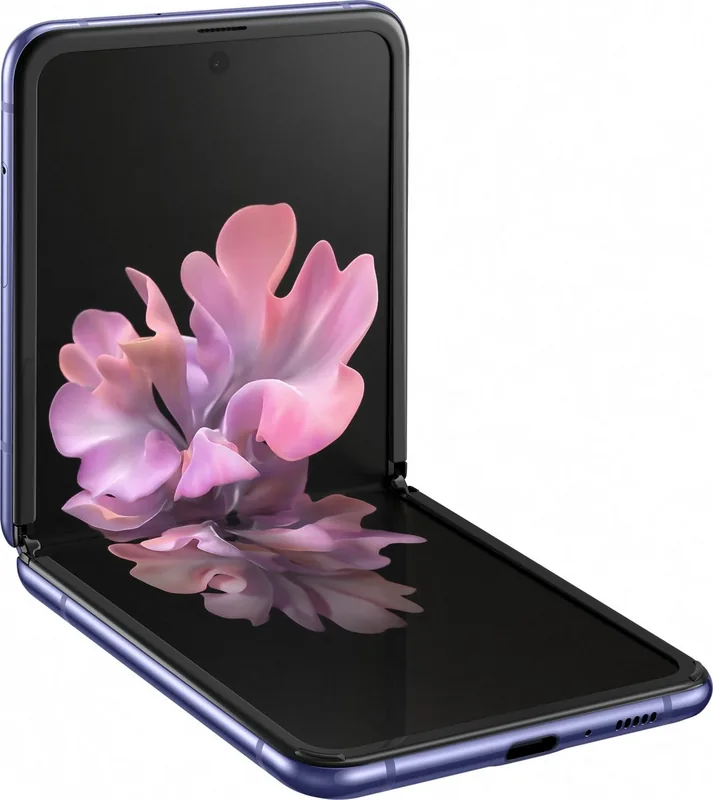
The Samsung Galaxy Z Flip introduces a revolutionary design that balances portability with performance. Its foldable nature allows users to carry a large screen device in a compact size. When folded, it serves as a stylish compact unit, and when unfolded, it acts as a standard smartphone. For detailed operational guidance, the Samsung Galaxy Z Flip Manual provides comprehensive steps on setup and usage. It is essential to handle the flexible screen with care to avoid creases or damage during extended periods. This form factor is perfect for one-handed use in public spaces.
Camera and Imaging Features
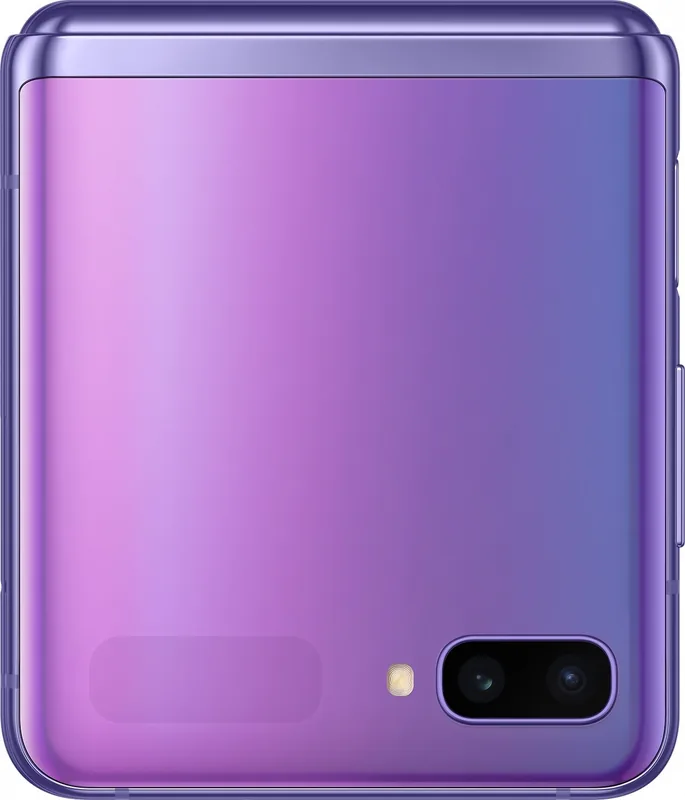
Photography enthusiasts will appreciate the versatile camera system. The Single Take feature allows rapid capture of photos and videos in one shot. Night mode ensures clarity in low light conditions without flash dependency. Users can take selfies using the rear camera by viewing the preview on the outer cover screen. This unique function eliminates the need to unfold the device for self-portraits. Additionally, Food mode enhances vibrant colors for culinary shots. Pro mode lets manual users adjust ISO and shutter speed for professional results.
Power and Charging
Battery management is critical for this device. It supports fast charging wired and wirelessly. Wireless PowerShare allows charging other compatible devices like earbuds. However, overheating can occur during intense tasks or charging. If the device feels hot, disconnect the charger and close applications. Prolonged exposure to high temperatures can reduce battery lifespan significantly. Always use approved accessories to prevent compatibility issues. The battery icon displays empty when power is critically low.
Connectivity and Accounts
The phone supports dual SIM configurations using nano-SIM and eSIM technology. Smart Switch facilitates easy data migration from previous devices via Wi-Fi or cable. Samsung accounts enable access to services like Cloud storage and Find My Mobile. Secure Folder adds an extra layer of encryption for private apps and files. Bluetooth and NFC are available for connecting peripherals and payments securely. Bixby Routines automate settings based on time and location for convenience.
Care and Recommendations
The device is not rated for water or dust resistance. Keep liquids away from the charging ports to avoid corrosion. Metal objects can interfere with magnets inside the phone. Do not store credit cards directly behind the back cover. Screen burn-in can happen if static images remain too long. Use adaptive brightness to prevent this. If performance issues persist, a factory reset may be necessary. Avoid placing sharp objects on the screen when folded. Remember to regularly update software for security patches. If the screen turns off unexpectedly due to heat, wait for it to cool before using. Touchscreen responsiveness may vary slightly at the hinge center during fold.
Search for 67,732 Manuals online


Type-in Brand or Model