
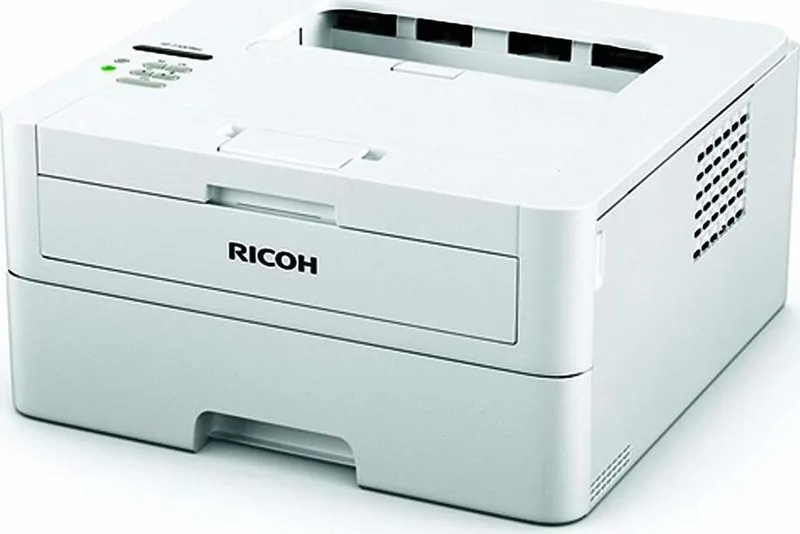
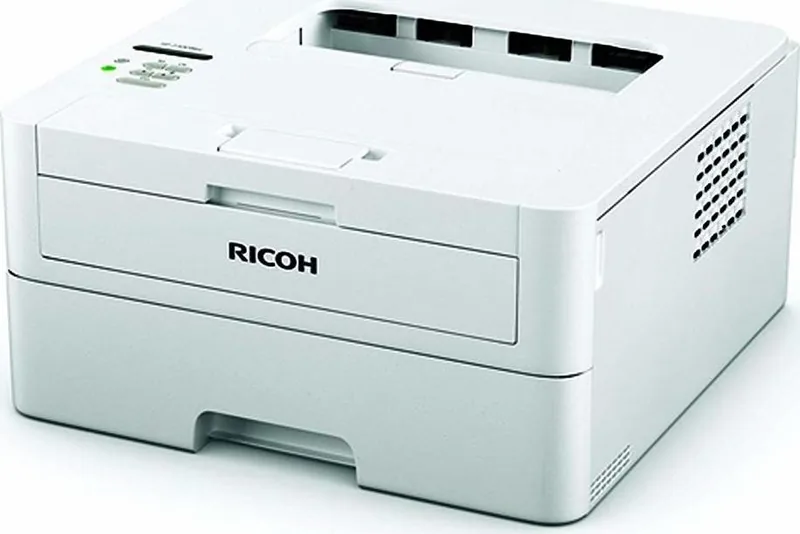
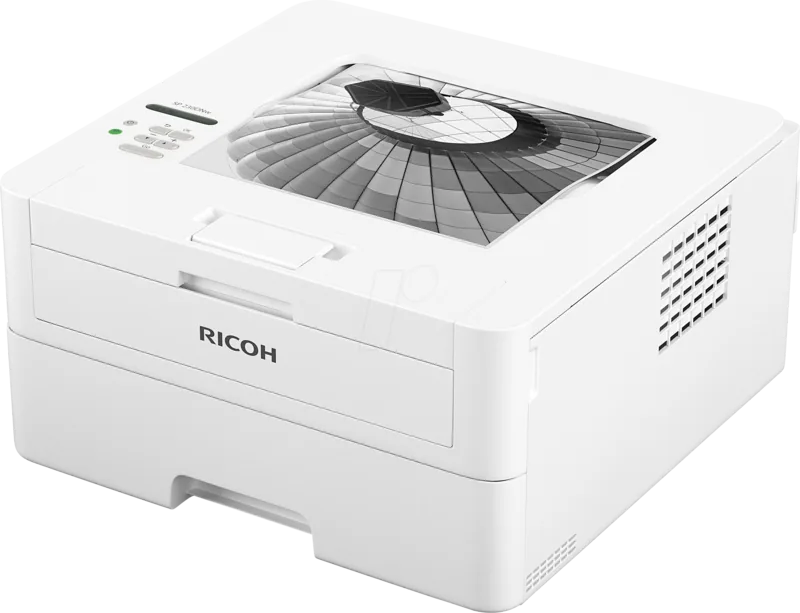
Ricoh SP 230DNw Manual
PDF manual · 243 Pages
English



Quick check
Incorrect answer, please try again.
Chat with your Ricoh SP 230DNw manual using AI
Get instant AI answers from your Ricoh SP 230DNw manual
Ask anything about the Ricoh SP 230DNw. Answers come from this manual, with the pages they are based on.
SP 230DNw Maintenance Schedule
Regularly clean the device inside and out with a dry, lint-free cloth to maintain performance.
Replace when the device indicates the end of life or low toner. Use original cartridges for best performance.
Replace when the device indicates the end of life. Average life is about 12,000 pages under ideal conditions.
Move the slider back and forth inside the drum unit if print quality issues occur or a drum warning appears.
Print a test page to remove debris from the drum surface if spots appear at 94 mm intervals.
Wipe the rollers and separator with a damp cloth to prevent paper jams if feeding problems occur.
Free maintenance reminders
Timed to your purchase date. Always free, unsubscribe anytime.
Ask a Question
Do you recommend SP 230DNw?
Yes No
Maggie Corwin
7 months ago
Is the toner really expensive, and how many pages can I expect before it needs replacing?

Manual.ly
7 months ago
Toner costs depend on which cartridge you use and your print coverage (how much black is on each page). Many users report yields in the range of about 3,000 pages for the high-yield toner, which usually keeps the cost per page low compared to inkjet. If you print mostly text and use economical print settings, you should typically get more pages per cartridge. For the best value, choose the correct toner for your model (high-yield where available) and compare price per page rather than just cartridge price. If you use very dense print jobs, replacement will be sooner.
Frequently Asked Questions
The SP 230DNw supports USB and wireless networking, including Wi‑Fi setup via WPS (push-button or PIN), manual SSID entry, Wi‑Fi Direct, AirPrint and Mopria for mobile printing, and Web Based Management for network administration.
Is this answer helpful?
Yes. The manual feed accommodates envelopes, labels and heavier media. Use the manual feed instructions to set paper guides correctly, feed one sheet at a time, and select the appropriate paper type in the driver to avoid jams and ensure proper print quality.
Is this answer helpful?
From the device menu choose Network > WLAN > WPS (push-button) or WPS + PIN. For push-button mode press WPS on your router when prompted; for PIN mode follow on-screen steps to enter the eight-digit PIN on the registrar device. After connection, install drivers or full software as needed.
Is this answer helpful?
Do not use inkjet-specific paper, wrinkled, folded, or torn sheets, heavily textured or coated paper, paper with windows or perforations, and stock exceeding recommended weight limits. Such media can cause feeding problems or damage and may void service coverage.
Is this answer helpful?
Use Ricoh Status Monitor on Windows or the printer utility on macOS to view status and receive alerts for low toner, paper jams, and errors. You can also access Web Based Management from a browser (networked devices) for settings and reports.
Is this answer helpful?
Follow the manual’s routine maintenance section: power down per instructions, open the indicated panels, remove and replace toner cartridges and drum units as directed, and clean corona wires and pickup rollers using recommended procedures to avoid damage.
Is this answer helpful?
Duplex (two-sided) printing is supported for compatible feed methods. Enable duplex in the driver under Duplex/Brochure settings or choose two-sided options on the device. Note that duplex behavior and available bindings depend on paper source and driver options.
Is this answer helpful?
Advantages and Disadvantages
Advantages

- Compact footprint and straightforward function-panel with LCD for easy operation.
- Flexible connectivity: USB, Wi‑Fi, Wi‑Fi Direct, AirPrint, Mopria and utility support.
- Manual feed supports envelopes, labels and heavier stock for diverse media needs.
- Driver and utility suite (RICOH Utilities, Status Monitor, Web Based Management) for Windows and macOS.
- Adjustable print density and resolution, duplex and multi-page-per-sheet features to save paper.
Disadvantages

- Monochrome only — no color printing capability.
- Some specialty or heavily textured papers are not supported and can cause jams.
- Full feature set may require driver/software installation and occasional firmware updates.
- Higher-resolution prints take longer and may reduce throughput for large jobs.
- Limited cassette capacity requires frequent refills for heavy-volume use.
Product Specification
Format
A4
Type
Laser Printer
Color system
Monochrome
Consumables
408294, 408295, 408296
Printing
600x2400dpi - 30 ppm (A4)
Paper capacity
250 Sheets
Memory
64MB (RAM)
Ports
1x USB-B 2.0
Network
LAN, Wi-Fi 4 (802.11b/g/n), AirPrint, Cloud Print, Mopria
Display
N/A
Power consumption
1104W (maximum), 460W (typical), 48W (standby), 6W (sleep)
Emulation
GDI
Color
white
Dimensions
14.02x7.20x14.17in
Weight
16.09lb
Manufacturer warranty
2 Years
Product Description
Ricoh SP 230DNw — Compact Monochrome Laser Printer
The Ricoh SP 230DNw is a compact monochrome laser printer designed for small offices, home offices, and users who need reliable black-and-white prints with flexible connectivity. Lightweight yet robust, this model blends straightforward operation with essential features: USB and wireless network support, manual feed for specialty media, and driver utilities for Windows and macOS.
Key capabilities and user experience
Out of the box, the SP 230DNw offers easy setup and straightforward controls via a clear function-key panel and an LCD that displays status messages and wireless signal strength. The device supports both cassette-fed and manual-feed paper handling, accommodating letter, A4 and a range of custom sizes, envelopes, labels, and thicker media through the manual feed. Paper guides, cassette adjustments and a maximum paper-height mark help avoid jams and ensure consistent feeding.
Printing is optimized for monochrome jobs: adjustable resolution and print-density options let you choose between faster, lighter drafts and higher-quality, denser output. Duplex printing support (for supported feeds) and multi-page-per-sheet features reduce paper use. The driver and utility suite includes RICOH Utilities and Status Monitor for Windows and equivalent tools for macOS, enabling device status checks, network configuration, and driver preferences.
Networking and mobile printing
The SP 230DNw supports versatile network options: standard wireless (Wi-Fi) setup by WPS (push-button or PIN), manual SSID entry, and Wi‑Fi Direct for direct mobile printing without an access point. It integrates with AirPrint, Mopria, Google Cloud Print workflows (where applicable), and Ricoh’s iPrint&Scan tools for Mac and mobile platforms. Web-based Management and BRAdmin Light (Windows) make network deployment and basic administration straightforward for IT staff.
Maintenance and reliability
The manual describes routine maintenance tasks such as replacing toner cartridges and drum units, cleaning coronas and pickup rollers, and performing test prints to diagnose print-quality issues. It outlines non-recommended paper types (e.g., inkjet paper, heavily textured or damaged stock) and storage recommendations to minimize feed errors and maintain print quality. Status Monitor notifications and on-panel messages help identify paper jams and supply levels quickly.
Final thoughts
The Ricoh SP 230DNw is well-suited for users who need dependable monochrome printing with flexible paper handling and modern wireless/mobile printing options. Its compact footprint, clear controls, and full driver options across Windows and macOS make it a practical choice for budget-conscious small workgroups and home-office environments.
Notes
- Supports a range of paper weights; check manual for exact limits per feed type.
- Avoid damaged, highly textured, or inkjet-specific paper to prevent jams and damage.
- Use recommended supplies for consistent print quality and to protect warranty coverage.
Search for 67,706 Manuals online


Type-in Brand or Model
Markus Keller
9 months ago
How expensive are replacement toners? I saw comments that the toner runs out fast and costs around 90 euros for about 3000 pages. Is that typical?
Manual.ly
9 months ago
Replacement costs depend on how much you print and on the selected toner cartridge yield. Many users report an estimated yield around 3000 pages, so the best way to judge the real cost is the cost per printed page. If you print mainly text at normal settings, you can usually get close to the stated page yield. For heavier printing, look for higher-yield options (if available for your exact model) or adjust print quality settings (draft/economy). Also make sure you store toner properly (dry, stable temperature) and use the printer regularly, as that helps maintain consistent quality. If you tell us your model and typical monthly page count, we can help estimate your expected toner consumption.