
Ricoh Ri 100 Manual
PDF manual · 176 Pages
English



Quick check
Incorrect answer, please try again.
Chat with your Ricoh Ri 100 manual using AI
Get instant AI answers from your Ricoh Ri 100 manual
Ask anything about the Ricoh Ri 100. Answers come from this manual, with the pages they are based on.
Ask a Question
Do you recommend Ri 100?
Yes NoFrequently Asked Questions
The Ri 100 supports USB, wired Ethernet (LAN), and wireless LAN connections. Wireless setup can use Easy Setup, WPS/PBC, PIN methods, or manual configuration via the Web Image Monitor. Drivers are available for Windows and Mac; mobile access is via the RICOH Smart Device Connector app.
Is this answer helpful?
The printer supports T-shirts, sweatshirts, tote bags, socks, sleeves, and other fabric types. Easy Designer supports A4 and A5 platens (T-shirt, sweatshirt, tote, other). Advanced Designer adds support for socks and sleeve platens; optional platens may be required for some items.
Is this answer helpful?
Download the latest drivers and RICOH Design Software from Ricoh’s support website. For Windows or Mac, run the installer, accept the license, and follow prompts to add a new printer by USB, automatic search, or IP address. Restart your computer if prompted and apply optional printer property settings as needed.
Is this answer helpful?
Download firmware files from the Ricoh support site. For control firmware, use the Windows firmware updater or the Web Image Monitor by navigating to http://<printer IP>/, logging in as admin, and using ROM Update. For WLAN firmware, access Wireless LAN Settings in the Web Image Monitor and upload the WLAN .bin file, then wait for the printer to restart.
Is this answer helpful?
Use RICOH Design Software’s network upload (scan the QR code or browse to the upload URL), import via USB from a mobile device, or use the RICOH Smart Device Connector app to send images via NFC or IP address. Uploaded images require entering the PIN shown by the software to finalize transfer.
Is this answer helpful?
Print quality modes include Speed, Fine, and Vivid. Choose based on balance between output speed and image detail. Select quality in RICOH Design Software before sending jobs and adjust garment type, thickness, and orientation for optimal results.
Is this answer helpful?
Print a Configuration Page from the control panel: Menu > List/Test Print > Config. Page, then Start. The page shows IPv4 address, wireless signal strength, and connection status so you can confirm DHCP/static IP, WLAN association, and other settings.
Is this answer helpful?
Advantages and Disadvantages
Advantages

- Versatile connectivity: USB, Ethernet, and multiple wireless setup options including WPS and PIN.
- User-friendly software: Easy and Advanced Designer modes for beginners and power users.
- Compact DTG solution: Supports multiple garment types and A4/A5 platens with optional sock/sleeve platens.
- Maintenance features: On-panel head cleaning, cartridge/waste indicators, and firmware update support.
- Mobile support: RICOH Smart Device Connector for NFC and network-based mobile printing.
Disadvantages

- Platen size limits: Easy mode supports only A4/A5; socks and sleeves require advanced mode and optional platens.
- Software dependency: Full functionality relies on RICOH Design Software and up-to-date drivers.
- Firmware process: Firmware and WLAN updates require careful steps via web interface or PC.
- Limited font support: Text tool in Advanced Designer has restricted font options.
- Ink management: Requires monitoring waste ink collector and cartridge volume for uninterrupted operation.
Product Specification
Format
A3
Type
Inkjet printer
Color system
4-color
Print resolution
1200x1200dpi
Memory
128MB (RAM)
Connections
1x USB-B 2.0
Network
LAN
Display
monochrome, 1-line
Power consumption
35W (maximum), 2W (sleep), 0.5W (off)
Dimensions
15.71x11.54x27.48in
Weight
55.12lb
Manufacturer's warranty
1 year (on-site)
Product Description
Ricoh Ri 100 Textile Printer, Ink, Multicolour Manual
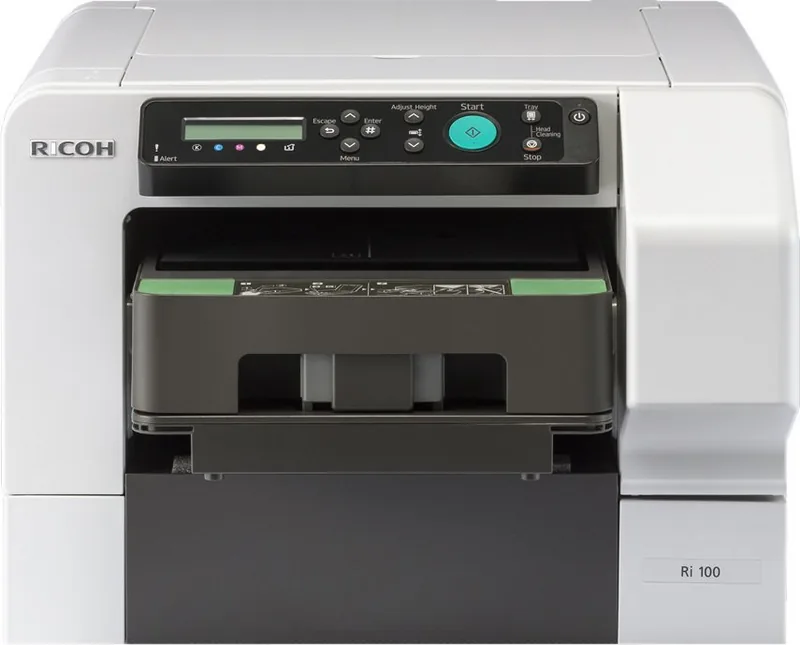
The Ricoh Ri 100 is a compact direct-to-garment (DTG) textile printer designed for small businesses, studios, and hobbyists who want high-quality, full-colour prints on fabrics. Engineered for ease of use, it offers USB, wired LAN, and wireless connectivity options plus intuitive controls for quick setup and reliable production. The Ri 100 supports A4 and A5 platens in easy mode and additional platens (socks, sleeves) in advanced mode, letting users print T-shirts, sweatshirts, tote bags, socks, and more with consistent, vibrant results.
Key Product Features
The Ri 100 uses multicolour ink cartridges (K, C, M, Y) and includes indicators for cartridge replacement and waste ink level. A clear control panel with display, navigation keys, start/stop, tray and auto-height controls simplifies operation, while head-cleaning and firmware update functions keep print quality optimal. The RICOH Design Software (PC/Mac/iPad) pairs tightly with the printer, offering Easy Designer for beginners and Advanced Designer for detailed layout, artwork, text, and image editing.
Workflow and Software
Getting started involves installing drivers (Windows/Mac), connecting via USB, Ethernet, or WLAN, and optionally setting a static IPv4 address. The RICOH Design Software streamlines garment selection, image import (USB, SD, network, mobile upload via QR/PIN), editing, print-quality selection (Speed, Fine, Vivid), and ink cost calculation. Mobile printing is supported through the RICOH Smart Device Connector app for iOS and Android, enabling NFC or IP-based device registration and job transmission.
Connectivity and Network Setup
The manual outlines multiple wireless setup methods: WPS/PBC, PIN, Easy Setup, and manual network configuration via Web Image Monitor. Network setup guides include DHCP toggle, static IPv4 entry (address, subnet mask, gateway), and verification via printed configuration pages. Firmware and WLAN module updates can be performed from Windows, Mac, or the printer’s web interface after administrator login.
Maintenance and Advanced Options
Routine maintenance like head cleaning, cartridge replacement, and waste ink collector checks are accessible via the control panel. Advanced Designer includes tools for illustration, artwork color edits, frames, drawing, text (limited fonts), trimming/cropping, and previewing. The software also supports saving jobs, recalculating ink costs by cartridge size/price and currency, and batch operations for multiple prints.
Notes:
- Supported mobile OS: Android 4.1+ and iOS 7.0+ for certain features.
- Use the RICOH website for the latest drivers, firmware, and Design Software.
- Print configuration pages after network or firmware changes to confirm settings.
Search for 67,706 Manuals online


Type-in Brand or Model