


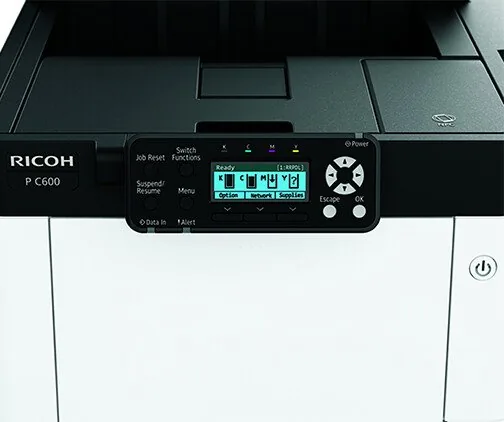
Ricoh P C600 Manual
PDF manual · 128 Pages
English



Quick check
Incorrect answer, please try again.
Chat with your Ricoh P C600 manual using AI
Get instant AI answers from your Ricoh P C600 manual
Ask anything about the Ricoh P C600. Answers come from this manual, with the pages they are based on.
Ask a Question
Do you recommend P C600?
Yes NoVideo Manual
Installation Settings(RICOH P C375) | Ricoh Video Manual
Frequently Asked Questions
The P C600 supports a wide range of standard metric and imperial sizes plus custom sizes via the control panel. Trays accept plain paper, recycled, color, letterhead, preprinted, bond, coated paper, labels and envelopes up to specified weights. Duplexing and media compatibility vary by tray—consult the machine settings for exact size and weight ranges.
Is this answer helpful?
Optional modules install in a recommended sequence: attach paper feed units first, then the hard disk, interface boards, and SD cards. Power down and unplug before hardware installation, secure boards with screws, and verify installation by printing the configuration page. After installing, configure the options via the control panel or driver 'Accessories' settings.
Is this answer helpful?
Replace print cartridges when prompted. Remove used cartridges carefully, seal them in a plastic bag, and follow Ricoh’s recycling program. For waste toner bottles, power down as instructed, remove and bag the full bottle to avoid spills, and install the new bottle fully. Avoid inhalation, contact with eyes/skin, and follow disposal regulations.
Is this answer helpful?
Yes—Web Image Monitor lets you view status, manage jobs, configure settings and the address book remotely over TCP/IP. Supported browsers include Internet Explorer/Edge, Firefox and Chrome (recent versions). Ensure JavaScript and cookies are enabled, and use administrator login for configuration changes.
Is this answer helpful?
The printer supports Sleep mode with a configurable delay (default 1 minute), an energy-saving mode, and a weekly timer. Devices can print from Sleep mode and wake via panel keys or incoming jobs. Use default power management and enable duplexing to achieve best ENERGY STAR compliance.
Is this answer helpful?
Load envelopes in the bypass tray or Trays 2–4 with the recommended orientation (flap closed, printed side up per tray markings). Flatten envelopes, avoid window envelopes, and test single envelopes for quality. Envelope printing disables duplexing and speed may be reduced.
Is this answer helpful?
Check the paper size dial and the control panel paper settings for the specified tray. Ensure the driver’s paper settings match the tray configuration. You can either load paper that matches the displayed size/type, change the tray settings via the Menu, or cancel the job and reconfigure the driver and tray settings.
Is this answer helpful?
Advantages and Disadvantages
Advantages

- Modular expandability: add paper feed units, hard disk, SD cards, and interface boards to match needs.
- Versatile media support: handles plain paper, envelopes, labels, coated stock and custom sizes (within weight limits).
- Network flexibility: built-in Ethernet plus optional wireless LAN and USB device server for multi-segment environments.
- Energy features: configurable Sleep mode and timers to reduce power consumption and support ENERGY STAR workflows.
- User-friendly management: intuitive control panel and Web Image Monitor for remote configuration and job control.
Disadvantages

- Media limitations: heavier stocks and some specialty media require careful testing to avoid jams.
- Optional reliance: many advanced features (duplex tray, XPS, wireless) require additional hardware purchases.
- Consumable handling: waste toner and toner replacement have strict handling and disposal instructions.
- Setup complexity: installing and configuring SD cards, interface boards, and HDD may require technical steps.
- Region-specific differences: models differ by voltage/region; check label and manual for correct model information.
Product Specification
Format
A4
Type
Laser Printer
Color System
4-color
Printing
1200x1200dpi - 40 ppm (A4)
Paper Feed
Duplex Unit
Memory
2GB (RAM)
Connections
1x USB-B 2.0, 1x USB-A 2.0 (Host)
Network
Gb LAN, Wi-Fi Direct, AirPrint, Cloud Print, Mopria
Display
monochrome, 2-line
Power Consumption
1550W (maximum), 680.4W (typical), 0.53W (sleep)
Sound Pressure Level
59.6dB(A)
Emulation
PCL 6, PCL 5e, PostScript 3, PDF Direct
Housing Color
white, anthracite
Dimensions
17.52x18.50x22.44in
Weight
74.96lbs
Special Features
Direct Print
Product Description
Ricoh P C600 — Compact Multicolor Laser Printer
The Ricoh P C600 is a compact, high-performance multicolor laser printer designed for small offices and workgroups that require reliable color output without sacrificing speed or quality. Built around a user-oriented control panel and a modular option architecture, the P C600 balances everyday productivity with flexible expandability. Its core strengths include consistent color reproduction, duplexing and paper handling options, and support for modern network and security features.
Key features and workflow
The P C600 delivers fast first-page-out times and steady throughput for mixed color and monochrome jobs. Standard features include a clear operator display that reports status, alerts, and supply levels; a bypass tray for specialty media; and one or more main trays for bulk paper. Optional modules such as an additional 500-sheet paper feed unit, hard disk, SD card options (Camera Direct Print, VM card, XPS card), and interface boards (Ethernet, wireless LAN, IEEE 1284, USB device server) let you tailor the device to varied environments.
Installation and configuration are straightforward: optional paper feed units attach beneath the printer, SD cards and interface boards plug into designated slots, and the control panel or Web Image Monitor provides step-by-step menus for paper size/type, envelope handling, and network settings. The P C600 supports duplex printing, multiple paper sizes (including custom sizes), and a range of media types from standard plain paper to envelopes, labels, and coated stocks (with weight limits documented). Consumables like toner cartridges and waste toner bottles are user-replaceable and covered by Ricoh’s recycling programs.
Maintenance, energy and environmental notes
Ricoh emphasizes correct handling of consumables and safe disposal of electronic waste, with EU-compliant battery and WEEE guidance. The printer provides power management features including Sleep mode and configurable timers to reduce energy consumption. The device also supports ENERGY STAR qualifications when configured with duplexing and recommended options.
Practical considerations
The P C600 is suited to offices needing dependable color printing, occasional specialty-media handling, and expandable connectivity (wired and wireless). The machine’s modular design makes field upgrades possible, while the control panel plus Web Image Monitor let administrators manage paper sources, supply status, and network configuration remotely. Users should follow recommended paper types and loading orientations to avoid jams and to achieve predictable print quality. Safety guidance and troubleshooting procedures are provided to address common error messages and consumable replacement steps.
Notes
- Supports SD card options (e.g., XPS, VM, Camera Direct Print) in specified slots; use the correct slot per card type.
- Replace toner and waste toner bottles promptly; follow Ricoh recycling guidance.
- Configure paper size/type both on the tray (dial) and in the control panel/driver to prevent mismatches.
- Use duplexing and power-saving defaults for best energy efficiency.
Search for 67,706 Manuals online


Type-in Brand or Model