
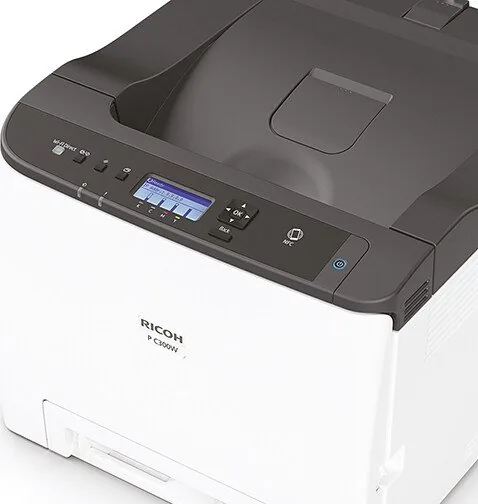
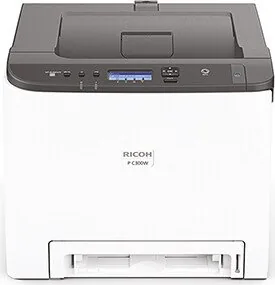
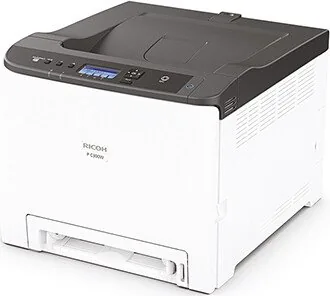
Ricoh P C301W Manual
PDF manual · 220 Pages
English



Quick check
Incorrect answer, please try again.
Chat with your Ricoh P C301W manual using AI
Get instant AI answers from your Ricoh P C301W manual
Ask anything about the Ricoh P C301W. Answers come from this manual, with the pages they are based on.
Ask a Question
Do you recommend P C301W?
Yes NoFrequently Asked Questions
The printer supports USB connections to a computer, wired Ethernet networking, and wireless networking. Wi-Fi can be configured through a setup wizard, WPS button mode, or a PIN code. Compatible smart devices can use the RICOH Smart Device Connector application and NFC-assisted workflows.
Is this answer helpful?
Yes. Duplex printing is supported for compatible paper types and sizes through the printer driver. Thick paper, cardstock, labels, and envelopes do not support duplex printing. Check the selected media type and paper size before starting a two-sided job.
Is this answer helpful?
The standard Tray 1 holds up to 250 sheets of plain paper. An optional Paper Feed Unit TK1220 provides Tray 2 with capacity for up to 500 sheets of supported A4 or Letter paper. The bypass tray is intended for single-sheet manual feeding.
Is this answer helpful?
Depending on the tray, the printer supports envelopes, label paper, cardstock, bond paper, preprinted paper, letterhead, recycled paper, color paper, and custom sizes. Tray 1 and the bypass tray support the broadest range of media, including heavier stock up to 163 g/m2.
Is this answer helpful?
Locked Print stores a password-protected job in the printer until the user enters the password at the control panel. It is available for the P C301W when printing from Windows with the PCL driver. Stored jobs are erased after printing or when the printer is powered off.
Is this answer helpful?
Use Web Image Monitor by entering the printer IP address in a web browser. It provides access to device status, counters, tray configuration, network settings, administrator settings, energy options, reports, and selected security controls.
Is this answer helpful?
Advantages and Disadvantages
Advantages

- Supports color and black-and-white printing with duplex, scaling, watermark, and multi-page output options.
- Offers USB, Ethernet, Wi-Fi, NFC-assisted smart-device workflows, and browser-based Web Image Monitor management.
- Handles varied media including envelopes, labels, cardstock, recycled paper, and custom paper sizes.
- Locked Print can protect sensitive Windows PCL jobs until they are released with a password.
Disadvantages

- Paper size is not detected automatically, so tray and driver settings must be matched manually.
- The bypass tray feeds only one sheet at a time and does not support duplex printing.
- Optional Tray 2 supports only A4 or Letter media and accepts a narrower weight range than Tray 1.
- Locked Print is limited to the P C301W model, Windows, and the PCL printer driver.
Product Specification
Format
A4
Type
Laser printer
Color system
4-color
Printing
2400 x 600 dpi - 25 ppm (A4)
Paper feed
Duplex unit
Memory
256 MB (RAM)
Ports
1 x USB-B 2.0
Network
LAN, Wi-Fi 5 (WLAN 802.11a/b/g/n/ac), NFC, Wi-Fi Direct, AirPrint, Cloud Print, Mopria
Display
monochrome, 4-line
Sound pressure level
59.6 dB(A)
Emulation
PCL 6, PCL 5e, PostScript 3
Case color
white, anthracite
Dimensions
15.75 x 13.54 x 17.72 in
Weight
55.12 lb
Special features
Direct Print
Product Description
Ricoh P C301W Laser Color - Read, Download & Print Free
The Ricoh P C301W Laser Color is a compact color laser printer designed for everyday business printing, home offices, and small workgroups that need dependable output with flexible connection options. Its practical layout combines a clear control panel, standard paper tray, bypass tray, USB port, Ethernet support, and wireless capabilities. Users can also work with compatible smart devices through the RICOH Smart Device Connector application, including NFC-assisted connections where available.
Flexible Printing for Daily Tasks
This model supports color and black-and-white printing, helping users create reports, handouts, correspondence, presentations, and marketing materials from one device. Driver settings provide useful controls for print quality, color tone, grayscale output, toner-saving modes, image rotation, scaling, watermarks, cover pages, and multiple pages per sheet. Duplex printing is available for supported paper types and sizes, making it easier to reduce paper use for routine documents.
Paper handling is designed to accommodate a range of office needs. Tray 1 holds up to 250 sheets of plain paper, while an optional Paper Feed Unit TK1220 adds a 500-sheet Tray 2 for compatible A4 or Letter media. The bypass tray supports single-sheet feeding for specialty stock, envelopes, labels, cardstock, and custom sizes. Supported media weights range from 60 to 163 g/m2, depending on the tray and material selected.
Connected and Manageable
The Ricoh P C301W Laser Color can connect through USB, wired Ethernet, or wireless networking. Network configuration supports IPv4 and IPv6 environments, with Wi-Fi setup options including a wizard, WPS button setup, and PIN-based setup. Web Image Monitor lets administrators review status information, counters, tray settings, network parameters, energy settings, and other device options from a browser.
For teams handling sensitive output, the P C301W includes Locked Print functionality when used with the supported Windows PCL driver. A job can be stored temporarily and released at the printer after entering its password, reducing the risk of confidential pages being left unattended in the output tray. Administrators can also set passwords for key configuration areas and restrict selected functions by user authentication.
Built for Ongoing Use
Maintenance access is straightforward, with replaceable print cartridges, a waste toner bottle, transfer components, and fusing components. The machine also includes guidance for clearing paper jams, resolving paper-feed issues, checking print quality, and reviewing status messages. Energy Saver modes help lower power consumption during idle periods.
Note: Match the paper size and type set in the printer driver with the media loaded in the tray. The printer does not automatically detect paper size, and mismatched settings can lead to errors or jams.
Note: Use genuine Ricoh consumables and store paper in a dry, protected location for consistent print quality.
Search for 67,706 Manuals online


Type-in Brand or Model