
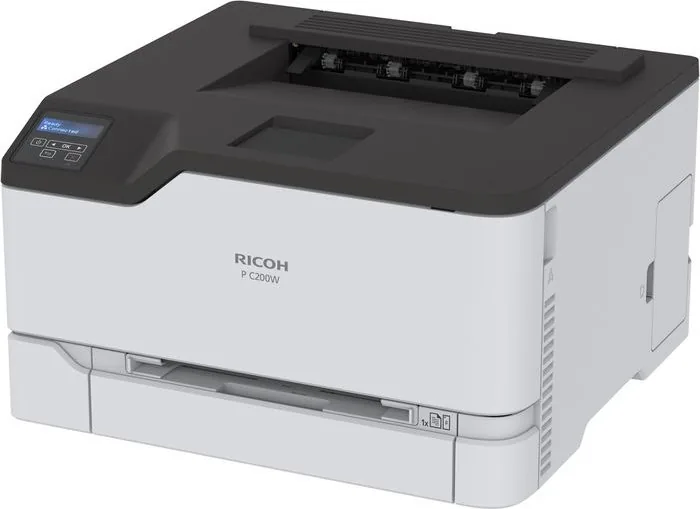
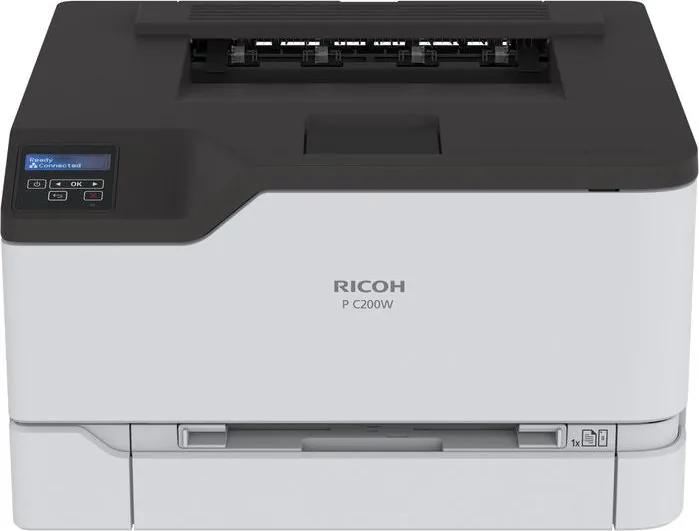
Ricoh P C200W Manual
PDF manual · 150 Pages
English



Quick check
Incorrect answer, please try again.
Chat with your Ricoh P C200W manual using AI
Get instant AI answers from your Ricoh P C200W manual
Ask anything about the Ricoh P C200W. Answers come from this manual, with the pages they are based on.
P C200W Maintenance Schedule
Unplug the printer and remove paper. Use a soft brush or vacuum to remove dust and lint, then wipe the outside with a damp, lint-free cloth.
Turn off the printer and unplug the power cord. Wipe the touch screen with a damp, soft, lint-free cloth. Do not use household cleaners.
Inspect the power cord regularly for signs of abrasion, stress, or crushing. Remove the power cord from the electrical outlet before inspecting it.
Free maintenance reminders
Timed to your purchase date. Always free, unsubscribe anytime.
Ask a Question
Do you recommend P C200W?
Yes No
bmorgan37
4 months ago
How much do replacement toner cartridges cost for this printer?
Frequently Asked Questions
You can secure print jobs by configuring Confidential Print Setup in the menu. This feature requires a personal identification number (PIN) to be entered at the control panel before the document prints, ensuring sensitive data is not left unattended.
Is this answer helpful?
Yes, the printer supports Wi-Fi Direct and mobile printing standards like AirPrint and Mopria. You can connect your smartphone directly to the printer's network or use the mobile app to send documents for immediate printing without a computer.
Is this answer helpful?
The printer handles a variety of paper types including plain paper, card stock, envelopes, and labels. It supports weights from 60 to 176 g/m2 and accepts sizes ranging from A6 to Legal, provided they are loaded correctly to avoid jams.
Is this answer helpful?
No, you should never use extension cords, multioutlet power strips, or UPS devices with this printer. Doing so can overload the power capacity, leading to fire risks, property damage, or poor printer performance. Always plug directly into a grounded outlet.
Is this answer helpful?
You can update the firmware by accessing the Embedded Web Server through a web browser. Navigate to Settings > Device > Update Firmware, check for updates, and follow the on-screen instructions to download and install the latest version.
Is this answer helpful?
Ensure all trays and doors are closed, turn off the unit, and unplug the power cord. Disconnect all cables and remove optional trays if necessary. Use handholds to lift, and ensure two people assist if the weight exceeds 20 kg to prevent injury.
Is this answer helpful?
Yes, the printer features a Sleep Mode profile that automatically activates after a set period of inactivity. You can configure the timeout duration in the Power Management menu to balance energy savings with quick startup times.
Is this answer helpful?
Advantages and Disadvantages
Advantages

- Supports wireless connectivity via Wi-Fi and Wi-Fi Direct for easy mobile printing
- Advanced security features including confidential print jobs with PIN protection
- Handles diverse media types such as envelopes, labels, and card stock reliably
- Remote management capabilities through Embedded Web Server and mobile apps
- High-speed color printing with 4800 CQ resolution for sharp, vibrant output
Disadvantages

- Requires careful handling during installation due to significant weight and tipping risks
- Specialty media like labels may print at reduced speeds compared to standard paper
- Some advanced configuration options are only accessible via the web interface
- Power cord must be connected to a grounded outlet; extension cords are not recommended
- Initial setup requires attention to ventilation space and environmental conditions
Product Specification
Format
A4
Type
Laser Printer
Color System
4-color
Consumables
514457, 408451, 408452, 408453
Printing
2400x600dpi - 24/24 ppm (A4)
Paper Supply
Duplex Unit
Memory
512MB (RAM)
Connections
1x USB-B 2.0, 1x USB-A 2.0 (Host)
Network
Gb LAN, Wi-Fi 4 (WLAN 802.11b/g/n), AirPrint, Mopria
Display
Monochrome
Power Consumption
624W (max), 395W (typical), 15W (standby), 0.84W (sleep), TEC: 0.31kWh/week
Emulation
PCL 6, PCL 5, PCLm, PostScript 3
Housing Color
White, Anthracite
Dimensions
16.2x9.6x15.5in
Weight
35.5lbs
Features
Starter Kit
Manufacturer Warranty
1 Year
Product Description
Ricoh P C200W Laser Multicolor: A Powerful Printing Solution
The Ricoh P C200W Laser Multicolor stands as a robust and versatile printing companion designed for modern offices that demand high-quality color output without compromising on speed or reliability. This multifunction device integrates seamlessly into busy work environments, offering a suite of features that streamline document management and enhance productivity. With its advanced laser technology, users can expect crisp text and vibrant graphics suitable for everything from internal memos to client-facing marketing materials.
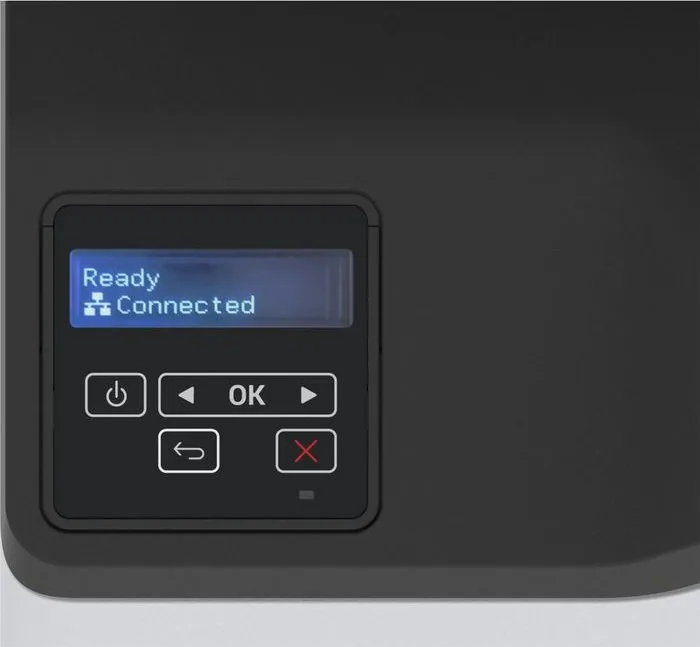
Setting up this printer is an intuitive process, whether you are connecting it via a wired Ethernet network or utilizing its wireless Wi-Fi capabilities. The control panel provides clear navigation through menus, allowing users to customize settings like paper size, print quality, and security options with ease. The device supports a wide range of media types, including plain paper, card stock, envelopes, and labels, making it adaptable for various printing needs. Its ability to handle different paper weights ensures consistent performance even when using specialty media.
Security is a top priority with the Ricoh P C200W. It includes comprehensive features such as confidential print jobs, which require a PIN to release documents, ensuring sensitive information remains private until the authorized user is present. The machine also offers robust data protection by allowing users to erase memory before decommissioning or moving the device. Additional safety measures include warnings regarding hot surfaces and electrical hazards, guiding users to operate the printer safely and maintain optimal conditions.
Beyond basic printing, the P C200W facilitates mobile connectivity through Wi-Fi Direct and support for AirPrint and Mopria services. This allows employees to print directly from smartphones and tablets without needing complex driver installations on every device. The embedded web server further empowers administrators to manage the printer remotely, update firmware, and monitor supply levels efficiently. By combining flexibility, security, and high performance, this laser multicolor printer becomes an essential asset for any professional setting looking to optimize their document workflow.
Search for 67,706 Manuals online


Type-in Brand or Model
Craig King
5 months ago
Does this printer include scanning and copying functions, or is it print-only?
Manual.ly
5 months ago
Thank you for your inquiry. This specific model is designed as a print-only device and does not support scanning or copying features. We apologize if the product title was misleading. Please verify the exact specifications in the detailed description before purchasing to ensure it meets your needs.