
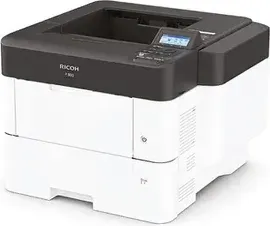
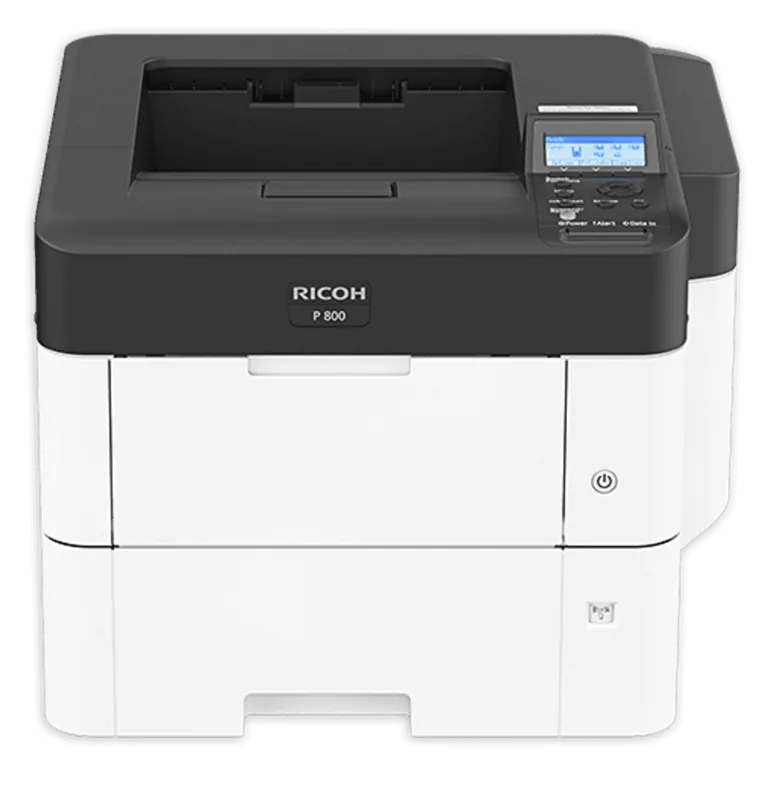
Ricoh P 800 Manual
PDF manual · 164 Pages
English



Quick check
Incorrect answer, please try again.
Chat with your Ricoh P 800 manual using AI
Get instant AI answers from your Ricoh P 800 manual
Ask anything about the Ricoh P 800. Answers come from this manual, with the pages they are based on.
P 800 Maintenance Schedule
Replace the bottle when the Waste Toner almost full message is displayed. Open the left cover and remove the full bottle.
Replace the toner when the Toner is almost empty or Add toner message appears. Open the front cover to access the cartridge.
Ask a Question
Do you recommend P 800?
Yes NoFrequently Asked Questions
Review the safety guidance first, then follow the manual for power-on and initialization steps. Ensure the power cord is firmly connected, allow the machine time to start correctly, and avoid turning off the main power during processing or auto restart. This helps protect internal components and supports reliable operation from day one.
Is this answer helpful?
To exit Low Power mode, start a print job, press any control panel key, load paper in the bypass tray, open a cover, or open a paper tray. For Sleep mode, press a control panel key. The manual also notes that energy saving functions can be disabled during errors or active operations.
Is this answer helpful?
After installation, print the configuration page from the printer. If installed properly, the page should show wireless LAN under Device Connection. If it does not appear, repeat the installation steps. The manual also states that control panel settings must be configured before use.
Is this answer helpful?
Load envelopes into the bypass tray or the appropriate paper tray and configure paper input settings on the control panel. The manual specifies envelope orientation details (flaps closed, thickness selection) and notes that the duplex function cannot be used with envelopes. Set sufficient margins to support print quality.
Is this answer helpful?
Replace toner after the control panel prompts that toner is almost empty. Do not turn off the machine while replacing toner, and never use the wrong toner type. Store toner in a dry environment away from direct sunlight and keep it horizontal while stored. During cartridge handling, avoid shaking with the opening faced downward to prevent spills.
Is this answer helpful?
Access Web Image Monitor by entering the printer IP address in a web browser (use https if SSL is enabled, otherwise http). The top area shows status and remaining consumables. Use Login to change settings, and administrators can manage all configuration. The monitor also supports operating stored files and viewing job history.
Is this answer helpful?
Advantages and Disadvantages
Advantages

- Clear startup, shutdown, and restart timing guidance to reduce accidental interruptions.
- Energy saving modes (Low Power and Sleep) with configurable timers and scheduled behavior.
- Strong paper workflow support: multiple trays plus bypass tray for special media.
- Flexible connectivity options, including wireless LAN and additional interface boards.
- Central management via Web Image Monitor for status, settings, and stored-job printing.
Disadvantages

- Paper quality depends on matching paper size/type/thickness settings across tray and driver.
- Special media has strict orientation and capability limits, such as no duplex on envelopes.
- Device server networking may require disabling Energy Saver mode to avoid communication loss.
- Toner and waste toner replacement require careful handling and storage precautions to prevent spills.
- Operational reliability depends on accurate configuration of options and correct tray usage.
Product Specification
Format
A4
Type
Laser Printer
Color System
Monochrome
Printing
1200x1200dpi - 55 ppm (A4)
Paper Feed
600 sheets (1x 500 sheets + 1x 100 sheets), Duplex unit
Memory
2GB (RAM)
Connections
1x USB-B 2.0, 1x USB-A 2.0 (Host), Card reader (SD/SDHC/SDXC)
Network
Gb LAN, NFC, AirPrint, Cloud Print, Mopria
Display
monochrome, 4-line
Power Consumption
716W (typical), 35.83W (standby), 0.48W (sleep)
Sound Pressure Level
58.9dB(A)
Emulation
PCL 6, PCL 5e, PCL 5c, PostScript 3
Housing Color
white, anthracite
Dimensions
16.54x13.58x16.14in
Weight
39.68 lb
Special Features
Direct Print, Blue Angel
Product Description
Ricoh P 800 Laser single-color Manual
Built for reliable, everyday single-color printing
The Ricoh P 800 Laser single-color is a business-focused laser printer designed to handle day-to-day print needs with strong configuration guidance in its Ricoh P 800 Laser single-color Manual. From power-on basics to setup of connectivity and print features, the instructions emphasize safe, consistent operation and smoother deployment in real offices.
Power control and energy saver modes
Start by using the main power switch and allow the machine time to complete initialization and restart. The manual also explains energy saving behavior, including Low Power mode (with the display turned off) and Sleep mode (optimized for minimized power consumption). You can exit Sleep mode from the control panel, and you can schedule energy saving via weekly timers. The document warns not to interrupt processing during restart or shutdown.
Components, controls, and status visibility
The guide walks through trays, covers, vents, and the control panel. It describes indicator behavior for readiness, alerts, and incoming data, making it easier to interpret messages during normal use or maintenance periods. Tray extension and bypass tray setup are covered, helping reduce paper mishandling and improving feed stability.
Paper and toner handling that protects quality
For output quality and fewer jams, the manual stresses matching paper size, paper type, and thickness settings between the tray and the printer driver. It details loading for standard trays (including up to multiple trays) and the bypass tray for special media such as transparencies, labels, and difficult-to-feed stocks. Envelope loading guidance includes specific orientation and thickness settings, and it notes that duplex cannot be used with envelopes.
Toner replacement is treated as a safety and quality step. The Ricoh P 800 Laser single-color Manual explains when toner is almost empty, how to replace the print cartridge, how to prevent spills, and storage precautions to protect consumables.
Installation and management for networked offices
On Windows, the manual covers driver installation using Device Software Manager, including network discovery and IP-based installation when the device cannot be found. On OS X/macOS, it focuses on installing the PPD file and registering the machine in Print & Scan or Printers & Scanners. For ongoing monitoring and job control, Web Image Monitor provides status views, login-based settings, and access to stored jobs, with recommendations for browsers and help download behavior.
Key results from the manual
- Faster setup by following a clear power-on/off and restart routine plus configurable Low Power and Sleep modes.
- Fewer print problems by keeping paper size/type/thickness consistent between trays and driver settings.
- More flexible office connectivity via optional interface boards, including wireless LAN and other ports.
- Better control of print workflows using Web Image Monitor and features like Locked, Hold, and Stored print.
Notes
- Prioritize safety guidance before first use.
- Configure special media and thick paper carefully to reduce misfeeds.
- If using network options, review how energy saver behavior can affect communication.
Search for 67,706 Manuals online


Type-in Brand or Model