
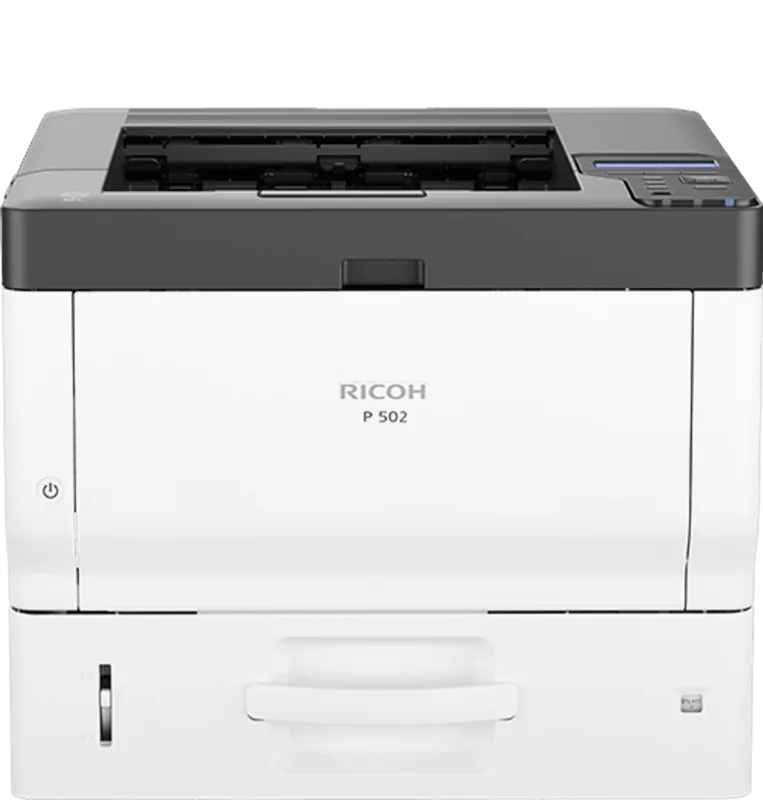
Ricoh P 502 Manual
PDF manual · 156 Pages
English



Quick check
Incorrect answer, please try again.
Chat with your Ricoh P 502 manual using AI
Get instant AI answers from your Ricoh P 502 manual
Ask anything about the Ricoh P 502. Answers come from this manual, with the pages they are based on.
Ask a Question
Do you recommend P 502?
Yes NoFrequently Asked Questions
You can connect using a wired LAN cable for stable access. For wireless needs, install the optional WLAN card and configure settings via the control panel. You can also use the USB Type B port for direct computer connection.
Is this answer helpful?
The printer supports various formats including A4 and custom sizes. It handles envelopes, thick paper, labels, and transparencies via the bypass tray. Trays hold between 250 and 500 sheets depending on the model.
Is this answer helpful?
Clear jams by opening the front cover to remove toner or rear covers for deeper issues. Follow on-screen alerts to guide the process safely without damaging internal components.
Is this answer helpful?
Yes, the device supports standard duplex printing. You can configure this setting in the driver software or via the control panel for automatic two-sided output.
Is this answer helpful?
No, the USB cable is not included in the standard package. You must purchase a compatible cable separately for connecting the device to a computer.
Is this answer helpful?
The machine features automatic sleep modes and power saving settings. These activate after periods of inactivity to lower energy usage while maintaining readiness.
Is this answer helpful?
Advantages and Disadvantages
Advantages

- Supports multiple connectivity options including wired LAN and USB for versatile setups.
- Optional wireless card allows flexible printing without cables in office environments.
- Handles diverse paper types ranging from regular to heavy card stock and envelopes.
- Standard duplex printing reduces paper waste and saves costs automatically.
- Web tools enable remote status monitoring and management via browser.
Disadvantages

- Wireless features require purchasing and installing an optional interface card.
- USB cables are not included in the standard package for users.
- Accessing internal maintenance parts like the fuser unit requires technical care.
- Paper jam clearing can be complex depending on the internal location.
- Security features require manual configuration of authentication methods and passwords.
Product Specification
Paper Size
A4
Type
Laser Printer
Color Mode
Monochrome
Print Performance
1200x1200dpi - 43 ppm (A4)
Paper Handling
Duplex Unit
Memory
2GB (RAM)
Ports
1x USB-B 2.0, 1x USB-A 2.0 (Host), Cardreader (SD/SDHC/SDXC)
Network
Gigabit Ethernet, NFC, Wi-Fi Direct, AirPrint, Cloud Print, Mopria
Display
Monochrome, 4-line
Power Consumption
749 W (typical), 35.83 W (standby), 0.48 W (sleep)
Sound Pressure Level
59.6 dB(A)
Emulation
PCL 6, PCL 5e, PostScript 3, PDF Direct
Casing Color
White, Anthracite
Dimensions
17.44 x 12.24 x 16.22 in
Weight
42.55 lbs
Special Features
Direct Print, Blue Angel, Starter Kit
Product Description
Ricoh P 502 Laser Monochrome Review
The Ricoh P 502 Laser monochrome printer delivers reliable functionality for busy office settings. Many users finding the Ricoh P 502 Laser monochrome Manual setup appreciate the detailed guidance available for installation and maintenance. This device is built for efficiency with a compact design that fits easily on desks or under workstations. Its primary function involves precise black and white printing suitable for documents, reports, and correspondence.
Flexible Connectivity Solutions
Connection options vary to suit different network infrastructures. A wired LAN port handles standard Ethernet cables for stable internet access. Network settings can be configured manually or via DHCP automatically. Wireless connections require an optional card and allow flexibility without cables. Users can set up infrastructure links for router sharing or direct mobile device connections. USB ports enable direct linking to personal computers for immediate printing tasks.
Advanced Paper Management
Versatile handling supports high volume demands. Multiple drawer options allow stacking of up to 500 sheets per tray. The bypass feed accepts specialized media like thick card stock and envelopes. You can also print on OHP transparencies and labels when needed. Duplex printing is standard, reducing material consumption automatically. Custom paper sizes are definable for specific document types. The control interface warns users when specific formats do not match settings.
Operational Maintenance
Keeping the unit running smooth requires attention to consumables. Monitoring alerts indicate low toner levels or drum replacements. Paper jams are cleared through accessible front and rear covers. Technicians may access complex internal parts like the fuser for deep cleaning. Power savings activate after periods of inactivity. Web tools allow remote status checks from any browser. Safety warnings ensure handlers avoid electrical shocks during installation.
System Integration
Driver installation simplifies software integration across operating systems. Windows environments are supported for seamless user adoption. Authentication features protect documents from unauthorized access. The device supports multiple authentication methods for security compliance. Authentication methods for security compliance. Following best practices extends the hardware lifespan significantly.
Note
Proper configuration of IP addresses is crucial for network visibility. Always check compatibility with existing network hubs before full deployment.
Search for 67,706 Manuals online


Type-in Brand or Model