
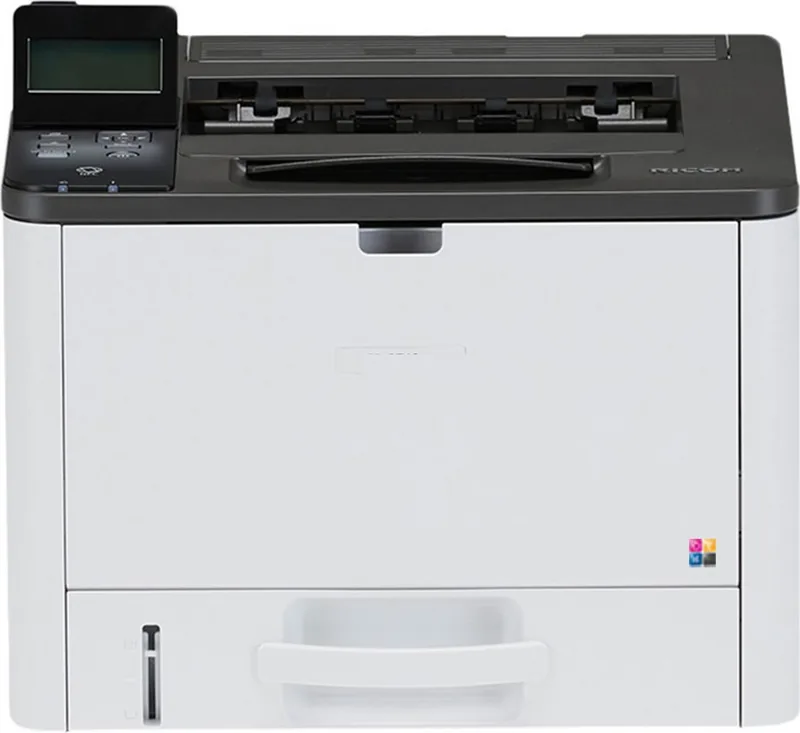
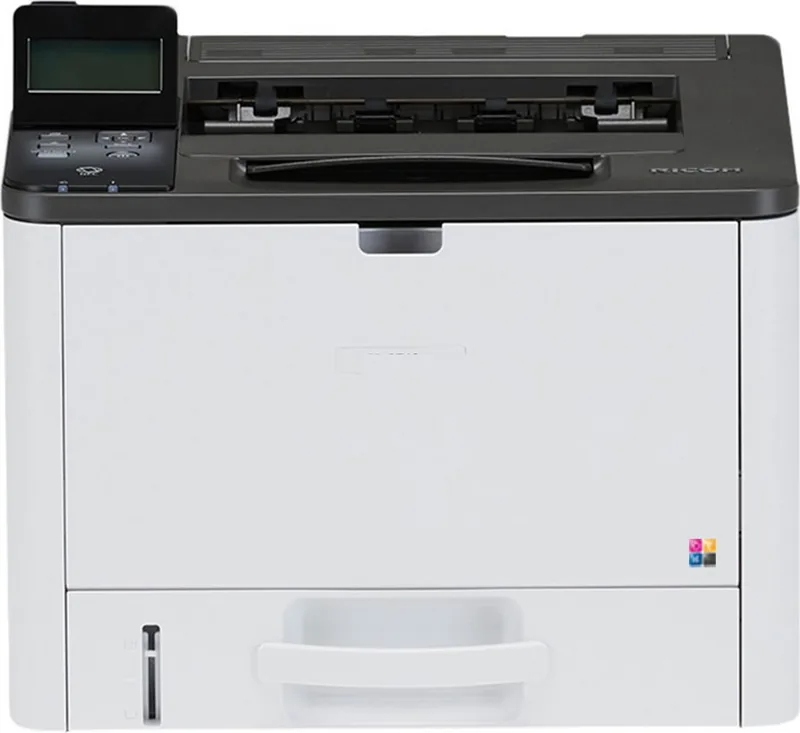
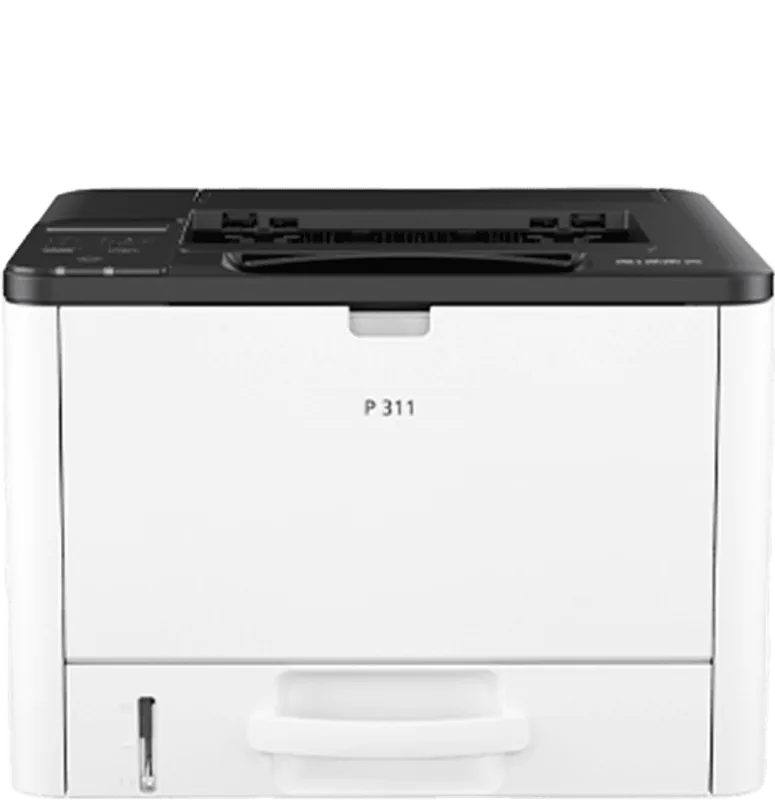
Ricoh P 310 Manual
PDF manual · 220 Pages
English



Quick check
Incorrect answer, please try again.
Chat with your Ricoh P 310 manual using AI
Get instant AI answers from your Ricoh P 310 manual
Ask anything about the Ricoh P 310. Answers come from this manual, with the pages they are based on.
P 310 Maintenance Schedule
You must disconnect the plug from the wall outlet at least once a year. Clean away any dust and grime from the plug and outlet before reconnecting to prevent fire hazards.
Clean the machine periodically to maintain high print quality. Dry wipe the exterior with a soft cloth. If necessary, use a damp cloth or neutral detergent.
If multi-feed or misfeed occurs, clean the friction pad and paper feed roller. Turn off power, remove tray, and wipe pads/rollers with a damp cloth.
Free maintenance reminders
Timed to your purchase date. Always free, unsubscribe anytime.
Ask a Question
Do you recommend P 310?
Yes NoFrequently Asked Questions
The Ricoh P 310 is a monochrome laser printer intended for black-and-white output such as reports, forms, letters, invoices, and other business or home-office materials.
Is this answer helpful?
Yes. Duplex printing is available and is selected as the default setting. It can help reduce paper consumption when printing compatible paper sizes and media.
Is this answer helpful?
The standard tray holds up to 250 sheets of plain paper, and the bypass tray holds up to 50 sheets. The optional PB1130 paper feed unit adds another 250-sheet tray.
Is this answer helpful?
Yes. A compatible smart-device app can be used for mobile printing. With the optional wireless LAN interface installed, supported devices can also use wireless features, including Wi-Fi Direct and NFC-assisted connection.
Is this answer helpful?
The printer includes USB and Ethernet connections. Wireless LAN is available through an optional interface unit. Network configuration supports IPv4 and IPv6 environments.
Is this answer helpful?
Yes. Envelopes, labels, and other supported media can be loaded through the bypass tray. Envelope printing requires the rear envelope levers to be lowered and returned to their normal position afterward.
Is this answer helpful?
Confidential Print stores a job at the printer until a password is entered on the control panel. This feature is available with the PCL driver from a Windows computer and helps protect sensitive output.
Is this answer helpful?
Advantages and Disadvantages
Advantages

- Automatic duplex printing can reduce paper use for everyday reports and forms.
- Standard 250-sheet tray and 50-sheet bypass tray support routine and special-media jobs.
- Optional PB1130 feed unit adds a second 250-sheet paper source.
- USB and Ethernet are built in, with optional wireless LAN, Wi-Fi Direct, NFC, and mobile app support.
- Confidential Print, IPsec, TLS, IPv4, and IPv6 support help suit managed network environments.
Disadvantages

- Wireless LAN, Wi-Fi Direct, and NFC functions require the optional wireless LAN interface.
- The printer does not automatically detect paper size, so tray and driver settings must match.
- Envelope printing is limited to the bypass tray, with a maximum capacity of eight envelopes.
- Custom paper sizes are not supported in the optional second paper tray.
- Confidential Print is limited to Windows computers using the PCL driver.
Product Specification
Format
A4
Type
Laser printer
Color system
Monochrome
Printing
1200 x 1200 dpi - 32 ppm (A4)
Paper feed
Duplex unit
Memory
128 MB (RAM)
Ports
1 x USB-B 2.0
Network
Gb LAN, NFC, Wi-Fi Direct, AirPrint, Mopria
Display
Monochrome, 4-line
Power consumption
960 W (maximum), 512 W (typical), 63.8 W (standby), TEC: 0.41 kWh/week
Sound pressure level
57.5 dB(A)
Emulation
PCL 6, PCL 5e, PostScript 3
Case color
White, black
Dimensions
15.43 x 10.31 x 14.57 in
Weight
28.66 lb
Features
Starter kit
Product Description
Ricoh P 310 Laser Monochrome - Read, Download & Print Free
The Ricoh P 310 Laser Monochrome is a practical black-and-white laser printer designed for dependable everyday printing in home offices, small businesses, and shared workspaces. Its focused monochrome output makes it a strong choice for letters, invoices, reports, forms, labels, and other text-heavy materials where sharp detail and consistent results matter most. The compact design helps it fit comfortably into work areas without sacrificing useful paper-handling options.
Flexible paper handling for daily tasks
The standard paper tray holds up to 250 sheets of plain paper, while the bypass tray supports up to 50 sheets for special media or quick manual jobs. An optional Paper Feed Unit PB1130 can add a second 250-sheet tray for users who regularly switch between paper sizes or want fewer interruptions during larger print runs. The output tray holds up to 125 sheets of plain paper.
The printer supports a wide range of media, including plain, recycled, thin, thick, colored, preprinted, punched, bond, tab, and label paper. It can also print envelopes through the bypass tray. Careful paper setup is important: the selected paper size and type in the printer, driver, and tray should match to help prevent feed issues and format conflicts.
Connectivity and convenient control
The Ricoh P 310 can connect to a computer through USB or to a network through Ethernet. An optional wireless LAN interface expands placement flexibility and enables wireless printing features. With Wi-Fi Direct enabled through the supported wireless option, compatible devices can connect without relying on a conventional network connection.
Mobile printing is also supported through a compatible smart-device application. NFC can simplify connection steps for supported mobile devices, allowing users to transfer printer network details and begin printing through the app. For administration, the control panel provides status messages, menu navigation, job reset controls, and power-saving access.
Management, security, and output tools
Web Image Monitor enables browser-based status checks and configuration, while Smart Organizing Monitor provides desktop-based monitoring and setup. These tools support paper settings, device status, network configuration, counters, reports, and administrator options. Network features include IPv4, IPv6, TLS, SNMP, SMTP, POP3, and IPsec configuration options for environments that need stronger management and security controls.
Useful print features include automatic duplex printing and combination printing, which places multiple pages on one sheet to reduce paper use. Confidential Print can hold a protected job until its password is entered at the printer, helping keep sensitive output from being viewed by unauthorized users.
Notes
- Use Ricoh genuine toner for recommended output quality.
- Return envelope-printing levers to their normal position after envelope jobs.
- Store paper in a dry location away from direct sunlight to reduce jams and quality problems.
Search for 67,706 Manuals online


Type-in Brand or Model