
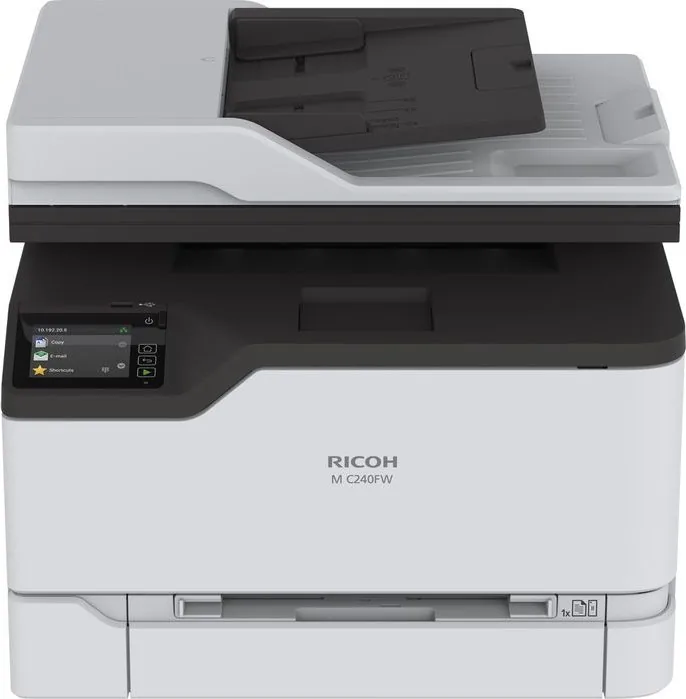
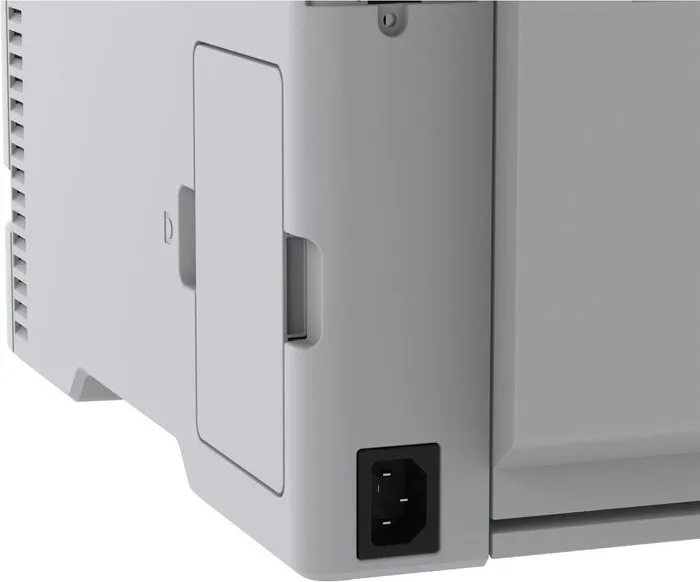
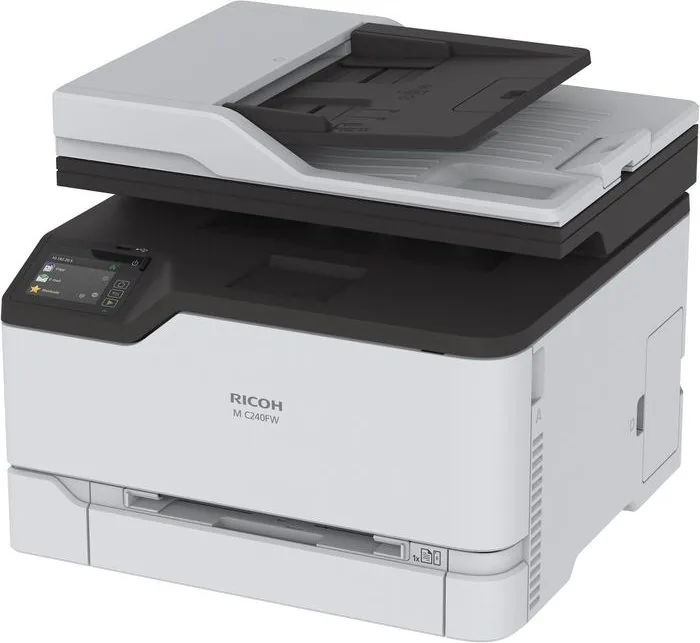
Ricoh M C240FW Manual
PDF manual · 236 Pages
English



Quick check
Incorrect answer, please try again.
Chat with your Ricoh M C240FW manual using AI
Get instant AI answers from your Ricoh M C240FW manual
Ask anything about the Ricoh M C240FW. Answers come from this manual, with the pages they are based on.
M C240FW Maintenance Schedule
Unplug the printer. Remove dust with a soft brush or vacuum. Wipe the outside with a damp, lint-free cloth. Do not use cleaning agents.
Open the front cover, pull out the cartridge tray, remove the old cartridge, and insert a new one. Avoid touching the underside of the cartridge.
Remove the old waste toner bottle while keeping it upright to avoid spills. Insert the new bottle into its slot.
Remove the used paper tray from the printer and install a new replacement tray.
Pull out the tray, remove the used manual feed unit, and install the new one before pushing the tray back in.
Open the Automatic Document Feeder (ADF) cover, remove the used tray, and insert the new tray until it clicks into place.
Power off the printer, access the internal area, remove the old pickup rollers, and install new ones. Ensure hands are clean.
Open the ADF cover, remove the worn separation pad, and install the new pad until it clicks securely into place.
Unplug the printer. Clean the touch screen with a damp, soft, lint-free cloth. Do not use household cleaners. Dry before plugging back in.
Open the scanner cover. Clean the ADF glass pad, scanner glass pad, and main scanner glass with a damp, lint-free cloth.
Access the pickup rollers by removing the waste toner bottle. Wipe the rollers with a soft, lint-free cloth dampened with isopropyl alcohol.
Free maintenance reminders
Timed to your purchase date. Always free, unsubscribe anytime.
Ask a Question
Do you recommend M C240FW?
Yes NoFrequently Asked Questions
You can connect the printer to a Wi-Fi network using the built-in setup wizard on the control panel or by configuring it via the Embedded Web Server. Ensure your router is compatible and enter the correct password during the process.
Is this answer helpful?
The printer supports plain paper, card stock, labels, and envelopes. It accepts weights ranging from 60 to 176 g/m2. Avoid using coated papers unless designed for electrophotographic printing to ensure optimal results.
Is this answer helpful?
Yes, the MC240FW supports confidential printing. You can set up a job to hold in memory until you enter a personal identification number at the control panel, ensuring your documents remain private.
Is this answer helpful?
First, configure the SMTP settings in the printer menu or via the web interface. Once set up, you can load a document, select the Email function on the panel, choose a recipient shortcut or type an address, and send it instantly.
Is this answer helpful?
While robust, it is best suited for small to medium offices. For very high-volume environments, check the monthly duty cycle limits specified by the manufacturer to ensure longevity and performance.
Is this answer helpful?
Advantages and Disadvantages
Advantages

- High-quality multicolor laser printing suitable for professional documents
- Versatile connectivity options including Wi-Fi Direct and mobile printing support
- Secure confidential printing feature protects sensitive information
Disadvantages

- Requires specific paper types to prevent feeding issues and jams
- Setup process for fax and email SMTP settings can be complex for beginners
- Heavy weight may require two people for safe relocation
Product Specification
Format
A4 (Print), A4 (Scan)
Type
Printer/Scanner/Copier/Fax
Color System
4-color, 4x single toner
Consumables
514457, 408451, 408452, 408453, 408454
Printing
2400x600dpi - 24/24 ppm (A4)
Scanning
600x600dpi - 21 ppm (A4)
Copying
600x600dpi - 24/24 ppm (A4)
Paper Input
250 sheets, ADF (50 sheets), Duplex unit
Memory
512MB (RAM)
Connections
1x USB-B 2.0, 1x USB-A 2.0 (Host), 1x Fax (RJ-11)
Network
Gb LAN, Wi-Fi 4 (WLAN 802.11a/b/g/n), AirPrint, Cloud Print, Mopria
Display
color, 2.8", Touchscreen
Power Consumption
660W (max), 395W (typical), 17W (standby), 1.14W (sleep), TEC: 0.35kWh/week
Sound Pressure Level
53.0dB(A)
Emulation
PCL 6, PCL 5, PCLm, PostScript 3
Dimensions
16.2x13.6x15.5in
Weight
42.8lbs
Manufacturer Warranty
1 year
Note
This model does not support duplex scanning, only duplex printing!
Product Description
Ricoh MC240FW Laser Multicolor: A Powerful Office Solution
The Ricoh MC240FW Laser printer brings vibrant color and high efficiency to modern workspaces. Designed as a versatile multifunction device, it seamlessly handles printing, scanning, copying, and faxing with precision. This machine is ideal for small to medium businesses seeking reliable performance without compromising on quality.
Vibrant Color Printing
Experience professional-grade output with the MC240FW's multicolor laser technology. Whether you are creating marketing materials or detailed reports, the printer delivers sharp text and vivid images. The ability to print from mobile devices via AirPrint or Mopria ensures that your team can produce documents from anywhere in the office.
Efficient Workflow Management
Productivity is enhanced through features like the automatic document feeder, which simplifies multi-page scanning and copying tasks. Users can configure confidential print jobs to secure sensitive data, requiring a PIN for release. The intuitive control panel allows for easy customization of the home screen, ensuring that frequently used functions are always within reach.
Connectivity and Flexibility
Stay connected with robust networking options including Wi-Fi Direct and Ethernet. The printer supports various paper sizes and weights, accommodating everything from standard letterhead to heavy card stock. Setting up email shortcuts enables quick sending of scanned documents directly to colleagues or clients.
Notes
- Always ensure proper ventilation around the unit to prevent overheating.
- Use only recommended paper types to avoid jams and maintain print quality.
- Regularly update firmware to access new features and security patches.
Search for 67,706 Manuals online


Type-in Brand or Model