
Ricoh IM C300F Manual
PDF manual · 336 Pages
English



Quick check
Incorrect answer, please try again.
Chat with your Ricoh IM C300F manual using AI
Get instant AI answers from your Ricoh IM C300F manual
Ask anything about the Ricoh IM C300F. Answers come from this manual, with the pages they are based on.
Ask a Question
Do you recommend IM C300F?
Yes NoFrequently Asked Questions
It supports copy, print, scan, and fax workflows, with document storage and web-based device monitoring features. It is designed to centralize common office output and digital distribution tasks.
Is this answer helpful?
Yes. Users can add shortcuts, widgets, folders, and programs to the Home screen. Copy, fax, and scanner function keys can also be moved, hidden, or restored. Per-user customization may be available when authentication is enabled.
Is this answer helpful?
The scanner can send scanned content by email or to a shared network folder. Scan settings can be adjusted for quality, density, file type, and file name before sending.
Is this answer helpful?
Yes. The device supports duplex copying and two-sided printing. However, duplex copying is unavailable for certain media, including envelopes, label paper, transparencies, waterproof paper, and coated paper.
Is this answer helpful?
Compatible USB flash memory devices and SD or SDHC cards can be used for direct printing or storing scanned data. Media must meet the stated formatting and capacity requirements, and it should not be removed during access.
Is this answer helpful?
Use the exposure glass for books, license cards, fragile originals, stapled sheets, curled or torn pages, coated materials, transparent sheets, and other originals that could misfeed or be damaged in the ADF.
Is this answer helpful?
Advantages and Disadvantages
Advantages

- Combines color copying, printing, scanning, faxing, and document storage in one office device.
- Customizable Home, Copy, Fax, and Scanner screens support faster access to common workflows.
- ADF and exposure glass support both multi-page batches and books, cards, or delicate originals.
- Duplex, combine, scaling, sorting, envelope, and direct-media print options improve output flexibility.
- Energy-saving modes, status indicators, authentication, and job history support managed office use.
Disadvantages

- Some functions, paper trays, finishing capabilities, and interfaces may require optional configurations.
- Duplex copying cannot be used with envelopes, labels, transparencies, waterproof, or coated paper.
- ADF use is unsuitable for stapled, torn, curled, wet, bound, transparent, or adhesive originals.
- Fax memory data may be lost after extended power-off time, so power procedures require care.
- USB and SD media have format, capacity, and device compatibility limitations.
Product Specification
Format
A4 (printing), A4 (scanning)
Type
Printer/scanner/copier/fax
Color system
4-color, 4x individual toner cartridges
Printing
1200x1200 dpi - 30/30 ppm (A4)
Scanning
600x600 dpi (CCD) - 40/80 ppm (A4)
Copying
600x600 dpi - 43/43 ppm (A4)
Paper input
650 sheets (1x 550 sheets + 1x 100 sheets), DADF, duplex unit
Memory
2 GB (RAM), 320 GB (HDD)
Ports
1x USB-B 2.0, 1x USB-A 2.0 (host), card reader (SD/SDHC), 1x fax (RJ-11)
Network
AirPrint, Cloud Print, Mopria
Display
color, 10.1 in., touchscreen
Power consumption
1,350 W (maximum), 683 W (typical), 60.7 W (standby), 0.55 W (sleep)
Emulation
PCL 6, PCL 5c, PostScript 3, PDF Direct
Dimensions
19.61 x 23.23 x 22.09 in.
Weight
110.23 lb
Manufacturer warranty
1 year
Product Description
Ricoh IM C300F Laser, multicolor - Read, Download & Print Free
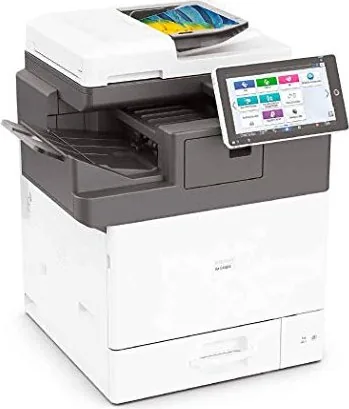
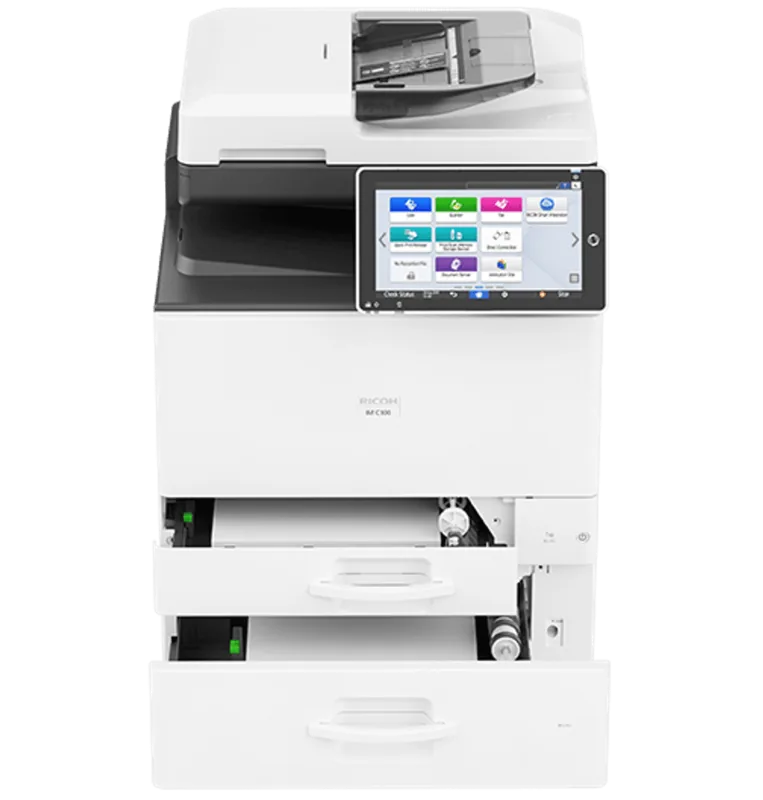
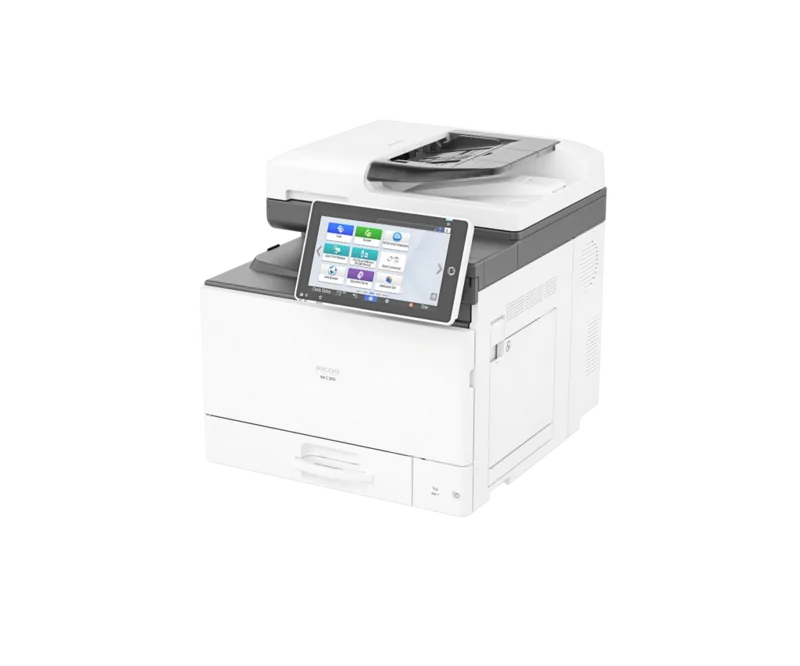
The Ricoh IM C300F Laser, multicolor is a versatile multifunction office machine designed to bring copying, printing, scanning, and fax communication into one streamlined workflow. Its color-capable operation, responsive touch control panel, and practical document handling features make it suitable for teams that need dependable everyday output alongside flexible digital processes.
Built for Productive Daily Work
The machine supports essential business tasks from a central Home screen, where users can access Copy, Fax, Scanner, Document Server, and device-management functions. Frequently used applications, widgets, and programmed settings can be placed on the Home screen, helping regular tasks start with fewer steps. Users can also organize shortcuts into folders and customize screen layouts to match their preferred workflow.
For paper-based tasks, the Auto Document Feeder can process stacks of originals, while the exposure glass provides an option for books, cards, and delicate materials. Copy settings include enlargement and reduction, fit-to-paper sizing, margin creation, duplex copying, multi-page combination, envelope copying, and sorting. These tools help offices control paper use while producing clear, well-organized output.
Flexible Print, Scan, and Fax Functions
Printing can be performed from Windows and macOS systems through supported printer drivers. The device also supports two-sided printing, multiple pages per sheet, envelope printing, and direct printing from compatible USB flash memory devices or SD cards. Network connectivity through Ethernet supports shared use in office environments.
Scanning workflows are designed for sending content by email or to a shared folder. Users can adjust scan quality, density, file type, and file names to suit the destination and purpose. Fax features include address book registration, transmission previews, memory transmission, send-condition settings, and accessible transmission-result checks. These options can help users confirm that important communications were sent successfully.
Easy Interaction and Efficient Management
The Smart Operation Panel uses fingertip controls such as flicking, dragging, long tapping, and pinch gestures. Copy, fax, and scan screens can be customized by moving, hiding, or restoring function keys. One-touch job settings and job history support repeat tasks, while user authentication can be configured with usernames and passwords, IC cards, mobile devices, or user codes.
Energy-saving modes reduce power use during idle periods. The machine can enter a mode that keeps the panel available while the fusing unit is off, followed by Sleep mode for lower consumption. Status indicators, on-screen messages, and troubleshooting guidance help users monitor paper, toner, network, and operating conditions.
Notes
- Keep vents unobstructed to prevent overheating.
- Do not remove storage media while the access indicator is active.
- Use the exposure glass for fragile, bound, curled, or unsuitable ADF originals.
- Review safety information and configured network policies before operation.
Search for 67,706 Manuals online


Type-in Brand or Model