
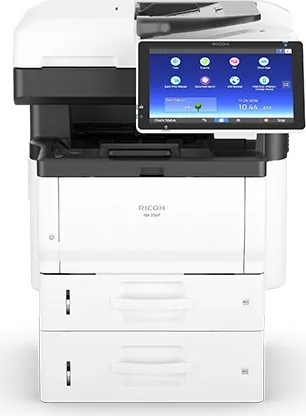
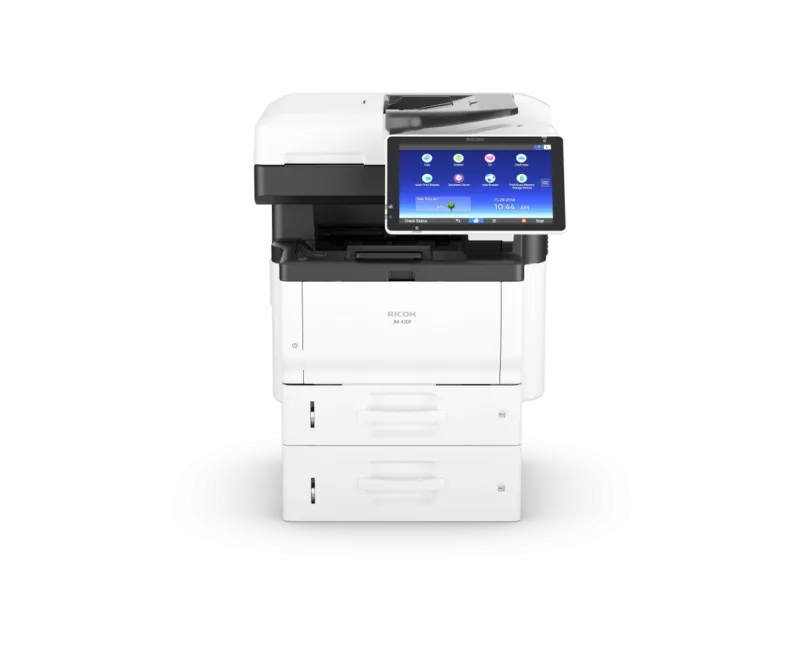
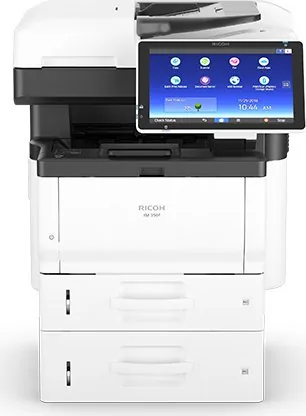
Ricoh IM 350 Manual
PDF manual · 312 Pages
English



Quick check
Incorrect answer, please try again.
Chat with your Ricoh IM 350 manual using AI
Get instant AI answers from your Ricoh IM 350 manual
Ask anything about the Ricoh IM 350. Answers come from this manual, with the pages they are based on.
Ask a Question
Do you recommend IM 350?
Yes NoFrequently Asked Questions
Connect an Ethernet cable for wired LAN or install the Wireless LAN interface board for wireless connectivity. Configure IP settings via the control panel or Web Image Monitor depending on your network type.
Is this answer helpful?
Yes, with the Wireless LAN interface board installed, you can use Wireless Direct mode for direct connection to devices or Infrastructure mode through a standard Wi-Fi router for broader access.
Is this answer helpful?
Enable User Code or Basic Authentication via the Administrator Tools. Staff must enter their credentials to access functions or release printed jobs securely.
Is this answer helpful?
It supports standard copies, envelopes, labels, and thick paper. Use the bypass tray for special media and standard trays for bulk paper loading.
Is this answer helpful?
Yes, the Document Server allows storing scanned files on the internal hard drive. You can retrieve and print these files later without needing to save them to a computer.
Is this answer helpful?
Advantages and Disadvantages
Advantages

- Versatile connectivity including Ethernet, Wi-Fi options, and USB.
- Touchscreen control panel with gesture controls for easy navigation.
- Supports multiple paper sizes and thick media on bypass tray.
- User authentication and secure print release features for data security.
- Document server capability for storing and retrieving scanned files locally.
Disadvantages

- Wireless LAN functionality requires the purchase and installation of an interface board.
- Some advanced option installations require a professional customer engineer.
- Turning off main power must be done carefully to prevent data loss.
- USB interface cables are not included and must be purchased separately.
- Default administrator password for USB device server is not specified initially.
Product Specification
Format
A4 (Print), A4 (Scan)
Type
Printer/Scanner/Copier
Color Mode
1-color, 1x Mono Toner
1200x1200dpi - 35/35 pages/min (A4)
Scan
600x600dpi - 43.4/80 pages/min (A4)
Copy
600x600dpi - 35/35 pages/min (A4)
Paper Input
500 Sheets, DADF (50 Sheets), Duplex Unit
Memory
2GB (RAM), 320GB (HDD)
Connections
1x USB-A 2.0 (Host)
Network
Wi-Fi 5 (WLAN 802.11a/b/g/n/ac), NFC, AirPrint, Cloud Print, Mopria
Display
Color, 10.1", Touchscreen
Power Consumption
1280W (max), 562W (typical), 91.5W (standby), 0.79W (sleep)
Noise Level
60.6dB(A)
Emulation
PCL 6, PCL 5c, PostScript 3, PDF Direct
Dimensions
18.74x20.08x17.40in
Weight
67.24lbs
Manufacturer Warranty
1 Year
Product Description
Introduction to the Ricoh IM 350
The Ricoh IM 350 Laser Monochrome is a versatile multifunction printer designed to meet the demanding needs of modern offices. This machine combines printing, scanning, copying, and faxing into a single, efficient unit. With its sleek design and robust build, it fits seamlessly into professional workspaces. The control panel features a large touch screen that simplifies navigation. Users can access standard applications like Copy, Fax, and Scanner with minimal effort. The interface supports gesture controls such as flicking to switch screens and pinching to zoom, enhancing user interaction.
Connectivity is a key strength, offering a range of options to integrate into any network infrastructure. Wired LAN connections are standard, while wireless capabilities require the optional Wireless LAN interface board. Installation of external options like paper feed units is straightforward, allowing for increased paper capacity. The bypass tray accommodates various media types including envelopes, labels, and thick paper, ensuring versatility in document production. Network settings can be configured directly on the machine or via a web browser using the Web Image Monitor.
Key Features and Maintenance
Security features protect sensitive information within the office environment. User authentication ensures that only authorized personnel can access specific functions. Secure print release allows users to authenticate at the machine before printing, preventing documents from being left unattended. Energy saver modes automatically reduce power consumption during periods of inactivity, contributing to environmental sustainability.
Maintenance is manageable with clear indicators for low toner or needed replacement parts. The print cartridge and drum unit are designed for easy replacement, though some components like the fusing unit require service representative assistance. The Document Server functions store scanned files securely, enabling efficient retrieval and printing later. This storage capability ensures that important documents are not lost during network interruptions. Additional options like the offline stapler and wireless LAN interface board enhance the machine's functionality for larger workgroups. The Auto Document Feeder allows for multi-page originals to be processed quickly, reducing the need to manually place sheets on the exposure glass. The machine supports combining multiple pages onto a single sheet for efficient document distribution. Users can also sort copies in sequential order or stack them automatically for ease of use.
Setup and Configuration
For setup, users can attach lower paper trays using inset grips to lift the machine safely. The configuration page can be printed to confirm successful installation of hardware additions. When connecting to a network, ensuring the correct category of Ethernet cable is used helps maintain optimal speeds up to 1000BASE-T. Wireless configurations allow for infrastructure mode for router-based connections or direct mode for peer-to-peer wireless printing without a router. The system offers extensive customization through the home screen, allowing users to add widgets and shortcuts for frequently used tasks. Whether handling standard A4 paper or custom sizes, the output quality remains consistent. The system supports quick application screens for basic operations to speed up common workflows. Regular maintenance checks via the status indicator ensure peak performance at all times.
Search for 67,706 Manuals online


Type-in Brand or Model