
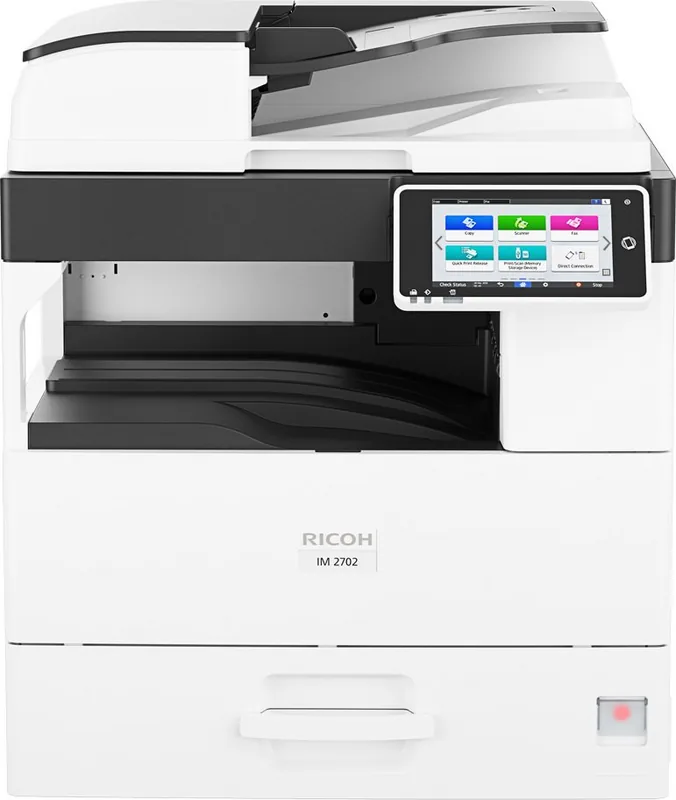
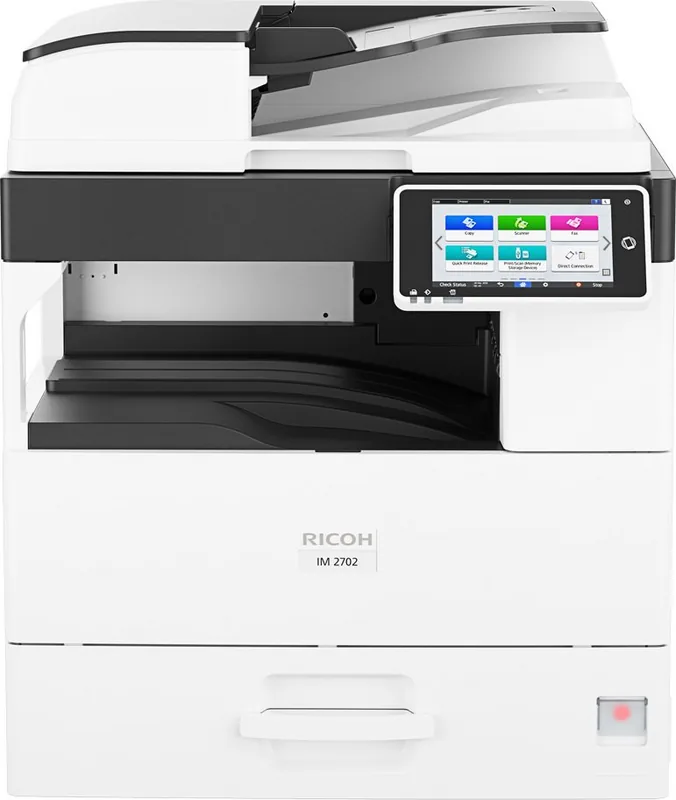
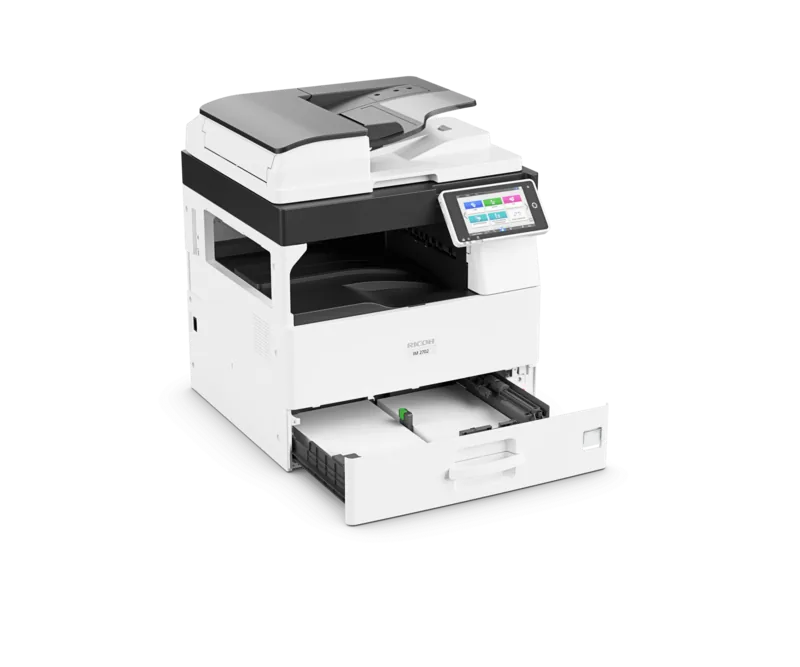
Ricoh IM 2702 Manual
PDF manual · 248 Pages
English



Quick check
Incorrect answer, please try again.
Chat with your Ricoh IM 2702 manual using AI
Get instant AI answers from your Ricoh IM 2702 manual
Ask anything about the Ricoh IM 2702. Answers come from this manual, with the pages they are based on.
IM 2702 Maintenance Schedule
Replace the toner when the message 'Prepare replacement toner' appears. Follow the on-screen video instructions.
If the Check Status indicator blinks yellow, perform required maintenance procedures as indicated on the screen.
Ask a Question
Do you recommend IM 2702?
Yes NoFrequently Asked Questions
It supports monochrome copying, printing, scanning to email or folders, and fax transmission. The touchscreen panel also provides access to job status, address book functions, maintenance messages, saved settings, and customizable shortcuts.
Is this answer helpful?
Yes. Duplex copy settings can copy one-sided or two-sided originals onto both sides of a sheet. Duplex copying is not available for certain media, including envelopes, label paper, transparencies, thin paper, and thick paper.
Is this answer helpful?
Load aligned originals face up in the Auto Document Feeder. The ADF feeds sheets automatically and can scan two-sided originals. Use the exposure glass instead for books, fragile pages, curled sheets, or originals with staples, adhesive, or damage.
Is this answer helpful?
Yes. Windows supports Device Software Manager as well as PCL 6 and PostScript 3 driver installation. macOS uses a PPD installation and printer registration through system settings. Connections can be made through Ethernet or USB.
Is this answer helpful?
The device supports duplex output, enlargement and reduction, fit-to-paper sizing, and combining multiple pages onto one sheet. Printing can combine up to 16 pages per sheet, depending on the selected driver settings.
Is this answer helpful?
After inactivity, it can enter Fusing Unit Off, Low Power, or Sleep mode. These modes reduce energy use while allowing recovery through actions such as touching the display, opening a cover, lifting the ADF, or placing an original in the ADF.
Is this answer helpful?
Advantages and Disadvantages
Advantages

- Combines monochrome copy, print, scan, and fax workflows in one device.
- Customizable touchscreen Home screen supports shortcuts, widgets, folders, and saved programs.
- ADF supports efficient handling of multiple sheets and two-sided originals.
- Offers duplex printing, page combination, sorting, scaling, envelope handling, and Locked Print.
- Energy-saving modes help reduce power consumption during idle periods.
Disadvantages

- Some special media and envelopes require manual bypass-tray settings and careful orientation.
- ADF is unsuitable for stapled, curled, wet, bound, transparent, or adhesive originals.
- Driver installation and network configuration may require IP address or port setup.
- Fax memory data can be lost after power-off if stored information has not been handled.
- Optional lower paper trays and some functions may depend on installed configuration.
Product Specification
Format
A3 (printing), A3 (scanning)
Type
Printer/scanner/copier/fax
Color system
Monochrome, 1x single toner
Printing
600 x 600 dpi - 27/27 ppm (A4)
Scanning
600 x 600 dpi (CIS) (A4)
Copying
600 x 600 dpi
Paper input
500 sheets, RADF (100 sheets), duplex unit
Memory
2 GB (RAM)
Ports
1x USB-B 2.0, 1x USB-A 2.0 (host), 1x fax (RJ-11)
Network
Gigabit LAN, Wi-Fi 5 (WLAN 802.11a/b/g/n/ac), NFC, AirPrint, Cloud Print, Mopria
Display
Color, 7 in, touchscreen
Power consumption
1,550 W (maximum), 500 W (typical), 113 W (standby), 4 W (sleep), TEC: 1.31 kWh/week
Sound pressure level
60.6 dB(A)
Emulation
PCL 6, PCL 5e, PostScript 3
Dimensions
23.11 x 26.65 x 22.87 in
Weight
102.52 lb
Manufacturer warranty
1 year
Product Description
Ricoh IM 2702 Laser, Monochrome Manual: A Practical Guide to Everyday Workflow
The Ricoh IM 2702 Laser, Monochrome is designed for workplaces that need dependable black-and-white copying, printing, scanning, and fax communication from one central device. Its touchscreen-based Smart Operation Panel brings commonly used functions together on a customizable Home screen, helping teams reach routine tasks quickly. Users can add shortcuts, widgets, folders, and saved programs for recurring copy, scan, or fax settings.
Built for Efficient Paper Handling
The machine supports originals placed on either the exposure glass or the Auto Document Feeder (ADF). The exposure glass is useful for books, cards, and delicate materials, while the ADF streamlines multi-page and two-sided originals. Copy features include enlargement and reduction, fit-to-paper sizing, duplex copying, multi-page combination layouts, sorting, and envelope copying. These tools can help reduce paper use while maintaining organized output.
Paper can be loaded through the standard tray, optional lower trays, or the bypass tray for special media such as envelopes, labels, and paper sizes that require manual handling. The Ricoh IM 2702 Laser, Monochrome Manual emphasizes proper paper orientation, tray settings, and media selection to support consistent results and help prevent misfeeds.
Flexible Printing and Scanning Connections
For printing, the device can connect through Ethernet or USB. Windows users can install drivers with Device Software Manager or use PCL 6 and PostScript 3 options. macOS users can install the appropriate PPD and register the device through system printer settings. Print controls include paper selection, paper type, duplex output, multiple pages per sheet, and Locked Print for jobs that should remain stored until released.
Scanning can send data by email or to a shared network folder. Frequently used destinations can be registered in the address book, reducing repetitive entry. Fax features also support address book entries, transmission history review, communication failure reporting, and configurable send conditions.
Simple Control and Responsible Operation
The touch panel supports familiar fingertip gestures, including flicking, dragging, and pinch zooming for suitable screens. It also provides status information, job history, maintenance alerts, and toner visibility. USB flash drives and SD cards can be used for supported direct print and scan workflows, subject to compatible formats and capacity limits.
Energy-saving modes reduce power consumption during inactive periods. Fusing Unit Off, Low Power, and Sleep modes balance lower energy use with prompt recovery for many everyday actions. The Ricoh IM 2702 Laser, Monochrome Manual also highlights safe operation, correct power-down procedures, toner replacement guidance, and troubleshooting steps for messages, paper jams, login issues, and connectivity concerns.
Notes
- Read safety guidance before operation.
- Avoid switching off power while fax activity is in progress.
- Match paper type, size, and orientation to the selected tray settings.
- Use the exposure glass for fragile, bound, curled, or damaged originals.
Search for 67,706 Manuals online


Type-in Brand or Model