
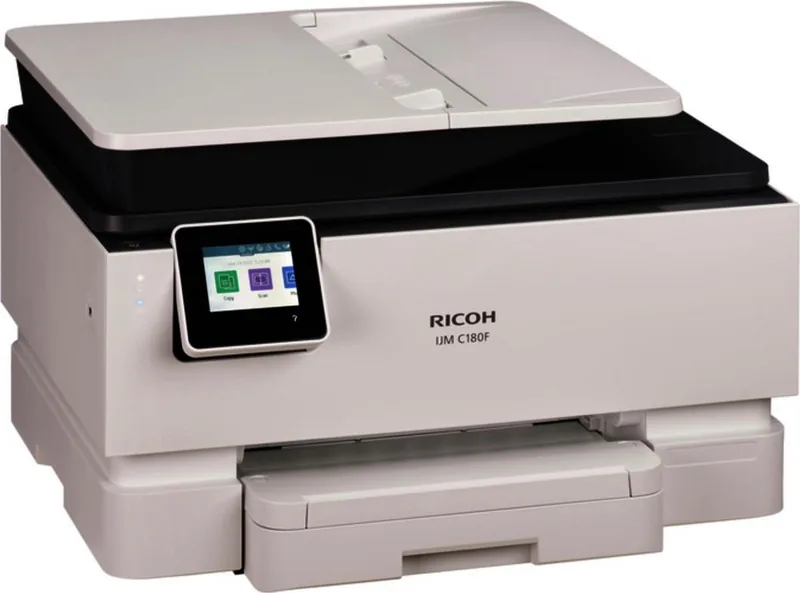
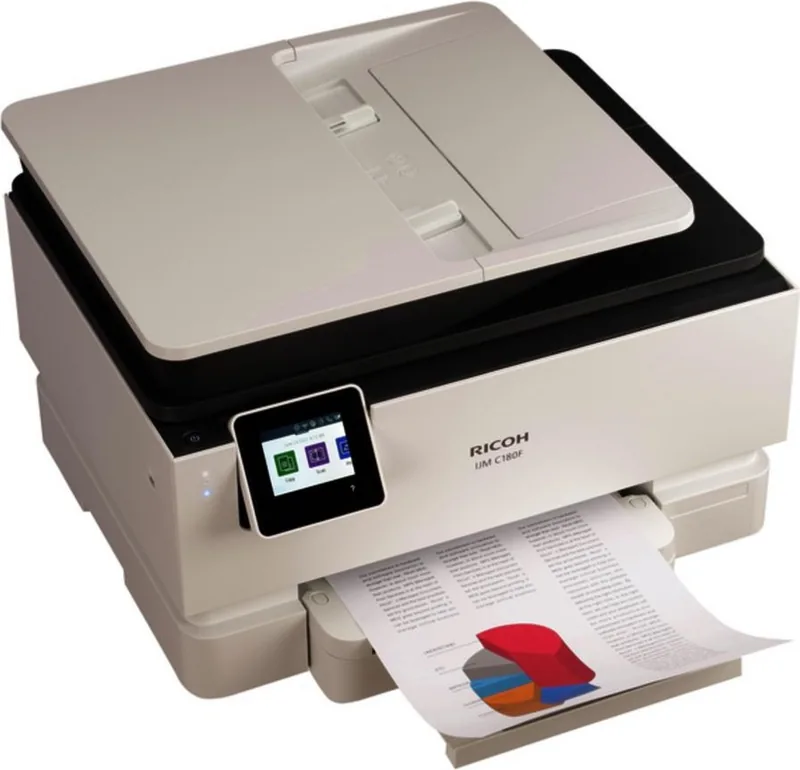
Ricoh IJM C180F Manual
PDF manual · 325 Pages
English



Quick check
Incorrect answer, please try again.
Chat with your Ricoh IJM C180F manual using AI
Get instant AI answers from your Ricoh IJM C180F manual
Ask anything about the Ricoh IJM C180F. Answers come from this manual, with the pages they are based on.
IJM C180F Maintenance Schedule
Clean with a soft lint-free cloth dampened with glass cleaner if copies show lines or smudges. Unplug the device before cleaning.
Wipe the outer housing with a soft, lint-free cloth to remove dust and dirt. Ensure the power cord is unplugged before cleaning.
Use the maintenance tool in software or on the control panel to align print heads for high-quality output. Required if print quality degrades.
Run the automatic printhead cleaning routine if prints have streaks or missing colors. Only clean when necessary to save ink.
Ask a Question
Do you recommend IJM C180F?
Yes NoFrequently Asked Questions
To enable quiet mode, access the dashboard on the control panel and select Quiet Mode settings. You can toggle the function to reduce noise levels. Note that this slows down print speed. You can also schedule this setting for specific hours via the embedded web server to ensure energy efficiency.
Is this answer helpful?
Yes, you can configure the scan to email feature. You need to set up SMTP server information and email profiles. Once configured, you can select recipients directly from the control panel or use the software assistant to manage contact lists for quick access during scanning tasks.
Is this answer helpful?
The device supports most office paper types including standard, legal, and photo paper. It handles envelopes and thick card stock well. However, avoid perforated, wrinkled, or heavily textured media to prevent paper jams and ensure consistent quality during output tasks.
Is this answer helpful?
Use the display on the control panel to view estimated ink levels. The dashboard icon indicates status for each color cartridge. The system provides warnings when levels are low so you can prepare replacement units before downtime occurs during critical print jobs.
Is this answer helpful?
Yes, it supports mobile printing via wireless connectivity. You can connect using Wi-Fi Direct or standard network setup. Applications allow you to send print jobs from smartphones and tablets without needing a physical connection cable for flexibility.
Is this answer helpful?
Open the relevant access panels gently and remove the jammed paper carefully. Ensure no torn pieces remain inside the mechanism. Check the input and output trays for obstructions. Referring to the guide can provide specific illustrations for clearing jams safely to avoid damage.
Is this answer helpful?
Download the latest firmware from the official support website. Connect the device to a computer and use the Ricoh Printer Assistant software. Follow the on-screen prompts to install the update. Ensure the power source is stable to prevent interruption during the process.
Is this answer helpful?
Advantages and Disadvantages
Advantages

- Advanced energy-saving modes reduce power consumption during inactive periods significantly for sustainability.
- Quiet mode ensures minimal noise during evening prints making it suitable for shared spaces without distraction.
- Direct scanning to email or network folders without additional software burdens on individual workstations.
- User-friendly ink replacement with status indicators preventing unexpected downtime during critical jobs.
- Secure wireless connectivity enables mobile devices to print effortlessly from various locations within range.
Disadvantages

- Quiet mode operates slower than standard speed which may impact urgency during high-volume print tasks.
- Complex network setup required for digital solutions might challenge users unfamiliar with embedded web interfaces.
- Silent mode is deactivated when printing in highest quality or presentation mode limiting noise reduction options.
- Specific paper types must be avoided to prevent jams such as perforated or heavily textured printing media.
- Troubleshooting often requires checking specific manual sections for error codes related to scanner or fax issues.
Product Specification
Format
A4 (Print), A4 (Scan)
Type
Printer/Scanner/Copier/Fax
Color System
4-color, 4x individual cartridges
1200x1200dpi - 22/18 pages/min (A4) (ISO)
Scan
1200x1200dpi - 8 pages/min
Copy
600x600dpi
Paper Input
250 sheets (1x 250 sheets), RADF (35 sheets), Duplex unit
Memory
512MB (RAM)
Connections
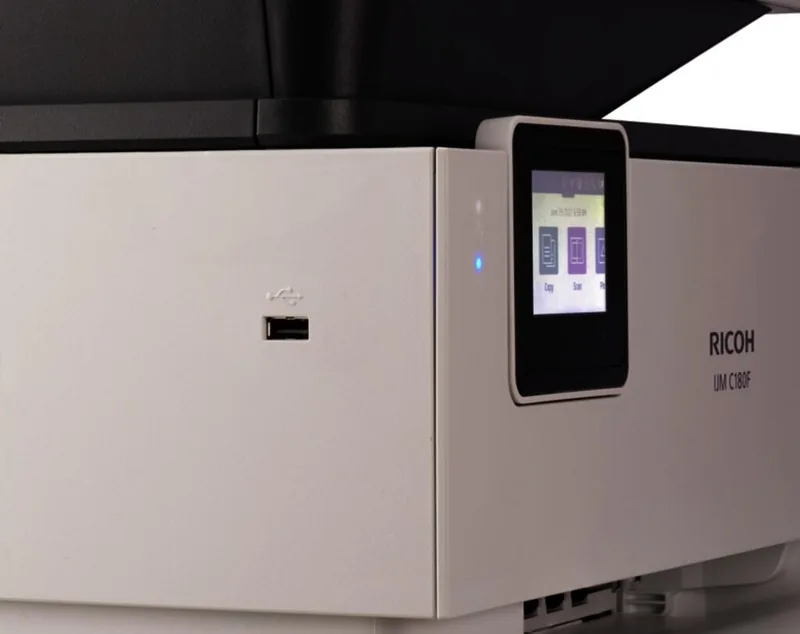
1x USB-B 2.0, 1x USB-A 2.0 (Host), 2x Fax (RJ-11)
Network
LAN, Wi-Fi 4 (WLAN 802.11b/g/n), NFC, Wi-Fi Direct, AirPrint, Mopria
Display
color, 2.65", Touchscreen
Power Consumption
30W (max), 5.8W (standby), 1.22W (sleep), 0.13W (off), TEC: 0.26kWh/week
Emulation
PCL 3
Cabinet Color
White
Dimensions
17.30 x 10.94 x 13.48 in
Weight
20.50 lbs
Features
borderless printing
Manufacturer Warranty
1 Year
Product Description
Unlock Maximum Productivity with Ricoh IJM C180F Ink, Multicolor
Achieve professional quality output in your home office or small business environment with the Ricoh IJM C180F Ink, Multicolor series. This innovative solution delivers sharp text and vivid graphics while maintaining low operational costs. Users often appreciate the versatility offered by the integration features found in the Ricoh IJM C180F Ink, Multicolor Manual reference guides. This information helps guide users through optimal setup and maintenance routines. This device is engineered to streamline workflows efficiently and reliably.
Enhanced Efficiency and Eco-Friendly Design
One standout feature is the commitment to sustainability. The device supports advanced energy-saving modes that activate after periods of inactivity, reducing power consumption significantly without sacrificing readiness. Additionally, the quiet mode ensures minimal noise during evening prints, making it suitable for shared spaces where distraction is not an option. The reference materials highlight tips for optimizing consumables, encouraging double-sided printing to further reduce waste and paper usage. Users can schedule power cycles to align with office hours, eliminating energy draw during unstaffed times and ensuring the machine is ready when needed.
Seamless Connectivity and Digital Solutions
Modern productivity relies on seamless integration without complexity. The printer facilitates direct scanning to email or network folders without additional software burdens on individual workstations. This digital solution capability allows for efficient document management across multiple users on a network securely. Secure wireless connectivity ensures that mobile devices and desktops can print effortlessly from various locations within range. The embedded web server provides a comprehensive interface for remote management, allowing administrators to monitor status and adjust settings from anywhere using standard browsers globally. Fax functions are also integrated for legacy compatibility needs.
Ink Management and Quality Assurance
Managing color cartridges is straightforward with the built-in status indicators on the control panel. The system alerts users when ink levels are low, preventing unexpected downtime during critical print jobs. Replacing the multicolor cartridges is user-friendly, ensuring consistent color accuracy for every page. The print head maintenance features help maintain optimal performance over time, reducing the frequency of clogs or streaks that affect image fidelity.
Paper Handling and Versatility
The unit accommodates diverse media types including envelopes and thick card stock for various projects. Detailed guidance ensures the paper feeds smoothly without jams. Proper alignment settings ensure consistent registration for all print sizes. Whether you are printing reports or marketing materials, the adjustable trays support various formats like Legal and letter sizes for standard needs. Security settings protect against unauthorized access to sensitive documents stored on the machine.
Conclusion and Support
Whether for daily documents or high-resolution photo prints, this printer excels in reliability and output quality consistently. The available resources provide essential support for troubleshooting common issues, ensuring continuous operation throughout the year. By combining high-quality printing with smart features like faxing and duplex scanning, this device remains a top choice for efficient workspace solutions. It balances performance with cost-effectiveness for modern professionals seeking value. The Ricoh IJM C180F Ink, Multicolor Manual supports this journey with comprehensive details.
Search for 67,706 Manuals online


Type-in Brand or Model