
Ricoh fi-8040 Manual
PDF manual · 425 Pages
English



Quick check
Incorrect answer, please try again.
Chat with your Ricoh fi-8040 manual using AI
Get instant AI answers from your Ricoh fi-8040 manual
Ask anything about the Ricoh fi-8040. Answers come from this manual, with the pages they are based on.
fi-8040 Maintenance Schedule
Replace the brake roller and pick roller after scanning approximately 200,000 sheets or once a year, whichever comes first. Clear counters after replacement.
Use Cleaning Paper or a cloth moistened with Cleaner F1 to remove paper dust from rollers, glass, and sensors. Turn off power and wait 15 minutes before cleaning.
Wipe the scanner body and touch screen with a dry cloth or one moistened with Cleaner F1/mild detergent when dust and dirt are noticeable.
Gently wipe dirt and dust off the surface and inside using a dry cloth or Cleaning Wipe to prevent scanning issues. Replace if damaged.
Replace the Carrier Sheet approximately every 500 scans as dirt accumulates, which may affect scanned results. Guidelines vary by usage.
Free maintenance reminders
Timed to your purchase date. Always free, unsubscribe anytime.
Ask a Question
Do you recommend fi-8040?
Yes NoFrequently Asked Questions
The Ricoh fi-8040 is designed for fast office document digitization. It supports individual desktop use, shared network scanning, standalone DirectScan workflows, and server-connected processing through PaperStream NX Manager.
Is this answer helpful?
The scanner reaches up to 40 pages per minute or 80 images per minute when scanning A4 documents at 200 or 300 dpi with JPEG compression. Actual performance can vary with settings, document condition, and workflow configuration.
Is this answer helpful?
Yes. DirectScan lets users operate the scanner through its touchscreen without a connected computer. Scanned images can be sent to configured network folders, email addresses, or predefined jobs.
Is this answer helpful?
It supports standard document batches, mixed paper stacks, folded documents, envelopes, and multi-layer transfer paper using suitable feed settings. An optional carrier sheet is recommended for delicate photos, clippings, and irregular originals.
Is this answer helpful?
Yes. The scanner uses ultrasonic sensors to detect overlapping documents. Its intelligent multi-feed feature can also ignore specified attachment areas, which helps avoid unnecessary interruptions for documents with fixed labels or attachments.
Is this answer helpful?
The fi-8040 supports USB and wired LAN connections. USB is useful for a directly connected computer, while wired LAN supports shared access, DirectScan, centralized administration, and server-connected workflows.
Is this answer helpful?
Advantages and Disadvantages
Advantages

- Scans up to 40 ppm and 80 ipm, supporting efficient processing of routine document batches.
- Offers USB and wired LAN connectivity for desktop, shared-office, and network-based workflows.
- DirectScan enables saving to network folders or sending email without a connected computer.
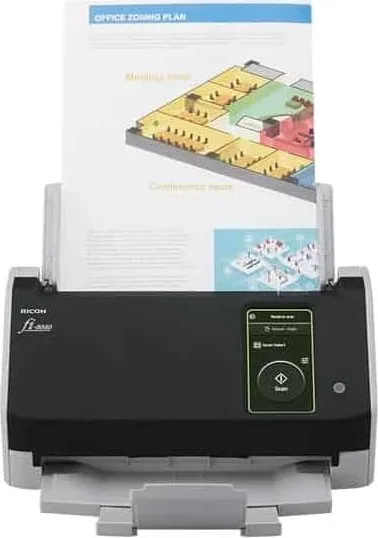
- 4.3-inch color touchscreen simplifies job selection, status checks, settings, and maintenance tasks.
- Ultrasonic multi-feed detection and mixed-batch support help reduce missed pages and preparation time.
Disadvantages

- DirectScan requires wired LAN configuration, network destinations, and time synchronization with an NTP server.
- PaperStream NX Manager and centralized administration require additional setup and compatible infrastructure.
- IPv6 is not supported when the scanner is connected to PaperStream NX Manager.
- Fragile photos and non-standard originals may require the optional carrier sheet.
- Regular cleaning and replacement of rollers are necessary to maintain dependable feeding quality.
Product Specification
Type
Document scanner (CIS)
Resolution
600 x 600 dpi
Speed
40/40 ppm (B&W/color)
Paper/film size
A4 (8.27 x 11.69 in)
Paper/film input
50-sheet DADF, duplex unit
Memory
1 GB (RAM)
Interfaces
1x USB 3.0, 1x Gb LAN
Wireless
N/A
Display
Color, 4.3 in touchscreen
Software
OCR software
Dimensions
11.5 x 5.63 x 6.18 in
Weight
6.83 lb
Manufacturer warranty
1 year
Note
Fujitsu acquired by PFU/Ricoh - models will henceforth be marketed under the Ricoh brand.
Product Description
Ricoh fi-8040 Manual: A Flexible Scanner for Modern Workflows
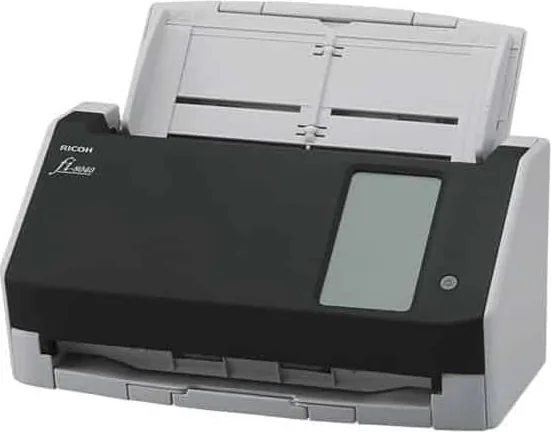
The Ricoh fi-8040 is a compact document scanner designed for teams that need dependable, fast, and flexible digitization. This Ricoh fi-8040 Manual overview highlights the scanner's practical strengths, from everyday desktop capture to network-connected workflows. Its combination of USB, wired LAN, touchscreen operation, and DirectScan capabilities makes it suitable for offices that want to simplify paper handling without limiting how scanned images are delivered.
Fast Capture with Convenient Paper Handling
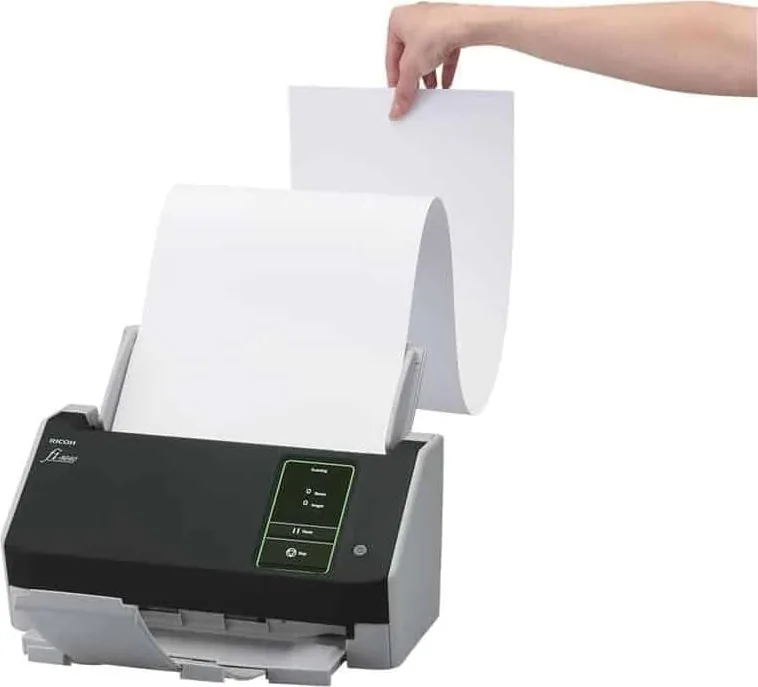
The fi-8040 scans up to 40 pages per minute or 80 images per minute under specified A4 settings. Its automatic document feeder supports up to 50 sheets, helping users process regular batches efficiently. The scanner can also handle mixed document stacks with varying paper sizes, weights, and types, reducing the time spent sorting materials before scanning.
For more challenging originals, the scanner offers manual single-feed operation. This mode is useful for folded sheets, envelopes, and multi-layer transfer paper. An optional carrier sheet can help protect fragile items such as photographs, clippings, and irregularly sized materials during capture.
Touchscreen and Standalone Scanning
A 4.3-inch color touchscreen gives the Ricoh fi-8040 a direct, user-friendly control point. Users can review scanner status, adjust settings, select scan functions, check counters, and access maintenance guidance from the device. This interface is especially useful in shared environments where multiple users need quick access without relying on a dedicated workstation.
With DirectScan, the fi-8040 can operate independently of a computer. Users can send scanned images to network folders or email recipients through predefined destinations and jobs. This feature supports distributed teams, reception areas, and shared scanning stations where simple touch-based workflows can improve turnaround times.
Connectivity, Image Quality, and Administration
The scanner supports both USB and wired LAN connections, allowing it to fit into individual desktop setups or larger network environments. It can also work with PaperStream NX Manager for server-connected workflows and centralized image processing. Scanner Central Admin options help organizations monitor devices and distribute settings or firmware across multiple scanners.
Ultrasonic multi-feed detection helps identify overlapping sheets before information is missed. Intelligent multi-feed detection can ignore known attachment areas, helping workflows continue when documents include labels or fixed items. Automatic color detection and image processing tools further support clear, usable digital images.
Notes
The Ricoh fi-8040 Manual emphasizes regular cleaning, roller replacement, secure network configuration, and changing the default administrator password. For DirectScan, accurate time synchronization and properly configured destinations are important for reliable operation.
Search for 67,706 Manuals online


Type-in Brand or Model