
QNAP USB JBOD Series Manual
PDF manual · 29 Pages
English



Quick check
Incorrect answer, please try again.
Chat with your QNAP USB JBOD Series manual using AI
Get instant AI answers from your QNAP USB JBOD Series manual
Ask anything about the QNAP USB JBOD Series. Answers come from this manual, with the pages they are based on.
Ask a Question
Do you recommend USB JBOD Series?
Yes NoFrequently Asked Questions
It is an external multi-drive enclosure that expands storage for a compatible NAS or computer through USB 3.1 Gen 2 Type-C. Drives may be used independently or organized through host-managed software RAID.
Is this answer helpful?
USB JBOD enclosures are supported on Windows, Linux, macOS, QTS, and QTS hero. Compatibility still depends on the host device, available connection, and the specific enclosure model.
Is this answer helpful?
QNAP JBOD Manager shows drive status and provides access to S.M.A.R.T. details. In QTS, users can review disk status, run S.M.A.R.T. tests, scan for errors, and adjust related drive settings.
Is this answer helpful?
Yes. A temperature threshold can be configured from 55 C to 69 C. When the internal device temperature reaches the chosen value, QNAP JBOD Manager issues a temperature warning.
Is this answer helpful?
Firmware can be updated automatically when a newer version is available or manually with a local firmware image. Keep all enclosure cables connected during the update and verify the installed version afterward.
Is this answer helpful?
Yes. In QTS external storage controls, a disk can be formatted with a selected file system and label. Encryption can also be enabled by choosing an encryption type and setting a password.
Is this answer helpful?
Advantages and Disadvantages
Advantages

- USB 3.1 Gen 2 Type-C connectivity supports fast expansion for compatible NAS systems and computers.
- Works with Windows, Linux, macOS, QTS, and QTS hero for flexible deployment.
- JBOD Manager provides drive health, S.M.A.R.T., temperature, firmware, and log monitoring.
- QTS supports pools, volumes, RAID groups, scans, secure erase, and safe disconnection.
- Chassis and drive locate functions simplify identification in racks or server rooms.
Disadvantages

- USB JBOD capacity and RAID behavior depend on the connected host and its software configuration.
- High-frequency S.M.A.R.T. checks may reduce drive performance.
- Firmware updates require all cables to remain connected and may require a host restart.
- Firmware maintenance may require RAID groups on enclosure drives to be removed first.
Product Specification
Hard drive
N/A
CPU
N/A
RAM
N/A
Warranty
24 months
USB connector type
Link
Product Description
QNAP NAS Expansion Unit USB Interface Manual: Flexible Storage Growth
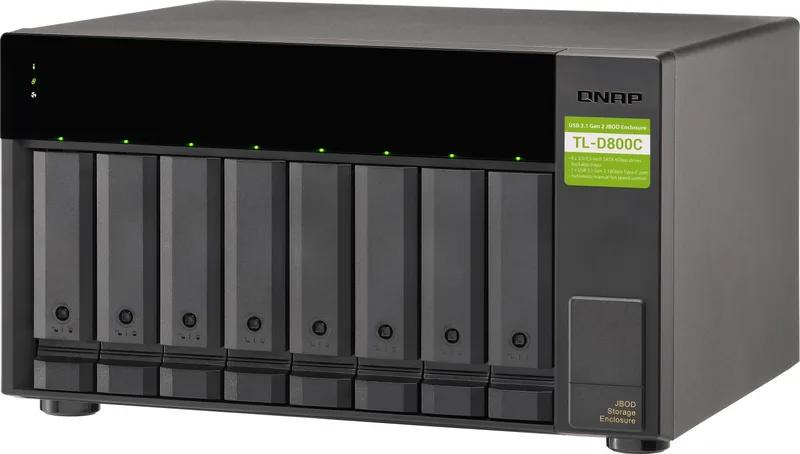
A QNAP NAS Expansion Unit USB Interface provides a practical way to add drive capacity to a compatible NAS or computer without replacing the primary system. These USB JBOD enclosures use USB 3.1 Gen 2 Type-C connectivity to deliver fast, efficient communication between the expansion chassis and its host. They are designed for users who need more room for backups, media libraries, surveillance recordings, project archives, or growing business data.
Storage Expansion for NAS and Desktop Workflows
The QNAP NAS Expansion Unit USB Interface Manual highlights an approach built around independent drive management and flexible software RAID options. Installed disks can be managed separately, or grouped through the connected host system when a RAID configuration is appropriate. This makes the enclosure useful for both simple capacity expansion and more structured storage deployments.
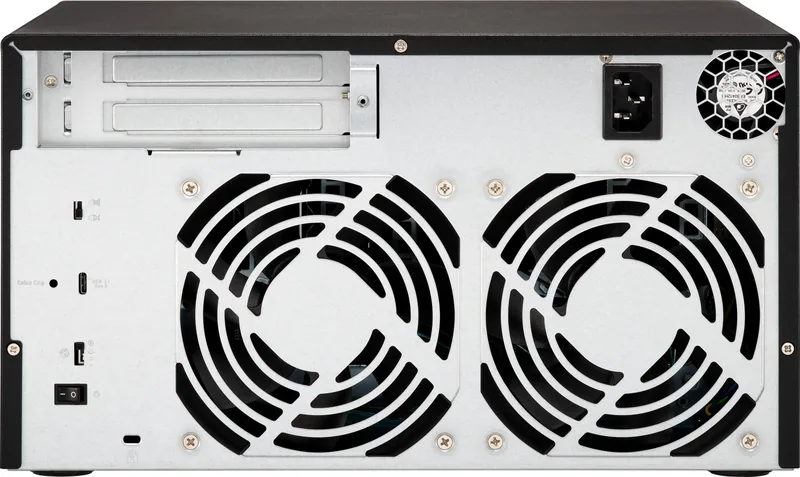
USB JBOD models support Windows, Linux, macOS, QTS, and QTS hero environments. This broad compatibility helps organizations and creators integrate additional storage into existing workflows. A USB Type-C connection also makes these units a convenient choice where an available high-speed USB port is preferred over a dedicated expansion card.
Visibility and Health Monitoring
QNAP JBOD Manager gives users a clear view of connected enclosures and installed drives. It displays drive condition indicators, device details, temperature information, firmware status, and event logs. Drive S.M.A.R.T. information can be reviewed to help identify potential disk issues early, while configurable polling intervals allow monitoring to be balanced against performance needs.
The enclosure can also issue a temperature warning when its internal temperature reaches a selected threshold between 55 C and 69 C. Location tools activate chassis LEDs and an audible signal, helping administrators identify the correct unit in a rack or server room. Audio alarms may be enabled or disabled when supported by the hardware configuration.
QTS Storage Controls
When attached to a QNAP NAS, the expansion unit can be managed through Storage & Snapshots in QTS. Users can inspect disks, create storage pools, volumes, and RAID groups, run performance tests, scan for existing storage configurations, and safely disconnect the enclosure. Individual drive actions include viewing detailed status, running scans, locating a disk through its LED, and securely erasing data when required.
The unit may also be handled as external storage. Available options include formatting a drive, choosing a file system, assigning a label, enabling encryption, erasing partitions, and safely ejecting storage. Firmware updates can be installed automatically when available or manually from a local image, with all cables connected during the process.
Notes
- Remove RAID groups from enclosure drives before a firmware update when recommended.
- Use safe disconnect or eject actions before unplugging the unit.
- Frequent S.M.A.R.T. polling can affect drive performance.
Search for 67,706 Manuals online


Type-in Brand or Model