
PowerWalker Basic VI 650 SB Manual
PDF manual · 14 Pages
English



Quick check
Incorrect answer, please try again.
Chat with your PowerWalker Basic VI 650 SB manual using AI
Get instant AI answers from your PowerWalker Basic VI 650 SB manual
Ask anything about the PowerWalker Basic VI 650 SB. Answers come from this manual, with the pages they are based on.
Ask a Question
Do you recommend Basic VI 650 SB?
Yes NoFrequently Asked Questions
It is used to provide short-term backup power and surge protection for computers and other small office electronics. It helps prevent sudden shutdowns during power failures and supports safer system operation.
Is this answer helpful?
No. The unit is designed for computer-related equipment only. High-demand devices like laser printers, heaters, vacuum cleaners, and copiers can overload the UPS and may damage it.
Is this answer helpful?
Yes. The battery charges whenever the UPS is connected to AC power, regardless of whether the unit is switched on or off.
Is this answer helpful?
A full 8-hour charge is recommended for best battery capacity. The UPS can be used immediately, but charging first helps ensure optimal performance.
Is this answer helpful?
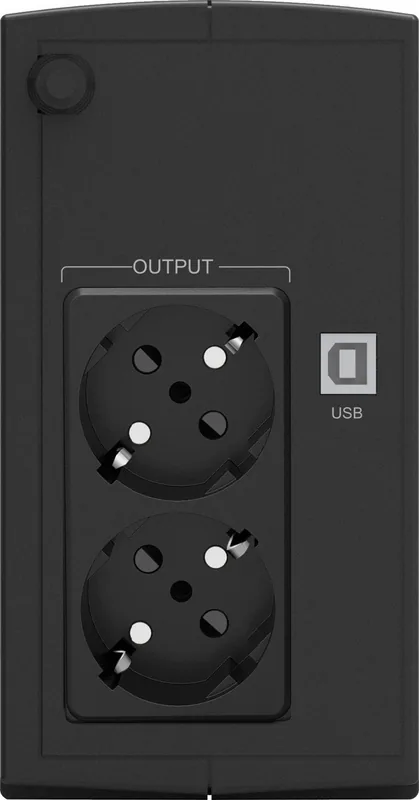
The USB port allows communication between the UPS and a computer. It supports monitoring and works with PowerMaster software for easier power management.
Is this answer helpful?
Turn the UPS off, unplug one or more connected devices, wait about 10 seconds, check the breaker or fuse, and then turn the unit back on.
Is this answer helpful?
Advantages and Disadvantages
Advantages

- 650 VA / 360 W capacity is well suited to a desktop PC, monitor, and small peripherals.
- USB HID support enables basic monitoring and software integration with a connected computer.
- Auto-charger and auto-restart features make it convenient after power returns.
- LED indicators and alarms provide clear status updates during normal use or outages.
Disadvantages

- Not suitable for high-power devices such as laser printers, heaters, or vacuum cleaners.
- Battery runtime is limited by the modest capacity and connected load.
- Requires an initial charging period for best performance after unpacking or storage.
- No advanced display or premium management features found on higher-end UPS models.
Product Specification
Type
Tower
Classification
VI (Line-Interactive)
Apparent Power
650VA
Active Power
360W
Voltage
230V
Input
Schuko
Outputs
2x Schuko
Interfaces
USB
Data Line Protection
N/A
Autonomy Time (50%)
4.5min
Charging Time
8h (90%)
Weight
8.60lb
Dimensions (WxHxD)
3.31x6.22x9.92in
Rack Units
N/A
Depth 19" Rackmount
N/A
Product Description
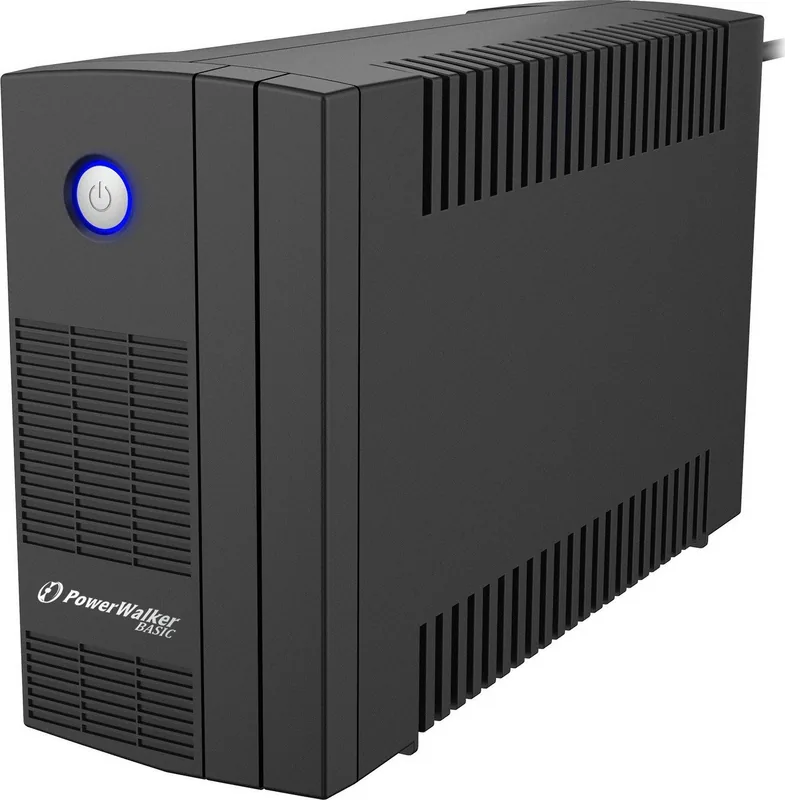
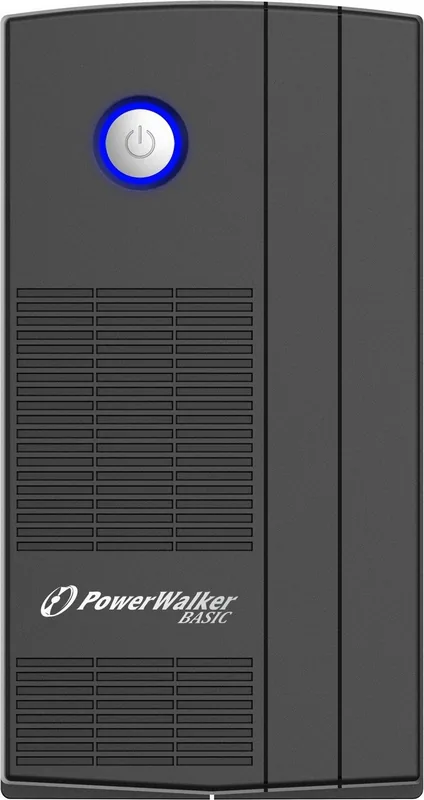
BlueWalker PowerWalker Basic VI 650 SB, USB
The BlueWalker PowerWalker Basic VI 650 SB, USB is a compact line-interactive UPS designed to keep everyday computer equipment running through short outages, voltage dips, and power spikes. Built for home offices and small workstations, it focuses on the essentials: stable backup power, battery protection, simple controls, and USB communication for smarter monitoring. If you need a practical safeguard for a desktop PC, monitor, and small external storage devices, this model fits the role well.
One of its biggest strengths is its straightforward operation. The unit charges automatically when connected to AC power, and the battery can be used immediately after setup, though a full 8-hour charge is recommended for the best performance. The 650 VA / 360 W rating is enough for modest computing loads, making it a sensible choice for users who want reliable emergency runtime without stepping into oversized or complicated UPS systems. The USB port with HID support also adds value by allowing communication with a computer and compatible power-management software.
The design is intentionally practical. It includes battery-backed outlets for critical devices, overload protection, audible alarms, and auto-restart functionality after power returns. LED status indicators make it easy to understand whether the unit is operating normally, running on battery, or approaching overload. For users who want a no-nonsense protection layer for essential electronics, that simplicity is a major advantage.
Like most UPS units in this class, it is meant for electronics rather than heavy appliances. The manual clearly discourages connecting printers, heaters, vacuum cleaners, or other high-demand equipment. That guidance is important, because the BlueWalker PowerWalker Basic VI 650 SB, USB is built to protect sensitive computer gear, not to power everything in a room. Used properly, it can extend uptime, reduce sudden shutdowns, and help preserve data during unexpected power problems.
Notes
- Leave the UPS plugged in to maintain battery charge.
- Recharge after storage every three months.
- Use only with computer-related equipment.
- Install indoors in a cool, dry, ventilated space.
In short, the BlueWalker PowerWalker Basic VI 650 SB, USB is a dependable everyday UPS for users who want basic backup power, clean communication through USB, and simple protection for essential desktop equipment.
Search for 67,706 Manuals online


Type-in Brand or Model
Lukas Schneider
9 months ago
How hard is it to configure this with TrueNAS, and are there any setup tips?
Manual.ly
9 months ago
TrueNAS setup is usually the most challenging part. Make sure you have the correct network settings (same IP/subnet as your device) and verify the service you want to use is enabled and reachable. Double-check credentials, ports, and any required protocols (for example, SMB/NFS) inside TrueNAS. If discovery does not work, try a manual IP/hostname configuration instead of auto-detect. After changes, restart the relevant TrueNAS service and re-check connectivity from the TrueNAS UI. If it still does not connect, share the TrueNAS version, the protocol/ports you configured, and whether the device is on the same network, and support can help pinpoint the exact setting causing the issue.