
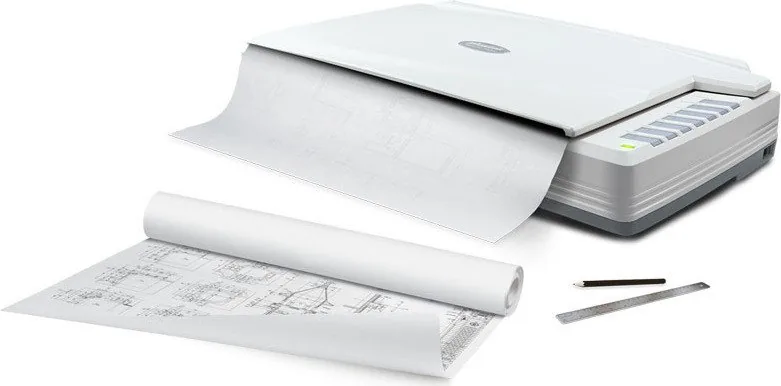
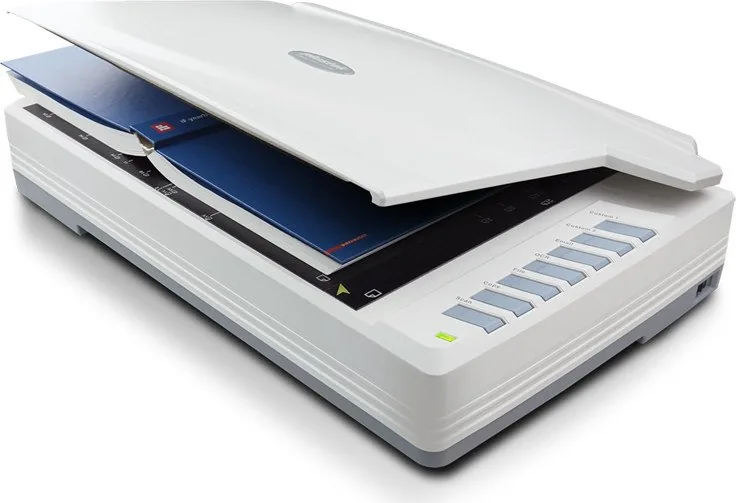
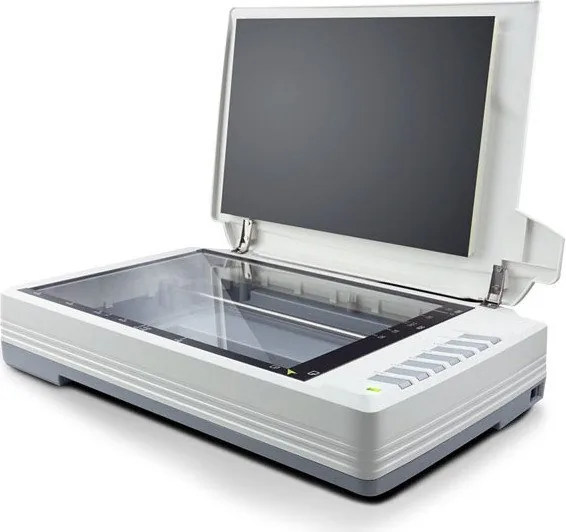
Plustek OpticPro A320E Manual
PDF manual · 222 Pages
English



Quick check
Incorrect answer, please try again.
Chat with your Plustek OpticPro A320E manual using AI
Get instant AI answers from your Plustek OpticPro A320E manual
Ask anything about the Plustek OpticPro A320E. Answers come from this manual, with the pages they are based on.
Ask a Question
Do you recommend OpticPro A320E?
Yes No
Leland D'Amore
5 months ago
Why does this model seem significantly louder than previous versions of the same brand?
in21
5 months ago
Is the handle on the transport case durable enough for carrying heavy loads up stairs, and are there any known issues with it breaking?

Manual.ly
5 months ago
Thank you for your inquiry. While this scanner offers excellent speed and image quality on Windows 10, we have received reports regarding the fragility of the transport case handle under significant stress. We recommend exercising caution when moving the device to avoid damage. Regarding the manual, we acknowledge that some users found the German version confusing compared to the English text. Our team is currently reviewing these documents to improve clarity.

Hollie Powell
6 months ago
Does the OCR software work well without needing manual corrections after scanning?
Frequently Asked Questions
The Plustek OpticPro A320E can scan documents up to A3 size, which measures 12 inches by 17 inches. This makes it suitable for large blueprints, magazines, and legal documents.
Is this answer helpful?
Yes, the scanner works with ABBYY FineReader OCR technology. This feature converts scanned text images into editable text files or searchable PDFs, eliminating the need for manual retyping.
Is this answer helpful?
Connect the scanner using the included USB cable to a free USB 2.0 port on your computer. Ensure the scanner is unlocked and powered on before connecting to allow the system to detect the new hardware.
Is this answer helpful?
Absolutely. You can select the photo or color scan mode in the software. It is recommended not to use the OCR button for photos as it is designed specifically for text documents.
Is this answer helpful?
If the scanner goes into standby after being idle for ten minutes, simply press any button on the scanner panel or click a scanning icon to wake it up immediately.
Is this answer helpful?
Yes, the Plustek OpticPro A320E is fully compatible with Windows 7, Windows 8, and Windows 10 operating systems provided you install the correct drivers from the included DVD.
Is this answer helpful?
Advantages and Disadvantages
Advantages

- Supports large A3 format scanning for versatile document handling
- High optical resolution of 800 dpi ensures detailed image capture
- Seven programmable buttons allow for customized one-touch workflows
- Includes advanced DocAction software for efficient task automation
- Compatible with major TWAIN applications and operating systems
Disadvantages

- Requires significant hard disk space for driver and software installation
- Scanning large high-resolution images can be time-consuming
- System must have a free USB port and compatible hardware
- Scanner glass requires regular cleaning to maintain optimal quality
- Standby mode activation might delay immediate scanning if not configured
Product Specification
Type
Flatbed scanner (CCD)
Resolution
800x800 dpi
Speed
8 pages/min (color)
Paper/Film format
A3
Paper/Film feed
Single sheet
Connections
1x USB 2.0
Wireless
N/A
Display
N/A
Software
OCR software
Dimensions
24.53x5.51x15.75 in
Weight
16.53 lbs
Product Description
Elevate Your Workflow with the Plustek OpticPro A320E
The Plustek OpticPro A320E stands as a robust solution for professionals and home users seeking high-quality flatbed scanning capabilities. Designed to handle large formats up to A3 size, this device seamlessly integrates into your daily computing tasks, transforming physical documents into crisp digital assets. Whether you are archiving important records, digitizing photographs, or preparing materials for print, the A320E delivers precision and reliability that enhances your productivity.
At the heart of this scanner lies a powerful CCD image sensor capable of capturing optical resolutions up to 800 dpi. This ensures that every detail, from fine text lines to subtle photographic gradients, is preserved with exceptional clarity. The unit supports multiple scan modes including color, grayscale, and black-and-white, allowing you to tailor the output to your specific needs. With a scanning speed of approximately 7.8 seconds for a full A3 page at 300 dpi, it balances quality with efficiency, making it ideal for handling high volumes of work without unnecessary delays.
Ease of use is paramount with the included DocAction software. This intuitive application allows you to assign specific tasks to the seven programmable buttons on the scanner panel. You can set up one-touch scanning to email, save to a folder, create PDFs, or initiate OCR processing instantly. The DocTWAIN interface further empowers users by offering advanced settings for color matching, descreening, and histogram adjustments. These tools ensure that even complex documents containing moiré patterns or mixed media are scanned accurately.
Safety and durability are built into the design with a dedicated scanner lock mechanism that secures the internal head during transport. The unit also features an automatic standby mode to conserve energy when idle. Cleaning is straightforward, requiring only a soft cloth and non-abrasive cleaner to maintain the glass surface. For those needing to process text-heavy documents, the integration with ABBYY FineReader OCR technology converts images into editable text files, streamlining data entry and document management workflows.
Key Features Overview
- Supports A3 size scanning (12 x 17 inches)
- Optical resolution up to 800 dpi
- TWAIN and WIA compliant for broad software compatibility
- Seven programmable action buttons for quick access
- Integrated DocAction and DocTWAIN software suites
- Automatic standby mode for power saving
- Includes USB 2.0 connectivity and AC adapter
Important Maintenance Notes
Always unlock the scanner before use to prevent mechanical damage. When moving the device, ensure the locking switch is engaged to protect the optical components. Keep the scanner in a dry environment to avoid moisture condensation which can cause internal malfunctions. Regularly clean the glass and document pad to prevent dust accumulation that may degrade image quality.
Search for 67,706 Manuals online


Type-in Brand or Model
Jorge Lind
6 months ago
Is the carrying handle on the transport case durable enough for moving the scanner up stairs?
Manual.ly
6 months ago
We apologize for the issue you experienced with the handle. While the device is designed for easy transport, we recommend checking the unit immediately upon arrival and contacting our support team if any damage occurs during shipping or initial handling so we can arrange a replacement or repair.