
Plustek OpticFilm 8300i SE Manual
PDF manual · 46 Pages
English



Quick check
Incorrect answer, please try again.
Chat with your Plustek OpticFilm 8300i SE manual using AI
Get instant AI answers from your Plustek OpticFilm 8300i SE manual
Ask anything about the Plustek OpticFilm 8300i SE. Answers come from this manual, with the pages they are based on.
Ask a Question
Do you recommend OpticFilm 8300i SE?
Yes NoFrequently Asked Questions
Insert the USB stick into your computer and run Setup.exe for Windows or Setup.dmg for Mac. Follow on-screen instructions to complete installation process.
Is this answer helpful?
Yes, it scans 35mm negatives and slides using included film holders. It handles mounted slides and film strips up to 35mm frames effectively.
Is this answer helpful?
Speed varies by resolution. At 3600 dpi it takes about 20 seconds. High resolution at 7200 dpi takes up to 120 seconds to complete.
Is this answer helpful?
Yes, the built-in infrared technology automatically detects and removes dust and scratches during the scan process for cleaner images.
Is this answer helpful?
The scanner supports Windows 7, 8, and 10 operating systems. It also works with MacOS 10.13 and later versions.
Is this answer helpful?
Yes, SilverFast scanning software is bundled. You may need to create a MySilverFast account for activation and usage.
Is this answer helpful?
You need an Intel i5 CPU or faster, 4GB RAM, and 20GB free hard disk space for optimal performance on system.
Is this answer helpful?
Advantages and Disadvantages
Advantages

- 7200 dpi hardware resolution captures fine film details accurately
- Built-in infrared channel removes dust and scratches automatically
- Bundled SilverFast software provides advanced color correction tools
- Compact design fits well on standard home office desks easily
- Includes dual film holders for slides and strips efficiently
Disadvantages

- Scanning at 7200 dpi takes significant time, up to 120 seconds
- Requires manual driver installation via USB stick included in box
- Physical buttons depend on specific software installation for full features
- Heavy vibration sensitivity means unit must remain stable on surface
- Power adapter cables can only work with provided original accessories
Product Specification
Type
Film/Dia Scanner (CCD)
Resolution
7200x7200 dpi
Paper/Film Format
Film (35mm)
Interfaces
1x USB 2.0
Software
OCR Software (SilverFast SE)
Dimensions
4.72 x 4.69 x 10.71 inches
Weight
3.53 lbs
Features
LED Lighting
Product Description
Plustek OpticFilm 8300i SE Overview
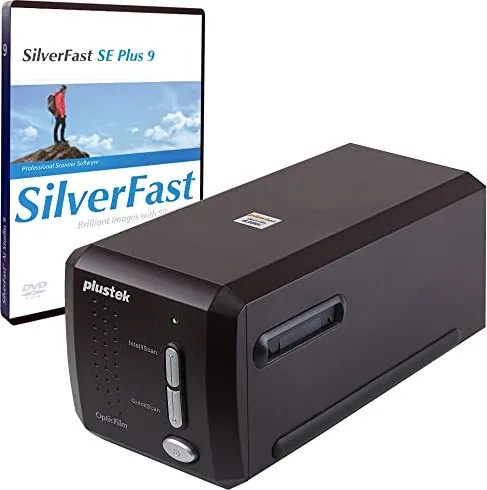
Digitizing your vintage film collection requires precision and reliability. The Plustek OpticFilm 8300i SE delivers exceptional quality for home scanning enthusiasts. This device utilizes a high-resolution CCD sensor capable of capturing details up to 7200 dpi. Built-in infrared technology assists in removing dust and scratches automatically. This feature significantly reduces post-processing time for users preserving historical photos. The machine supports both positive slides and negative film strips efficiently. Color output reaches up to 48-bit for accurate reproduction of original colors.
Installation is straightforward but requires attention to detail. Users connect the unit via USB 2.0 and use the included Setup stick for drivers. The scanner works with Windows and macOS operating systems effectively. For advanced users, SilverFast software is bundled to enhance color correction and dynamic range. Operating the scanner involves pressing physical buttons like QuickScan or IntelliScan on the front panel. QuickScan Plus allows basic adjustments while IntelliScan offers deeper control over scan parameters. You can also adjust preferences for power saving features directly from the software interface.
Handling film requires care to avoid scratches. Always store negatives in a cool, dry place out of direct sunlight. Users should ensure hands are clean before inserting film holders. The hardware includes specific holders for mounted slides and filmstrips. Proper indexing of the holder ensures each frame scans correctly without skewing images. Environment matters too. Keep the unit away from excessive heat or moisture to maintain longevity. Weight is light enough for table placement but heavy enough for stability during use.
For comprehensive setup guidance and troubleshooting tips, consult the Plustek OpticFilm 8300i SE Manual. This resource covers safety precautions and maintenance schedules. Regular cleaning of the scanner ensures smooth operation over years of use. Connectivity issues can often be resolved by checking cable connections or updating drivers. If problems persist, contact local authorized dealers for support options. The hardware dimensions fit easily on standard desks. Backup data regularly since scan quality depends on system resources available on your computer. Exporting images allows sharing to social media platforms like Facebook or Flickr. You can also save direct to Google Drive or Twitter for quick distribution. Your warranty covers manufacturing defects provided you keep receipts and follow instructions.
Important Notes
Keep the device indoors only to prevent moisture damage. Always use the provided power adapter to avoid malfunction. Do not disassemble the unit as it will void the warranty. Ensure all cables are connected tightly before powering on. Clean film holders with a non-abrasive cloth before use.
Search for 67,706 Manuals online


Type-in Brand or Model