
Plustek OpticFilm 8200i SE Manual
PDF manual · 2 Pages
English



Quick check
Incorrect answer, please try again.
Chat with your Plustek OpticFilm 8200i SE manual using AI
Get instant AI answers from your Plustek OpticFilm 8200i SE manual
Ask anything about the Plustek OpticFilm 8200i SE. Answers come from this manual, with the pages they are based on.
Ask a Question
Do you recommend OpticFilm 8200i SE?
Yes No
Stefan Mueller
8 months ago
Many users mention SilverFast software being slow or difficult on Mac. Is third-party software like Vuescan supported and recommended for better scanning speed?

Manual.ly
8 months ago
The scanner hardware functions with standard drivers and third-party software. While SilverFast is the included package, many users find Vuescan offers a faster workflow and better results on macOS. Vuescan supports the scanner's infrared dust removal and multi-exposure features effectively. We recommend checking Vuescan compatibility for your operating system before purchase to ensure optimal performance.
MagniQui87
10 months ago
How easy is it to use the included software (QuickScan and SilverFast) for scanning lots of negatives and slides, especially on Mac? Do I need to buy extra software like VueScan?
Manual.ly
9 months ago
QuickScan is mainly for fast, basic scans, but many users find it limited and more manual for large batches (for example, when scanning a lot of frames). SilverFast offers more control and better results, but it can be more complex and take longer, depending on how much color correction and dust or scratch handling you enable. On macOS, SilverFast may feel less straightforward than native macOS apps, and some features (like certain workflow or save-path behavior) may require attention. If you want a smoother and more consistent batch workflow, using VueScan is a common alternative and can unlock the scanner's advanced capabilities without the same learning curve. No additional purchase is required to start, but VueScan is often worth it if you prioritize usability and time.
Thomas Schmitt
6 months ago
Does the bundled software support batch scanning efficiently, and is it compatible with modern Mac systems?
Manual.ly
6 months ago
The bundled software allows for high quality scans, but we understand users sometimes find the settings complex on Mac systems. Batch processing can be time-consuming for large collections. While the base tools are functional, the advanced interface may feel unintuitive. For improved automation and stability, many customers prefer third-party solutions like VueScan. The hardware functions correctly, but software choice impacts efficiency.
Video Manual
Scanning a 35mm Film Negative with Plustek OpticFilm 8200i SE Scanner with bundled Silverfast 9 SE
Frequently Asked Questions
It supports up to 7200 dpi resolution for maximum detail.
Is this answer helpful?
Yes, it is compatible with Mac OS X versions 10.7 through 10.15 using the SilverFast software.
Is this answer helpful?
Yes, it features an integrated Infrared channel to digitally clean dust and scratches automatically.
Is this answer helpful?
It connects via a USB 2.0 port using the included cable and requires the provided power adapter.
Is this answer helpful?
LaserSoft SilverFast SE enhancement software is included for image editing and management capabilities.
Is this answer helpful?
It scans 35mm slides, negatives, and film strips up to 6 images per strip effectively.
Is this answer helpful?
At least 10 GB of free hard drive space is required for installation and scanning data storage.
Is this answer helpful?
Advantages and Disadvantages
Advantages

- High 7200 dpi resolution captures fine details accurately.
- Integrated Infrared technology removes dust digitally.
- SilverFast software included for post processing.
- Compatible with Windows and Mac operating systems.
- QuickScan and IntelliScan buttons for speed.
Disadvantages

- High resolution scans take significant time to complete.
- Requires specific USB cable for proper operation stability.
- Sensitive to dust requiring frequent cleaning of film.
- Not suitable for non-35mm film formats without adapters.
Product Specification
Type
Film Scanner / Slide Scanner
Resolution
7200x7200 dpi
Paper/Film Format
Slide (0.94x1.42 in)
Connections
1x USB 2.0
Features
LED Lighting
Product Description
Experience Crystal Clear Scans with the Plustek OpticFilm 8200i SE
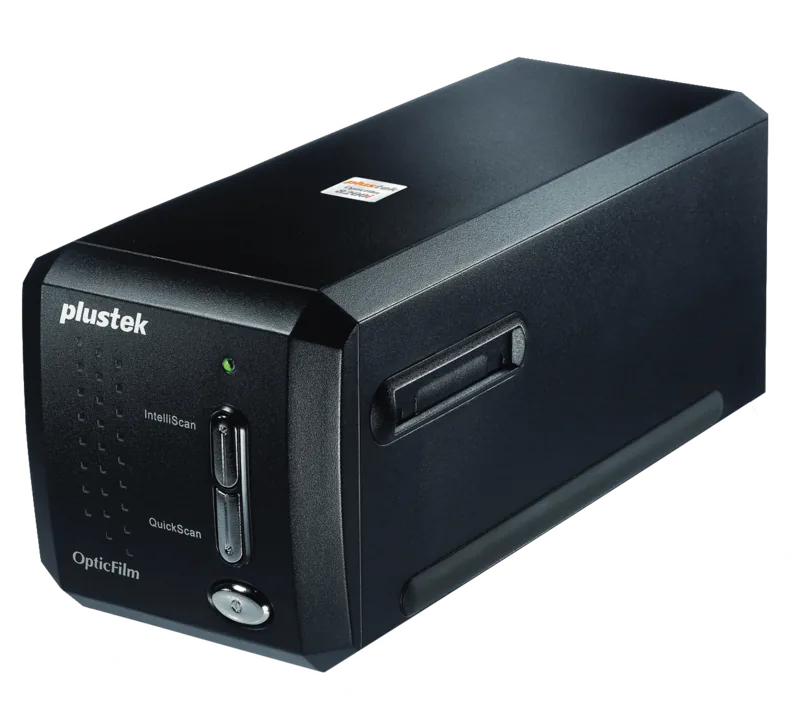
Transform your cherished analog memories into lasting digital assets with the Plustek OpticFilm 8200i SE. This high performance film scanner is designed for photographers and archivists who demand exceptional detail and color accuracy. When you consult the Plustek OpticFilm 8200i SE Manual, you unlock the full potential of this versatile machine. The device supports resolutions up to 7200 dpi, ensuring that even the tiniest grain of silver halide is captured accurately. This level of detail transforms vintage slides into digital archives.
Advanced Imaging Technology
The optical engine utilizes a powerful CCD sensor paired with stable LED illumination to guarantee consistent color reproduction across all scans. The unit features a dynamic density of 3.6 for deep blacks and subtle highlights. Whether you are working with color slides, negatives, or film sheets, the scanner handles transparency film with ease. An integrated Infrared channel is a standout feature that helps to digitally clean the film, removing dust and scratches automatically during the scanning process. This technology is particularly useful when dealing with older films that may have accumulated dirt, saving hours of manual retouching time.
Ease of Use and Software Integration
Setup involves straightforward hardware connections and comprehensive software installation. The package includes SilverFast image enhancement software, which is compatible with both Windows operating systems and Mac OS X platforms. Quick access buttons on the device allow for rapid image capture without navigating complex menus. The IntelliScan and QuickScan keys streamline workflows significantly for busy professionals managing large volumes of film. Users can configure settings for brightness, contrast, and gamma directly through the interface. Multi-Sampling can be adjusted for higher scanning quality or speed depending on your needs.
Important Notes for Users
Please ensure adequate hard drive space is available before beginning large batches of high resolution scans. The unit requires the included USB cable to function correctly, as third party cables may not provide sufficient stability. The scanner head should be kept clean to maintain optimal performance. Regular maintenance prevents internal dust accumulation which could negatively affect scan quality.
The device is compact with dimensions of 120 by 272 by 119 mm and weighs 1.6 Kgs. This allows for easy portability and storage in small home offices or studios without taking up excessive space. Be sure to keep the device in a dry environment to prevent moisture issues.
System Recommendation: The system requirements suggest a minimum of two gigabytes of RAM, though four gigabytes is recommended for smoother performance during heavy processing tasks. The scanner connects via USB 2.0 and fits easily on most desks.
Search for 67,706 Manuals online


Type-in Brand or Model
Markus Schmidt
9 months ago
Does the bundled Silverfast software work well on macOS, and is the Infrared dust removal effective for old scratches?
Manual.ly
8 months ago
Feedback indicates Silverfast is powerful but can be complex on macOS. Many users transition to third-party options like VueScan for better workflow integration. The Infrared feature aims to remove dust and scratches. While effective on some media, results depend heavily on the original film condition. Users suggest testing the software and features with your specific collection before committing to large batches.