
Plustek OpticBook A300 Plus Manual
PDF manual · 30 Pages
English



Quick check
Incorrect answer, please try again.
Chat with your Plustek OpticBook A300 Plus manual using AI
Get instant AI answers from your Plustek OpticBook A300 Plus manual
Ask anything about the Plustek OpticBook A300 Plus. Answers come from this manual, with the pages they are based on.
Ask a Question
Do you recommend OpticBook A300 Plus?
Yes NoVideo Manual
OpticBook A300 Plus Scanner Silver Black - B07FY8XF4Q
Frequently Asked Questions
Its main strength is book-friendly flatbed scanning. The wide A3 area and Book Edge design help capture bound materials with less spine distortion and a cleaner result.
Is this answer helpful?
Yes. It supports an A3 scanning area, making it suitable for larger pages, books, journals, and other oversized originals that would not fit in smaller scanners.
Is this answer helpful?
Yes. It includes OCR support, which helps convert scanned text images into editable text for word processors and document workflows.
Is this answer helpful?
It is designed for Microsoft Windows 7, Windows 8, and Windows 10. It is not intended as a cross-platform scanner for other operating systems.
Is this answer helpful?
Place the book or page carefully on the glass, align it with the reference mark, and use the Book Pavilion settings for the right mode, resolution, and output destination.
Is this answer helpful?
Keep the glass and document pad clean, calibrate when color accuracy drifts, and use the lock correctly when moving the scanner. Proper care helps maintain image quality.
Is this answer helpful?
Advantages and Disadvantages
Advantages

- Large A3 flatbed area supports books, magazines, and oversized pages with ease.
- Book Edge design helps reduce spine shadow and distortion near the center fold.
- Book Pavilion and scan buttons simplify frequent tasks and repeat workflows.
- TWAIN/WIA support and OCR compatibility make it flexible for editing and archiving.
Disadvantages

- At 7.7 kg, it is not the lightest option for frequent moving or compact desks.
- Best results depend on careful setup, alignment, and periodic maintenance.
- Requires Windows 7/8/10, so it is not ideal for non-Windows environments.
- No automatic document feeder, so batch work still needs manual page placement.
Product Specification
Type
Book scanner (CCD)
Resolution
600x600dpi
Speed
29/24 ppm (B/W/Color)
Paper/Film format
11.69 x 16.54 in
Paper/Film feed
Single sheet
Memory
512 MB (RAM)
Connections
1 x USB 2.0
Wireless
N/A
Display
N/A
Software
OCR software (ABBYY FineReader)
Power consumption
24 W (typical), 8 W (standby)
Dimensions
24.53 x 15.75 x 5.51 in
Weight
16.03 lb
Special features
LED illumination
Product Description
Plustek OpticBook A300 Plus: A Smarter Way to Scan Books
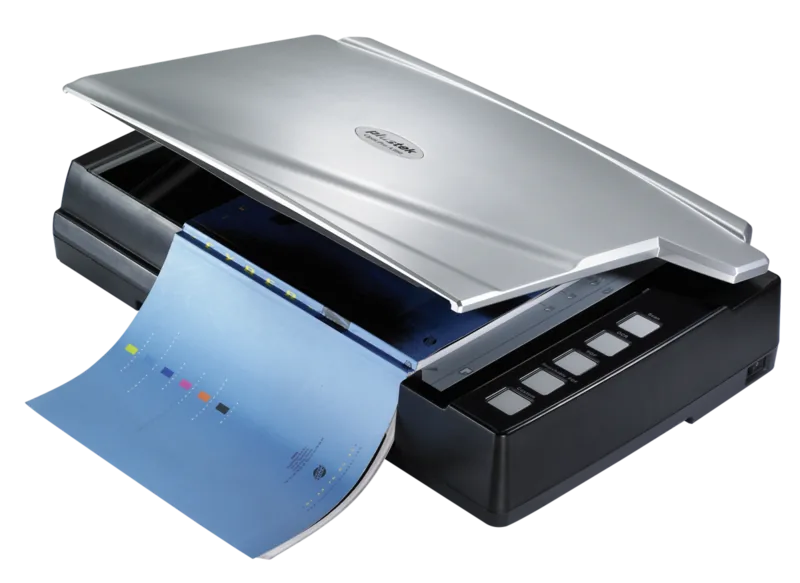
The Plustek OpticBook A300 Plus is built for people who need clean, reliable scans from books, magazines, and oversized originals without turning the process into a chore. Its standout idea is simple: make book scanning easier, sharper, and more consistent for everyday work. With a generous A3 scanning area, it handles larger pages comfortably, while the flatbed design gives you the control needed for fragile or bound materials.
What makes this model especially practical is the Book Edge concept. By keeping the scan area close to the spine, it helps reduce the distortion that often appears near the center fold of a book. That means less editing later and a more polished result right from the start. Add in LED lighting, quick scan buttons, and support for TWAIN and WIA workflows, and you get a scanner that fits smoothly into both home and office routines.
The A300 Plus is also a good match for users who want flexibility. It works well with scanning software, OCR tools, and the bundled Book Pavilion interface, which simplifies repeated tasks like color, grayscale, and text scanning. If you're setting it up for the first time, the Plustek OpticBook A300 plus Manual is a useful companion for checking connections, software steps, and maintenance tips.
For long-term use, the scanner is designed with practical care in mind. Routine cleaning, occasional alignment, and proper lock handling help keep performance steady. It is also energy-conscious, with standby behavior that reduces power use when the device is idle. That makes it a sensible choice for users who scan in batches and want dependable operation over time.
Overall, the Plustek OpticBook A300 Plus feels like a purpose-built tool rather than a general scanner trying to do everything. It is most appealing to readers, archivists, students, and office users who value book-friendly scanning, accurate output, and a straightforward workflow.
Notes
- Place the scanner on a stable, level surface for best results.
- Unlock the scanner before use and lock it before moving.
- Clean the glass gently with a lint-free cloth and suitable cleaner.
- Use the button presets for faster repeat scanning jobs.
Search for 67,706 Manuals online


Type-in Brand or Model