
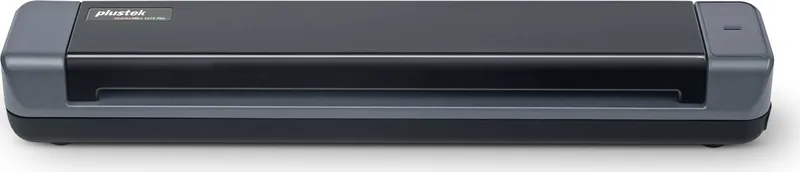
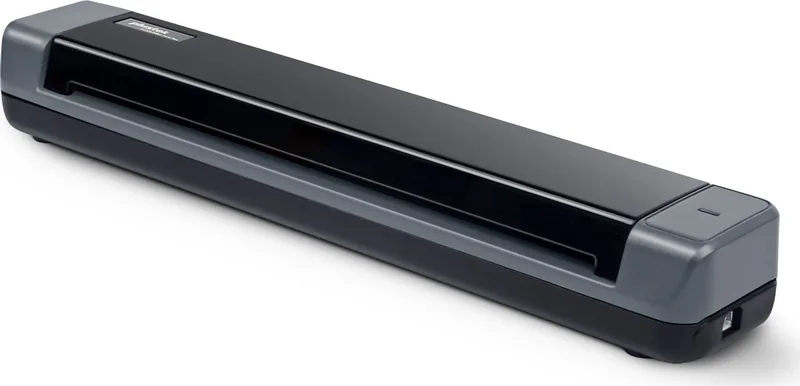
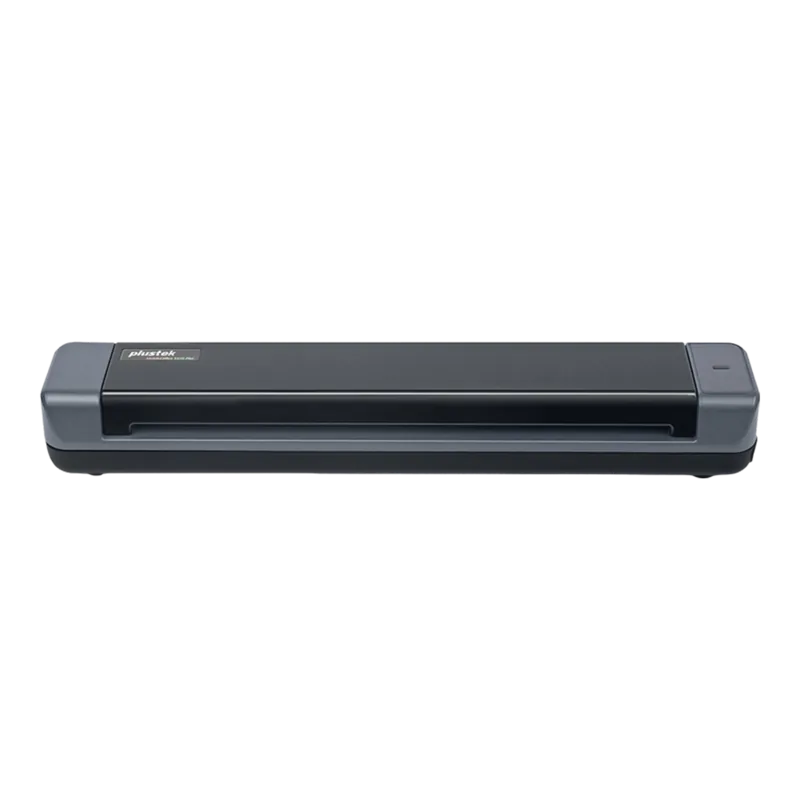
Plustek MobileOffice S410 Plus Manual
PDF manual · 27 Pages
English



Quick check
Incorrect answer, please try again.
Chat with your Plustek MobileOffice S410 Plus manual using AI
Get instant AI answers from your Plustek MobileOffice S410 Plus manual
Ask anything about the Plustek MobileOffice S410 Plus. Answers come from this manual, with the pages they are based on.
MobileOffice S410 Plus Maintenance Schedule
Wipe the feed roller side to side and roll it, then clean the glass. Use isopropyl alcohol or a neutral detergent; do not use water or spray directly on the scanner.
Run the Calibration Wizard if colors appear in white areas or scanned colors vary from originals. Insert the calibration sheet face up into the page feed slot.
Ask a Question
Do you recommend MobileOffice S410 Plus?
Yes NoFrequently Asked Questions
This scanner is fully compatible with Windows 7, Windows 8, and Windows 10. It requires a USB port and does not support macOS or Linux natively without third-party drivers.
Is this answer helpful?
Yes, the scanner is specifically designed to handle plastic cards such as driver licenses, insurance cards, and membership cards. The maximum thickness allowed for non-embossed cards is 1.0 mm.
Is this answer helpful?
Yes, the package includes ABBYY FineReader Sprint OCR software. This allows you to convert scanned images of text into editable word processor files directly from the device.
Is this answer helpful?
Use a soft cloth moistened with isopropyl alcohol or a neutral detergent. Do not spray liquid directly onto the glass. Wipe gently side to side and allow it to dry completely before use.
Is this answer helpful?
No, the Plustek MobileOffice S410 Plus is USB powered. It draws power directly from your computer's USB port, eliminating the need for an external power adapter.
Is this answer helpful?
The device offers an optical resolution of 600 dpi. It supports color, grayscale, and black and white modes with input depths up to 48-bit for color images.
Is this answer helpful?
Advantages and Disadvantages
Advantages

- Compact and portable design perfect for mobile offices
- Includes ABBYY FineReader OCR for editable text extraction
- Supports scanning of plastic cards and business cards easily
- USB powered operation eliminates need for external adapters
- Fast scanning speeds up to 9 seconds per page
Disadvantages

- Requires specific calibration sheet for best results
- Limited to Windows operating systems only
- No automatic duplex scanning capability
- Plastic card thickness limited to 1.0 mm
- Basic driver software compared to premium models
Product Specification
Type
mobile document scanner (CIS)
Resolution
600x600 dpi
Speed
6.7/6.7 S/min (B/W/Color)
Paper/Film Format
A4
Paper/Film Feeder
Single-sheet
Connections
1x USB 2.0
Software
OCR software (ABBYY FineReader)
Dimensions
11.6x1.6x2 in
Weight
14.48 oz
Features
USB-powered
Product Description
Plustek MobileOffice S410 Plus: Your Portable Productivity Companion
Unlock the full potential of your daily workflow with the Plustek MobileOffice S410 Plus. This compact scanning solution is designed for professionals who demand efficiency and reliability on the go. Whether you are managing a busy office or working remotely, this device seamlessly integrates into your digital environment to handle your document needs effortlessly.
The Plustek MobileOffice S410 Plus excels at transforming physical items into digital assets instantly. Its intelligent design allows for rapid scanning of various formats, including standard documents, business cards, and plastic identification cards. The inclusion of ABBYY FineReader OCR technology ensures that text within scanned images becomes editable and searchable, bridging the gap between paper and digital productivity without any extra software purchases.
Installation is straightforward, requiring only a USB connection to your computer. Once connected, the system automatically detects the hardware, guiding you through a simple setup process using the included DVD or downloadable drivers. The device features an intuitive LED indicator that keeps you informed of its status, ensuring you always know when it is ready to work. With support for Windows operating systems, users can rely on consistent performance across their preferred platforms.
Maintenance is minimal, making this scanner ideal for high-volume environments. The unit includes specific tools like a calibration sheet and cleaning cloth to ensure optimal image quality over time. Regular care prevents dust accumulation and maintains the precision of the feed rollers. The power-saving mode automatically engages after scanning to reduce energy consumption, reflecting the manufacturer's commitment to environmental sustainability.
This product stands out as a versatile tool for modern computing tasks. It handles everything from quick ID scans to full-page color documents with ease. By combining speed, accuracy, and portability, the Plustek MobileOffice S410 Plus becomes an essential asset for anyone looking to streamline their document management processes.
Important Notes
- Always use the provided USB cable for optimal connectivity.
- Avoid scanning damp or wrinkled materials to prevent jams.
- Keep the calibration sheet safe for future maintenance needs.
Search for 67,706 Manuals online


Type-in Brand or Model