
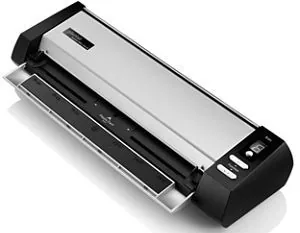
Plustek MobileOffice D430 Manual
PDF manual · 30 Pages
English



Quick check
Incorrect answer, please try again.
Chat with your Plustek MobileOffice D430 manual using AI
Get instant AI answers from your Plustek MobileOffice D430 manual
Ask anything about the Plustek MobileOffice D430. Answers come from this manual, with the pages they are based on.
MobileOffice D430 Maintenance Schedule
Open scanner cover, wipe feed roller side to side while rolling, then clean glass side to side. Wait for areas to dry completely before closing.
Insert special calibration sheet face up into page feed slot and run Calibration Wizard if colors appear in white areas or vary from original.
Ask a Question
Do you recommend MobileOffice D430?
Yes NoFrequently Asked Questions
Connect via USB cable to a free port on your computer and install the software from the disc included in the package.
Is this answer helpful?
Yes, it accommodates plastic cards up to 1.2 mm thickness including ID cards and driver licenses safely.
Is this answer helpful?
It supports Windows XP, Vista, 7, 8, and 10 for standard functionality.
Is this answer helpful?
Clean the glass and feed roller with isopropyl alcohol on a cloth regularly to ensure quality.
Is this answer helpful?
Yes, a Statement of Limited Warranty applies to new purchases from authorized resellers.
Is this answer helpful?
Yes, ABBYY FineReader Sprint is bundled for converting text to editable formats.
Is this answer helpful?
Check physical USB connections and ensure the power switch is on before testing.
Is this answer helpful?
Advantages and Disadvantages
Advantages

- Compact design suitable for tight office spaces and travel needs effectively.
- Supports both paper items and thick plastic cards up to 1.2mm safely.
- Includes OCR software to convert images into editable text content.
- TWAIN interface ensures broad compatibility with many image editing programs.
- Quick setup with front panel buttons for instant scanning tasks.
Disadvantages

- Optical resolution is limited to 600 dpi for highly detailed art.
- Requires AC adapter which adds extra cable management on desk.
- Manual calibration needed if colors appear in white areas.
- Only supports USB 2.0 connection for data transfer speeds.
- Cleaning requires specific non-abrasive materials and care.
Product Specification
Type
Document Scanner (CIS)
Resolution
600 x 600 dpi
Speed
33/33 ppm (B&W/Color)
Paper/Film Format
A4
Paper/Film Feeder
Duplex Unit
Connections
1x USB 2.0
Product Description
Elevate Your Office Workflow with the Plustek MobileOffice D430
Managing digital records efficiently is crucial for modern professionals seeking to streamline their daily computing tasks significantly. The Plustek MobileOffice D430 delivers exceptional performance for digitizing images and electronic text within any professional office environment efficiently. This compact scanner supports various input types, allowing users to convert physical items into digital outputs seamlessly without losing any quality during the transfer. It integrates smoothly with Windows environments to enhance productivity without cluttering the physical workspace on your desk too much.
Versatility drives this device forward significantly regarding daily operations. It handles standard paper sizes up to A4 dimensions while also accommodating thick plastic cards up to 1.2 millimeters safely. Whether processing business cards, driver licenses, or standard invoices, the automatic paper width slider ensures accurate feed every single time consistently. The dual-sided scanning mode further boosts speed during high-volume workdays for busy teams. Users can customize scanning tasks using the dedicated front panel buttons for quick access to frequent functions easily.
Software integration remains a major highlight for this unit overall. Included applications like DocAction streamline the process by allowing direct scanning to folders or email instantly without lag. The bundled OCR technology converts scanned images into editable text formats immediately after acquisition finishes. Business card recognition software extracts data automatically, reducing manual entry errors for contact management systems. These tools simplify complex workflows for small businesses and remote workers alike today. The TWAIN interface also ensures compatibility with numerous third-party image editing programs effectively.
Physical design prioritizes space-saving efficiency for tight areas specifically. Horizontal and vertical output options let users position the unit in corners or narrow desks depending on preference and need. Cleaning is straightforward with instructions for regular maintenance of the feed roller and scanner glass surface thoroughly. Power save modes activate automatically to reduce energy consumption during periods of inactivity efficiently. Proper care ensures longevity and consistent image quality over time for all projects. The CIS sensor provides high resolution for sharp outputs in color or grayscale clearly. The lightweight frame makes transport easy for mobile workstations anywhere.
Important Maintenance and Usage Notes
Ensure your computer supports USB 2.0 for optimal connectivity and fast transfer speeds consistently. Always use the provided AC adapter to prevent power issues or malfunctions from occurring. For detailed operational guidance regarding setup and software installation procedures, consult the Plustek MobileOffice D430 Manual resources carefully online. Regular calibration maintains optical accuracy for professional results always. Avoid using wet cloths during cleaning to prevent liquid damage inside the unit housing. Keep the device in dry locations to prevent moisture condensation issues arising. The manufacturer warranty covers defects in parts and labor under normal use conditions provided.
Search for 67,706 Manuals online


Type-in Brand or Model