
Plustek MobileOffice AD480 Manual
PDF manual · 2 Pages
English



Quick check
Incorrect answer, please try again.
Chat with your Plustek MobileOffice AD480 manual using AI
Get instant AI answers from your Plustek MobileOffice AD480 manual
Ask anything about the Plustek MobileOffice AD480. Answers come from this manual, with the pages they are based on.
Ask a Question
Do you recommend MobileOffice AD480?
Yes NoFrequently Asked Questions
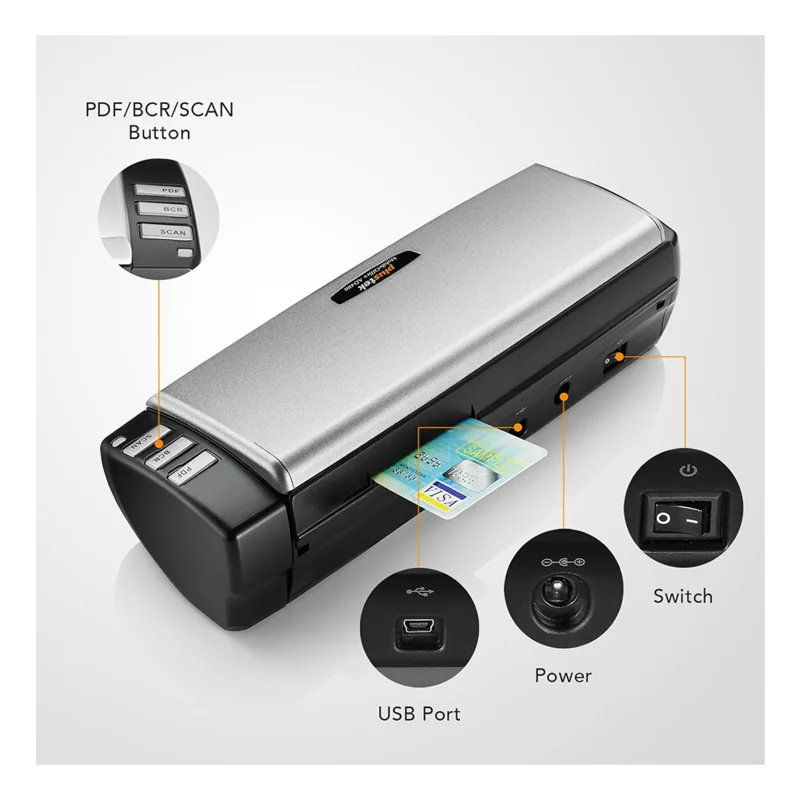
The AD480 is a compact scanner for capturing paper materials and plastic cards into digital formats. Its panel buttons support PDF creation, business card recognition, and customizable scanning tasks.
Is this answer helpful?
Connect the scanner to a computer using the supplied AC adapter, then install the required Plustek software from the product DVD or the official Plustek AD480 software download location. Confirm successful installation through the system tray before scanning.
Is this answer helpful?
The PDF button can be set with a save location, naming format, output option, OCR language, and advanced preferences. It can also be configured to combine multiple captures into a single PDF result.
Is this answer helpful?
Yes. The BCR button supports business card recognition settings. Choose the appropriate BCR language, review settings such as resolution, apply the configuration, and press the BCR button to begin.
Is this answer helpful?
Yes. The Scan button can be assigned through the Button Template menu and can work with selected image-editing applications. It also supports save settings and advanced options for JPG, compressed TIFF, and PDF output.
Is this answer helpful?
Calibrate the scanner and reset scan settings to their defaults. Cleaning the feed roller, pad module, and ADF glass regularly can also help restore reliable capture quality.
Is this answer helpful?
Advantages and Disadvantages
Advantages

- Dedicated PDF, BCR, and Scan buttons support fast task selection from the scanner panel.
- Customizable Scan button can connect with image-editing apps, templates, and FTP utility workflows.
- OCR language settings and searchable PDF support can improve text-based organization.
- Card-slot scan type and business card recognition settings add flexibility for contact capture.
- Calibration and cleaning guidance helps maintain consistent image quality over time.
Disadvantages

- Searchable PDF capability depends on OCR software being installed on the computer.
- Initial setup requires a computer connection, supplied AC adapter, and software installation.
- FTP use requires separate connection configuration before it can be selected.
- Paper jams require manual removal through the ADF cover.
- Regular cleaning of rollers, pad module, and ADF glass is needed for best performance.
Product Specification
Type
mobile document scanner
Resolution
600 x 600 dpi
Speed
20/20 ppm (B/W/Color)
Paper/film size
A4
Paper/film feed
20-sheet ADF, duplex unit, single sheet
Connections
1 x USB 2.0
Wireless
N/A
Display
N/A
Software
OCR software
Dimensions
11.38 x 2.95 x 3.86 in
Weight
2.87 lb
Product Description
Plustek MobileOffice AD480 - Read, Download & Print Free
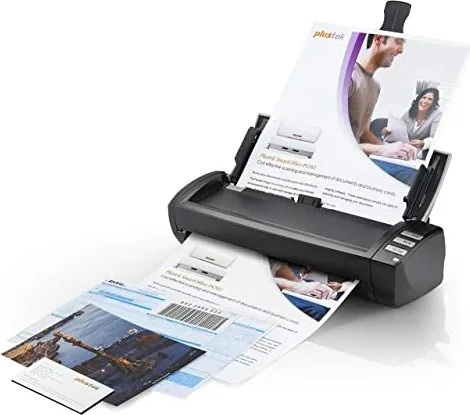
The Plustek MobileOffice AD480 is a compact scanning solution designed for people who want a practical way to turn paper materials, plastic cards, and business information into organized digital content. Its streamlined controls and dedicated buttons help simplify routine capture tasks at home, in a small office, or while managing frequent administrative work.
Quick setup for everyday scanning
Getting started involves connecting the AD480 to a computer with the supplied AC adapter, then installing the required Plustek software. Once installation is complete, the scanner can be checked through the system tray before use. The available software package supports configuration of scan settings, output options, destinations, and advanced preferences.
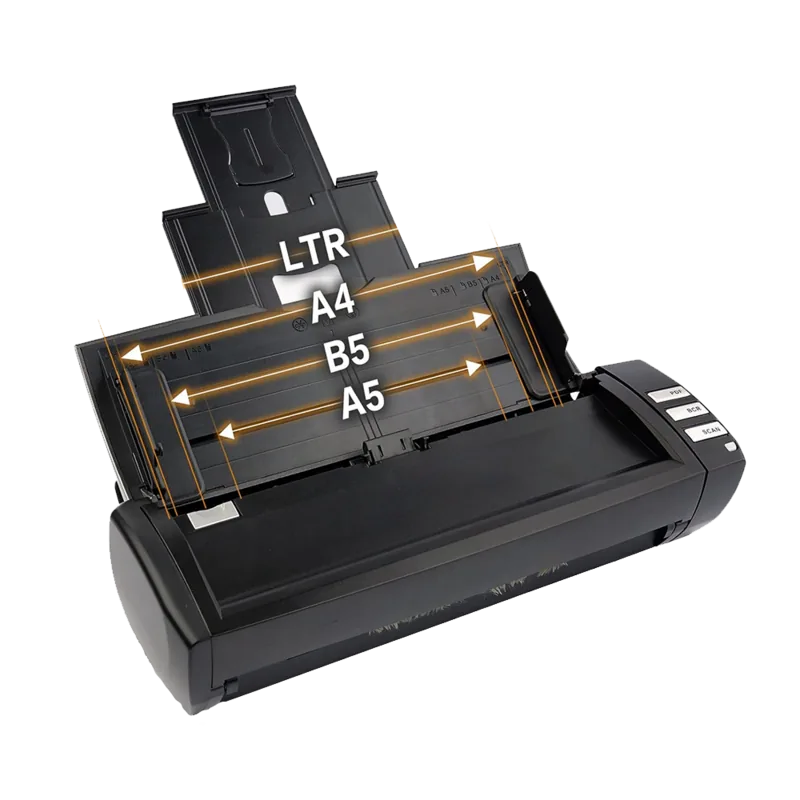
The automatic feeder is intended to make repeated scanning less time-consuming. Users can adjust settings before starting a task, select a preferred destination, and activate the required action directly from the scanner panel. This creates a convenient workflow for receipts, forms, cards, correspondence, and other paper-based materials.
Dedicated controls and flexible output
The AD480 includes separate PDF, BCR, and Scan buttons. The PDF button can be configured with a destination folder, naming format, output type, OCR language, and options for combining multiple captures into one result. Searchable PDF output is available when compatible OCR software is installed.
The BCR button is designed for business card recognition workflows. It lets users choose BCR language settings and modify details such as resolution before starting. This can help transform contact information into usable digital data with fewer manual steps.
The customizable Scan button provides extra flexibility. It can be linked to frequently used image-editing applications, configured with a save location and naming method, or assigned through a button template. Advanced settings are available for JPG, compressed TIFF, and PDF output. FTP utility support is also available after an FTP connection has been configured.
Maintenance and dependable results
Regular care helps the Plustek MobileOffice AD480 maintain consistent image quality. If captured colors appear unusual or streaks become visible, calibration and a reset of scan settings may help. Cleaning the feed roller, pad module, and ADF glass is also recommended as part of normal upkeep.
Notes
- Use the supplied AC adapter when connecting the scanner.
- Select the appropriate scan type before using the card slot.
- Remove jams carefully by opening the ADF cover and pulling paper out gently but firmly.
- Install OCR software to enable searchable PDF output.
Search for 67,706 Manuals online


Type-in Brand or Model