

OWC Thunderbolt Hub Manual
PDF manual · 8 Pages
English



Quick check
Incorrect answer, please try again.
Chat with your OWC Thunderbolt Hub manual using AI
Get instant AI answers from your OWC Thunderbolt Hub manual
Ask anything about the OWC Thunderbolt Hub. Answers come from this manual, with the pages they are based on.
Ask a Question
Do you recommend Thunderbolt Hub?
Yes NoFrequently Asked Questions
The hub supports Thunderbolt 4, Thunderbolt 3, and USB-C devices through its downstream Thunderbolt ports. It also includes one USB 3.2 10Gb/s port for USB peripherals such as storage, keyboards, card readers, and other accessories.
Is this answer helpful?
Yes. The Thunderbolt host port provides up to 60W of Power Delivery to a compatible laptop. Charging behavior depends on the computer's power requirements and Thunderbolt implementation.
Is this answer helpful?
With compatible host hardware, displays, cables, and adapters, it can support one display up to 8K at 60Hz or 4K at 120Hz. It can also support dual displays up to 4K at 60Hz each.
Is this answer helpful?
Yes. HDMI and DisplayPort monitors can connect through an available Thunderbolt 4 port when using the appropriate USB-C to HDMI or USB-C to DisplayPort adapter or cable.
Is this answer helpful?
Yes. The Thunderbolt 4 and USB ports continue to provide power or charging to connected devices when the host computer enters sleep mode.
Is this answer helpful?
A Thunderbolt chain can support up to six Thunderbolt devices total. This means up to five additional Thunderbolt devices can be chained beyond the hub, but they cannot all be chained from every available port at once.
Is this answer helpful?
Advantages and Disadvantages
Advantages

- Adds three Thunderbolt 4 ports plus one USB 3.2 10Gb/s port from a single host connection.
- Delivers up to 60W Power Delivery to a compatible laptop and up to 15W bus power per downstream Thunderbolt port.
- Supports one display up to 8K at 60Hz or 4K at 120Hz, or dual 4K displays at 60Hz with compatible equipment.
- Keeps connected ports powered during host sleep and includes adjustable status LED brightness.
- Includes cable-retention mounting points and a Kensington Nano Security slot for organized, secure setups.
Disadvantages

- Requires a PC with a Thunderbolt 4 port and Windows 10 or later.
- Display resolution and refresh-rate support depend on the host computer, display, cables, and adapters.
- External storage must be ejected before unplugging to reduce the risk of data loss.
- Windows users may need to approve the hub and connected Thunderbolt devices in Thunderbolt Software.
Product Specification
Type
USB hub, video adapter
Form factor
1x externally wired
Connection
1x Thunderbolt 4 (receptacle, 40 Gb/s, USB-C with DisplayPort, USB PD 3.0 max. 60 W), 1x Thunderbolt 4 (plug via cable, 40 Gb/s)
Ports
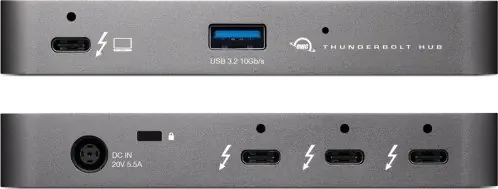
3x Thunderbolt 4 (receptacle), 1x USB-A 3.1 (receptacle)
Transfer
3x Thunderbolt 4 (receptacle, 40 Gb/s, USB-C with DisplayPort, USB PD 3.0 max. 60 W, max. 2x 3840 x 2160 or 1x 7680 x 4320), 1x USB-A 3.1 (receptacle, 10 Gb/s, USB BC 1.2 5 V/1.5 A/7.5 W)
Power supply
Power connection (1x barrel plug, 20 V/5.5 A/110 W)
Chipset
Intel Goshen Ridge JHL8440 (Thunderbolt 4)
Dimensions
4.65 x 0.67 x 2.87 in (W x H x D)
Weight
0.46 lb
Case color
black, gray
Compatibility
universal
Special features
Security lock (Kensington Security Slot)
Manufacturer warranty
2 years
USB notation
Link
Product Description
OWC Thunderbolt Hub, Thunderbolt 4 Socket
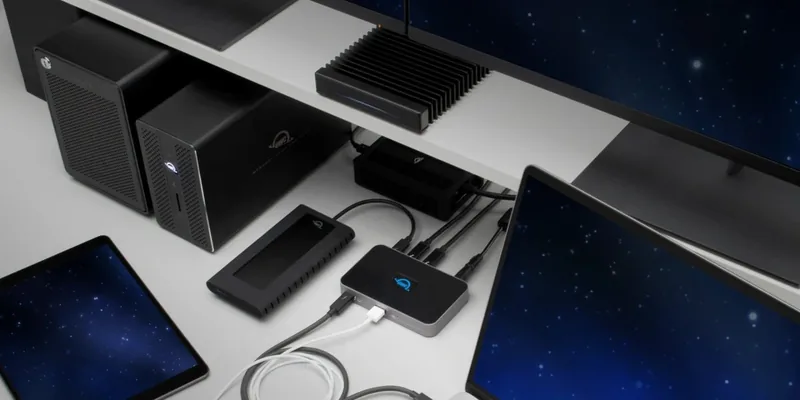
The OWC Thunderbolt Hub, Thunderbolt 4 Socket is a compact connectivity upgrade for Windows 10 or later PCs equipped with Thunderbolt 4. It turns one high-speed Thunderbolt connection into a flexible workstation center, adding three downstream Thunderbolt 4 ports and a USB 3.2 10Gb/s port for everyday peripherals. Whether you work with fast external storage, displays, cameras, audio gear, or charging accessories, this hub helps reduce cable clutter without sacrificing performance.
A single included Thunderbolt 4 cable connects the hub to the computer and supports data transfer, display output, and laptop charging through one streamlined link. The host connection provides up to 60W of Power Delivery, helping keep a compatible notebook charged while devices remain connected. Each downstream Thunderbolt port can also provide up to 15W of bus power for compatible Thunderbolt and USB-C accessories.
Built for High-Speed Expansion
The three rear Thunderbolt 4 ports are compatible with Thunderbolt 4, Thunderbolt 3, and USB-C devices, creating room for a more capable desk setup. Users can connect storage arrays, card readers, adapters, and other high-bandwidth accessories while retaining a dedicated USB 3.2 10Gb/s port for common USB peripherals. Thunderbolt chains can support up to six Thunderbolt devices in total, allowing additional devices to be linked thoughtfully along a single chain.
Display support makes the hub especially useful for creative, office, and multitasking environments. With compatible host hardware and displays, it supports DisplayPort 1.4 capabilities. A single display can reach up to 8K at 60Hz or 4K at 120Hz, while dual-display configurations can support up to two 4K displays at 60Hz. USB-C to HDMI or DisplayPort adapters can be used when a display requires a different connector.
Designed for Daily Workflows
The OWC Thunderbolt Hub continues supplying power to connected devices even when the host computer enters sleep mode. This is useful for keeping accessories charged between work sessions. Its ports support hot-plugging, although storage devices should always be ejected through the operating system before unplugging them.
A front LED communicates connection status, glowing blue with an active data connection and white when powered without a data link or in sleep mode. A recessed control lets users lower or disable the LED brightness. The enclosure also includes ClingOn mounting points for cable retention and a Kensington Nano Security slot for an optional security tether.
Note: Use the included power supply and connect the hub directly to a Thunderbolt 4 port. On Windows, approve the hub and newly attached Thunderbolt devices in the Thunderbolt Software dialog when prompted.
For users seeking reliable port expansion, charging support, and modern display flexibility, the OWC Thunderbolt Hub, Thunderbolt 4 Socket delivers a clean and capable foundation for a connected workspace.
Search for 67,706 Manuals online


Type-in Brand or Model