
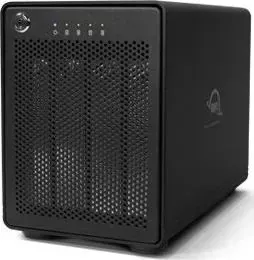
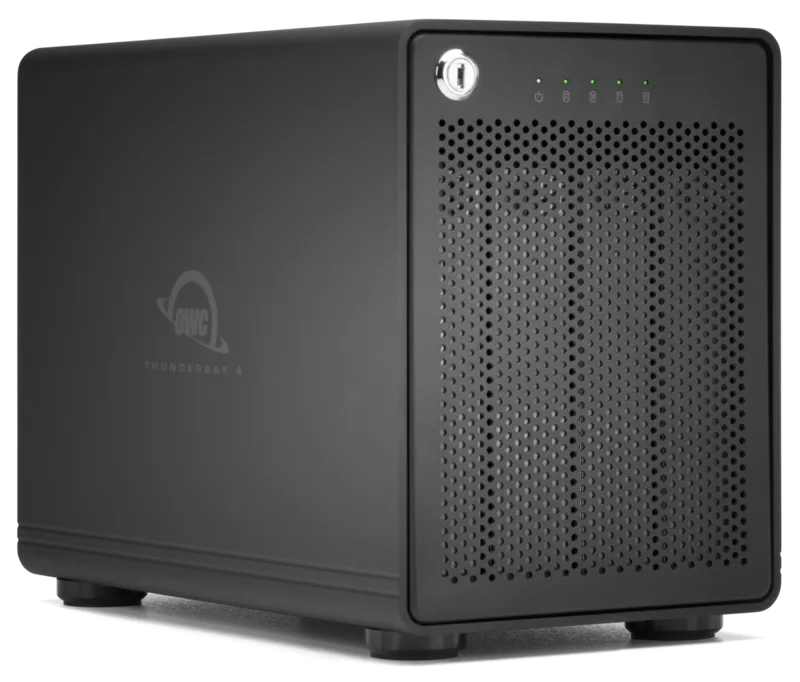
OWC ThunderBay 4 RAID 5 Edition Manual
PDF manual · 8 Pages
English



Quick check
Incorrect answer, please try again.
Chat with your OWC ThunderBay 4 RAID 5 Edition manual using AI
Get instant AI answers from your OWC ThunderBay 4 RAID 5 Edition manual
Ask anything about the OWC ThunderBay 4 RAID 5 Edition. Answers come from this manual, with the pages they are based on.
Ask a Question
Do you recommend ThunderBay 4 RAID 5 Edition?
Yes NoFrequently Asked Questions
The ThunderBay 4 supports up to four 3.5" SATA drives at 1.5Gb/s, 3.0Gb/s, or 6.0Gb/s. Drives must be mounted into the provided drive trays using the included screws.
Is this answer helpful?
No. The ThunderBay 4 does not include built-in hardware RAID. You configure RAID using your operating system’s disk management tools or third-party software such as SoftRAID to create RAID 0, 1, 5, or other supported arrays.
Is this answer helpful?
Yes. Drives can be added or removed without powering off the ThunderBay 4 as long as the drives are not part of a software RAID array that requires specific rebuild procedures. Always follow safe-eject procedures in your OS before removing a drive.
Is this answer helpful?
The enclosure has two Thunderbolt 2 ports: one to connect to your computer and the other for chaining additional Thunderbolt devices. Up to six Thunderbolt devices can be chained. Mixing original Thunderbolt devices after Thunderbolt 2 devices will reduce downstream speeds to 10Gb/s.
Is this answer helpful?
Monitor drive health with software; the ThunderBay 4 will not alert you. To replace a failed drive, unlock and remove the faceplate, slide out the drive tray, swap the drive, mount the new drive, and reinsert the tray. Rebuild any software RAID as required by your RAID tool.
Is this answer helpful?
No. The ThunderBay 4 requires an active Thunderbolt data signal to remain fully powered. If the host computer sleeps or disconnects, the unit will enter a sleep state and display an amber power LED.
Is this answer helpful?
OWC provides formatting instructions and support resources on its website, including a knowledge base, FAQs, and contact options like phone and live chat. Visit owcdigital.com/support for guides and technical assistance.
Is this answer helpful?
Advantages and Disadvantages
Advantages

- High capacity four-bay enclosure supports up to four 3.5" SATA drives for large storage needs.
- Dual Thunderbolt 2 ports enable 20Gb/s connectivity and device daisy-chaining.
- Tool-less drive trays and locking faceplate simplify drive installation and add physical security.
- Supports software RAID (including RAID 5) via OS utilities or third-party tools like SoftRAID.
- Hot-swap capable when drives are not in a RAID array, allowing drive changes without power down.
Disadvantages

- No built-in hardware RAID or drive-health monitoring; relies on host software for RAID and health checks.
- Thunderbolt chaining with older Thunderbolt devices can reduce throughput to 10Gb/s for downstream devices.
- Boot Camp not supported, limiting some Windows-on-Mac use cases.
- Requires separate drives and formatting; purchased enclosures come without drives by default.
- Power behavior depends on an active Thunderbolt data signal; unit may sleep if host sleeps or disconnects.
Product Specification
Form factor
3.5"
Internal connection
4x SATA 6Gb/s
External connection
2x Thunderbolt 2 (20Gb/s)
RAID level
0/1/5/10/JBOD
Fan
1x 3.62in
Dimensions
9.65x6.97x5.31in
Weight
8.60lbs
Color
black
Manufacturer warranty
one year
Product Description
OWC ThunderBay 4 RAID 5 Edition, 2x Thunderbolt 2 Manual
Overview
The OWC ThunderBay 4 RAID 5 Edition is a high-capacity, four-bay Thunderbolt 2 storage enclosure designed for creative professionals and power users who need fast, flexible external storage. With two Thunderbolt 2 ports for daisy-chaining, tool-less drive trays, a locking faceplate, and support for up to four 3.5" SATA drives, it offers a balance of performance, expandability, and physical security. The unit ships with essential accessories including a Thunderbolt cable, power cable, and keys for the faceplate.
Key Features and Usage
The ThunderBay 4 relies on host-based (software) RAID; it does not include built-in hardware RAID. Users can configure RAID levels, including RAID 5, via macOS or Windows disk management tools or third-party utilities like SoftRAID. The enclosure supports drives at 1.5Gb/s, 3.0Gb/s, and 6.0Gb/s speeds and is ideal for video editing, large media archives, and multi-drive workflows where redundancy and capacity are priorities.
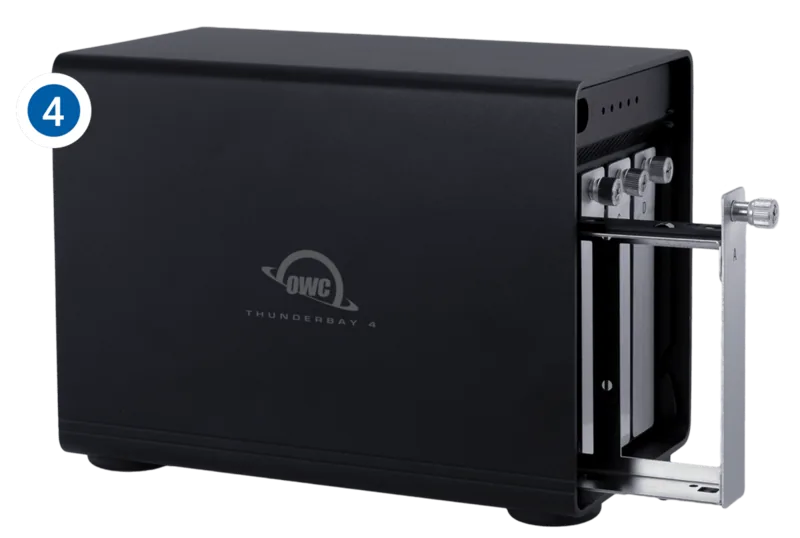
Drive installation is straightforward: unlock and remove the faceplate, slide out labeled drive trays, mount 3.5" drives with included screws, and reinsert trays. Hot-swapping is supported when drives are not configured in RAID, allowing adding or removing drives without powering down. The rear panel includes dual Thunderbolt 2 ports (for host connection and chaining), a Kensington security slot, an on/off switch, and the power input.
Power management is tied to the Thunderbolt data signal: the ThunderBay 4 powers up when it detects an active Thunderbolt connection and will indicate sleeping state via an amber LED when not receiving a data signal. Note that Boot Camp is not supported and mixed Thunderbolt generations can affect chain speeds; Thunderbolt 2 devices should be placed ahead of original Thunderbolt devices for full 20Gb/s performance.
Setup and Support
Quick start steps cover drive installation, connecting power, linking to a computer with the Thunderbolt cable, and formatting drives via OWC’s format guidance. For RAID, users are directed to OS or third-party software options. Troubleshooting guidance emphasizes verifying power and cable connections and testing alternate cables or hosts. OWC provides online resources, a knowledge base, and technical support (phone and live chat) for further assistance.
Notes
- Always eject or unmount drives before powering off.
- Monitor drive health with software; the enclosure does not report drive failure.
- Keep backups: maintain at least one separate copy of important data.
- Follow anti-static and safety precautions when installing drives.
Search for 67,706 Manuals online


Type-in Brand or Model