
NZXT Signal 4K30 Manual
PDF manual · 27 Pages
English



Quick check
Incorrect answer, please try again.
Chat with your NZXT Signal 4K30 manual using AI
Get instant AI answers from your NZXT Signal 4K30 manual
Ask anything about the NZXT Signal 4K30. Answers come from this manual, with the pages they are based on.
Ask a Question
Do you recommend Signal 4K30?
Yes No
Buster Sawayn
5 months ago
Does this capture card work plug-and-play with PS5 and Xbox One S without needing special settings or drivers?

Manual.ly
5 months ago
While the device is designed for plug-and-play compatibility, some users report that initial setup on the PS5 may require adjusting console settings to enable video output. Additionally, a few reports indicate audio synchronization issues with older consoles like the Xbox One S. We recommend checking your specific console's HDMI settings and ensuring you have the latest firmware updates installed for optimal performance.

LinuxUser_DE
6 months ago
I am experiencing audio delay when using this card with my Switch on Linux. Is there a fix?
Frequently Asked Questions
The device supports recording at 4K resolution at 30 frames per second. It also handles 1440p at 60fps and 1080p at up to 240fps for high-motion content.
Is this answer helpful?
Yes, the NZXT Signal 4K30 supports 4K60 HDR pass-through. It performs hardware conversion to SDR color for recording while maintaining HDR quality on the monitor.
Is this answer helpful?
Connect an HDMI cable from the OUT port on the capture card to your gaming monitor. This allows the original signal to reach your screen without any input delay.
Is this answer helpful?
Yes, the card is compliant with HDCP 1.4 and 2.2 specifications, allowing you to record protected content from PlayStation and Xbox consoles without issues.
Is this answer helpful?
You must use a USB 3.2 (Gen 1) compatible port on your computer. The package includes a USB-C to USB-A cable to facilitate this connection.
Is this answer helpful?
Software and firmware updates are regularly released by NZXT. You can download the latest versions from the official NZXT downloads page at nzxt.com/downloads.
Is this answer helpful?
Advantages and Disadvantages
Advantages

- Supports 4K30 recording with 4K60 HDR pass-through for zero-lag gaming
- Includes HDMI and USB-C cables plus a quick start guide in the box
- Handles HDCP 1.4/2.2 compliance for playing protected console content
- LED indicator chart provides clear visual feedback on connection status
Disadvantages

- Requires USB 3.2 Gen 1 port for optimal performance and data transfer
- No built-in battery; relies entirely on external power source
- Passthrough feature requires an additional HDMI cable not always included
- Firmware updates must be manually checked and installed by the user
Product Specification
Compression
N/A
Resolution
3840x2160p (30fps recording, 60fps pass-through), 2560x1440p (60fps recording, 144fps pass-through), 1920x1080p (120fps recording, 240fps pass-through)
Inputs
HDMI 2.0
Outputs
HDMI 2.0
Interface
USB-C 3.0
Dimensions
6.81x5.63x2.36 inches
Weight
11.43 oz
Manufacturer Warranty
two years
Product Description
NZXT Signal 4K30: Elevate Your Streaming Setup
The NZXT Signal 4K30 External Capture Card represents a significant leap forward for content creators and gamers seeking high-fidelity recording capabilities. Designed to handle demanding workflows, this device supports 4K resolution at 30 frames per second for recording while offering seamless 4K60 HDR pass-through. This dual capability ensures that your gameplay remains smooth and lag-free on your monitor while you capture pristine footage for your audience.
Seamless Integration and Performance
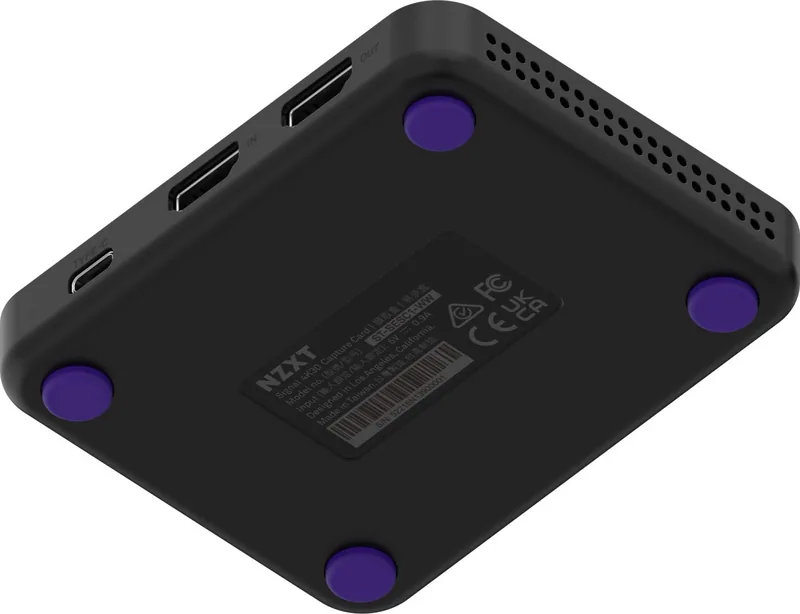
Setting up the NZXT Signal is straightforward thanks to its intuitive design and included accessories. The unit features three primary ports: a Type-C connection for power and data transfer to your computer, an HDMI input to receive video from consoles or PCs, and an optional HDMI output for zero-lag passthrough. By connecting the output port directly to your gaming monitor, you eliminate any input delay, allowing you to play competitively without compromise. The card handles HDCP 1.4 and 2.2 compliance automatically, ensuring compatibility with protected content from major streaming platforms and consoles.
Versatile Recording Options
For streamers who need flexibility, the Signal 4K30 offers extensive resolution support. Beyond 4K30 recording, it can capture 1440p at 60fps and 1080p at up to 240fps. This makes it an ideal choice for high-refresh-rate monitors where capturing every frame of fast-paced action is crucial. The hardware also includes audio processing capabilities, delivering stereo 16-bit audio at 48 kHz directly through the HDMI connection. Whether you are recording a cinematic 4K experience or a high-speed esports match, the NZXT Signal adapts to your needs with precision.
Reliability and Support
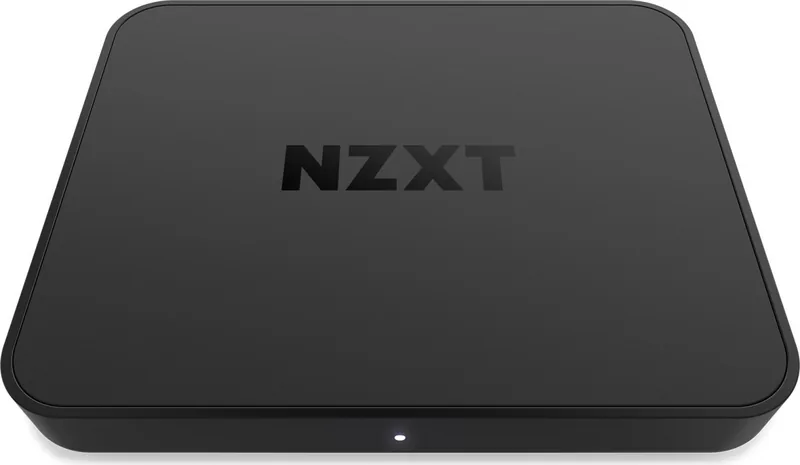
NZXT backs this product with a comprehensive global warranty policy, ensuring peace of mind for long-term use. The device includes robust LED indicators to instantly inform users of connection status, firmware updates, or potential issues. With regular software and firmware updates available via the NZXT website, the Signal 4K30 remains compatible with the latest operating systems and streaming software. It is a reliable tool for anyone looking to professionalize their content creation workflow without breaking the bank.
Search for 67,706 Manuals online


Type-in Brand or Model
QuasiReprehenderit24
8 months ago
Is this capture card really plug-and-play with a PS5? I want 1080p 60fps passthrough with correctly synced audio, or do I need firmware/software and specific console settings?
Manual.ly
8 months ago
It can work without extra setup on some systems (for example, users reported Linux and macOS detected it as plug-and-play). With consoles like the PS5, you may need to adjust the console video output settings first to get a picture. Also, make sure the card firmware is up to date using the provided update method; some buyers reported the companion software did not apply a firmware update. For audio that is slightly delayed, try re-initializing the capture in OBS (hide and show the source) and then recheck audio sync. If you still see delay, test different OBS audio/video sync settings. Set the PS5 output to 1080p to match the expected resolution.