
Nous W7 Manual
PDF manual · 6 Pages
English



Quick check
Incorrect answer, please try again.
Chat with your Nous W7 manual using AI
Get instant AI answers from your Nous W7 manual
Ask anything about the Nous W7. Answers come from this manual, with the pages they are based on.
Ask a Question
Do you recommend W7?
Yes NoFrequently Asked Questions
Turn on the camera, open the Nous Smart Home app, and sign in or register. Select Add Device, choose Smart Camera, confirm the indicator is blinking rapidly, enter the WiFi password, and let the camera scan the QR code shown on your phone.
Is this answer helpful?
Press and hold the reset button for approximately five seconds. This resets the camera and should return it to the fast-blinking pairing state. Then restart the add-device process in the Nous Smart Home app.
Is this answer helpful?
Hold the camera about 15 to 20 cm from the phone screen. Keep the phone steady and make sure the QR code remains clearly visible until the camera recognizes it and gives an audible signal.
Is this answer helpful?
Once the camera connects to WiFi, choose a device name in the Nous Smart Home app and select Finish. The app then opens the live stream for the newly added camera.
Is this answer helpful?
Yes. Open https://ipc-eu.ismartlife.me/login on a desktop browser. Scan the QR code shown on that screen to authorize access and view the live camera feed on the computer.
Is this answer helpful?
The setup instructions indicate that users should register and sign in to the Nous Smart Home app using a mobile number or email address before adding the camera.
Is this answer helpful?
Advantages and Disadvantages
Advantages

- App-guided setup uses a QR code, making wireless pairing straightforward.
- Live video can be viewed after the camera is added and named in the Nous Smart Home app.
- A reset button helps return the camera to pairing mode when setup does not start correctly.
- Desktop viewing is available through a web portal after QR-code authorization.
Disadvantages

- Setup requires the Nous Smart Home app and account registration.
- The camera must successfully scan a phone-displayed QR code during connection.
- The supplied details do not specify resolution, recording, storage, audio, or alert functions.
- Desktop access depends on the listed web portal and QR-code sign-in process.
Product Specification
Type
Bullet
Image Sensor
1/2.9" CMOS
Resolution
2304 x 1296 pixels (15 fps)
Lens
0.14 in
Viewing Angle
85° (horizontal), 105° (diagonal)
Compression/Codecs
H.264
Multistreaming
supported
Wireless
Wi-Fi 4 (WLAN 802.11a/b/g/n)
Data Storage
1 x microSD slot (max. 128 GB), cloud connectivity (optional)
Microphone
integrated
Speaker
integrated
Illumination
IR illumination (49.21 ft)
Protection Rating
IP66
Housing
suitable for outdoor use
System Control and Operation
Mobile app (Android, iOS)
Zone and Analysis Functions
motion detection, noise detection, IR filter
Manufacturer Warranty
2 years
Product Description
Nous W7 Smart WiFi IP Bullet Camera Manual
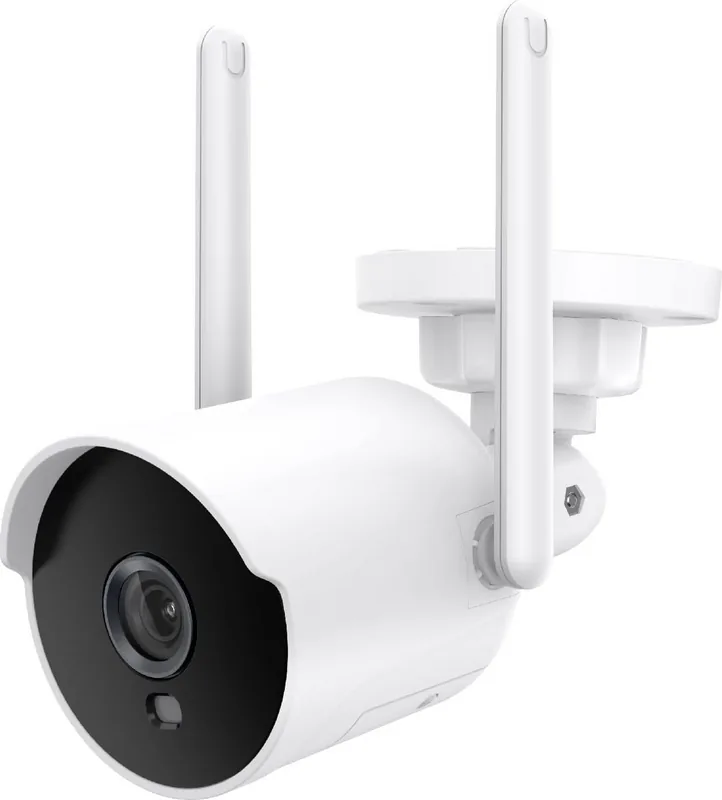
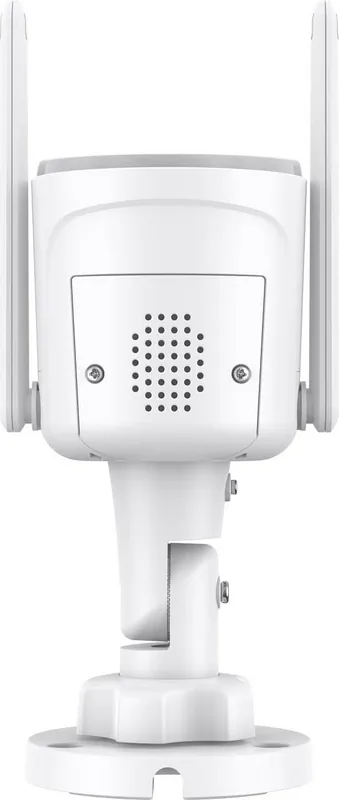
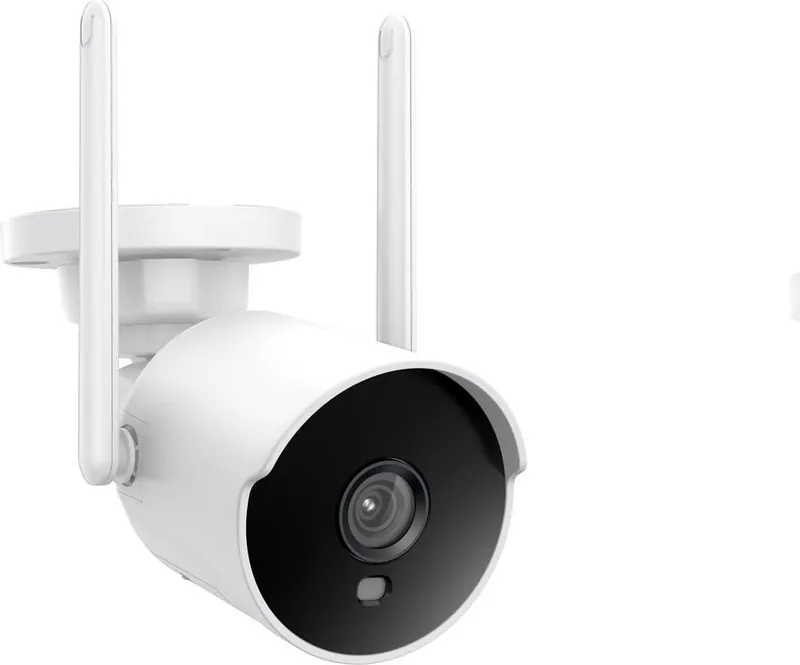
The Nous W7 Smart WiFi IP Bullet Camera is designed to bring app-based camera viewing to a home or small business network. This compact smart camera connects through the Nous Smart Home app, where users can add the device, assign it a recognizable name, and access its live video stream from a mobile device. The Nous W7 Smart WiFi IP Bullet Camera Manual setup process focuses on a QR-code pairing method that helps connect the camera to a wireless network.
Simple app-guided connection
To begin, switch on the camera and open the Nous Smart Home app. New users can create an account with an email address or mobile number before signing in. From the app, select the option to add a device, choose the Smart Camera category, and follow the on-screen connection steps.
The camera should show a rapidly blinking indicator before pairing. If it is not ready, pressing and holding the reset button for about five seconds restores it to setup mode. After entering the WiFi password in the app, the phone displays a QR code. Hold the camera roughly 15 to 20 cm from the phone screen so it can scan the code. Once an audible signal confirms recognition, the camera begins connecting to the network.
Live viewing from mobile or desktop
After pairing, choose a name for the camera and finish the setup to open the live stream. Naming the device clearly can be useful when managing more than one smart device in the same app.
The Nous W7 also supports desktop access through the specified web portal. By opening the portal on a computer and scanning the displayed QR code, users can view the IP camera's live feed from a larger screen. This provides an alternative to mobile monitoring when working at a desk or checking a location from a computer.
Practical setup notes
For a smoother installation, keep the phone, camera, and WiFi network available during the full pairing process. Confirm that the camera is in blinking setup mode before generating the QR code. Keep the phone screen steady and at the recommended distance while the camera reads the code.
Note: The available instructions emphasize initial setup, live streaming, reset pairing, and desktop viewing. Features such as recording options, notification settings, storage compatibility, weather resistance, and technical video specifications are not detailed in the supplied information.
Search for 67,706 Manuals online


Type-in Brand or Model