
Nacon GM-105 Manual
PDF manual · 24 Pages
English



Quick check
Incorrect answer, please try again.
Chat with your Nacon GM-105 manual using AI
Get instant AI answers from your Nacon GM-105 manual
Ask anything about the Nacon GM-105. Answers come from this manual, with the pages they are based on.
GM-105 Maintenance Schedule
After some time of usage, dirt and dust may get trapped in the sensor window. Freeing the window from dirt should solve performance issues.
For external cleaning, use a soft, clean, damp cloth only. Do not use detergents as they may damage the finish or leak inside.
Ask a Question
Do you recommend GM-105?
Yes NoFrequently Asked Questions
It is a wired optical USB mouse designed for PC use. It focuses on simple setup, basic gaming features, and everyday navigation rather than advanced software or wireless functions.
Is this answer helpful?
No extra driver installation is usually needed. It is a Plug and Play device, so Windows should detect it automatically when you connect it through USB.
Is this answer helpful?
You can change sensitivity with the DPI switch located below the mouse wheel. The mouse offers four levels: 800, 1200, 1600, and 2400 DPI.
Is this answer helpful?
Yes, especially for casual and entry-level gaming. It offers responsive optical tracking, quick DPI switching, and extra buttons that can help during play or faster browsing.
Is this answer helpful?
A mouse mat is recommended. The optical sensor performs best on smooth, clean surfaces that reflect movement consistently and help maintain accurate tracking.
Is this answer helpful?
Keep it indoors, avoid moisture and dust, and clean the outside with a soft damp cloth. It is also a good idea to clean the sensor area if tracking becomes less precise.
Is this answer helpful?
Advantages and Disadvantages
Advantages

- Easy USB Plug and Play setup with no complicated installation.
- Four DPI levels offer quick sensitivity changes for different tasks.
- Six-button layout adds useful browser navigation and control options.
- Soft-touch finish and lighting give it a comfortable, stylish feel.
- Solid wired connection suits everyday PC use and casual gaming.
Disadvantages

- Compatibility is listed for older Windows versions only.
- No advanced software features or deep customization options.
- Optical tracking can be less accurate on poor surfaces.
- At 132 g, it may feel heavier than some lightweight gaming mice.
Product Specification
Design
right hand
Buttons
6 (total), 2 (main), 1 (top), 2 (left), 1 (scroll wheel click)
Scroll wheel
1x 2-way
Tracking
red LED/IR
Resolution
2400dpi, reducible to 1600/1200/800dpi
Connection
wired (70.87 in), USB-A 2.0
Power supply
USB
Dimensions (WxHxD)
2.68x1.50x4.88in
Approximate volume
5.13 in3 (approximate shape)
Weight
0.29 lb
Special features
Thumb rest, non-slip surface (rubberized sides)
Product Description
Nacon GM-105 Gaming Mouse: Simple Control with a Gamer-Friendly Feel
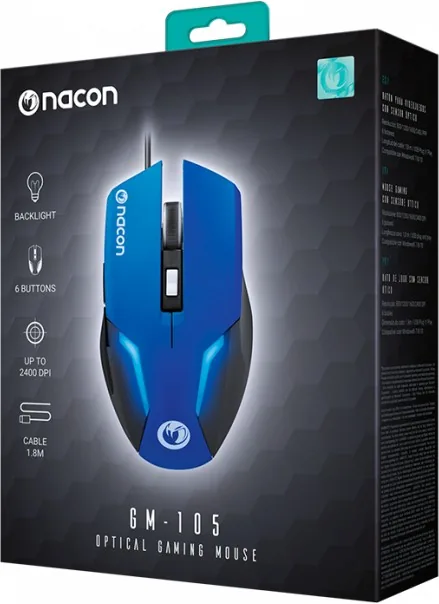
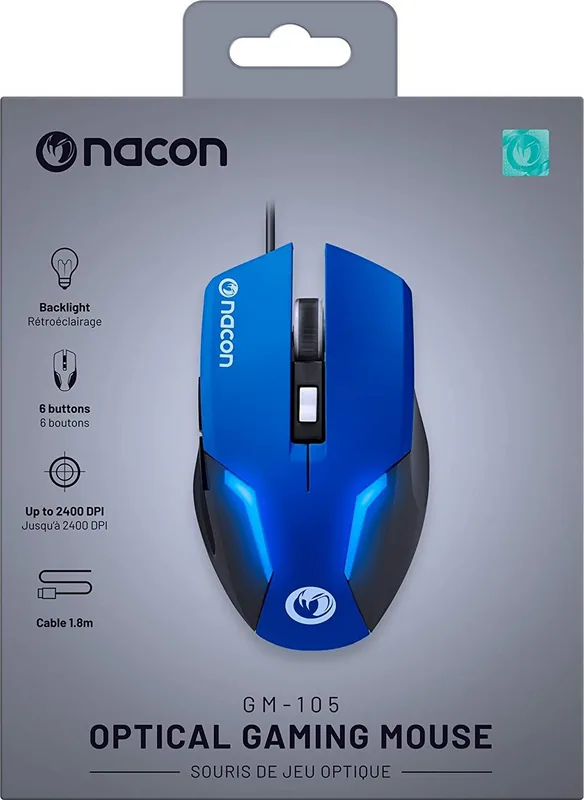
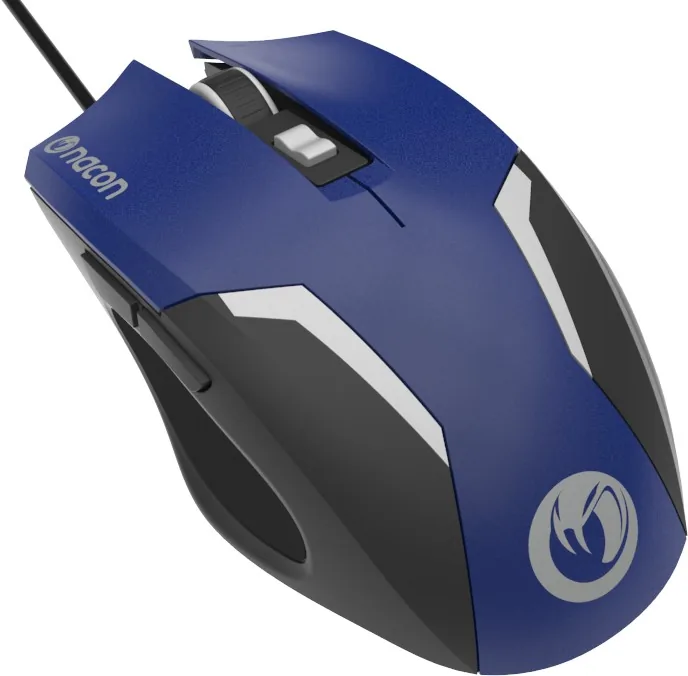
The Nacon GM-105 Gaming Mouse is a straightforward wired PC mouse built for users who want reliable movement, quick response, and a touch of gaming style without unnecessary complexity. With its optical sensor, six-button layout, and illuminated design accents, it combines everyday practicality with a look that stands out on a desk.
What makes the GM-105 appealing is its ease of use. The USB Plug and Play connection means it can be connected and ready to go with minimal effort, which is ideal for players, students, or office users who prefer a hassle-free setup. The mouse supports multiple DPI stages, letting you switch between 800, 1200, 1600, and 2400 DPI depending on whether you want slower precision or faster cursor movement. That flexibility is useful for switching between browsing, work, and gaming sessions.
The shape is designed for comfort during regular use, and the soft-touch surface gives it a smoother feel in the hand. Its six-button layout includes standard left and right clicks, a clickable wheel, a DPI switch, and browser forward/back buttons. That makes the mouse useful not only for games, but also for faster navigation in daily computing. The Nacon GM-105 Gaming Mouse Manual highlights simple setup and basic maintenance, and that matches the product itself: no complicated software, just practical controls and dependable function.
Performance is best on a mouse mat or another clean, suitable surface, since the optical sensor works more accurately when it can read motion clearly. The mouse is also compact enough for typical desktop use, while the 1.5-meter cable gives enough reach for most PC setups. At 132 grams, it has a solid feel that may appeal to users who prefer a mouse with a bit of weight rather than an ultra-light model.
Overall, the GM-105 is a sensible choice for anyone looking for an affordable, easy-to-use gaming mouse with essential features and a clean design. It is not overloaded with extras, but it covers the basics well and delivers a balanced experience for everyday control.
Notes
- Best suited for casual gaming and general PC use
- Use a mouse mat for improved tracking
- Keep the sensor area clean for steady performance
Search for 67,706 Manuals online


Type-in Brand or Model