
MERCUSYS ME50G Manual
PDF manual · 40 Pages
English



Quick check
Incorrect answer, please try again.
Chat with your MERCUSYS ME50G manual using AI
Get instant AI answers from your MERCUSYS ME50G manual
Ask anything about the MERCUSYS ME50G. Answers come from this manual, with the pages they are based on.
Ask a Question
Do you recommend ME50G?
Yes NoFrequently Asked Questions
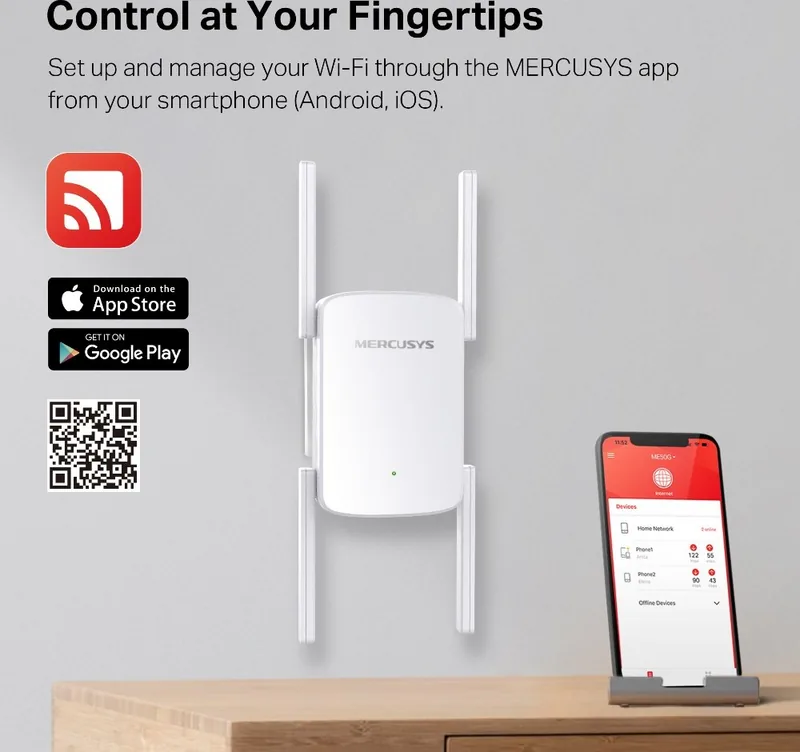
You can set up the extender via three methods: 1) Web browser: connect to MERCUSYS_RE_XXXX and visit http://mwlogin.net to run the Quick Setup wizard; 2) WPS: press your router's WPS then press the extender's RESET/WPS button within two minutes; 3) MERCUSYS app: scan the QR code, log in with a MERCUSYS ID, and follow the in‑app instructions.
Is this answer helpful?
Plug the extender into an outlet roughly halfway between your router and the Wi‑Fi dead zone, within range of the host network. Use the Signal LED as a guide: solid green indicates a good location, solid orange means it’s too far and should be moved closer, and solid red means no connection to the router.
Is this answer helpful?
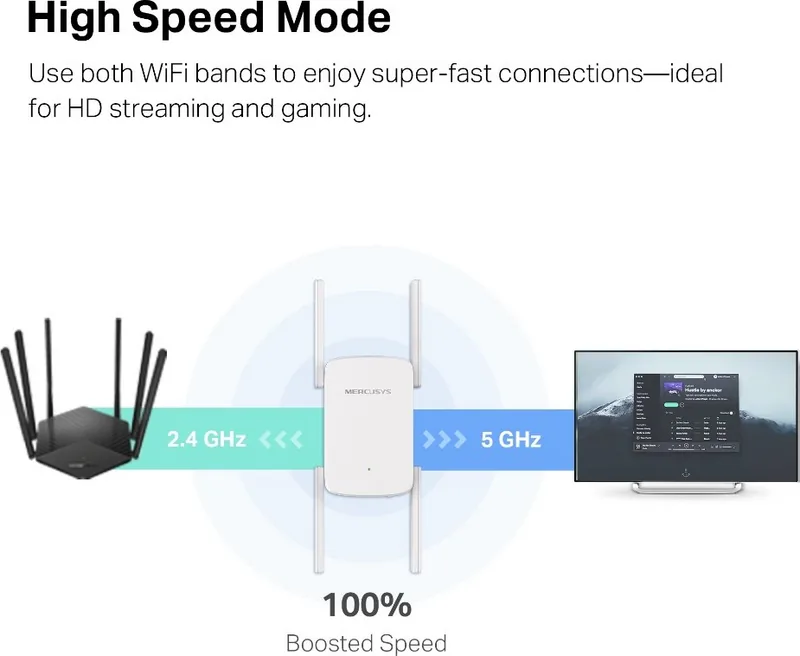
High Speed mode dedicates a single wireless band to maximize performance for HD streaming and gaming. Use it when most devices use one band or when you need a high‑performance network segment. Ensure both bands are enabled before switching modes and confirm client compatibility if disabling 2.4 GHz.
Is this answer helpful?
To restore factory defaults, power on the extender and press and hold the RESET/WPS button for more than 5 seconds until the Signal LED turns off. Alternatively, log in to the web interface and go to Settings > System Tools > Backup & Restore > FACTORY RESTORE. After reset, recreate the login password during setup.
Is this answer helpful?
Yes. Connect your computer via Ethernet, log in at http://mwlogin.net, choose Change Mode and select Access Point Mode. After reboot, configure SSID and password under Quick Setup, then connect the extender to your modem or wired router via Ethernet to provide Wi‑Fi.
Is this answer helpful?
Download the correct firmware for your hardware version from mercusys.com, then log in to http://mwlogin.net and go to Settings > System Tools > Firmware Upgrade. It’s recommended to back up current configuration (Backup & Restore) before upgrading and use a wired connection for reliability.
Is this answer helpful?
Use Access Control in the web interface to create a blacklist or whitelist by MAC address to block or permit devices. For timed power or LED control, use Power Schedule and LED Control under Advanced Settings to define off periods based on the extender's system time.
Is this answer helpful?
Advantages and Disadvantages
Advantages

- Dual‑band AC1900 performance supports smoother streaming and online gaming across 2.4 GHz and 5 GHz.
- Multiple setup options: web wizard, WPS, or MERCUSYS app for quick and flexible installation.
- High Speed mode dedicates one band for maximum throughput in latency‑sensitive scenarios.
- Ethernet port enables wired devices (smart TV, game console) to join the extended network.
- Comprehensive web management: DHCP, LAN settings, access control, scheduling, and firmware upgrades.
Disadvantages

- Actual throughput and coverage depend heavily on environment, placement, and client limitations.
- Some features and LED behaviors may vary by hardware revision or firmware version.
- Indoor use only; regulatory restrictions limit certain outdoor or vehicle installations.
- Blocking wired clients via Access Control is not supported.
- Firmware upgrades should be done via wired connection to avoid upgrade failures.
Product Specification
LAN
1x 1000Base-TX
Wireless
WLAN 802.11a/b/g/n/ac (Wi-Fi 5), simultaneous
Transfer rate
600Mbps (2.4GHz), 1300Mbps (5GHz)
Security
WPA, WPA2, WPA3, WPS
Antennas
4x external
Ports
N/A
Power consumption
12W (consumption, operation), no information (max. power supply output)
Dimensions
3.33x3.15x4.41in
Special features
MU-MIMO
Band capability
Dual Band (simultaneous)
Transfer rate 802.11n (Wi-Fi 4) 2.4GHz
600Mbps (Spatial Streams: 3x3, Bandwidth: 40MHz, Modulation: 256-QAM)
Transfer rate 802.11ac (Wi-Fi 5) 5GHz
1300Mbps (Spatial Streams: 3x3, Bandwidth: 80MHz, Modulation: 256-QAM)
Product Description
MERCUSYS ME50G, AC1900 Manual — Powerful Wi‑Fi Extension for Home and Small Office
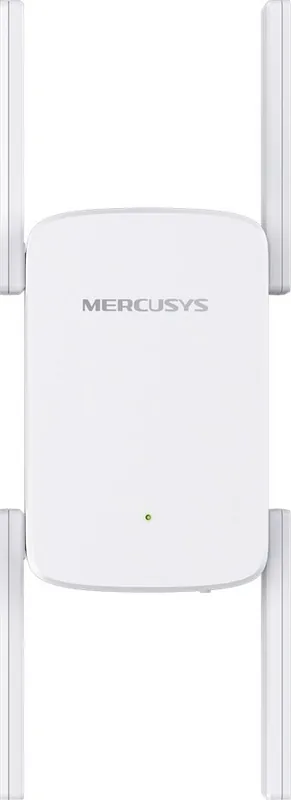
The MERCUSYS ME50G AC1900 is a dual‑band Wi‑Fi range extender designed to amplify your existing wireless network, fill dead zones, and deliver more consistent throughput for streaming, gaming, and everyday browsing. With combined AC1900 speeds across 2.4 GHz and 5 GHz bands, multicolor signal LEDs for optimal placement, and flexible setup methods (web wizard, WPS, or MERCUSYS app), the ME50G aims to be an easy, affordable way to expand coverage without replacing your router.
Key features and how it helps
The ME50G connects to your host router wirelessly and rebroadcasts the network to reach rooms or floors with weak signal. The unit offers distinct 2.4 GHz and 5 GHz bands, a High Speed mode that dedicates a single band for maximum performance, and an Ethernet port to connect wired devices like smart TVs or consoles. LEDs guide placement—green for strong connection, orange for marginal, and red for no link—so you can relocate the extender to maximize coverage.
Setup is straightforward: use the Quick Setup wizard via http://mwlogin.net, press WPS for one‑step pairing, or configure through the MERCUSYS mobile app. The web interface allows deeper customization: change SSIDs, hide broadcasts, manage DHCP and LAN IPs, enable access control (whitelist/blacklist), schedule power or LED behavior, and perform firmware upgrades and backups. The device also supports Access Point mode to create Wi‑Fi from a wired connection.
Performance and management
The ME50G’s AC1900 rating indicates theoretical peak rates derived from IEEE 802.11 specs; real‑world throughput depends on environment, interference, and client capabilities. Administrative tools help optimize performance: High Speed mode concentrates traffic on a single band for latency‑sensitive tasks, Wi‑Fi Coverage settings tune transmit power, and access controls let you restrict devices or time windows for internet access. Firmware upgrades and configuration backup/restore keep the unit secure and easy to maintain.
Safety, compliance, and usage notes
The extender is intended for indoor use and complies with regional regulatory limits for RF exposure when kept the recommended distance from the body. Standard safety advice applies: avoid moisture and heat, do not disassemble, ensure proper grounding of power outlets, and keep the device away from pacemakers and other sensitive medical devices. Recycling marks and restricted substance information reflect environmental compliance.
Notes:
- Best placement is halfway between your router and the dead zone; LED colors indicate optimal positioning.
- When enabling High Speed mode, confirm your clients support the selected band (especially 5 GHz).
- Back up configuration before firmware upgrades or factory resets.
Search for 67,706 Manuals online


Type-in Brand or Model