Manual.ly Logo

MERCUSYS Desktop Gigabit Switch Manual

0.0 · 0 Ratings

PDF manual · 2 Pages

English

M: gpt-5.6-terra
page

/ 2

Loading...
59e9b6b27e2002b11ce85a1ede466dcdff5a page 1
7107500096 REV2.0.0
Installation Guide
Desktop Switch
* MS108 is used for demonstration in this guide.
Image may differ from actual product.
Connection Diagram
Bahasa Indonesia
Penjelasan LED
Hubungkan perangkat keras sesuai dengan diagram koneksi.
Power
On: Daya nyala.
Off: Daya mati.
Port Ethernet
On: Port terhubung.
Berkedip: Port sedang mengirim atau menerima
data.
Off: Daya mati.
Български
Обяснение на работата на светодиодите (LED)
Свържете хардуера съгласно схемата за свързване.
Захранване
Свети: Захранването е включено.
Не свети: Захранването е изключено.
Ethernet портове
Свети: Портът е свързан.
Мига: Портът изпраща или приема данни.
Не свети: Портът не е свързан.
Čeština
Popis LED
Připojte hardware podle diagramu připojení.
Napájení
Svítí: Napájení je zapnuto.
Nesvítí: Napájení je vypnuto.
Ethernet porty
Svítí: Port je připojen.
Bliká: Port odesílá nebo přijímá data.
Nesvítí: Port není připojen.
12345678
LAN PortWAN Port
Router
Switch
Internet
PC
Power Adapter
Ethernet Ports
LED Explanation
Connect the hardware according to the connection diagram.
Explicación del LED
Alimentación
Encendido: La alimentación está encendida.
Apagado: La alimentación está desconectada.
Puertos Ethernet
Encendido: El puerto está conectado.
Parpadeo: El puerto está enviando o recibiendo
datos.
Apagado: El puerto no está conectado.
Español (Latinoamérica)
Conecte el equipo de acuerdo con el diagrama de conexión.
Eesti
LED-tulede selgitus
Ühendage riistvara vastavalt ühendusskeemile.
Toide
On: Toide on sees.
Off: Toide on väljas.
Etherneti pordid
On: Port on ühendatud.
Vilgub: Port saadab andmeid või võtab neid vastu.
Off: Port ei ole ühendatud.
Latviešu
Gaismas diožu nozīmes skaidrojums
Pievienojiet aparatūru saskaņā ar pievienošanas shēmu.
Barošana
Ieslēgts: barošana ir ieslēgta.
Izslēgts: barošana ir izslēgta.
Ethernet pieslēgvietas
Ieslēgts: pieslēgvieta pieslēgta.
Mirgo: pieslēgvieta sūta vai saņem datus.
Izslēgts: pieslēgvieta nav pieslēgta.
Lietuvių
LED Aprašymas
Prijunkite įrenginį pagal prijungimo schemą.
Galia
Įjungta: maitinimas įjungtas.
Išjungta: maitinimas išjungtas.
Eterneto uostai
Įjungta: Uostas yra prijungtas.
Mirksi: uostas siunčia arba priima duomenis.
Išjungta: Uostas nėra prijungtas.
Magyar
LED magyarázatz
Kösse össze az eszközt a mellékelt diagram alapján.
Készenélt
Világít: az eszköz be van kapcsolva.
nem világít: az eszköz ki van kapcsolva.
Ethernet csatlakozók
Világít: a port csatlakoztatva van.
Villog: A port adatot küld vagy fogad.
nem világít: a port nincs csatlakoztatva.
Polski
Opis diod
Podłącz urządzenia tak jak pokazano na ilustracji.
Zasilanie
Świeci się: Urządzenie jest włączone.
Nie świeci się: Urządzenie jest wyłączone.
Porty Ethernet
Świeci się: Do portu podłączone jest urządzenie.
Miga: Port wysyła lub odbiera dane.
Nie świeci się: Do portu nie ma podłączonego
urządzenia.
Português
Explicações sobre LEDs
Conecte o hardware de acordo com o diagrama de conexão.
Energia
Aceso: O dispositivo está ligado.
Apagado: O dispositivo está desligado.
Portas Ethernet
Aceso: A porta está conectada.
Piscando: A porta está enviando ou recebendo
dados.
Apagado: A porta não está conectada.
Русский язык
Питание
Подключите устройство согласно указанной схеме.
Питание
Горит: Питание есть.
Не горит: Питания нет.
Порты Ethernet
Горит: Порт подключён.
Мигает: Через порт происходит
передача/приём данных.
Не горит: Порт не подключён.
Kết nối phần cứng theo sơ đồ kết nối.
Română
Semnicație LED-uri
Conectează dispozitivele conform diagramei de conectare.
Alimentare
Aprins: dispozitivul este pornit.
Stins: dispozitivul este oprit.
Porturi Ethernet
Aprins: Portul este conectat.
Iluminează intermitent: Portul trimite sau
primește date.
Stins: Portul nu este conectat.
Slovenčina
Vysvetlenie funkcie diód LED
Hardvér pripojte podľa schémy pripojenia.
Napájanie
Zap: Napájanie je zapnuté.
Vyp: Napájanie je vypnuté.
Porty Ethernet
Zap: Port je pripojený
Blikanie: Port odosiela alebo prijíma údaje.
Vyp: Port nie je pripojený.
Srpski jezik/Српски језик
Objašnjenje LED signala
Povežite uređaj u skladu sa šemom povezivanja.
Napajanje
Uključeno: Uređaj je uključen.
Isključeno: Uređaj je isključen.
Ethernet priključci
Uključeno: Priključak je povezan.
Treperenje: Uređaj šalje ili prima podatke.
Isključeno: Priključak nije povezan.
Tiếng Việt
Giải thích đèn LED
Nguồn
Mở: Nguồn mở.
Tắt: Nguồn tắt
Cổng Ethernet
Mở: Cổng đã được kết nối.
Chớp: Cổng đang gửi và nhận dữ liệu.
Tắt: Cổng không được kết nối.
Hrvatski
Objašnjenje za LED
Povežite hardver u skladu s dijagramom povezivanja.
Napajanje
Uključeno: napajanje je uključeno.
Isključeno: napajanje je isključeno.
Priključci za Ethernet
Uključeno: priključak je povezan.
Treperi: priključak šalje ili prima podatke.
Isključeno: priključak nije povezan.
FAQ (Frequently Asked Questions)
A1: Make sure that the cable connectors are firmly plugged into the
switch and the device.
A2: Make sure the connected device is turned on and working
properly.
A3: The cable must be less than 100 meters long (328 feet).
Q2. What should I do if the Ethernet LED is off when a device is
connected to the corresponding port?
A1: Make sure the power adapter is connected to the switch with
power source properly.
A2: Make sure the voltage of the power supply meets the
requirements of the input voltage of the switch.
A3: Make sure the power source is ON.
Q1. What should I do if the Power LED is off ?
Power
On: The power is on.
O: The power is off.
Ethernet Ports
On: The port is connected.
Blinking: The port is sending or receiving data.
O: The port is not connected.
12345678
Power
Explicación de los LEDs
Conecte el hardware a corde al diagrama de conexión.
On: El power está encendido.
Off: El power está apagado.
Puertos Ethernet
On: El puerto está conectado.
Parpadeando: El puerto está enviando o recibiendo
datos.
Off: El puerto no está conectado.
Español
Spiegazione LED
Connettete l'hardware secondo il diagramma di connessione.
Power
Acceso: lo switch è acceso.
Spento: lo switch è acceso.
Porte Ethernet
Acceso: la porta è connessa.
Lampeggiante: la porta sta inviando o ricevendo dati.
Spento: la porta non è connessa.
Italiano

Chat with your MERCUSYS Desktop Gigabit Switch manual using AI

Get instant AI answers from your MERCUSYS Desktop Gigabit Switch manual

Ask anything about the MERCUSYS Desktop Gigabit Switch. Answers come from this manual, with the pages they are based on.

Ask a Question

0/1000

Do you recommend Desktop Gigabit Switch?

Yes No

Frequently Asked Questions

A

Connect a LAN port on your router to an Ethernet port on the switch. Then connect PCs or other compatible wired devices to the remaining Ethernet ports. Attach the power adapter to the switch and a suitable active power source.

Is this answer helpful?

A

A blinking Ethernet LED indicates that the corresponding port is sending or receiving data. A steady LED indicates an active device connection, while an unlit LED indicates that no active connection is detected on that port.

Is this answer helpful?

A

Check that the power adapter is firmly connected to both the switch and the power source. Confirm that the outlet is switched on and that the power supply voltage meets the switch input requirements.

Is this answer helpful?

A

Make sure the Ethernet cable connectors are firmly plugged into the switch and the connected device. Verify that the device is powered on and functioning correctly. Also confirm that the cable length is less than 100 meters (328 feet).

Is this answer helpful?

A

Yes. The switch is intended to expand wired connectivity by linking to a router and providing additional Ethernet ports for connected equipment such as PCs and other network-ready devices.

Is this answer helpful?

A

Use the switch indoors in a dry, accessible location near the router and connected equipment. Keep it away from water, fire, humidity, and hot environments. Do not block ventilation openings or place it in an enclosed area without suitable airflow.

Is this answer helpful?

M: gpt-5.6-terra

Advantages and Disadvantages

Advantages

  • Eight RJ-45 Ethernet ports provide a convenient way to expand a wired network from a router.
  • Power and per-port LEDs show power, active connections, and data activity at a glance.
  • Straightforward router-to-switch connection layout supports quick basic installation.
  • Desktop form factor is suitable for convenient indoor placement near network equipment.
VS

Disadvantages

  • The supplied details do not describe advanced management, configuration, or monitoring features.
  • A wired setup requires Ethernet cables and compatible devices at each connection point.
  • An external power adapter and a nearby accessible power outlet are required.
  • Each Ethernet cable run should remain under 100 meters (328 feet).
M: gpt-5.6-terra

Product Specification

Function

Switch

Type

Standalone

Network Ports

8x RJ-45

Speeds

8x RJ-45 (10/100/1000Base-T)

PoE

N/A

Backplane

9 KB jumbo frames, 64 KB packet buffer

Officially Supported Standards

802.3, 802.3u, 802.3x

Configuration

Unmanaged

Cooling

Passive

Dimensions (W x H x D)

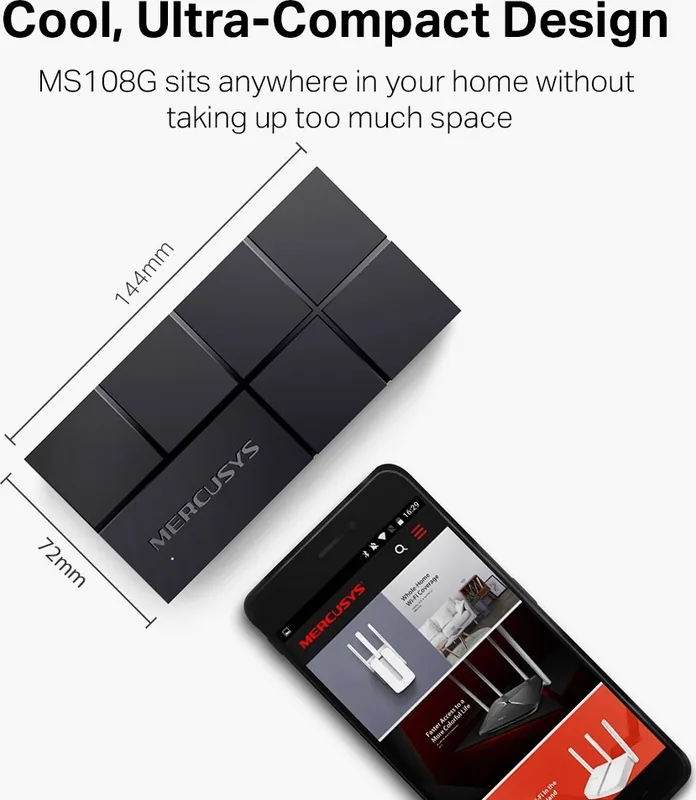
5 x 0.87 x 2.37 in

Color

Black

Special Features

External power supply

M: gpt-5.6-terra

Product Description

MERCUSYS Desktop Gigabit Switch, 8x RJ-45 - Read, Download & Print Free

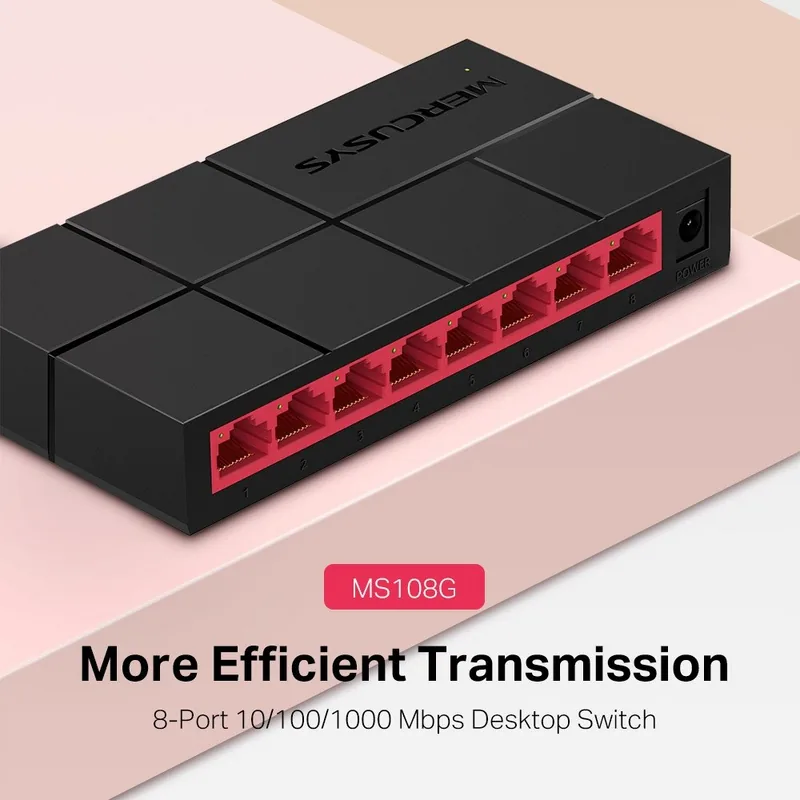
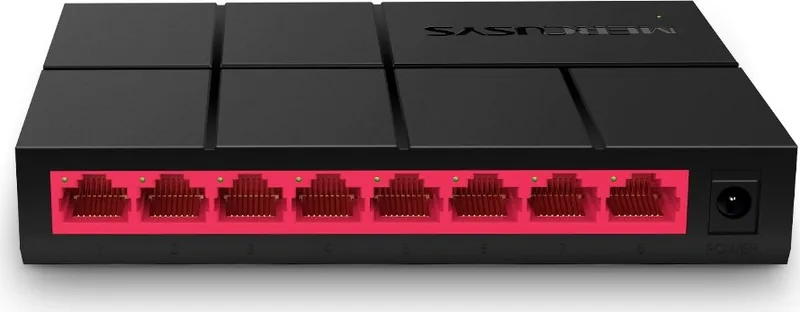
The MERCUSYS Desktop Gigabit Switch, 8x RJ-45 is a practical wired networking solution for expanding connections around a home, small office, study area, or shared workspace. With eight RJ-45 Ethernet ports, it helps bring multiple wired devices together through one straightforward central point. Connect a router to the switch, then attach PCs and other compatible network equipment to create a tidy, dependable local network.

Simple wired network expansion

This desktop switch is designed for an uncomplicated setup. The connection layout places the switch between a router and your wired devices: connect the router's LAN port to the switch, then use the remaining Ethernet ports for computers and other network-ready equipment. It is a useful option when the number of available router ports is not enough for a growing collection of wired devices.

The compact desktop format makes placement flexible. It can sit near a router, on a desk, or in another convenient indoor location where cables can be organized comfortably. A power adapter supplies power to the switch, so ensure the adapter is accessible and connected to a suitable power source.

Clear LED status indicators

Built-in LEDs make everyday connection checks easier. The Power LED shows whether the switch is receiving power. Each Ethernet port also has a status indicator: a steady light means a device is connected, while a blinking light shows that data is being sent or received. When an Ethernet LED is off, the corresponding port does not have an active connection.

These simple indicators can help identify basic setup issues without extra tools. If an Ethernet light stays off after a device is connected, check that both cable ends are firmly seated, the connected device is powered on, and the Ethernet cable length does not exceed 100 meters (328 feet). If the Power LED is off, confirm that the adapter is properly attached, the outlet is active, and the supply voltage meets the switch requirements.

Made for everyday connectivity

The MERCUSYS Desktop Gigabit Switch, 8x RJ-45 suits users who prefer stable physical network connections for fixed devices. Its port-based layout keeps expansion easy to understand, while status LEDs provide immediate feedback on power, link status, and activity. It is a focused choice for organizing wired connections without unnecessary complexity.

Notes

  • Keep the switch away from water, fire, high humidity, and excessive heat.
  • Do not disassemble, repair, or modify the equipment.
  • Use the manufacturer-provided or recommended power supply.
  • Place the adapter near the equipment where it remains easy to access.
  • Recycle the product through an appropriate electronic-waste collection route when it reaches end of life.
M: gpt-5.6-terra

© Copyright 2026 Manual.ly
