Manual.ly Logo

Logitech M235 Manual

4.9 · 21 Ratings

PDF manual · 2 Pages

English

M: QW-35-FL
page

/ 2

Loading...
145e72f056e377b8d8028c19ea920c617704 page 1
Getting started with
Logitech
®
Wireless Mouse M235
OnOn
1
2
3
Getting started with
Logitech
®
Wireless Mouse M235
English
Features
1. Left and right mouse buttons
2. Battery LED flashes red when battery power
is low
3. Scroll wheel
4. Press the wheel down for middle button
(function can vary by software application)
5. On/Off slider switch
6. Battery door release
7. USB Nano-receiver storage
Deutsch
Funktionen
1. Linke und rechte Maustaste
2. Die Batterie-LED blinkt rot, wenn die Batterie
schwach ist.
3. Tastenrad
4. Drücken Sie das Tastenrad, um die Funktion
der mittleren Taste (je nach Anwendung
unterschiedlich) auszuführen.
5. Ein-/Ausschalter
6. Batteriefachdeckel
7. USB-Nano-Empfängerfach
Français
Fonctions
1. Boutons gauche et droit de la souris
2. Le témoin lumineux clignote en rouge lorsque
le niveau de charge de la pile est faible
3. Roulette de défilement
4. Appuyez sur la roulette pour l’utiliser
comme bouton central (la fonction varie
selon l’application logicielle)
5. Commutateur Marche/Arrêt
6. Bouton d’ouverture du compartiment des piles
7. Boîtier du nano-récepteur USB
По-русски
Описание
1. Левая и правая кнопки мыши
2. Светодиодный индикатор батареи
мигает красным светом при низком уровне
заряда батареи
3. Колесико прокрутки
4. Нажмите колесико, чтобы использовать его
как среднюю кнопку (функция может меняться
в зависимости от используемого приложения)
5. Выключатель
6. Открывание крышки батарейного отсека
7. Отсек для хранения наноприемника USB
Po polsku
Funkcje
1. Lewy i prawy przycisk myszy
2. Dioda LED baterii pulsująca czerwonym światłem
przy niskim poziomie naładowania
3. Kółko przewijania
4. Naciśnięcie kółka przewijania udostępnia funkcje
przycisku środkowego (działanie różni się
w zależności od aplikacji)
5. Suwak wyłącznika
6. Przycisk zwalniający drzwiczki komory na baterie
7. Schowek nanoodbiornika USB
Українська
Функції
1. Ліва та права кнопки миші
2. Якщо рівень заряду акумулятора низький,
індикатор заряду блимає червоним
3. Коліщатко
4. Натисніть коліщатко для виконання функції
середньої кнопки (функція може змінюватись
залежно від програмного забезпечення)
5. Перемикач увімкнення/вимкнення
6. Фіксатор відділення для акумуляторів
7. Відділення для USB міні-приймача
Magyar
Jellemzők
1. Jobb és bal egérgomb
2. A töltöttségjelző LED piros villogással jelzi
az alacsony töltöttséget
3. Görgetőkerék
4. A kerék lenyomása középső gombként szolgál
(funkciója alkalmazásonként eltérhet)
5. Eltolható Be- és kikapcsológomb
6. Elemtartó rekesz nyitógombja
7. Az USB-csatlakozású Nano vevőegység
tárolórekesze
Slovenčina
Funkcie
1. Ľavé a pravé tlačidlo myši
2. Ak je batéria takmer vybitá, kontrolka LED úrovne
nabitia batérie bliká načerveno
3. Posúvacie koliesko
4. Po stlačení slúži koliesko ako stredné tlačidlo
myši (táto funkcia sa môže líšiť v závislosti
od softvérovej aplikácie)
5. Posuvný prepínač napájania
6. Uvoľňovacie tlačidlo krytu priestoru pre batériu
7. Úložný priestor pre nanoprijímač USB
Български
Функции
1. Ляв и десен бутон на мишката
2. Светодиодът за батерията мига в червено,
когато батерията е изтощена
3. Колелце за превъртане
4. Натискайте колелцето надолу като среден бутон
(тази функция може да е различна в различните
софтуерни приложения)
5. Плъзгач Вкл./Изкл.
6. Бутон за освобождаване на капачето за батериите
7. Отделение за USB нано-приемника
Română
Funcţii
1. Butoanele din stânga şi din dreapta mouse-ului
2. LED-ul bateriei luminează intermitent dacă nivelul
de energie al bateriei este scăzut
3. Rotiţă de defilare
4. Apăsaţi pe rotiţă în jos pentru funcţia
butonului din mijloc (funcţionarea poate depinde
de aplicaţia de software)
5. Buton glisant On/Off (Pornit/Oprit)
6. Uşiţă de scoatere a bateriei
7. Stocare nanoreceptor USB
Hrvatski
Značajke
1. Lijeva i desna tipka miša
2. LED lampica baterija bljeska crveno kada
su baterije slabe
3. Kotačić za listanje
4. Pritisnite kotačić prema dolje za srednju tipku
(funkcija se može razlikovati ovisno o softverskoj
aplikaciji)
5. Klizni prekidač za uključivanje i isključivanje
6. Otvaranje vratašca odjeljka za baterije
7. Spremnik USB nanoprijamnika
Srpski
Funkcije
1. Levi i desni taster miša
2. LED baterije trepti crvenom bojom kada je baterija
pri kraju
3. Točak za pomeranje
4. Pritisnite točak za funkcije srednjeg tastera
(funkcije se mogu razlikovati u zavisnosti
od softverske aplikacije)
5. Klizač za uključivanje/isključivanje
6. Dugme za otvaranje poklopca
7. Odeljak USB Nano-prijemnika
Slovenščina
Funkcije
1. Leva in desna tipka miške
2. Ko začne primanjkovati energije v bateriji,
lučka LED za baterijo utripa rdeče
3. Drsno kolesce
4. Kolesce pritisnite navzdol za funkcijo
sredinske tipke (funkcija se glede na programsko
opremo lahko razlikuje)
5. Drsno stikalo za vklop/izklop
6. Zatič vratc prostora za baterijo
7. Shramba za sprejemnik USB Nano
Eesti
Kirjeldus
1. Vasak ja parem hiireklahv
2. LED-patareituli vilgub punaselt, kui patarei hakkab
tühjaks saama
3. Kerimisratas
4. Keskmise nupu funktsiooni kasutamiseks vajutage
kerimisratas alla (funktsioon võib erineda olenevalt
kasutatavast tarkvararakendusest)
5. Sisse/välja liuglüliti
6. Aku kaane vabastamine
7. USB Nano-vastuvõtja hoidik
Latviski
Funkcijas
1. Kreisā un labā peles poga
2. Bateriju indikators mirgo sarkanā krāsā, ja baterijas
ir gandrīz tukšas
3. Ritenītis
4. Nospiediet ritenīti, kas darbojas kā vidējā poga
(funkcija var atšķirties atkarībā no programmatūras
lietojumprogrammas)
5. Bīdāms ieslēgšanas/izslēgšanas slēdzis
6. Bateriju nodalījuma vāciņa noņemšana
7. USB nanotehnoloģijas uztvērēja krātuve
Lietuvių
Funkcijos
1. Kairysis ir dešinysis dešinysis pelės klavišai
2. Senkant baterijai, raudonai mirksi jos indikatorius
3. Slinkties ratukas
4. Spauskite ratuką, kad galėtumėte naudoti vidurinį
mygtuką (funkcija gali skirtis atsi˛velgiant į
naudojamą programinę įrangą)
5. Įjungimo / išjungimo slankiojamasis jungiklis
6. Baterijų durelių atidariklis
7. USB nanoimtuvo atmintinė
Italiano
Caratteristiche
1. Pulsanti sinistro e destro del mouse
2. LED della batteria che lampeggia di rosso
quando il livello di carica è basso
3. Scroller
4. Premere lo scroller per le funzioni del pulsante
centrale (la funzionalità può variare in base
all’applicazione software)
5. Interruttore scorrevole di accensione/
spegnimento
6. Rilascio del coperchio del vano batteria
7. Alloggiamento del ricevitore Nano USB
Česká verze
Funkce
1. Levé a pravé tlačítko myši
2. Pokud je baterie vybitá, bliká indikátor červeně
3. Kolečko pro posuv
4. Stisknutím kolečka aktivujete funkci prostředního
tlačítka (v závislosti na softwarové aplikaci se může
jeho funkce lišit)
5. Posuvný vypínač napájení
6. Tlačítko pro otevření krytu baterií
7. Úložný prostor pro nanopřijímač USB
3
4
1
2
5
7
6
AA
www.logitech.com
© 2010 Logitech. All rights reserved. Logitech, the Logitech logo, and other Logitech marks are owned
by Logitech and may be registered. All other trademarks are the property of their respective owners.
Logitech assumes no responsibility for any errors that may appear in this manual. Information contained herein
is subject to change without notice.
620-003145.003

Chat with your Logitech M235 manual using AI

Get instant AI answers from your Logitech M235 manual

Ask anything about the Logitech M235. Answers come from this manual, with the pages they are based on.

Ask a Question

0/1000

Do you recommend M235?

Yes No
0
User Pic

Daniel Weber

6 months ago

Is this mouse too small for users with larger hands?

0
User Pic

Manual.ly

6 months ago

Yes, the Logitech M235 is designed as a compact laptop mouse. While it fits well in smaller to medium hands and offers excellent portability, several customers noted it may feel too small for those with large hands or larger glove sizes. It is ideal for travel and notebook use but might not provide the same comfort as standard-sized mice for extended use by users with bigger hands.

M: QW-35-FL
M: QW-35-FL
0
User Pic

Sarah Klein

5 months ago

Does the mouse come with batteries included and how long do they last?

M: QW-35-FL

Frequently Asked Questions

A

Locate the On/Off slider switch on the bottom of the mouse and slide it to the On position. The mouse will immediately begin searching for the connected USB receiver.

Is this answer helpful?

A

The Logitech M235 uses a single standard AA battery. It typically provides up to twelve months of usage depending on how frequently you use the device.

Is this answer helpful?

A

No, the mouse works instantly upon connecting the USB Nano receiver. No additional drivers or software are required for basic functionality on most operating systems.

Is this answer helpful?

A

Yes, pressing the scroll wheel down activates the middle button function. This feature may vary slightly depending on the specific software application you are using.

Is this answer helpful?

A

A flashing red light indicates that the battery power is low. You should replace the AA battery soon to ensure continuous operation without interruption.

Is this answer helpful?

A

The mouse features a dedicated storage compartment on the underside. Slide open the battery door release to access the space where the USB Nano receiver can be stored securely.

Is this answer helpful?

M: QW-35-FL

Advantages and Disadvantages

Advantages

  • Plug-and-play setup requires no driver installation
  • Long-lasting battery life up to 12 months on a single AA cell
  • Compact design includes dedicated storage for the USB receiver
VS

Disadvantages

  • Lacks advanced programmable buttons for power users
  • No adjustable DPI settings for varying speed preferences
  • Basic scroll wheel without hyper-fast scrolling mode
M: QW-35-FL

Product Specification

Suitability

both hands (left hand, right hand)

Keys

3 (total), 2 (main), 1 (scroll wheel click)

Scroll Wheel

1x 2-way

Scanning

LED-red/IR

Resolution

1000 dpi

Lighting

N/A

Connection

wireless (2.40GHz), USB-A (USB-A receiver)

Power Supply

1x AA

Dimensions (WxDxH)

2.17x1.54x3.74 in

Approximate Volume

3.23 cu in (approximate shape)

Weight

3.03 oz

Color

multicolor, gray/black

Features

battery level indicator, stowable receiver

Note

German/Eastern Europe packaging (EER2): 910-002201, Western Europe packaging (EEA2): 910-002203

M: QW-35-FL

Product Description

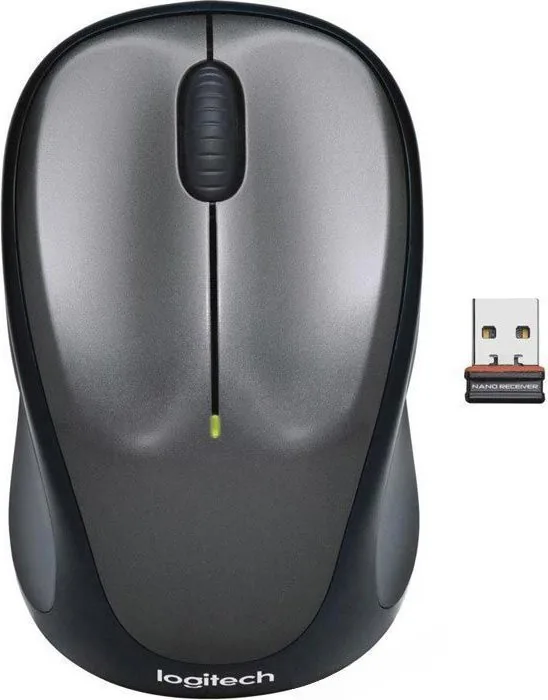
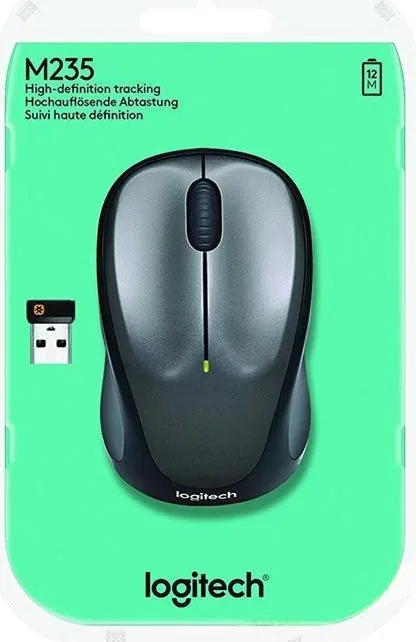
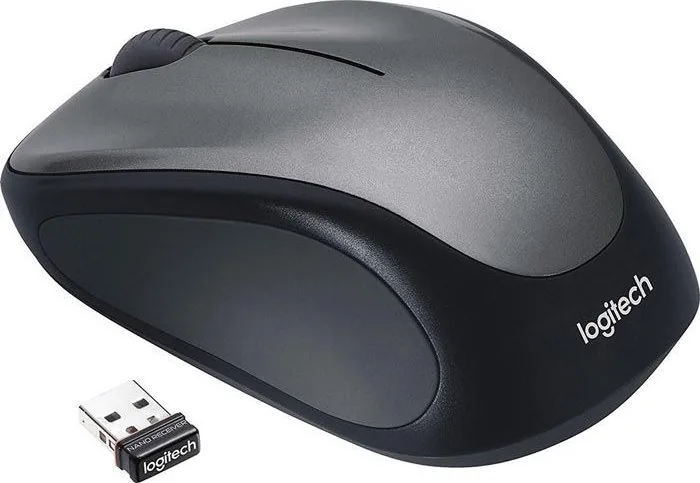
Experience Seamless Wireless Control with the Logitech M235

The Logitech M235 Wireless Mouse in a sleek gray and black finish represents the perfect blend of reliability and comfort for everyday computing tasks. Designed with simplicity in mind, this mouse offers a plug-and-play experience that eliminates the need for complex drivers or software installations. Simply insert the included USB Nano receiver into your computer, slide the power switch to on, and you are ready to go. The ergonomic design fits naturally in your hand, reducing strain during long hours of work or gaming.

One of the standout features is the intuitive scroll wheel, which allows for smooth navigation through documents and web pages. Users can also press the wheel down to utilize it as a middle button, adding versatility for specific software applications. The device is powered by a single AA battery, providing up to twelve months of use before needing a replacement. A helpful LED indicator flashes red when the battery level drops, ensuring you are never caught off guard by a sudden power loss. The compact storage compartment keeps the USB Nano receiver safe when not in use, preventing loss or damage.

Setting up the mouse is incredibly straightforward, but if you encounter issues, there are several troubleshooting steps to consider. Ensure the mouse is turned on and the battery is inserted with the correct polarity. If the cursor does not move, try plugging the receiver directly into a USB port rather than using a hub, and ensure there are no metallic objects blocking the signal between the mouse and the receiver. For Windows users, the Connect utility can help re-establish the connection if needed. Whether you are working from home or in an office, the Logitech M235 delivers consistent performance and durability.

Important Notes

  • Always check battery orientation before installation.
  • Keep the USB receiver away from metal objects to maintain signal strength.
  • Use the Connect utility on Windows to reset connections if problems arise.
M: QW-35-FL

© Copyright 2026 Manual.ly